
Keychron C1G1
Keychron C1 Wired Mechanical Keyboard User Manual
Model: C1G1
Бренд: Keychron
Introduction
The Keychron C1 is a tenkeyless (87-key) hot-swappable wired mechanical keyboard designed for both Mac and Windows operating systems. It features Gateron G Pro Red switches, double-shot ABS keycaps, and a white LED backlight. This manual provides instructions for setup, operation, maintenance, and troubleshooting to help you maximize your productivity and enjoyment with the C1 keyboard.

Image: Keychron C1 Tenkeyless Wired Mechanical Keyboard.
Пакеттин мазмуну
Пакетте бардык буюмдар бар экенин текшериңиз:
- Keychron C1 Wired Mechanical Keyboard
- USB Type-C - USB-A кабели
- Баскыч капкагын тарткыч
- Switch Puller
- Extra Keycaps for Windows OS
- Колдонуучунун Колдонмосу (бул документ)

Сүрөт: бүттүview of Keychron C1 features and included accessories.
Жайгашуу
1. Баскычтопту туташтыруу
The Keychron C1 uses a USB Type-C wired connection. Connect the provided USB Type-C cable to the port on the back of the keyboard and the other end to an available USB-A port on your computer. The keyboard is plug-and-play and should be recognized automatically by your operating system.
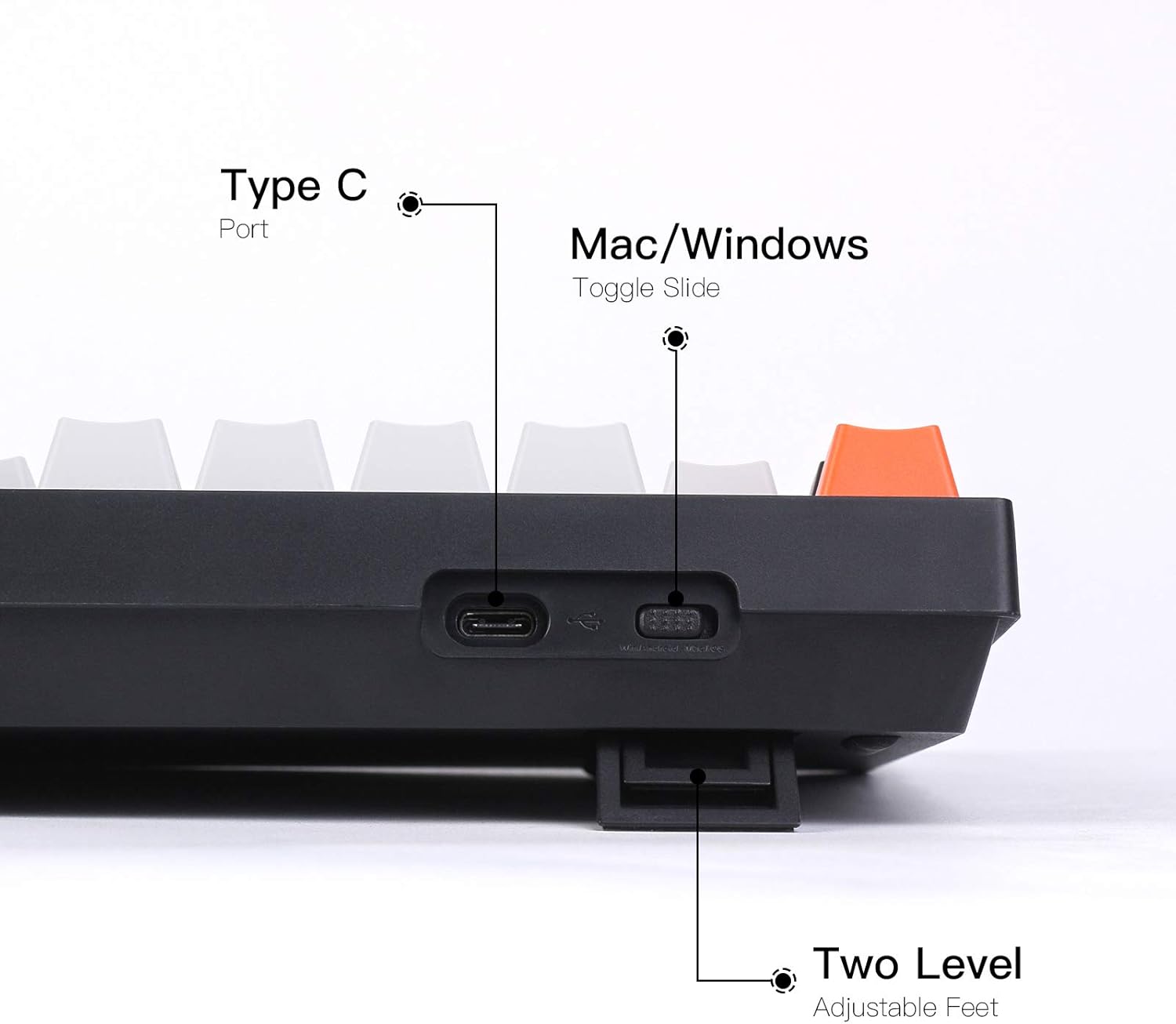
Image: Keyboard side view highlighting the Type-C port, OS toggle, and adjustable feet.
2. Операциялык системанын которгучу
The keyboard features a physical toggle switch on the back to select between Mac and Windows/Android operating system layouts. Ensure the switch is set to the correct position for your computer to ensure proper function of multimedia and function keys.

Image: Keyboard compatibility with Mac and Windows systems.
For Windows users, extra keycaps are included to replace the Mac-specific keys (e.g., Option, Command) with their Windows equivalents (e.g., Alt, Win). Use the provided keycap puller to swap these keycaps as needed.

Image: Detail of OS layout switch and Caps Lock indicator.
3. Жөнгө салынуучу буттар
The keyboard features two-level adjustable feet, allowing you to set the typing angle to your preference for ergonomic comfort. The keyboard also has an inclined bottom frame providing a default 9-degree angle for a natural typing posture.

Image: Keyboard side view illustrating the 9-degree inclined bottom frame.
Баскычтопту иштетүү
1. Негизги функциялар
The Keychron C1 is a standard 87-key tenkeyless layout. All standard alphanumeric, function (F1-F12), and navigation keys operate as expected based on your selected operating system. Multimedia keys are accessible via the Fn key combination (e.g., Fn + F7 for play/pause).
2. Арткы жарыкты башкаруу
The keyboard features a white LED backlight. Use the dedicated backlight control keys (typically Fn + F keys or a dedicated light key) to cycle through different lighting effects (flashing, breathing, static) and adjust brightness levels. Refer to the keyboard's keycap legends for specific backlight control functions.

Image: White LED Backlight in operation.
3. Ысык алмаштырылуучу коммутаторлор
The C1 hot-swappable version allows you to change mechanical switches without soldering. This feature enables customization of the typing experience. The keyboard is compatible with most MX style 3-pin and 5-pin mechanical switches (e.g., Gateron, Cherry, Kailh). The pre-installed switches are Gateron G Pro Red, known for their linear responsiveness.

Image: Hot-swappable feature showing removable switches.
4. Double-Shot ABS Keycaps
The keyboard is equipped with double-shot ABS keycaps. This manufacturing process ensures that the legends (characters) on the keycaps will not fade over time, and allows the backlight to shine through clearly, providing durable and aesthetically pleasing баскычтоптору.

Image: Detail of Double-shot ABS Keycaps.
Техникалык тейлөө
1. Тазалоо
To clean the keyboard, first disconnect it from your computer. Use a can of compressed air to remove dust and debris from between the keycaps. For surface cleaning, gently wipe the keycaps and frame with a soft, damp cloth. Avoid using harsh chemicals or abrasive materials that could damage the finish or legends.
2. Клавиатураны жана которгучту алмаштыруу
Use the provided keycap puller to carefully remove keycaps by hooking it onto the keycap and pulling straight up. To remove switches, use the switch puller. Align the switch puller with the clips on the top and bottom of the switch and gently pull upwards until the switch detaches from the socket. When installing new switches, ensure the pins are straight and align correctly with the hot-swappable sockets before pressing down firmly until it clicks into place. Similarly, press new keycaps firmly onto the switch stem.
Проблемаларды чечүү
Баскычтоп жооп бербейт
- USB Type-C кабелинин клавиатурага жана компьютериңизге бекем туташтырылганын текшериңиз.
- Баскычтопту компьютериңиздин башка USB портуна туташтырууга аракет кылыңыз.
- Verify that the Mac/Windows toggle switch on the back of the keyboard is set to the correct operating system.
- Restart your computer to refresh USB connections.
Арткы жарык иштебейт
- Check if the backlight is turned off or set to the lowest brightness level using the backlight control keys (refer to your keyboard's keycap legends).
- Ensure the keyboard is receiving sufficient power from the USB port. Try a different USB port if available.
Белгилүү бир баскычтар иштебей жатат
- If you have replaced switches, ensure the new switch is fully seated and its pins are not bent. Remove and reinsert the switch carefully.
- Carefully remove the keycap and switch for the non-functioning key and inspect the hot-swappable socket for any obstructions or damage.
Техникалык шарттар
| Өзгөчөлүк | Деталь |
|---|---|
| Модель номери | C1G1 |
| Макет | Ачкычсыз (87 ачкыч) |
| Байланыш | Wired USB Type-C |
| Которгучтар | Gateron G Pro Red (Hot-swappable) |
| Баскыч капкактары | Double-Shot ABS |
| Арткы жарык | Ак LED |
| Шайкештик | Mac, Windows, PC |
| Элемент Салмагы | 2.27 фунт (1.03 кг) |
| Пакеттин өлчөмдөрү | 15.28 x 7.09 x 2.05 дюйм (38.8 x 18.0 x 5.2 см) |
Кепилдик жана колдоо
Кепилдик маалымат
Keychron products typically come with a limited warranty covering manufacturing defects. Please refer to the official Keychron website or the warranty card included with your purchase for specific terms and conditions regarding warranty coverage and duration. Keep your proof of purchase for warranty claims.
Кардарларды колдоо
For technical assistance, troubleshooting beyond this manual, or warranty claims, please visit the official Keychron support page or contact their customer service. You can find up-to-date contact information and FAQs on the Keychron official webсайт.
Ask a question about this manual
Ask about setup, troubleshooting, compatibility, parts, safety, or missing instructions. Manuals+ will review the question and use this page’s manual context to help answer it.