
1. Киришүү
The J-Tech Digital JTECH-4KSP4 is a high-performance 1x4 HDMI splitter designed to distribute a single HDMI source to four HDMI displays simultaneously. It supports advanced features such as 4K@60Hz resolution, HDR10, Dolby Vision, and Multi-Resolution Output (MRO) for flexible display compatibility. This manual provides detailed instructions for setup, operation, and troubleshooting to ensure optimal performance.
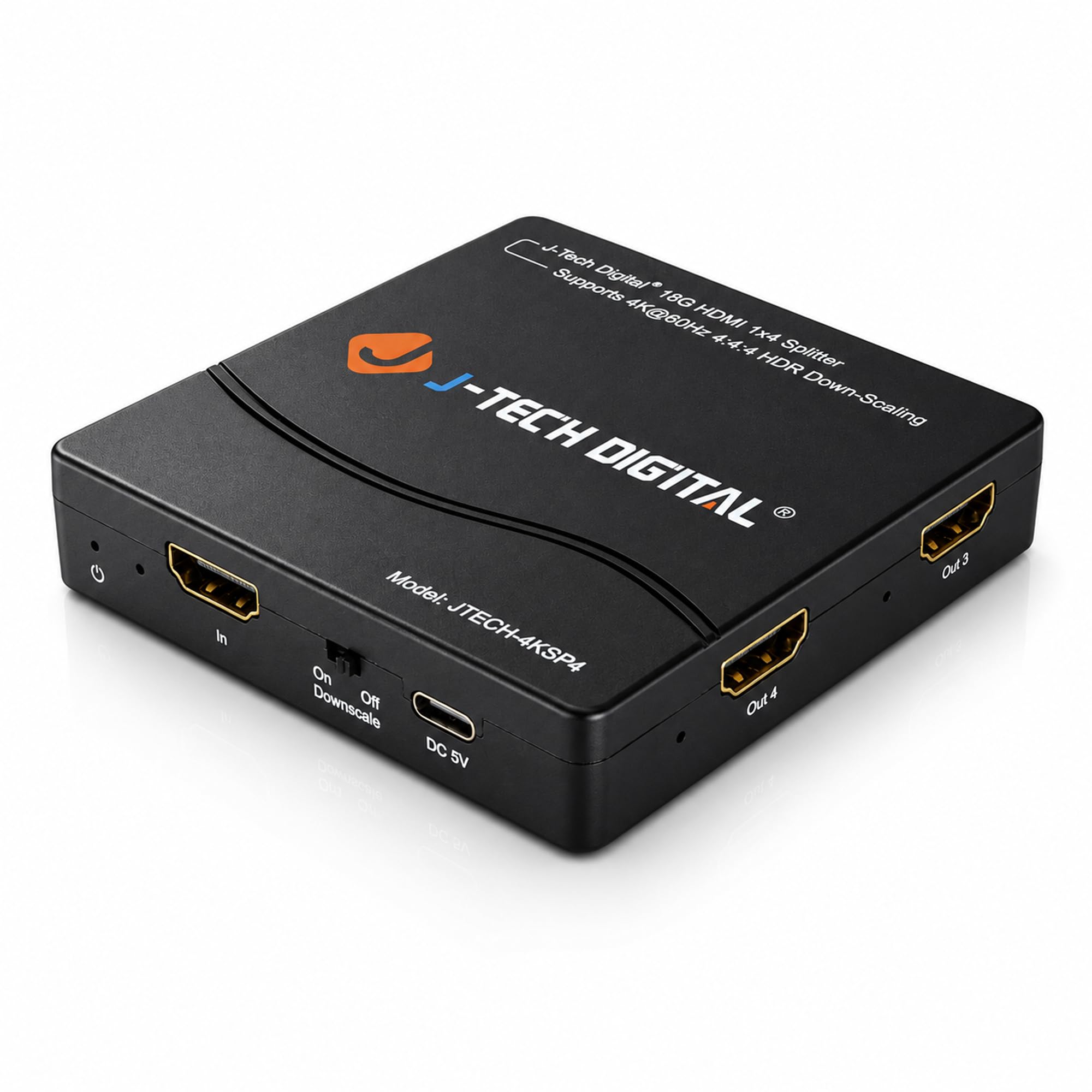
Image 1.1: J-Tech Digital HDMI Splitter JTECH-4KSP4. This compact device efficiently distributes a single HDMI source to four separate displays, supporting high-resolution video and audio.
2. Пакеттин мазмуну
Төмөндө тизмеленген нерселердин баары пакетиңизге камтылганын текшериңиз:
- 1x J-Tech Digital JTECH-4KSP4 HDMI Splitter
- 1x Power адаптер
- 1x Колдонуучунун колдонмосу

Image 2.1: Package contents for the JTECH-4KSP4 HDMI Splitter. The box includes the main splitter unit, a power adapter for operation, and a user manual for guidance.
3. Продукциянын өзгөчөлүктөрү
The JTECH-4KSP4 HDMI Splitter offers a range of features for enhanced audio and video distribution:
- 1 HDMI Input to 4 HDMI Outputs: Connect one HDMI source to four displays simultaneously.
- Multi-Resolution Output (MRO): Automatically adjusts output resolution, allowing 4K content to remain 4K on compatible displays while downscaling to 1080p for older screens.
- 4K@60Hz, HDR10 & Dolby Vision Support: Experience crystal-clear performance with full HDMI 2.0 support, 18Gbps bandwidth, HDR10, and Dolby Vision for enhanced contrast and vibrant colors.
- HDCP 2.3/2.2 Compliant: Ensures compatibility with modern streaming devices and gaming consoles.
- Seamless Audio & Smart EDID Copy: Supports HD audio formats like Dolby Atmos, Dolby TrueHD, DTS:X, DTS-HD, and PCM. The plug-and-play EDID copy function automatically detects and applies optimal settings from your primary display (priority: Output 1 > Output 2 > Output 3 > Output 4).

Image 3.1: Key features of the JTECH-4KSP4 HDMI Splitter. This image highlights its capabilities including 4K 60Hz resolution, 1080p downscaling, 1 input to 4 outputs, HDR support, HDMI 2.0, HDCP 2.3 compliance, and advanced audio/EDID management.
4. Бирдик интерфейси
Familiarize yourself with the ports and indicators on the JTECH-4KSP4 splitter:

Image 4.1: Unit interface of the JTECH-4KSP4 HDMI Splitter. This diagram shows the front panel with Power LED, HDMI Input LED, HDMI Input port, Downscaling Switch, and DC 5V Power port. The back and right panels display the four HDMI Output ports (Out 1-4) and their corresponding HDMI Output LEDs.
- Power LED: Түзмөк күйгүзүлгөнүн көрсөтөт.
- HDMI киргизүү LED: Активдүү HDMI киргизүү сигналы аныкталганда күйөт.
- HDMI киргизүү: Connect your HDMI source device here.
- Downscaling Switch: Toggles the 1080p downscaling function On or Off.
- DC 5V: Кубат киргизүү порту.
- HDMI Output 1-4: Connect your HDMI display devices here.
- HDMI Output LEDs: Indicate active connections to displays.
5. Орнотуу нускамалары
Follow these steps to set up your JTECH-4KSP4 HDMI Splitter:
- Өчүрүү түзмөктөрү: Туташтыруудан мурун, бардык HDMI булак түзмөктөрү жана дисплейлери өчүрүлгөнүн текшериңиз.
- HDMI булагын туташтырыңыз: Баштапкы түзмөгүңүздөн (мисалы, Blu-ray ойноткуч, оюн консолу, компьютер) HDMI кабелин туташтырыңыз HDMI киргизүү бөлгүчтөгү порт.
- HDMI дисплейлерин туташтыруу: HDMI кабелдерин туташтырыңыз HDMI чыгышы 1-4 ports on the splitter to your respective display devices (e.g., TVs, monitors, projectors).
- Туташуу кубаты: Камтылган кубат адаптерин розеткага сайыңыз DC 5V port on the splitter, then plug the adapter into a power outlet. The Power LED will illuminate.
- Түзмөктөрдү күйгүзүү: Power on your HDMI displays first, then power on your HDMI source device.
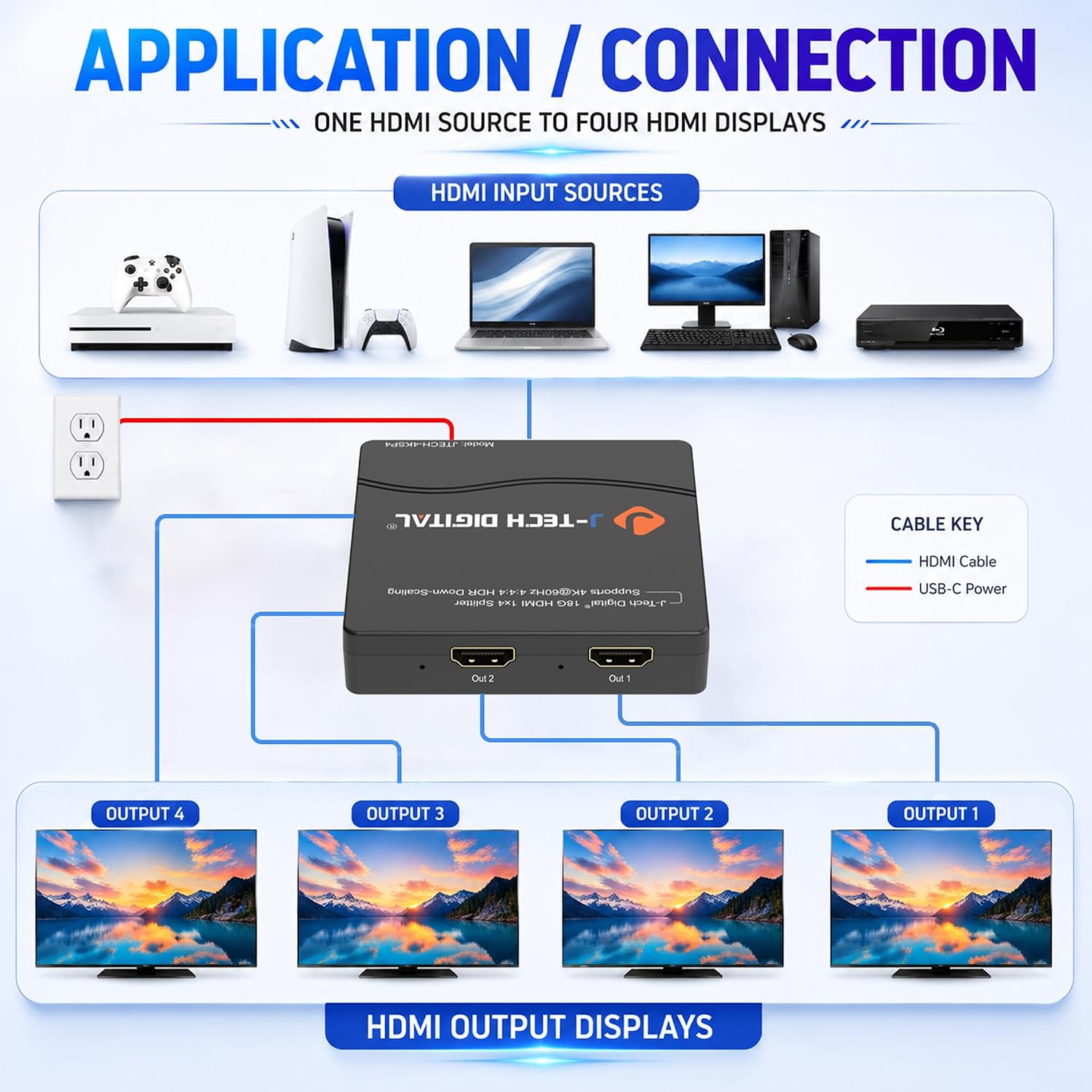
Image 5.1: Application and connection diagram for the JTECH-4KSP4 HDMI Splitter. This visual guide demonstrates how to connect one HDMI input source (such as a gaming console, laptop, or PC) to the splitter, and then connect the splitter's four outputs to individual HDMI displays.
6. Иштөө нускамалары
Once connected, the splitter operates largely automatically. Consider the following for optimal performance:
- Күйгүзүү/өчүрүү: The splitter powers on automatically when connected to power. Disconnect the power adapter to power off.
- Downscaling Function: колдонуу Кичирейтүү которгучу to enable or disable 1080p downscaling. Set to 'On' if you have a mix of 4K and 1080p displays and want all displays to receive a signal. Set to 'Off' if all your displays support 4K resolution or if you prefer the original resolution without downscaling.
- EDID башкаруу: The splitter automatically copies EDID (Extended Display Identification Data) from the connected displays. It prioritizes Output 1, then Output 2, and so on. Ensure your primary display is connected to Output 1 for the best EDID negotiation.

Image 6.1: Multi-Resolution Output (MRO) function of the JTECH-4KSP4. This image demonstrates how the splitter can send a 4K signal to a 4K UHD display and a downscaled 1080p signal to a Full HD display simultaneously, managed by the 'On/Off Downscale' switch.
7. Multi-Resolution Output (MRO) Function
The MRO feature is crucial for environments with mixed display resolutions. When enabled, the splitter intelligently manages output signals:
- If a 4K source is connected and the Кичирейтүү которгучу is 'On':
- 4K displays will receive the original 4K signal.
- 1080p displays will receive a downscaled 1080p signal.
- Эгерде Кичирейтүү которгучу is 'Off':
- All displays will attempt to receive the highest common resolution supported by the EDID of the primary display. If a 1080p display is connected and the source is 4K, the 1080p display may not show an image unless downscaling is enabled.
Эскертүү: The splitter does not downscale to 720p or lower, nor does it downscale HDR metadata.
Video 7.1: Official product video demonstrating the J-Tech Digital 4K HDMI Splitter with 1-In and 4-Out. This video provides a visual overview of the splitter's functionality and how it distributes a single HDMI signal to multiple displays.
8. Техникалык шарттар
| Модель номери | JTECH-4KSP4 |
| Бренд | J-Tech Digital |
| Түс | Кара |
| Туташтыргыч түрү | HDMI |
| Порттардын саны | 1 киргизүү, 4 чыгаруу |
| Max чечим | 4K@60Hz 4:4:4 |
| өткөрүү жөндөмдүүлүгү | 18Gbps |
| HDR колдоо | HDR10, Dolby Vision |
| HDCP шайкештиги | HDCP 2.3 / 2.2 |
| Кичирейтүү | 4K to 1080p (selectable) |
| Шайкеш түзмөктөр | Television, Monitors, Projectors, Gaming Consoles, Blu-ray Players, PCs |
| Электр камсыздоо | DC 5V |
| UPC | 850001567732 |

Image 8.1: Physical dimensions of the JTECH-4KSP4 HDMI Splitter. The image indicates a length of 3.4 inches and a height of 0.8 inches, highlighting its compact design.
9. Кыйынчылыктарды
Эгерде сизде көйгөйлөр пайда болсо, төмөнкү жалпы көйгөйлөрдү чечүү кадамдарын караңыз:
- Сүрөт жок/сигнал:
- Бардык HDMI кабелдери коопсуз туташтырылганын текшериңиз.
- Verify the power adapter is correctly connected and the Power LED is on.
- Try connecting the HDMI source directly to a display to confirm the source and cable are working.
- которуштуруу Кичирейтүү которгучу to 'On' if you are using a 4K source with 1080p displays.
- Башка HDMI кабелин колдонуп көрүңүз.
- Restart all connected devices (source, splitter, displays).
- Жаркылдаган же үзгүлтүктүү сигнал:
- Check HDMI cable quality and length. Longer cables may require active or fiber optic HDMI cables for 4K@60Hz.
- Ensure the source device's output resolution is compatible with the displays and splitter.
- Verify the power supply is stable.
- Аудио жок:
- Confirm audio settings on your source device are correctly configured for HDMI output.
- Дисплей түзмөгүңүздөгү аудио жөндөөлөрүн текшериңиз.
- HDMI кабелдери аудио өткөрүүнү колдой турганын текшериңиз.
- Resolution Issues (e.g., 4K source showing 1080p on 4K TV):
- камсыз кылуу Кичирейтүү которгучу is 'Off' if all connected displays support 4K.
- Connect the highest resolution display to Output 1 for optimal EDID negotiation.
10. Техникалык тейлөө
To ensure the longevity and proper functioning of your JTECH-4KSP4 HDMI Splitter:
- Түзмөктү салкын, кургак жерде, күн нурунан, жылуулук булактарынан жана нымдуулуктан алыс кармаңыз.
- Бөлгүчтүн үстүнө оор буюмдарды коюудан алыс болуңуз.
- Түзмөктү жумшак, кургак чүпүрөк менен тазалаңыз. Суюк же аэрозоль тазалагычтарды колдонбоңуз.
- Агрегаттын айланасын туура желдетүүнү камсыз кылыңыз.
- Электр жарыгы үзгүлтүккө учураганда же узак убакыт бою колдонулбаган учурда электр энергиясын өчүрүңүз.
11. Кепилдик жана колдоо
J-Tech Digital is committed to providing high-quality audio-video solutions and customer satisfaction. While specific warranty details are not provided in this manual, J-Tech Digital offers knowledgeable support from their team based in Stafford, TX. For technical assistance, troubleshooting, or warranty inquiries, please contact J-Tech Digital customer support through their official webпродукт сатылып алынган сайт же сатуучу.
Көбүрөөк маалымат жана колдоо үчүн, баш багыңыз Amazon'догу J-Tech санарип дүкөнү.