
1. Продукт бүтүп калдыview
The Cosmic Byte Callisto Wireless Gamepad is designed for an immersive gaming experience on Windows PC. It features an ergonomic design for comfortable extended play, sensitive triggers for precise control, and customizable macro keys for personalized gameplay.

Image: Cosmic Byte Callisto Wireless Gamepad with its USB dongle.
Негизги өзгөчөлүктөрү:
- Ergonomic Design and Textured Grip: Provides comfort and a secure hold during long gaming sessions.
- Sensitive Triggers and Accurate Analog Sticks: Ensures precise control and responsiveness in games.
- Customisable Macro Keys: Two programmable buttons (K1, K2) located on the back of the controller for personalized commands.
- Вибрация өзгөчөлүгү: Offers tactile feedback for enhanced immersion.
- Zero Lag Connection: Achieved via the included USB dongle for seamless wireless gameplay.
- Зымсыз диапазон: Operates effectively within a 6-8 meter range.
- LED Backlit Buttons: Enhances visibility and aesthetic appeal.
2. Кутуда эмне бар
Upon opening your Cosmic Byte Callisto Wireless Gamepad package, you should find the following items:
- Cosmic Byte Callisto Wireless Gamepad
- USB Dongle
- Заряддоо кабели
- Колдонуучунун Колдонмосу (бул документ)

Image: The gamepad, USB dongle, and charging cable as found in the box.
3. Орнотуу колдонмосу
3.1 Геймпадды заряддоо
Before initial use, ensure your gamepad is fully charged.
- Connect the small end of the provided charging cable to the charging port on the front of the gamepad.
- Connect the larger USB end of the charging cable to a USB power source (e.g., PC USB port, USB wall adapter).
- The LED indicators on the gamepad will illuminate to show charging status. They will typically stop blinking or change color once fully charged.
3.2 Windows компьютерине туташуу
The Callisto Wireless Gamepad connects to your PC via a dedicated USB dongle.
- Insert the USB dongle into an available USB port on your Windows PC.
- Press and hold the Home button (Cosmic Byte logo) on the gamepad to power it on.
- The gamepad will automatically attempt to connect to the USB dongle. The LED indicators will flash during pairing and become solid once a connection is established.
- Your Windows PC should automatically detect the gamepad and install any necessary drivers. This process may take a few moments.
- Once connected, the gamepad is ready for use in compatible games.
4. Иштөө нускамалары
4.1 Негизги башкаруу каражаттары
Familiarize yourself with the standard layout of the gamepad:
- Сол/оң аналогдук таякчалар: Кыймылды жана камераны башкаруу үчүн.
- D-Pad: For directional input, often used in menus or for specific game actions.
- Аракет баскычтары (A, B, X, Y): For primary game actions.
- Ийин баскычтары (L1, R1) жана триггерлер (L2, R2): For various in-game functions, with L2/R2 offering sensitive, analog input.
- Start/Back Buttons: Оюндарды тындыруу, менюларга же оюндагы белгилүү буйруктарга кирүү үчүн.
- Үй баскычы: Powers the gamepad on/off and can open system menus.

Сүрөт: алдыңкы view of the gamepad highlighting the main buttons and analog sticks.
4.2 Programmable Macro Keys (K1, K2)
The Callisto Wireless Gamepad features two customizable macro keys (K1 and K2) on the back, allowing you to assign complex button sequences or single button functions for quick access.
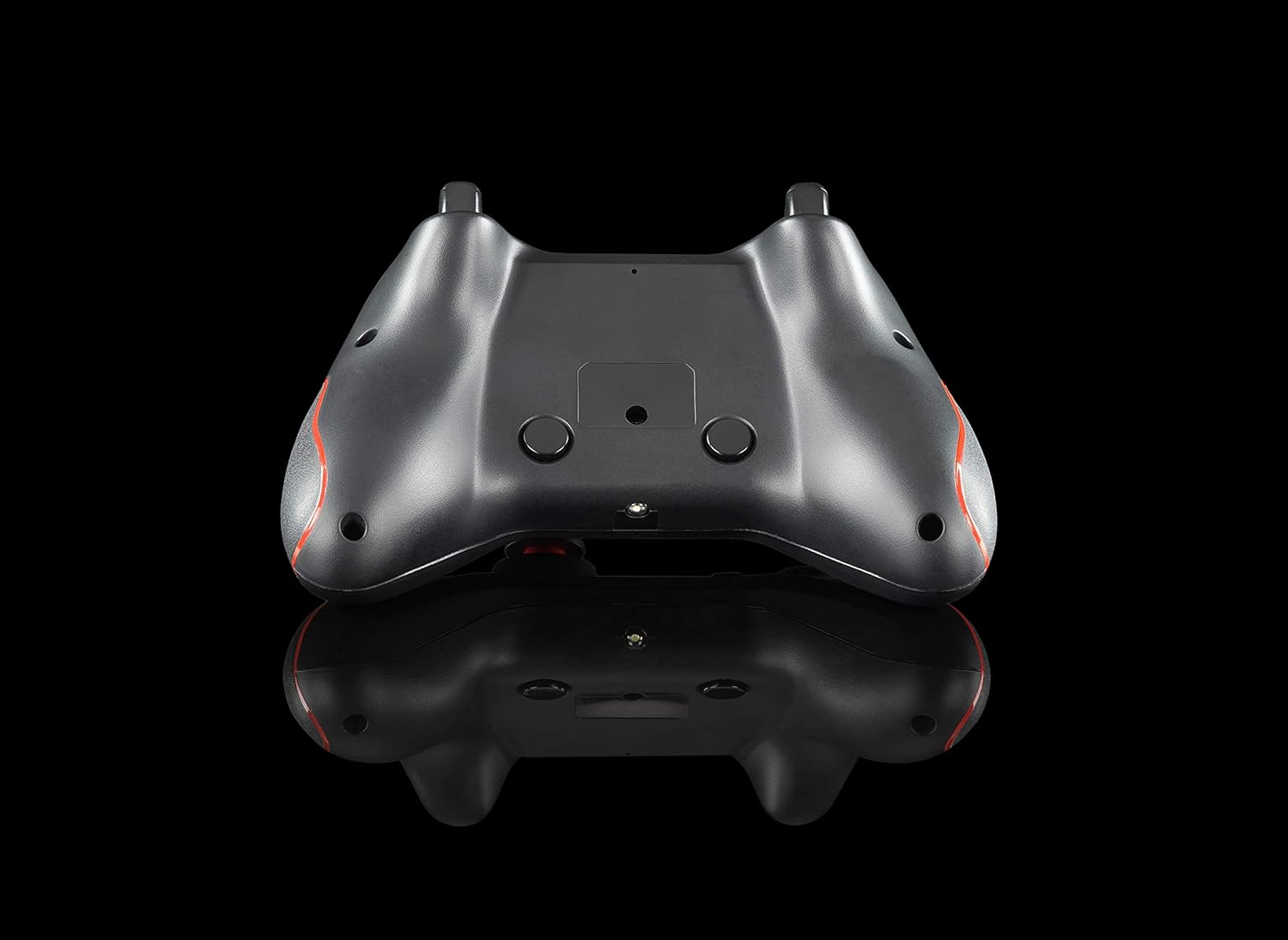
Сүрөт: Артка view of the gamepad, showing the K1 and K2 macro keys.
To program a macro key (specific instructions may vary slightly, refer to the physical manual for exact steps):
- Press and hold the 'Program' button (if available, or a specific combination like 'Turbo' + 'Macro Key').
- Press the macro key (K1 or K2) you wish to program.
- Input the desired button sequence or single button press.
- Press the 'Program' button again to save the macro.
4.3 Турбо функциясы
The Turbo function allows for rapid, repeated pressing of a button with a single hold. To activate/deactivate:
- Иштетүү: Press and hold the 'Turbo' button, then press the desired action button (e.g., A, B, X, Y, L1, R1, L2, R2). The button will now rapidly repeat its action when held down.
- Өчүрүү: Press and hold the 'Turbo' button again, then press the same action button. The Turbo function for that button will be turned off.
4.4 LED Backlighting
The action buttons feature LED backlighting. To toggle the LED lights on or off, press the 'Back' button and the 'A' button simultaneously.
5. Техникалык тейлөө
To ensure the longevity and optimal performance of your Cosmic Byte Callisto Wireless Gamepad, follow these maintenance guidelines:
- Тазалоо: Use a soft, dry cloth to wipe down the gamepad. Avoid using abrasive cleaners, solvents, or harsh chemicals, as these can damage the surface and internal components.
- Сактагыч: Геймпадды салкын, кургак жерде, күн нуру түз тийбеген, өтө жогорку температурадан жана жогорку нымдуулуктан алыс сактаңыз.
- Батареяга кам көрүү: Avoid completely draining the battery frequently. Charge the gamepad regularly, even if not in constant use, to maintain battery health. Do not attempt to replace the internal battery yourself.
- Этияттык менен мамиле кылуу: Avoid dropping the gamepad or subjecting it to strong impacts, which can cause internal damage.
6. Кыйынчылыктарды
If you encounter issues with your gamepad, refer to the following common troubleshooting steps:
- Геймпад туташпай жатат:
- Ensure the USB dongle is securely inserted into a working USB port on your PC.
- Check if the gamepad battery is charged. Connect it to the charging cable.
- Компьютериңизди өчүрүп күйгүзүп көрүңүз.
- Test the USB dongle in a different USB port.
- Buttons Unresponsive or Laggy:
- Verify the gamepad is properly connected to the PC (solid LED indicator).
- Ensure there are no physical obstructions preventing button presses.
- Check game settings to ensure gamepad input is enabled and configured correctly.
- Vibration Feature Not Working:
- Сиз ойноп жаткан оюн титирөө кайтарым байланышын колдой турганын ырастаңыз.
- Дирилдөө иштетилгенин текшерүү үчүн оюндагы жөндөөлөрдү текшериңиз.
- Ensure the gamepad is fully charged and properly connected.
- Macro Keys Not Programming Correctly:
- Review the macro programming steps in Section 4.2 carefully.
- Note that some games or applications may not fully support custom macro inputs.
7. Техникалык шарттар
| Өзгөчөлүк | Деталь |
|---|---|
| Бренд | Космикалык байт |
| Модель аты | Callisto Wireless |
| Шайкеш түзмөктөр | PC (Windows) |
| Controller Type | Gamepad |
| Байланыш технологиясы | WiFi (via USB Dongle) |
| Продукт өзгөчөлүктөрү | Wireless, Programmable Buttons, Vibration, Ergonomic Design |
| Аппараттык платформа | Иш такта |
| Кубат булагынын түрү | Зымсыз (кайра заряддалуучу батарея) |
| Элемент Салмагы | 220 грамм |
| Элементтин пакетинин саны | 1 |
| Элементтин өлчөмдөрү | 15.6 x 10.5 x 5.5 сантиметр |
| Түс | Кара |
8. Продукт видеолору
8.1 Продукт бүттүview
Видео: Кыскача продуктview of the Cosmic Byte Callisto Wireless Gamepad, highlighting its main features and contents.
8.2 Tech Demo
Video: A technical demonstration of the Cosmic Byte Callisto Wireless Gamepad, showcasing its features like programmable buttons, sensitive triggers, and wireless connectivity.
9. Кепилдик жана колдоо
9.1 Кепилдик маалыматы
The Cosmic Byte Callisto Wireless Gamepad comes with a Өндүрүштүк кемчиликтерге каршы 1 жылдык кепилдик сатып алынган күндөн тартып. Кепилдик дооматтары үчүн сатып алуу дүмүрчөгүңүздү сактап коюңуз.
9.2 Кардарларды колдоо
For any support, queries, or warranty claims, please contact Cosmic Byte customer service:
- Webсайт: Visit the official Cosmic Byte webсайтында www.thecosmicbyte.com and navigate to their customer support portal.
- Электрондук почта: You can also directly email customer care at cc@thecosmicbyte.com.
Video: An animated guide on how to initiate a warranty claim with Cosmic Byte, detailing the steps to contact customer support and process a replacement.