
Surfans T57
Surfans Kids T57 планшети колдонуучунун колдонмосу
Модел: T57
1. Киришүү
Welcome to the Surfans Kids Tablet T57 user manual. This guide provides detailed instructions on how to set up, operate, maintain, and troubleshoot your new 7-inch Android tablet. Designed specifically for children, this tablet features a durable kid-proof case, parental control functions, and pre-installed educational and entertainment applications.
2. Кутуда эмне бар
Сураныч, бардык буюмдар бар экенине ынануу үчүн пакетиңиздин мазмунун текшериңиз:
- 1x Surfans Kids Tablet
- 1x Планшет үчүн стенд
- 1x USB кабели
- 1x Kids Tablet User Manual (this document)
3. Продукт бүтүп калдыview жана өзгөчөлүктөрү
The Surfans Kids Tablet T57 is built with a robust design and features tailored for young users. Below is an overview of its components and key functionalities.
3.1 Планшеттин компоненттери
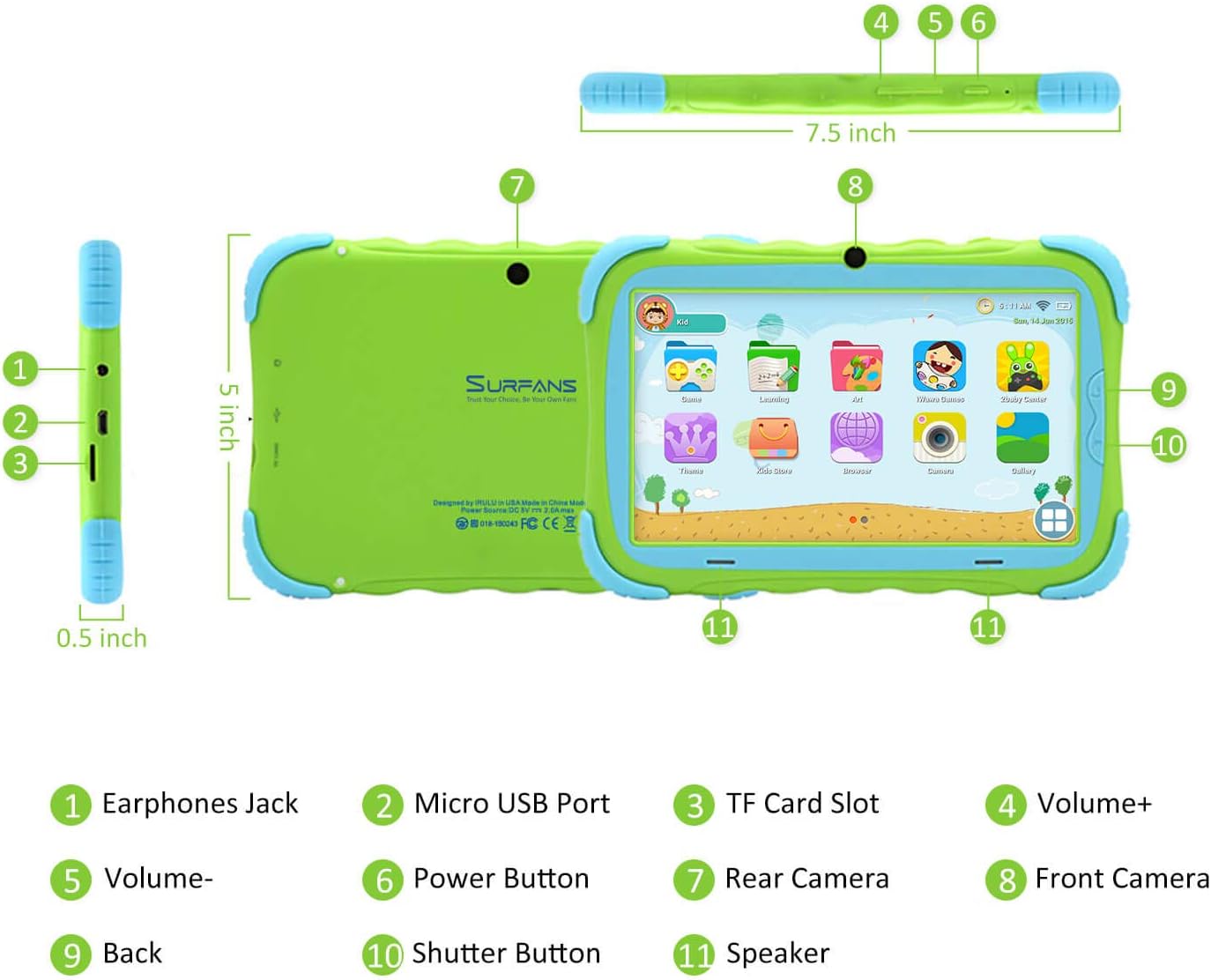
- Наушник уясы: Кулакчындарды же тышкы аудио түзмөктөрдү туташтыруу үчүн.
- Микро USB порту: Планшетті кубаттоо жана маалыматтарды өткөрүп берүү үчүн компьютерге туташтыруу үчүн колдонулат.
- TF карта уячасы: For inserting a Micro SD card to expand storage capacity (up to 32GB).
- Көлөм+: Increases the tablet's audio volume.
- Көлөм: Decreases the tablet's audio volume.
- Кубат баскычы: Press and hold to turn the tablet on/off or restart. Press briefly to turn the screen on/off.
- Арткы камера: The primary camera located on the back of the tablet.
- Алдыңкы камера: The camera located on the front, typically used for video calls or selfies.
- Артка баскычы: Navigates back to the previous screen or closes the current application.
- Жабык баскычы: Used to capture photos or start/stop video recording in the camera application.
- Баяндамачы: Provides audio output from the tablet.
3.2 Негизги өзгөчөлүктөрү
- Kid-Proof Design: Comes with a durable, lightweight, and skin-friendly case designed to protect against drops and bumps.
- 7-inch IPS HD Eye Protection Display: Provides clear visuals while minimizing eye strain.
- Android 9.0 OS: Runs on the latest Google Android 9.0 Pie operating system for smooth performance.
- Quad-Core Processor: Ensures responsive performance for apps, games, and videos.
- 1GB RAM & 16GB ROM: Sufficient memory for basic operations and storage, expandable up to 32GB via Micro SD card.
- Parental Control Mode: Allows parents to manage content, set time limits, and configure user settings for a safe digital environment.
- Pre-installed Kids Apps: Includes a variety of educational and entertaining apps, with access to the Google Play Store for more content.
- Wi-Fi туташуусу: Supports 802.11g for fast browsing, streaming, and video calls.
- Батареянын узак иштөө мөөнөтү: 3000mAh Li-ion Battery provides 3-5 hours of working time, or up to 8 hours of mixed use on a single charge.


4. Орнотуу колдонмосу
Follow these steps to set up your Surfans Kids Tablet for the first time.
4.1 Баштапкы төлөм
Before first use, fully charge the tablet. Connect the included USB cable to the Micro USB Port (2) on the tablet and plug the other end into a compatible USB power adapter (not included) or a computer USB port. The charging indicator will show the charging status.
4.2 Күйгүзүү/өчүрүү
- Күйгүзүү үчүн: Press and hold the Power Button (6) until the screen lights up.
- Өчүрүү үчүн: Press and hold the Power Button (6) until a power-off menu appears. Select "Power off" and confirm.
- Кайра баштоо үчүн: Press and hold the Power Button (6) until the power-off menu appears. Select "Restart" and confirm.
- Экранды күйгүзүү/өчүрүү: Briefly press the Power Button (6) to turn the screen on or off without powering down the tablet.
4.3 Wi-Fi туташуусу
To access online content and download apps, connect your tablet to a Wi-Fi network:
- Башкы экрандан, Тез жөндөөлөр панелин ачуу үчүн жогорудан ылдый серпиңиз.
- Tap and hold the Wi-Fi icon to go to Wi-Fi settings.
- Эгер Wi-Fi өчүк болсо, аны күйгүзүңүз.
- Тизмеден каалаган Wi-Fi тармагын тандаңыз.
- Эгер суралса, тармак сырсөзүн киргизиңиз, андан кийин "Туташуу" баскычын басыңыз.
4.4 Setting Up Parental Control
The Parental Control mode is a key feature for managing your child's tablet usage. This allows you to filter website content, set time limits, and control app access.

Specific steps for setting up parental controls will be available within the tablet's pre-installed Kids app or settings menu. Look for an icon or section labeled "Parental Control" or "Kids Mode" to configure user profiles, allowed applications, and usage schedules.
5. Планшетти иштетүү
This section covers basic operations and how to use the tablet's features.
5.1 Негизги навигация
- Touch and Tap: To open apps, select items, or type.
- Серпүү: Экрандарды, менюларды же web барактар.
- Чымчып-кичирейтүү: Сүрөттөрдү чоңойтуу же кичирейтүү үчүн же web барактар.
- Башкы экран: Колдонмолорго жана виджеттерге кире турган негизги экран.
- Чабыттоо тилкеси: Located at the bottom of the screen, typically includes Back, Home, and Recent Apps buttons.
5.2 Using Kids Mode and Apps
The tablet comes with a dedicated Kids Mode interface, providing a safe and engaging environment for children. This mode typically features a simplified layout and access to pre-approved content.

- Accessing Kids Mode: Usually, there's a specific app icon or a setting to switch to Kids Mode.
- Алдын ала орнотулган колдонмолор: Explore the various educational games, books, music, and art learning applications.
- Google Play дүкөнү: For additional apps, exit Kids Mode (if applicable) and access the Google Play Store. Ensure parental supervision for downloads.


5.3 Media Playback and Camera
- Videos and Music: Use pre-installed media players or download others from the Play Store to enjoy videos and music.
- Камера: Open the Camera app to use the Front (8) or Rear (7) cameras. Tap the Shutter Button (10) to take photos or record videos.
5.4 Кеңейтилүүчү сактагыч
To expand the tablet's storage, insert a Micro SD card (up to 32GB, not included) into the TF Card Slot (3). This allows for more space for photos, music, movies, and apps.
6. Техникалык тейлөө
Туура техникалык тейлөө планшетиңиздин узак мөөнөттүү иштешин жана оптималдуу иштешин камсыз кылат.
- Тазалоо: Экранды жана планшеттин корпусун тазалоо үчүн жумшак, мамыксыз чүпүрөктү колдонуңуз. Абразивдүү тазалоочу каражаттарды же эриткичтерди колдонбоңуз.
- Батареяга кам көрүү:
- Батареяны бат-баттан толук кубаттап калуудан алыс болуңуз.
- Планшетти экстремалдык температурага тийгизбеңиз.
- Заряддоо үчүн берилген USB кабелин гана колдонуңуз.
- Программалык камсыздоо жаңыртуулары: Эң акыркы функциялар жана коопсуздук жаңыртуулары бар экенине ынануу үчүн, планшеттин жөндөөлөрүнөн система жаңыртууларын мезгил-мезгили менен текшерип туруңуз.
- Сактагычты башкаруу: Дайыма тазалануу керексиз fileжана сактагыч ордун бошотуу жана иштин майнаптуулугун сактоо үчүн колдонулбаган колдонмолорду чыгарып салыңыз.
7. Кыйынчылыктарды
If you encounter issues with your tablet, refer to the following common problems and solutions.
| Көйгөй | Мүмкүн чечим |
|---|---|
| Планшет күйбөйт. | Ensure the battery is charged. Connect the charger and wait a few minutes before attempting to power on again. If unresponsive, press and hold the Power Button for 10-15 seconds to force a restart. |
| Wi-Fi туташуу маселелери. | Жөндөөлөрдөн Wi-Fi иштетилгенин текшериңиз. Wi-Fi роутериңизди өчүрүп күйгүзүңүз. Тармакты унутуп, кайра туташыңыз. Wi-Fi сигналынын чегинде экениңизди текшериңиз. |
| Жай иштеши же колдонмолордун иштебей калышы. | Close unused apps. Clear app caches. Free up storage space by deleting unnecessary files or uninstalling unused apps. Restart the tablet. |
| Экран жооп бербей жатат. | Restart the tablet by holding the Power Button. Ensure the screen is clean and dry. |
| Cannot download apps from Google Play Store. | Check your Wi-Fi connection. Ensure sufficient storage space. Verify parental control settings are not blocking downloads. Clear cache and data for Google Play Store app. |
| Планшет заряддалбай жатат. | Check the USB cable and charger for damage. Try a different USB port or power adapter. Ensure the Micro USB Port is clean and free of debris. |
If the problem persists after trying these solutions, please contact Surfans customer support for further assistance.
8. Техникалык шарттар
Detailed technical specifications for the Surfans Kids Tablet T57:
| Өзгөчөлүк | Деталь |
|---|---|
| Модель аты | T57 |
| Операция системасы | Android 9 Pie |
| Screen Size | 7 дюйм |
| Screen Resolution | 1024x600 IPS HD |
| Процессор | 1.5 GHz Quad-core Cortex-X7 (ARM) |
| RAM | 1 ГБ |
| Ички сактагыч (ROM) | 16 ГБ |
| Кеңейтүүчү сактагыч | Micro SD-картаны колдойт 32GB чейин |
| Зымсыз түрү | 802.11g Wi-Fi |
| Камералар | Front Camera, Rear Camera (2 MP) |
| Батарея | 3000mAh Li-ion батареясы |
| Батареянын орточо иштөө мөөнөтү | 3-5 hours (working time), 8 hours (mixed use) |
| Өлчөмдөрү (LxWxH) | 7.5 x 5 x 0.5 дюйм |
| Элемент Салмагы | 1.22 фунт |
| Түс | Жашыл |
9. Кепилдик жана колдоо
For warranty information, technical support, or any inquiries regarding your Surfans Kids Tablet T57, please refer to the contact details provided on the product packaging or the official Surfans website. Surfans is committed to providing fast response and technical assistance for any issues encountered during use.
Ask a question about this manual
Ask about setup, troubleshooting, compatibility, parts, safety, or missing instructions. Manuals+ will review the question and use this page’s manual context to help answer it.