
NVIDIA 930-13700-2500-100
NVIDIA SHIELD Remote User Manual
Модель: 930-13700-2500-100
Introduction
The NVIDIA SHIELD Remote is designed to enhance your SHIELD TV experience with advanced features for intuitive control. This manual provides comprehensive instructions for setting up, operating, and maintaining your remote.
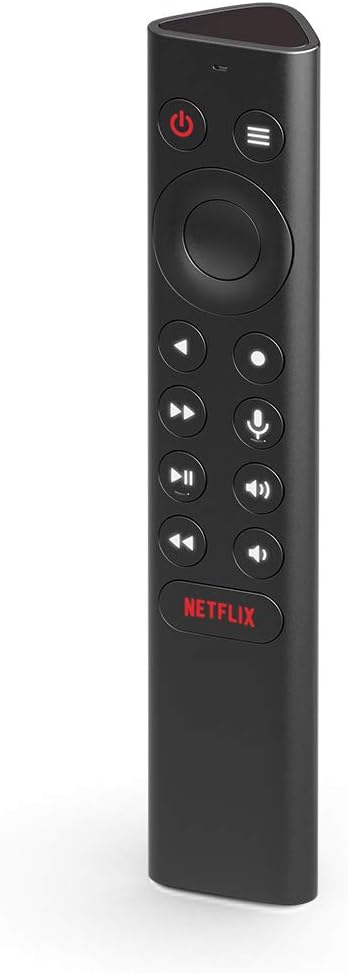
Фронт view of the NVIDIA SHIELD Remote, showcasinанын кооз дизайны жана баскычтарынын жайгашуусу.
Эмне камтылган
Your NVIDIA SHIELD Remote package includes the following items:
- NVIDIA SHIELD Remote
- 2 AAA батарейка (алдын ала орнотулган же өзүнчө кошулган)

The retail packaging for the NVIDIA SHIELD Remote, indicating the product inside.

Side view of the NVIDIA SHIELD Remote box, highlighting the "WHAT'S INSIDE" section.
Өзгөчөлүктөрү
The NVIDIA SHIELD Remote offers a range of features designed for convenience and enhanced control:
- Үн менен издөө: Integrated microphone for Google Assistant and voice control.
- Motion-Activated Backlit Buttons: Buttons illuminate automatically when the remote is picked up, ideal for low-light environments.
- IR жардыргыч: Control your home theater devices, including TV volume, power, and input source.
- Customizable Menu Button: A three-way user-customizable button for quick access to favorite apps, AI upscaling, mute, and more.
- Атайын баскычтар: Includes specific buttons for power, volume, fast-forward, rewind, and play/pause.
- Bluetooth байланышы: Connects wirelessly to your SHIELD TV, allowing control even when the device is out of sight.
- Remote Locator: Use the SHIELD remote app to locate a misplaced remote.
- Standard AAA Batteries: Uses easily replaceable AAA batteries.

Back of the NVIDIA SHIELD Remote box, detailing key features such as voice control, backlit buttons, and IR blaster.
Жайгашуу
1. Батареяны орнотуу
The NVIDIA SHIELD Remote requires two AAA batteries. These are typically included with your purchase.
- Пульттун артындагы батарея бөлүкчөсүнүн капкагын табыңыз.
- Бөлүмдү ачуу үчүн капкакты ылдый карай жылдырыңыз.
- Оң (+) жана терс (-) терминалдары бөлүмдүн ичиндеги көрсөткүчтөр менен туура дал келишин камсыз кылып, эки AAA батарейкасын салыңыз.
- Батарея бөлүкчөсүнүн капкагын бекем чыккыча ордуна жылдырыңыз.
2. Pairing with SHIELD TV
The remote connects to your SHIELD TV via Bluetooth. Ensure your SHIELD TV is powered on and connected to a display.
- On your SHIELD TV, navigate to Орнотуулар.
- Тандоо Алыстан башкаруу каражаттары жана аксессуарлар.
- Тандоо Аксессуар кошуу.
- The SHIELD TV will begin searching for nearby Bluetooth devices.
- On the NVIDIA SHIELD Remote, press and hold the Тандоо button (center of the directional pad) and the Артка button (left of the directional pad) simultaneously for approximately 5 seconds until the remote's LED indicator begins to flash.
- Once "NVIDIA SHIELD Remote" appears on your SHIELD TV screen, select it to complete the pairing process.
- If pairing issues occur, try resetting the remote by holding down the Артка жана Үй buttons while inserting the batteries, then re-attempt pairing.
3. IR Blaster Setup (Optional)
The IR blaster allows the SHIELD Remote to control your TV or AV receiver's power, volume, and input. This is configured through your SHIELD TV settings.
- On your SHIELD TV, go to Орнотуулар.
- Тандоо Дисплей & Үн.
- Тандоо Күчтү башкаруу or Үндү көзөмөлдөө (depending on what you want to configure).
- Follow the on-screen prompts to select your TV or AV receiver brand and test the IR functions.
Пультту иштетүү
Баскычтар жана алардын функциялары менен таанышып алыңыз:
- Кубат баскычы: Turns your SHIELD TV on or off.
- Багыттоочу такта (D-Pad): Менюларды чабыттап, элементтерди тандаңыз.
- Тандоо баскычы: Тандоолорду ырастайт.
- Артка баскычы: Мурунку экранга кайтат.
- Үй баскычы: Returns to the SHIELD TV home screen.
- Үн баскычтары: Adjusts the volume of your SHIELD TV or connected IR device.
- Ойнотуу/тындыруу баскычы: Медианы ойнотууну көзөмөлдөйт.
- Fast-Forward/Rewind Buttons: Skips forward or backward in media.
- Микрофон баскычы: Activates Google Assistant for voice commands and search.
- Customizable Menu Button: Performs a user-defined action (see Customization section).
- Netflix баскычы: Launches the Netflix application directly.
Үн менен башкаруу
басып, кармап туруңуз Микрофон баскычы to activate Google Assistant. Speak clearly into the remote to search for content, control smart home devices, get information, and more.
Ыңгайлаштыруу
The NVIDIA SHIELD Remote features a highly customizable menu button, allowing you to assign up to three different actions based on how you press it:
- Жалгыз басуу: Тез басып, кайра чыгаруу.
- Кош басуу: Катары менен эки тез басуу.
- Узак басуу: баскычын басып, кармап туруңуз.
To customize the menu button:
- On your SHIELD TV, go to Орнотуулар.
- Тандоо Алыстан башкаруу каражаттары жана аксессуарлар.
- Өзүңүздү тандаңыз SHIELD Remote.
- Тандоо Customize Menu Button.
- From the options, assign desired actions for single, double, and long presses. Options include launching apps, enabling AI upscaling, muting sound, taking screenshots, and more.

An illustration of the customization options available for the SHIELD Remote, including launching apps, AI upscaling, and quick settings.
Техникалык тейлөө
To ensure the longevity and optimal performance of your NVIDIA SHIELD Remote, follow these maintenance guidelines:
- Тазалоо: Use a soft, dry, lint-free cloth to clean the remote. Do not use liquid cleaners, aerosols, or abrasive solvents.
- Батареяны алмаштыруу: Replace batteries when the remote's performance degrades or the SHIELD TV indicates low battery. Always use new AAA batteries.
- Сактагыч: Пультту күн нурунан жана экстремалдык температурадан алыс, салкын, кургак жерде сактаңыз.
- Суюктуктардан алыс болуңуз: Пультту сууга же башка суюктуктарга тийгизбеңиз.
- Этияттык менен мамиле кылуу: Пультту түшүрүп албоодон же катуу соккуга кабылбоодон алыс болуңуз.
Проблемаларды чечүү
| Көйгөй | Чечим |
|---|---|
| Пульт жооп бербей жатат. |
|
| Buttons not lighting up. |
|
| Үн буйруктары иштебей жатат. |
|
| IR control (TV/AVR volume/power) not working. |
|
| Remote locator not working. |
|
Техникалык шарттар
| Атрибут | Деталь |
|---|---|
| Модель номери | 930-13700-2500-100 |
| Өлчөмдөрү (L x W x Y) | 6.5 x 1.57 x 1.57 дюйм |
| Салмагы | 4.8 унция |
| Power Source | 2 x AAA батарейкалар (киргизилген) |
| Байланыш | Bluetooth, IR Blaster |
| Шайкеш түзмөктөр | NVIDIA SHIELD TV (2015/2017/2019 models) |
| Түс | Кара |
| Өндүрүүчү | NVIDIA |
| Келип чыккан өлкө | Корея, Республикасы |
Кепилдик маалымат
NVIDIA provides a limited warranty for the SHIELD Remote. For detailed information regarding warranty terms, conditions, and duration, please refer to the official NVIDIA website or the warranty card included with your product. You can typically find this information at nvidia.com/warranty.
Колдоо
For further assistance, technical support, or to access frequently asked questions, please visit the official NVIDIA SHIELD support page:
- NVIDIA SHIELD Support: nvidia.com/shield
- Онлайн форумдар: Engage with the NVIDIA community for tips and solutions.
- Колдоо кызматы менен байланышуу: Information for direct contact with NVIDIA customer service can be found on their support webсайт.
Ask a question about this manual
Ask about setup, troubleshooting, compatibility, parts, safety, or missing instructions. Manuals+ will review the question and use this page’s manual context to help answer it.