
ANKEWAY ANKEWAY 2 DIN (1G/16G)
ANKEWAY Android 9.1 Car Radio Instruction Manual
Model: 2 DIN (1G/16G)
1. Киришүү
Thank you for choosing the ANKEWAY Android 9.1 Car Radio. This multimedia platform is designed to enhance your driving experience with advanced features such as GPS navigation, FM radio, Bluetooth hands-free calling, WiFi internet access, and mirror link functionality. This manual provides detailed instructions for installation, operation, and troubleshooting to ensure optimal performance and user satisfaction.
For safety and proper functionality, it is highly recommended to have the unit installed by a professional electrician.
2. Негизги өзгөчөлүктөрү
- Операция системасы: Android 9.1 for smooth performance and access to various applications.
- Дисплей: 7.0-inch 1080P HD Capacitive Touch Screen with 2.5D curved tempered glass, offering high resolution and sensitivity.
- Навигация: Integrated GPS navigation with pre-loaded European map data and support for online mapping applications.
- Байланыш: Built-in Bluetooth for hands-free calls and wireless music streaming, WiFi for internet access via hotspot, and Mirror Link (Easy Connection) for Android and iOS devices.
- Мультимедиа: Dual USB inputs, built-in microphone, support for driving recorder, and 4x60W subwoofer audio output.
- Радио: FM radio with 18 preset stations.
- Арткы View Камера: Includes a reversing camera for enhanced safety during parking.
- Руль башкаруусу (SWC): Supports original steering wheel controls for convenient operation.
- Ыңгайлаштыруу: Adjustable sound effects, music styles, and car boot logos.
- Көп тилдүү колдоо: English, French, Italian, German, Spanish, Portuguese, Chinese, Japanese, and more.
3. Пакеттин мазмуну
Пакетте бардык буюмдар бар экенин текшериңиз:
- ANKEWAY Android Car Radio Main Unit
- Электр кабелдери
- GPS антеннасы
- USB кабелдери (x2)
- Арткы View Камера
- Монтаждоо кронштейндери жана буроолор
- RCA кабелдери
- Колдонуучунун колдонмосу (басылган)
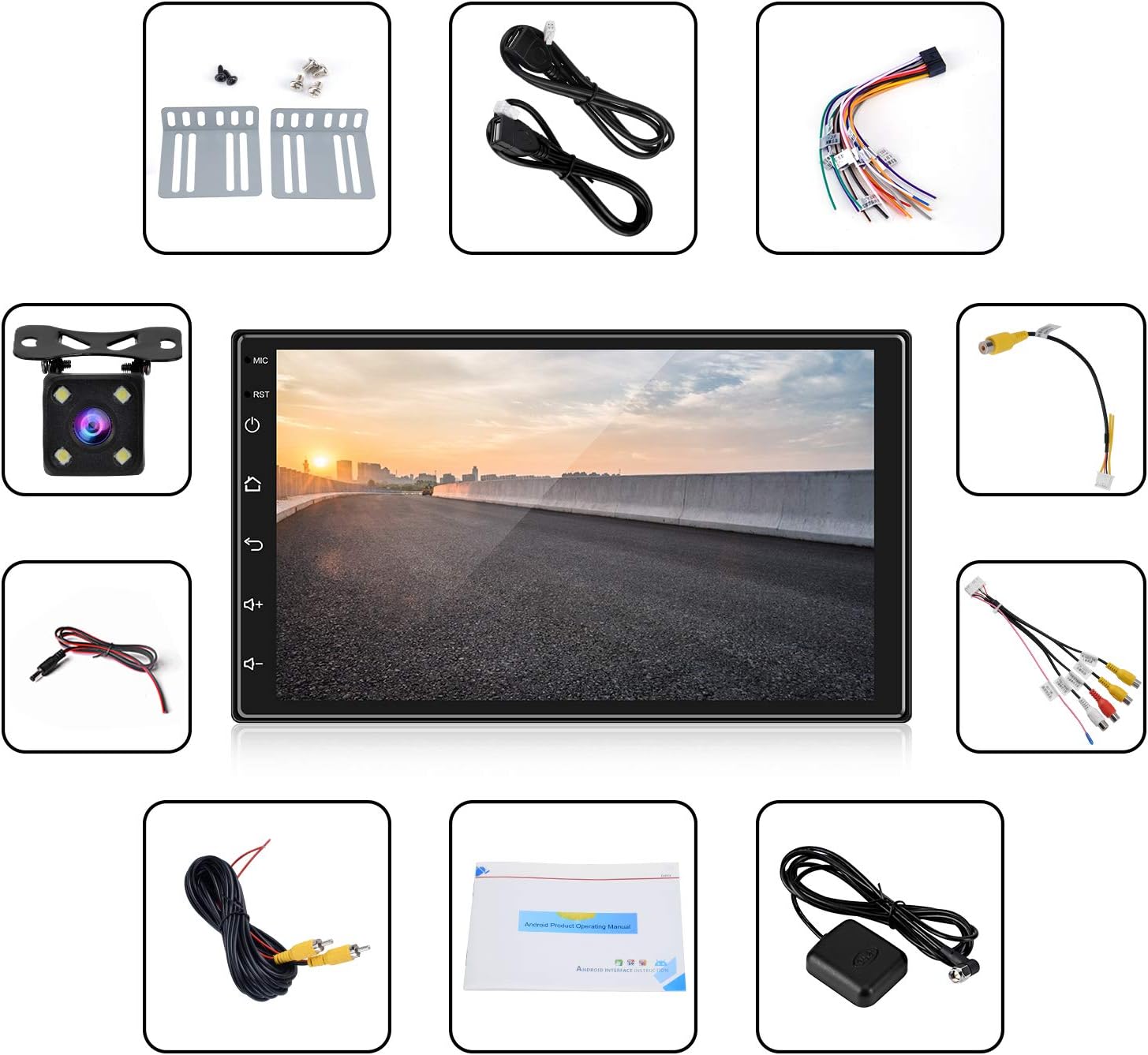
Image: Contents of the ANKEWAY car radio package, showing the main unit, various cables (power, USB, RCA), GPS antenna, rear view camera, mounting brackets, and the printed user manual.
4. Техникалык шарттар
| Спецификация | Нарк |
|---|---|
| Бренд | ANKEWAY |
| Байланыш технологиясы | Көмөкчү, Bluetooth, USB, Wi-Fi |
| Шайкеш түзмөктөр | Смартфон |
| Элемент Салмагы | 525 грамм |
| Каналдардын саны | 6 |
| Чыгуу күчү | 60 Ватт |
| Колдоого алынган Интернет кызматтары | Spotify, YouTube |
| Өндүрүүчү | ANKEWAY |

Image: Diagram showing the dimensions of the 7-inch car radio unit: 17.8 cm width, 10.2 cm height, and 4.9 cm depth.
5. Орнотуу жана орнотуу
Due to the complexity of vehicle electrical systems, professional installation is strongly recommended. Incorrect wiring can damage the unit or your vehicle.
5.1 Электр өткөргүч схемасы
Зымдардын туура туташуусу үчүн төмөнкү диаграмманы караңыз. Бардык туташуулардын бекем жана изоляцияланганын текшериңиз.

Image: Detailed wiring diagram for the ANKEWAY car radio, illustrating connections for ACC, B+, GND, KEY1, KEY2, BACK (Reverse Lamp Control), ANT CONT, speaker outputs (FR+, FR-, FL+, FL-, RL+, RL-, RR+, RR-), MIC port, VIDEO IN, VIDEO OUT, AUDIO OUT-R, AUDIO OUT-L, AMP (DC-12V), Bluetooth antenna, WiFi antenna, and Backup Camera.
5.2 Монтаждоо
Use the provided mounting brackets and screws to secure the unit in your vehicle's 2 DIN slot. Ensure the unit is firmly in place to prevent vibration and damage.
6. Иштөө нускамалары
6.1 Күйгүзүү/өчүрүү
Press the power button (usually located on the front panel or a designated icon on the screen) to turn the unit on or off. The unit will typically power on automatically when the vehicle's ignition is turned on.
6.2 Сенсордук экрандын иштеши
The unit features a highly responsive capacitive touch screen. Navigate through menus, select applications, and control functions by tapping, swiping, and dragging on the screen.
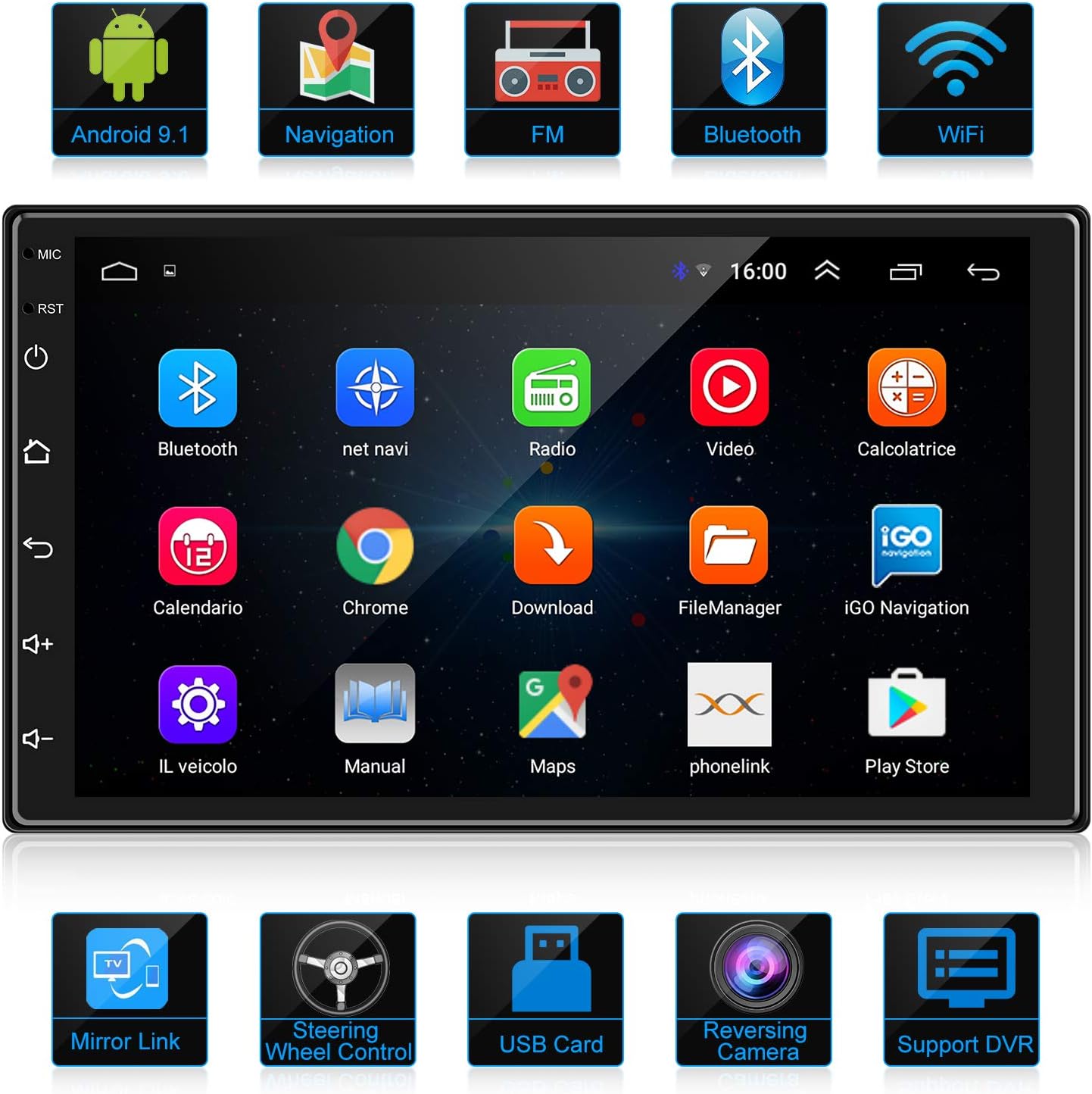
Image: The main user interface of the ANKEWAY car radio, displaying a grid of application icons for various functions such as Bluetooth, Navigation, Radio, Video, and more.
6.3 Рулду башкаруу (SWC)
If your vehicle supports steering wheel controls, you can configure them to operate the car radio. Access the 'Steering Learn' or 'SWC Settings' menu in the system settings to map your vehicle's steering wheel buttons to the radio's functions.
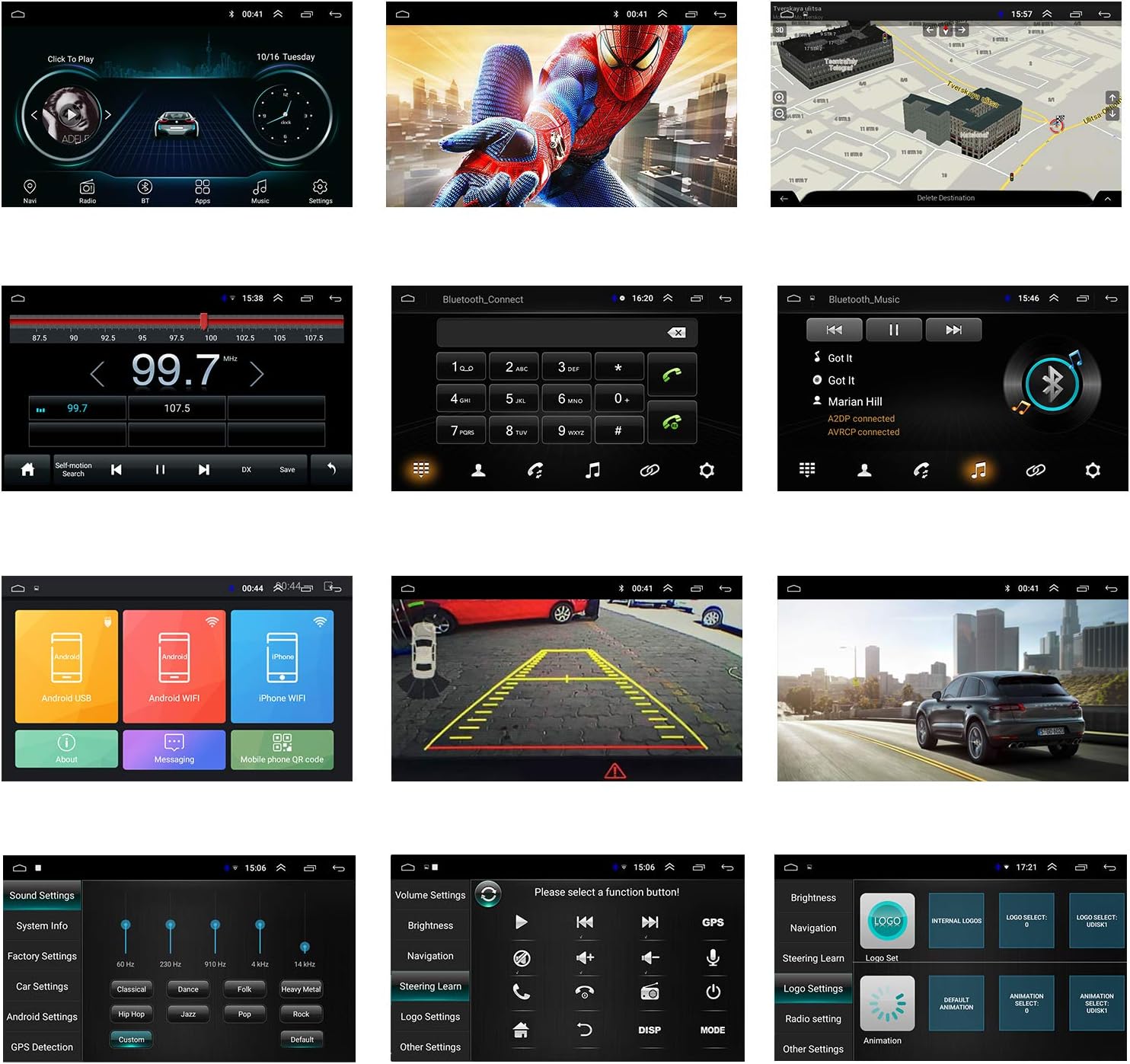
Image: The steering wheel control learning interface, allowing users to assign functions like volume, navigation, and call control to their vehicle's steering wheel buttons.
7. Байланыш
Bluetooth 7.1
Pair your mobile phone via Bluetooth for hands-free calling and wireless audio streaming. Go to the Bluetooth settings on the car radio, enable Bluetooth, and search for available devices on your phone. Select 'ANKEWAY' (or similar name) to pair. Once connected, you can make/receive calls and play music directly from your phone.

Image: The Bluetooth interface showing options for making calls and streaming music, with a visual of a user making a hands-free call.
7.2 WiFi
Connect the car radio to the internet by enabling WiFi and connecting to a mobile hotspot or a local WiFi network. This allows you to use online applications like YouTube, Spotify, and web серептөө.

Image: The car radio screen demonstrating WiFi connectivity, showing YouTube content being streamed, with a smartphone on the left indicating a personal hotspot connection.
7.3 Mirror Link (Easy Connection)
The Mirror Link function allows you to project your smartphone's screen onto the car radio display. This supports both Android and iOS devices. Use the 'Easy Connection' application on the unit to establish the link, either via USB or WiFi, for a 1080P HD mirrored experience.

Image: The car radio screen showing a mirrored display from a smartphone, illustrating the 'Easy Connection' or Mirror Link feature for both Android and iOS devices.
8. Навигация
The unit comes with pre-installed European GPS map data. To use navigation, ensure the GPS antenna is properly connected and positioned for optimal signal reception. You can also download and use other navigation applications from the Google Play Store via WiFi.

Image: The car radio screen showing a detailed navigation map, indicating routes and points of interest, with a car driving on a road in the foreground.
9. Радио функциясы
Access the FM radio function from the main menu. You can manually tune to stations or use the automatic scan feature to find and save available stations. The unit supports 18 FM presets.
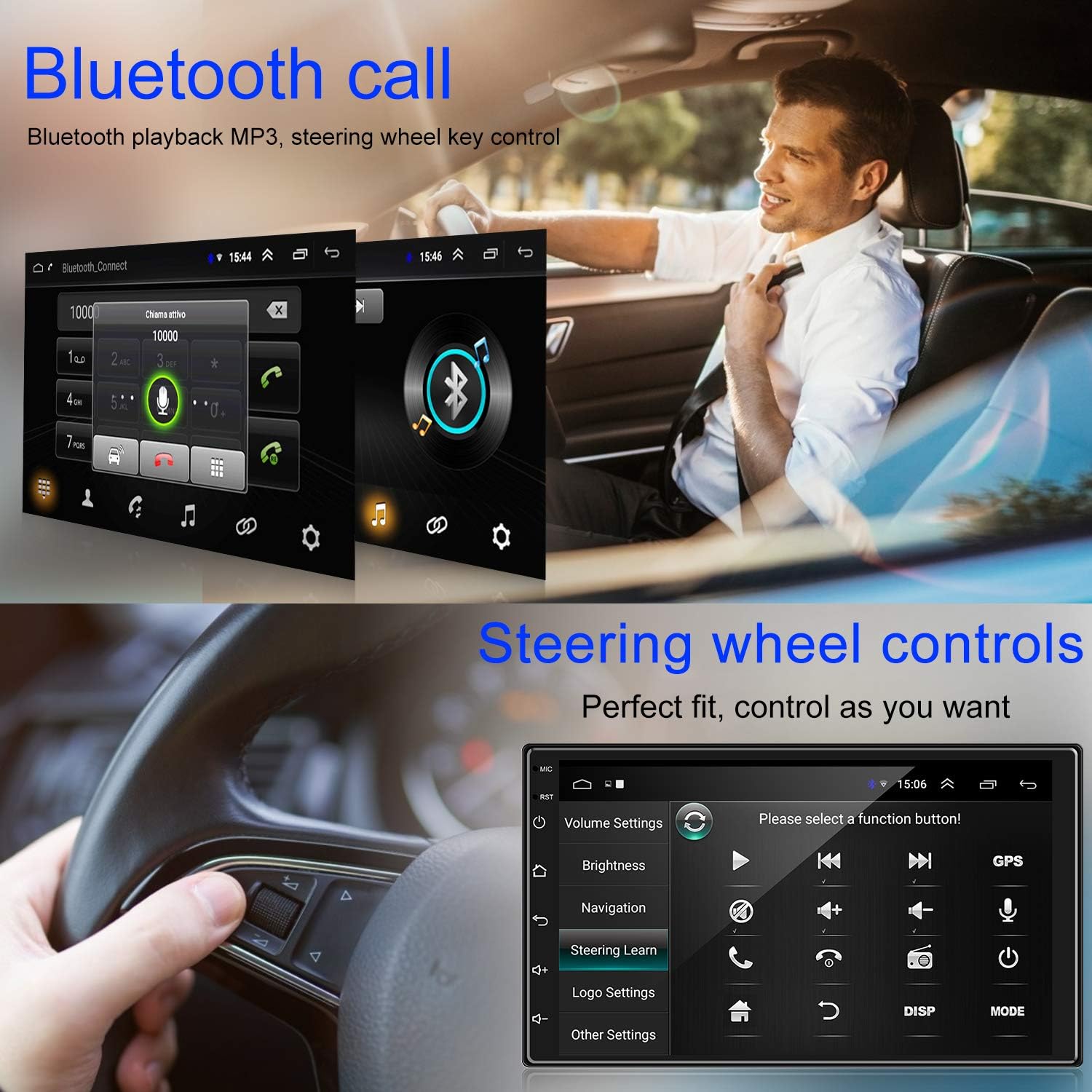
Image: The car radio screen showing the FM radio interface, with a large display of the current frequency (99.7 MHz) and controls for tuning and saving stations.
10. Арткы View Camera and Driving Record
10.1 Арткы View Камера
Киргизилген арткы бөлүгү view camera automatically displays the rear view on the car radio screen when the vehicle is put into reverse gear. This assists with safe parking and maneuvering.

Image: A diagram illustrating the rear view camera system, showing the camera's placement on a car and the projected view with parking guidelines on the car radio screen.
10.2 Driving Record
The unit supports connection to a driving recorder (dash cam). Once connected, you can view foo жазылганtage directly on the car radio screen, providing a record of your journeys.
Image: The car radio screen showing both a driving record display (1080P FHD 30FPS) and a rear view camera feed, indicating the unit's capability to handle both functions.
11. Техникалык тейлөө
To ensure the longevity and optimal performance of your ANKEWAY car radio, follow these maintenance guidelines:
- Экранды тазалоо: Экранды акырын сүртүү үчүн жумшак, түксүз чүпүрөктү колдонуңуз. өжөр тактар үчүн, бир аз гampчүпүрөккө суу же экранды тазалоочу каражат. Катуу химиялык заттардан же абразивдүү материалдардан алыс болуңуз.
- Программалык камсыздоо жаңыртуулары: Мезгил-мезгили менен өндүрүүчүнүн текшерүү website or the unit's system settings for available software updates. Keeping the software updated can improve performance, add new features, and fix bugs.
- Экологиялык шарттар: Аппаратты экстремалдык температурага, түз күн нуруна узак убакытка же ашыкча нымдуулукка дуушар кылуудан алыс болуңуз.
- Вентиляция: Ашыкча ысып кетүүнүн алдын алуу үчүн, түзмөктүн желдетүү аймактары бүтөлүп калбагандыгын текшериңиз.
12. Кыйынчылыктарды
If you encounter issues with your ANKEWAY car radio, refer to the following common problems and solutions:
| Көйгөй | Мүмкүн чечим |
|---|---|
| Күч жок | Check power connections (ACC, B+, GND). Ensure vehicle ignition is on. Verify fuses. |
| Үн жок | Check speaker wiring. Verify volume settings. Ensure Mute is not activated. Check audio output settings. |
| GPS сигналы жоголду/алсыз | GPS антеннасы туура туташтырылганын жана тунук экенин текшериңиз view асмандын. Зарыл болсо, антеннаны жылдырыңыз. |
| Bluetooth туташуу маселелери | Радиодо да, телефонуңузда да Bluetooth иштетилгенин текшериңиз. Мурунку жупташтырууларды өчүрүп, кайра жупташтырыңыз. Эки түзмөктү тең өчүрүп-күйгүзүңүз. |
| Сенсордук экран жооп бербейт | Restart the unit. If problem persists, a factory reset might be needed (note: this will erase data). |
| Mirror Link иштебей жатат | Ensure the 'Easy Connection' app is running. Check USB cable connection or WiFi network. Verify phone compatibility and permissions. |
If you are unable to resolve an issue, please contact ANKEWAY customer support or consult a professional technician.
13. Кепилдик жана колдоо
ANKEWAY products are designed for reliability and performance. For any technical assistance or warranty claims, please contact the seller or ANKEWAY customer support directly. It is important to purchase original ANKEWAY products from authorized retailers to ensure genuine quality and support.
Сураныч, кепилдик максаттары үчүн сатып алганыңыздын далилин сактап коюңуз.
Ask a question about this manual
Ask about setup, troubleshooting, compatibility, parts, safety, or missing instructions. Manuals+ will review the question and use this page’s manual context to help answer it.