
1. Киришүү
Thank you for choosing the Sharkoon CA300T ATX PC Case. This full tower case is designed for high-performance gaming systems, offering extensive compatibility, efficient cooling, and advanced cable management features. This manual provides essential information for the proper setup, operation, and maintenance of your new PC case.
2. Коопсуздук маалыматы
- Компьютердин корпусунун ичиндеги кандайдыр бир компоненттерди орнотуудан же алып салуудан мурун, ар дайым кубат булагын розеткадан сууруп алыңыз.
- Электростатикалык разряддан улам зыян келтирбөө үчүн компоненттерди этияттык менен кармаңыз. Антистатикалык билек боону колдонууну карап көрүңүз.
- Майда тетиктерди жана таңгактоочу материалдарды балдардан алыс кармаңыз.
- Avoid placing the PC case in direct sunlight, near heat sources, or in environments with high humidity.
- Do not attempt to modify the case structure, as this may void your warranty and cause damage.
3. Пакеттин мазмуну
Сураныч, пакеттин мазмунун текшерип, бардык буюмдар бар экенин текшериңиз:
- Sharkoon CA300T ATX PC корпусу
- Кошумча кутуча (бурамалар, кабелдик байлагычтар, тирөөчтөр ж.б.)
- RGB lighting controller (if applicable)
- Көрсөтмө (бул документ)
4. Продукт бүтүп калдыview жана өзгөчөлүктөрү
The Sharkoon CA300T is a premium full tower ATX PC case designed for enthusiasts. It features a modern design with robust construction, tempered glass panels, and advanced cooling options.
Негизги өзгөчөлүктөрү:
- Full Tower Design: Ample space for high-end components and custom liquid cooling solutions.
- Температуралуу айнек панелдери: Side panels made of tempered glass for a clear view ички компоненттеринин.
- RGB жарыктандыруу: Integrated RGB lighting for customizable aesthetics.
- Оптимизацияланган аба агымы: Includes three 120mm fans and supports multiple radiators for superior cooling.
- Өркүндөтүлгөн кабелдик башкаруу: Features an openable cable pocket/channel and ample routing options for a clean build.
- Чаң чыпкалары: Three-layer top plate with a dust filter to maintain system cleanliness.
- Кеңири байланыш: Front panel includes 2x USB 3.0 ports and additional USB ports.
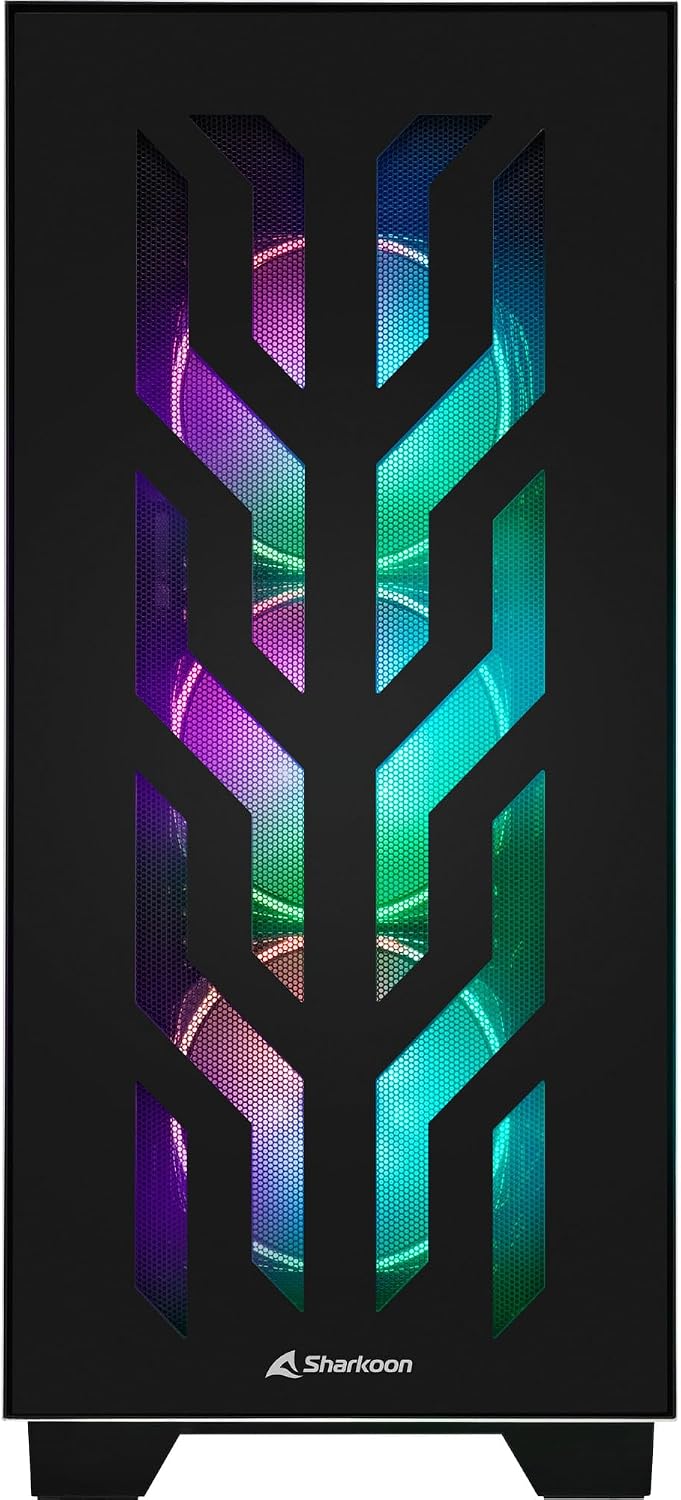
Сүрөт 4.1: Алдыңкы view of the Sharkoon CA300T PC case, showcasing the illuminated RGB fans behind the mesh panel.
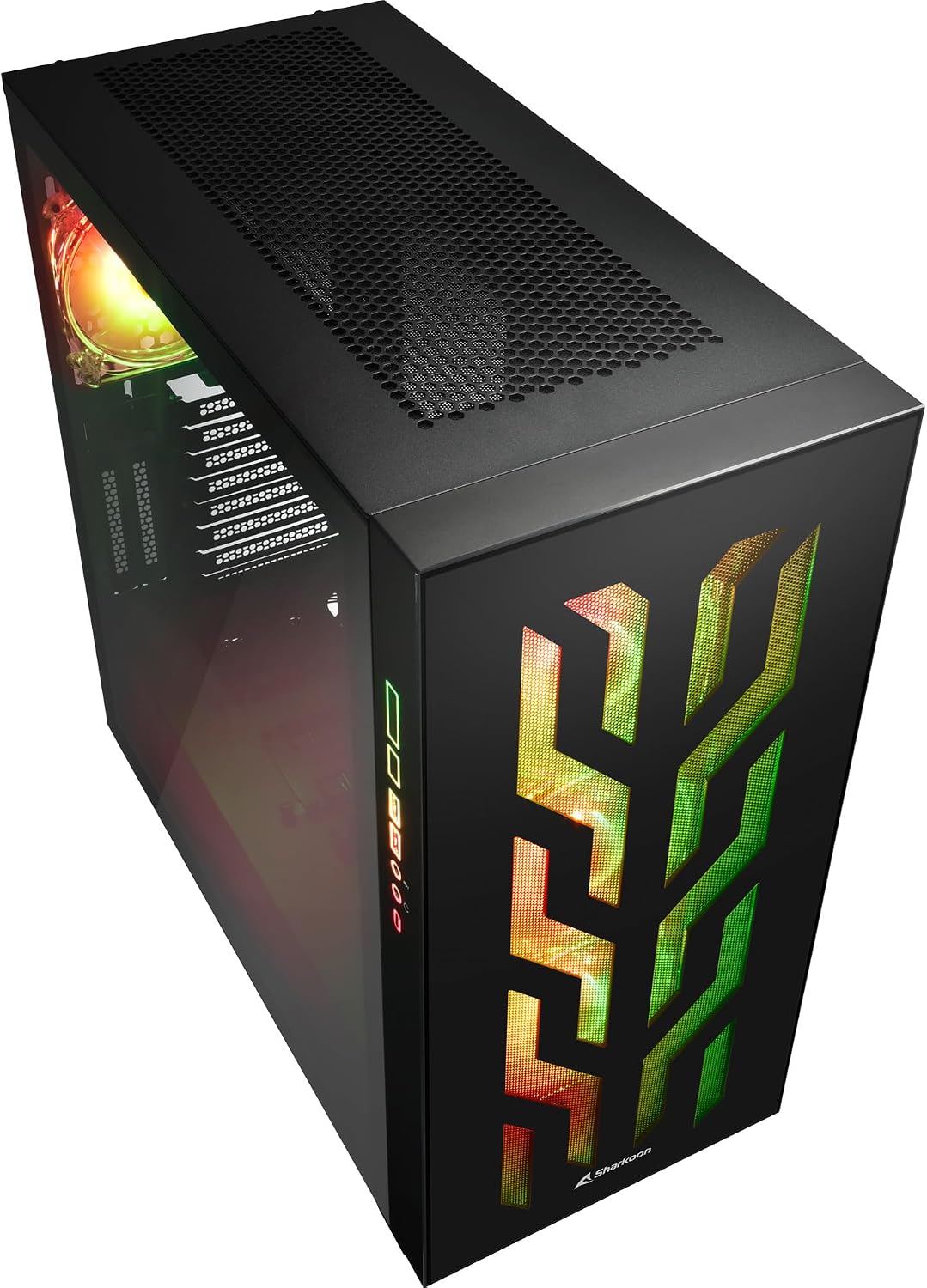
4.2-сүрөт: Бурчтуу view of the Sharkoon CA300T PC case, showing the tempered glass side panel and the vibrant RGB lighting from the interior.
5. Орнотуу
5.1 Пакеттен чыгаруу
- Этияттык менен анын кутусунан PC кутусун алып салуу.
- Inspect the case for any signs of damage during transit. Contact your retailer if any damage is found.
- Locate the accessory box inside the case, which contains screws and other installation hardware.
5.2 Каптал панелдерди алып салуу
The Sharkoon CA300T features tempered glass side panels for easy access to components.
- Locate the two screws on the rear of the case securing the side panel.
- Бул эки буроону бурап алыңыз.
- Gently pull the panel upwards and away from the case to remove it. Repeat for the other side if necessary.

5.1-сүрөт: Интерьер view of the Sharkoon CA300T PC case, showing the main compartment with the left tempered glass panel removed, ready for component installation.

5.2-сүрөт: Интерьер view of the Sharkoon CA300T PC case with the left side panel completely removed, exposing the motherboard tray and various mounting points.
5.3 Motherboard орнотуу
- Install the necessary standoffs onto the motherboard tray according to your ATX motherboard's screw holes.
- Carefully place your ATX motherboard onto the standoffs, aligning the screw holes.
- Берилген бурамалар менен энелик тактаны бекитиңиз.
5.4 Электр менен камсыздоо блогун (PSU) орнотуу
The CA300T supports bottom-mounted power supplies.
- Кубат блогун корпустун арткы астыңкы жагындагы атайын бөлүмгө жылдырыңыз.
- Secure the PSU to the case with screws from the rear.
5.5 Дискти орнотуу
The case provides internal bays for 3.5-inch and 2.5-inch drives.
- Locate the drive cages or mounting points for your 3.5-inch or 2.5-inch drives.
- Mount your drives using the appropriate screws or tool-less mechanisms.
5.6 Видеокартаны жана кеңейтүү картасын орнотуу
The case offers multiple expansion slots and supports vertical GPU mounting.
- Корпустун артындагы керектүү кеңейтүү уячасынын капкактарын алып салыңыз.
- Графикалык картаңызды же башка кеңейтүү карталарыңызды энелик платаңыздагы PCIe уячаларына салыңыз.
- Secure the cards with screws. For vertical GPU mounting, an additional riser cable (not included) is required.
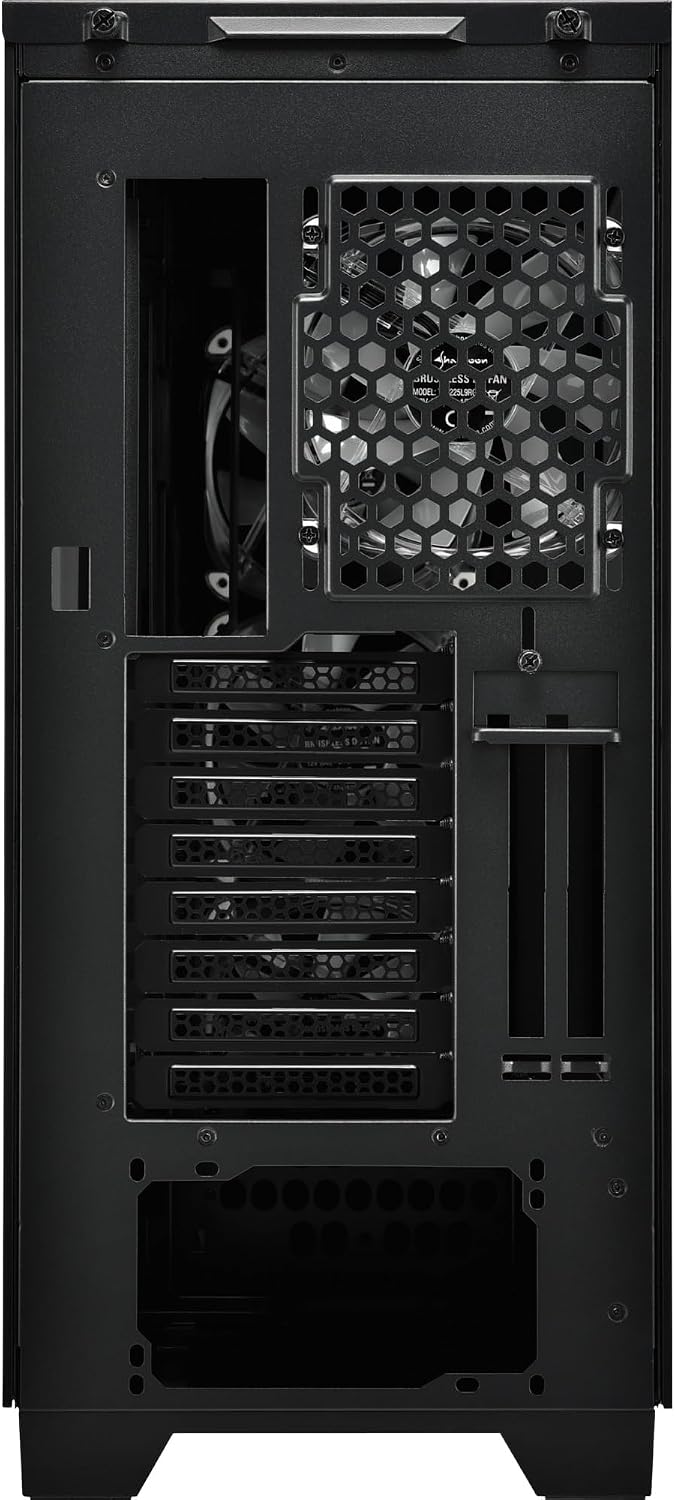
5.3-сүрөт: Арткы view of the Sharkoon CA300T PC case, illustrating the expansion slots, rear fan mount, and PSU opening.
5.7 Кабелди башкаруу
Аба агымын жана эстетиканы жакшыртуу үчүн кабелдерди уюштуруу максатында, энелик плата лотогунун артындагы кабелдерди өткөрүү каналдарын жана байлоочу чекиттерди колдонуңуз.

Сүрөт 5.4: Арткы интерьер view of the Sharkoon CA300T PC case, highlighting the dedicated cable management area behind the motherboard tray.
6. Иштөө
6.1 Күйгүзүү/өчүрүү
After all components are installed and cables are connected, press the power button on the front panel to turn on your system. Press it again to turn off, or use your operating system's shutdown function.
6.2 RGB жарыкты башкаруу
The integrated RGB lighting can be controlled via the dedicated RGB controller (if included) or through compatible motherboard software, depending on how the RGB components are connected. Refer to your motherboard manual for software control options.
7. Техникалык тейлөө
7.1 Чаң чыпкаларын тазалоо
The Sharkoon CA300T features a three-layer top plate with a dust filter. Regularly clean all dust filters to maintain optimal airflow and cooling performance.
- Turn off and unplug your PC.
- Carefully remove the dust filters (e.g., from the top, front, and bottom).
- Clean the filters using compressed air or by gently washing them with water. Ensure they are completely dry before reinstallation.
7.2 Жалпы кам көрүү
- Корпустун сыртын жумшак менен сүртүңүз, гamp кездеме. Абразивдүү тазалагычтардан алыс болуңуз.
- Ensure all cables are securely connected and not obstructing airflow.
8. Кыйынчылыктарды
Эгерде сиз компьютериңизди түзүүдө көйгөйлөргө туш болсоңуз, төмөнкү жалпы көйгөйлөрдү чечүү кадамдарын карап көрүңүз:
- Кубат жок: Ensure the power supply is properly connected to the wall outlet and the motherboard. Check all power cables (24-pin, CPU, GPU).
- Айланбаган күйөрмандар: Verify that all fan headers are correctly connected to the motherboard or fan controller. Check BIOS settings for fan control.
- Дисплей жок: Confirm that your monitor is connected to the graphics card (not the motherboard's integrated graphics, unless intended). Reseat the graphics card and RAM modules.
- RGB иштебей жатат: Check RGB cable connections to the motherboard or controller. Ensure any necessary software is installed and configured.
- Ашыкча ысып кетүү: Ensure all fans are spinning correctly and dust filters are clean. Verify proper thermal paste application on the CPU cooler.
For more complex issues, consult the manuals for your individual components (motherboard, GPU, PSU) or seek professional assistance.
9. Техникалык шарттар
| Өзгөчөлүк | Спецификация |
|---|---|
| Бренд | Шаркун |
| Модель аты | CA300T |
| Иштин түрү | Толук мунара |
| Motherboard шайкештиги | ATX |
| Сунушталган колдонуу | Оюндар |
| Түс | Кара |
| Материал | Металл |
| Power Supply Mount Type | Төмөнкү тоо |
| Муздатуу ыкмасы | Аба |
| Fan Size | 120 мм |
| Күйөрмандардын саны | 3 |
| Total Expansion Slots | 4 |
| Total USB 3.0 Ports | 2 |
| Жалпы USB порттору | 3 |
| Өзгөчөлүктөр | RGB Lighting, Openable Cable Pocket, Three-layer Top Plate with Dust Filter |
| HDD Bay Size | 3.5 дюйм |
| Number of Internal Bays | 4 |
| Шайкеш түзмөктөр | ATX Motherboards, 3.5-inch Hard Drives |
| Ачык түс | RGB |
| Элемент Салмагы | 14.7 килограмм |
10. Кепилдик
The Sharkoon CA300T PC Case comes with a 2 жылдык өндүрүүчүнүн кепилдиги. Please retain your proof of purchase for warranty claims. The warranty covers defects in materials and workmanship under normal use. It does not cover damage caused by misuse, accidents, unauthorized modifications, or improper installation.
11. Колдоо
For technical support, warranty inquiries, or further assistance, please visit the official Sharkoon website or contact their customer service department. You may find contact information and FAQs on their support pages.
Официалдуу Webсайт: www.sharkoon.com