
1. Киришүү
The Alfatron ALF CAM100 is an HD web camera designed for video conferencing, streaming, and other video communication needs. It provides 1080p video resolution for clear and sharp images. This manual provides instructions for setting up, operating, and maintaining your ALF CAM100 web камера.
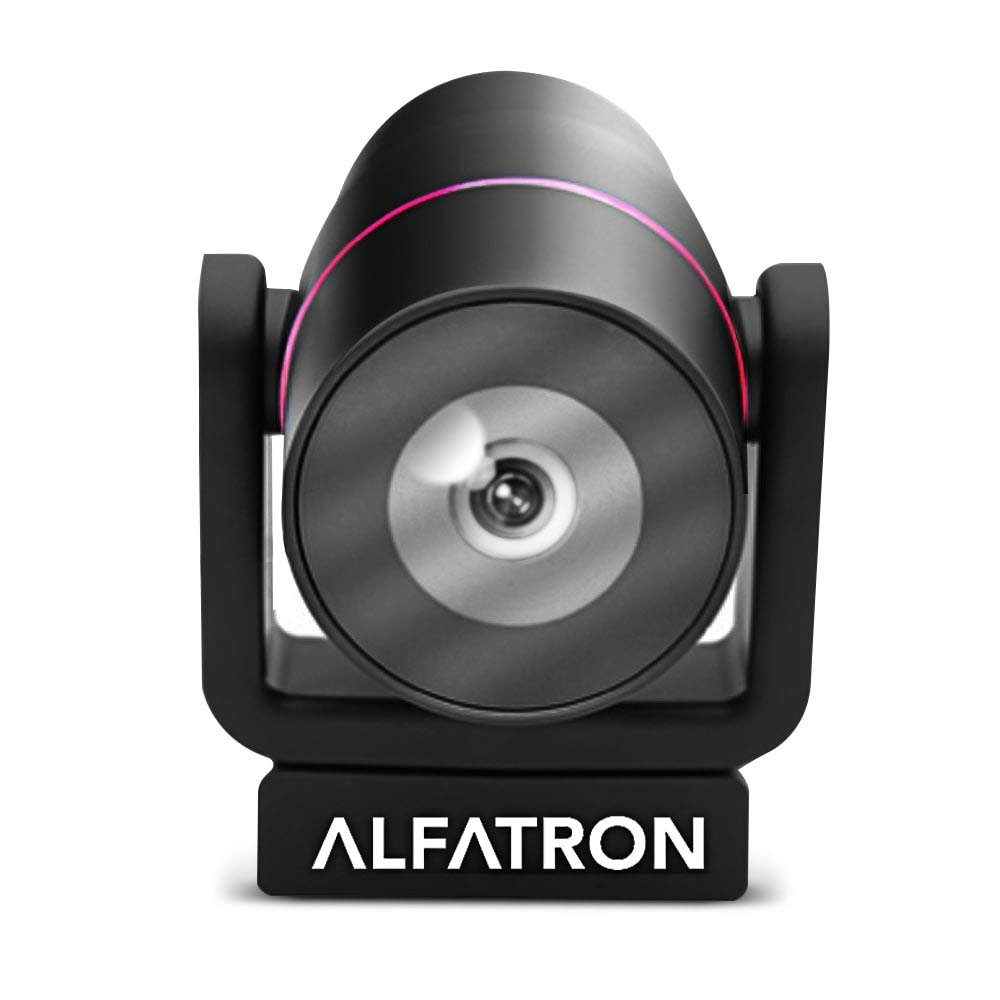
Image 1.1: The Alfatron ALF CAM100 HD Camera, highlighting its 1080p resolution, 120-degree wide shooting angle, and compatibility with video conferencing software like Skype and Zoom.
2. Кутуда эмне бар
Пакетте бардык буюмдар бар экенин текшериңиз:
- Alfatron ALF CAM100 HD Web Камера
- USB кабели
3. Орнотуу нускамалары
The ALF CAM100 web camera is designed for plug-and-play operation, requiring no additional driver installation for most operating systems.
- USB кабелин туташтыруу: Plug the provided USB cable into the USB port on the ALF CAM100 camera.
- Компьютерге туташуу: Insert the other end of the USB cable into an available USB 2.0 port on your computer.
- Системаны таануу: Your operating system (Windows, macOS, Linux) should automatically detect and install the necessary drivers for the camera. This process may take a few moments.
- Камераны жайгаштырыңыз: Place the camera on a stable surface, monitor, or tripod. The adjustable lens allows for flexible positioning.
- Select Camera in Software: Open your preferred video conferencing or streaming application (e.g., Zoom, Skype, WeChat) and select "ALF CAM100" as your video input device in the application's settings.
4. Иштөө нускамалары
4.1 Негизги операция
Once connected and selected in your software, the ALF CAM100 will begin streaming video. Ensure adequate lighting for optimal video quality.
4.2 Smart Hanging Mode
The camera features an intelligent hanging mode. If the camera is mounted upside down, it will automatically detect the orientation and adjust the video image stream accordingly, ensuring the picture is always right-side up.

Image 4.1: The Alfatron ALF CAM100 camera mounted in a conference room setting, illustrating its use and the intelligent hanging mode feature that automatically adjusts image orientation.
4.3 Adjustable Lens
The ALF CAM100 is equipped with a mechanically adjustable lens. This allows for precise framing and angle adjustments to achieve the desired view for your video calls or recordings.
5. Features Overview
- Жогорку сапаттагы видео: Streams in 1080p for clear and sharp video quality.
- Wide Range Shooting Angle: Features a 120-degree wide-angle lens to capture more of the environment.
- Жалпы шайкештик: Works with popular video meeting software including Zoom, Skype, and WeChat.
- Plug and Play: Simple USB connection with no driver installation required for most systems.
- Smart Hanging Mode: Automatically adjusts video orientation if the camera is mounted upside down.
- Жөнгө салынуучу линза: Mechanically adjustable lens for flexible framing and angle adjustments.
- Төмөн жарык аткаруу: Designed to perform well in low-light conditions.
6. Техникалык тейлөө
Proper maintenance ensures the longevity and optimal performance of your ALF CAM100 web камера.
- Линзаны тазалоо: Use a soft, lint-free cloth specifically designed for optical lenses to gently wipe the camera lens. Avoid abrasive materials or harsh chemicals.
- Денени тазалоо: Wipe the camera body with a soft, dry cloth. If necessary, a slightly damp кездемени колдонсо болот, бирок камерага ным кирбегенин текшериңиз.
- Сактагыч: When not in use for extended periods, store the camera in a clean, dry place away from direct sunlight and extreme temperatures.
- Кабельге кам көрүү: USB кабелин зыянга учуратпоо үчүн өтө ийилип же бурулбаңыз.
7. Кыйынчылыктарды
If you encounter issues with your ALF CAM100 web camera, refer to the following common solutions:
- Камера аныкталган жок:
- USB кабелинин камерага да, компьютерге да бекем туташтырылганын текшериңиз.
- Try connecting the camera to a different USB port on your computer.
- Компьютериңизди өчүрүп күйгүзүңүз.
- Check your operating system's device manager (Windows) or system information (macOS) to see if the camera is listed.
- Видео чыгаруу жок:
- Verify that the ALF CAM100 is selected as the video input device in your video conferencing or streaming application's settings.
- Ensure no other application is currently using the camera, as some software may not allow simultaneous access.
- Check for any privacy settings on your operating system that might be blocking camera access for certain applications.
- Видеонун сапаты начар:
- Ensure adequate lighting in your environment. The camera performs best with sufficient illumination.
- Clean the camera lens using a soft, lint-free cloth.
- Check your internet connection speed if streaming, as low bandwidth can affect video quality.
- Confirm that your video application is set to use 1080p resolution if available.
8. Техникалык шарттар
| Өзгөчөлүк | Деталь |
|---|---|
| Модель номери | ALFCAM100 |
| Өлчөмдөр | 104мм x 139мм x 124мм / 7.48 x 6.1 x 5.12 дюйм |
| Таза Салмак | 500г / 1.93 фунт |
| Түс | Кара |
| Интерфейс | USB 2.0 |
| Объектив | 1/2.8, fixed focus, 120-degree angle |
| Сенсор | Full HD CMOS Sensor |
| Video Resolution | 1920 x 1080 (1080p) |
| Сүрөттү өткөрүү ылдамдыгы | 30 FPS чейин |
| Aperture Coefficient | F2.0 |
| Өзгөчө өзгөчөлүк | Төмөн жарык аткаруу |
Note: Dimensions and weight are provided in both metric and imperial units as found in product data.
9. Кепилдик жана колдоо
The Alfatron ALF CAM100 comes with a limited 7-year warranty.
For technical support or warranty claims, please refer to the official Alfatron webсайтына кириңиз же алардын кардарларды тейлөө бөлүмүнө кайрылыңыз. Байланыш маалыматы, адатта, продуктунун таңгагында же өндүрүүчүнүн webсайт.