
1. Киришүү
Thank you for choosing the Comsol CMMP09 USB-C to HDMI Adapter. This device is designed to expand the connectivity of your USB-C enabled computer, allowing you to connect to multiple displays, network, USB peripherals, and memory cards, all while providing power pass-through charging.
This manual provides detailed instructions for the setup, operation, and maintenance of your CMMP09 adapter to ensure optimal performance and longevity.
2. Продукт бүтүп калдыview
The Comsol CMMP09 adapter features a comprehensive array of ports to enhance your productivity. Below is a visual representation and description of the adapter's components.
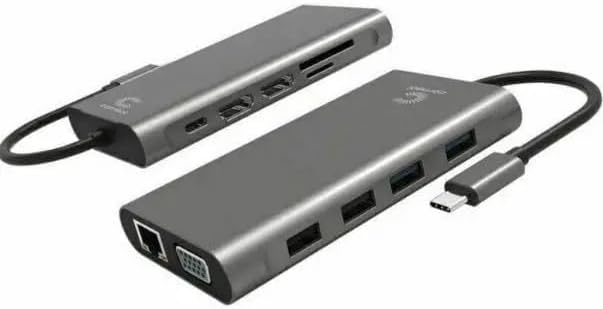
2.1-сүрөт: Генерал view of the Comsol CMMP09 USB-C to HDMI Adapter, showcasing анын компакттуу конструкциясы жана ар турдуу порттору.

2.2-сүрөт: Деталдаштырылган view of the Comsol CMMP09 adapter with all ports clearly labeled for easy identification.
Порт сүрөттөмөлөрү:
- 1 x USB-C Male Connector: Connects to your computer's USB-C port.
- 2 x HDMI Female Connectors: Supports 4K Ultra HD 2160p (3840 x 2160) at 30Hz for a single monitor.
- 1 x VGA Female Connector: Supports 1920 x 1080 at 60Hz.
- 2 x USB 3.0 Type-A Female Connectors: Supports data transfer speeds up to 5Gbps.
- 2 x USB 2.0 Type-A Female Connectors: Supports data transfer speeds up to 480Mbps.
- 1 x RJ45 Female Connector: For Gigabit Ethernet LAN connection.
- 1 x SD Card Reader Female Port: For data transfer, supports SD/SDHC/SDXC V3.0 UHS-I cards up to 2TB.
- 1 x Micro SD Card Reader Female Port: For data transfer, supports Micro SD/SDHC/SDXC V3.0 UHS-I cards up to 2TB.
- 1 x USB-C Female Connector (Power Pass-Through): Supports 100W (20V 5A) power delivery to charge your host device.
3. Орнотуу нускамалары
Follow these steps to set up your Comsol CMMP09 adapter:
- Хост түзмөккө туташуу: Plug the male USB-C connector of the CMMP09 adapter into an available USB-C port on your computer. Ensure the USB-C port on your computer supports video output (DisplayPort Alternate Mode) and power delivery if you intend to use these features.
- Туташуу дисплейлери:
- For HDMI displays, connect HDMI cables from your monitors to the HDMI ports on the adapter.
- For VGA displays, connect a VGA cable from your monitor to the VGA port on the adapter.
- Your computer should automatically detect the connected displays. You may need to adjust display settings in your operating system (e.g., Windows Display Settings) to configure mirror or extend modes.
- USB перифериялык түзүлүштөрдү туташтыруу: Plug your USB devices (e.g., keyboard, mouse, external hard drive, USB flash drive) into the USB 3.0 or USB 2.0 Type-A ports on the adapter.
- Тармакка туташуу: For a wired internet connection, connect an Ethernet cable from your router or modem to the RJ45 port on the adapter.
- Эстутум карталарын салыңыз: Insert your SD or Micro SD cards into the corresponding card reader slots for data access.
- Кубат туташтыруу (милдеттүү эмес): If your computer supports USB-C Power Delivery and you wish to charge it through the adapter, connect your computer's original USB-C power adapter to the USB-C female port on the CMMP09 adapter. This port supports up to 100W power pass-through.
4. Иштөө нускамалары
Once the adapter is set up, you can utilize its various functions:
- Дисплей чыгаруу:
- The adapter supports mirror or extend mode for Windows operating systems. Access your display settings (e.g., right-click on desktop > Display settings) to configure your preferred display arrangement.
- Ensure your monitors are set to the correct input source (HDMI or VGA).
- USB маалыматтарды өткөрүү:
- Connect USB 3.0 devices to the blue USB-A ports for maximum data transfer speeds (up to 5Gbps).
- Connect USB 2.0 devices to the black USB-A ports for standard data transfer speeds (up to 480Mbps).
- Тармак туташуусу:
- Once connected via the RJ45 port, your computer should automatically detect the wired network connection. Verify network status in your operating system's network settings.
- Card Reader Functionality:
- Insert SD or Micro SD cards into their respective slots. The cards will appear as removable drives in your computer's file explorer, allowing you to transfer files.
- Кубат жеткирүү:
- If a power adapter is connected to the USB-C power pass-through port, your host computer will begin charging. The adapter itself does not require external power to function, but it is necessary for charging the host device.
5. Техникалык тейлөө жана кам көрүү
To ensure the longevity and proper functioning of your Comsol CMMP09 adapter, please observe the following care guidelines:
- Keep the adapter dry. Avoid exposure to moisture, rain, or liquids.
- Do not expose the adapter to extreme temperatures (hot or cold).
- Clean the adapter with a soft, dry cloth. Do not use harsh chemicals or abrasive cleaners.
- Адаптерди кулап же катуу таасирлерге дуушар кылуудан качыңыз.
- Do not attempt to disassemble or modify the adapter. This will void the warranty.
- Store the adapter in a clean, dust-free environment when not in use.
6. Кыйынчылыктарды
If you encounter issues with your CMMP09 adapter, please refer to the following common problems and solutions:
- Дисплей чыгышы жок:
- USB-C туташтыргычы компьютериңиздин портуна толугу менен сайылып турганын текшериңиз.
- Verify that your computer's USB-C port supports DisplayPort Alternate Mode (video output).
- Check that the HDMI/VGA cables are securely connected to both the adapter and the monitor.
- Confirm that your monitor is set to the correct input source (HDMI/VGA).
- Adjust display settings in your operating system (e.g., extend, duplicate).
- USB түзмөктөрү таанылбайт:
- Ensure the USB device is properly connected to the adapter's USB-A port.
- Try connecting the USB device to a different USB port on the adapter or directly to your computer to rule out device issues.
- If using a high-power USB device, ensure the adapter is connected to external power via its USB-C PD port.
- No Network Connection via RJ45:
- Check that the Ethernet cable is securely connected to both the adapter and your router/modem.
- Компьютериңиздеги тармак жөндөөлөрүн текшериңиз.
- Роутериңиз/модемиңиз туура иштеп жатканын текшериңиз.
- SD/Micro SD Card Not Detected:
- Картанын туура уячага толук салынганын текшериңиз.
- Check if the card is damaged or corrupted by trying it in another device.
- Host Device Not Charging (Power Pass-Through):
- Ensure your computer's original USB-C power adapter is connected to the adapter's USB-C PD port.
- Verify that your computer's USB-C port supports Power Delivery.
- Кубат адаптерин жана кабелин кандайдыр бир бузулууларды текшериңиз.
7. Техникалык шарттар
| Өзгөчөлүк | Деталь |
|---|---|
| Модел | CMMP09 |
| Бренд | Comsol |
| Өлчөмдөр | 115 x 63 x 16 мм |
| Материал | Пластик |
| Киргизүү | 1 x USB-C Male Connector |
| HDMI чыгышы | 2 x HDMI Female, supports 4K Ultra HD 2160p (3840 x 2160) @30Hz (single monitor) |
| VGA чыгаруу | 1 x VGA Female, supports 1920 x 1080 @60Hz |
| USB 3.0 порттору | 2 x USB 3.0 Type-A Female, up to 5Gbps data transfer |
| USB 2.0 порттору | 2 x USB 2.0 Type-A Female, up to 480Mbps data transfer |
| Ethernet | 1 x RJ45 Female, Gigabit LAN |
| Card Reader | 1 x SD, 1 x Micro SD, supports SD/SDHC/SDXC V3.0 UHS-I up to 2TB |
| Power Delivery | 1 x USB-C Female, 100W (20V 5A) pass-through charging |
| Шайкештик | Windows (supports mirror or extend mode) |
8. Кепилдик жана колдоо
Comsol products are designed and manufactured to the highest quality standards. For information regarding warranty terms and conditions, or for technical support, please refer to the warranty card included with your purchase or visit the official Comsol webсайт.
Кепилдик дооматтары үчүн сатып алганыңыздын далилин сактап коюңуз.