1. Киришүү
The WAVLINK 14-in-1 DisplayLink Docking Station (Model WL-UG69DK7) is designed to expand the connectivity of your laptop or computer, providing a versatile solution for multiple displays and peripherals. This docking station supports a wide range of devices and operating systems, enhancing your workspace efficiency.
It features dual 5K display outputs, multiple USB 3.0 ports, a Gigabit Ethernet port, and a 2-in-1 audio/microphone jack. Please note that this docking station does not support charging your host device.

Figure 1: ашыкview of the WAVLINK 14-in-1 DisplayLink Docking Station and its ports.
Video: WAVLINK USB-C Universal Docking Station Overview
Видео 1: Кыскача маалыматview of the WAVLINK USB-C Universal Docking Station (Model UG69DK7) and its features.
2. Орнотуу жана орнотуу
2.1. Драйверди орнотуу
Before connecting the docking station, it is crucial to install the DisplayLink driver for your operating system. This driver enables the docking station to function correctly and support multiple displays.
- Go to the official DisplayLink webсайт (displaylink.com).
- Navigate to the "Downloads" section.
- Select the correct driver version for your operating system (Windows, macOS, Android, Ubuntu, Chrome OS).
- Download and install the driver following the on-screen instructions.
- Суралган учурда компьютериңизди өчүрүп күйгүзүңүз.

Figure 2: Steps for downloading and installing the DisplayLink driver.
Video: DisplayLink Driver Installation for Mac
Video 2: A guide on how to download and install the DisplayLink driver on macOS for optimal functionality.
2.2. Физикалык байланыш
Follow these steps to connect your docking station and peripherals:
- Connect the power adapter to the 20V DC IN port on the docking station and then to a power outlet.
- Connect your monitors to the docking station using HDMI or DisplayPort cables. The docking station supports up to two 5K displays.
- Connect your USB peripherals (keyboard, mouse, external hard drives, etc.) to the available USB 3.0 ports.
- For a wired network connection, connect an Ethernet cable to the Gigabit Ethernet port on the docking station.
- Connect your headphones or microphone to the 2-in-1 audio & microphone jack.
- Finally, connect the docking station to your laptop using the provided USB-C to C or USB-C to A cable.

Figure 3: Docking station connected to a laptop and dual monitors.
3. Иштөө нускамалары
3.1. Дисплей конфигурациясы
The docking station supports single or dual monitors with resolutions up to 5120x1440@60Hz. You can configure your displays in either Mirror Mode or Extend Mode through your operating system's display settings.
- MirrorMode: Duplicates your primary display onto the external monitors.
- Узартуу режими: Expands your desktop across multiple screens, allowing for increased productivity.
Маанилүү эскертүү: In the same video stream group (Display 1: DP1+HDMI1 and Display 2: DP2+HDMI2), the DisplayPort and HDMI port cannot be used simultaneously. If both are connected, the DisplayPort will take priority.

Figure 4: Illustration of Mirror Mode and Extend Mode for display setup.
3.2. USB аркылуу маалыматтарды өткөрүү
The docking station features six USB-A 3.0 ports, supporting data transfer speeds of up to 5Gbps. This allows for rapid transfer of large files and efficient connection of various USB peripherals. One of these ports also supports BC1.2 fast charging (7.5W) for compatible devices.
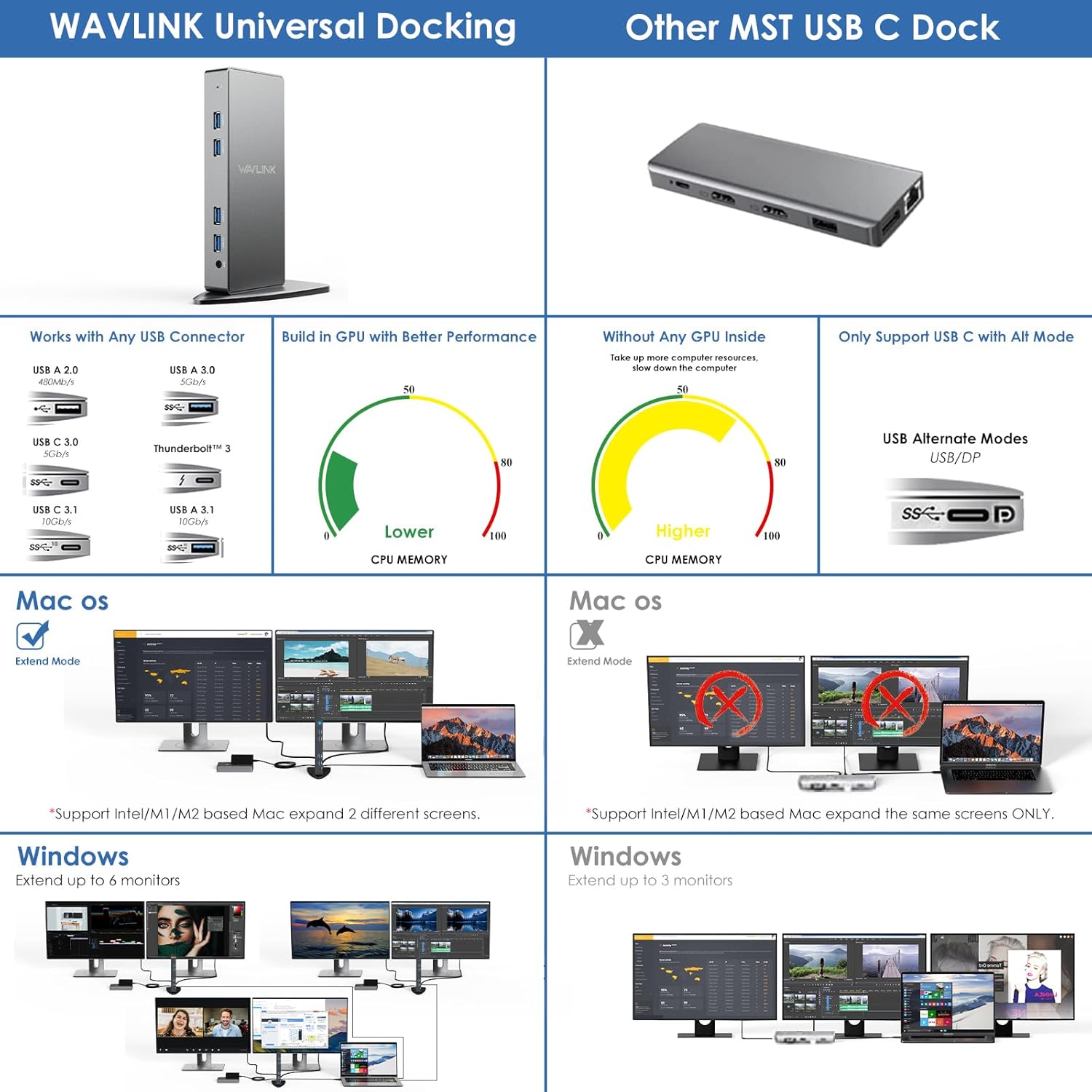
Figure 5: Highlighting the ultra-fast data transfer speed of USB 3.0 ports.
3.3. Network and Audio
The Gigabit Ethernet port provides a stable and fast wired network connection (10/100/1000Mbps), ideal for streaming and online activities. The 2-in-1 audio & microphone jack allows for simultaneous audio output and voice input, supporting headsets with a single 4-pole connector.

Figure 6: Docking station with Gigabit RJ45 Ethernet and 2-in-1 audio/mic jack connections.
3.4. Additional Modes
- Айлануу режими: Supports screen rotation to adjust to different monitor orientations.
- Clamshell Mode: Allows you to use your laptop with the lid closed while connected to external monitors, reducing power consumption and extending battery life.

Figure 7: Visual representation of Rotation Mode and Clamshell Mode functionality.
4. Техникалык шарттар
| Өзгөчөлүк | Деталь |
|---|---|
| Модель номери | WL-UG69DK7 |
| Продукциянын өлчөмдөрү | 4.72 x 3.15 x 2.36 дюйм (12 x 8 x 6 см) |
| Элемент Салмагы | 1.23 фунт (558 грамм) |
| Жалпы порттор | 14 |
| USB порттору | 6 x USB 3.0 Type-A (5Gbps, one with BC1.2 fast charging) |
| Video Output | 2 x HDMI (up to 5K), 2 x DisplayPort (up to 5K) |
| Ethernet | 1 x Гигабит Ethernet (10/100/1000Mbps) |
| Аудио | 1 x 2-in-1 Audio & Microphone Jack |
| Power Input | 20V DC (35 watts) |
| Хост байланышы | USB-C (with included USB-C to C/A cables) |
| Шайкештик | Windows 11/10/8.1/8/7/Vista, Mac OS 10.14-14.x+, Android 5.0+, Ubuntu 20.04/22.04, Chrome OS, Harmony OS. (Not compatible with iPhone OS, iPad OS, Linux, Unix) |
5. Техникалык тейлөө
- Keep the docking station in a dry, well-ventilated area.
- Аппаратты экстремалдык температурага же тике күн нуруна кабылуудан сактаңыз.
- Сыртын жумшак, кургак чүпүрөк менен тазалаңыз. Суюк тазалоочу каражаттарды же аэрозольдорду колдонбоңуз.
- Ensure all cables are securely connected to prevent signal loss or power interruptions.
- Regularly check for DisplayLink driver updates to ensure optimal performance and compatibility.
6. Кыйынчылыктарды
- Дисплей чыгышы жок:
- Ensure the DisplayLink driver is correctly installed and updated.
- Verify all display cables (HDMI/DisplayPort) are securely connected to both the docking station and the monitors.
- Check your computer's display settings to ensure the external monitors are detected and configured (Mirror or Extend mode).
- Док-станция кубат алып жатканын ырастаңыз.
- USB түзмөктөрү иштебейт:
- Ensure the docking station is properly connected to your host computer via the USB-C cable.
- Түзмөк көйгөйлөрүн болтурбоо үчүн USB түзмөгүн түздөн-түз компьютериңизге туташтырууга аракет кылыңыз.
- Test different USB ports on the docking station.
- Тармакка туташуу маселелери:
- Ethernet кабелинин док станциясына да, роутериңизге/модемиңизге да бекем туташтырылганын текшериңиз.
- Компьютериңиздин тармак жөндөөлөрүн текшериңиз.
- Ensure the network adapter for the docking station is enabled in your operating system.
- Аудио көйгөйлөрү:
- Check your computer's sound settings to ensure the docking station's audio output is selected as the default device.
- Verify your headphones/speakers are properly connected to the 2-in-1 audio jack.
- Performance Issues (Lagging Display, Slow USB):
- Компьютериңиз DisplayLink үчүн минималдуу системалык талаптарга жооп берерин текшериңиз.
- Системалык ресурстарды бошотуу үчүн керексиз тиркемелерди жабыңыз.
- Update your computer's graphics drivers and operating system.
7. Кепилдик жана колдоо
For warranty information and technical support, please refer to the documentation included with your product or visit the official WAVLINK website. You may also contact WAVLINK customer service directly for assistance with product setup, troubleshooting, or warranty claims.
Өндүрүүчү: WAVLINK