
Introduction
This manual provides comprehensive instructions for the Vivitar Podcast and Social Media Microphone MIC918. This high-quality condenser microphone is designed for clear audio capture for various applications, including podcasting, live streaming, gaming, voice-overs, and vocal recording. It features a simple plug-and-play USB connection, integrated volume control, and a stable tripod stand for optimal positioning.
Коопсуздук маалыматы
- Do not expose the microphone to water or excessive moisture.
- Ашыкча температурадан же түз күндүн нурунан сактаныңыз.
- Микрофонду ажыратууга же өзгөртүүгө аракет кылбаңыз. Бул кепилдикти жокко чыгарат.
- Микрофонду күчтүү магнит талаасынан алыс кармаңыз.
- Тазалоо үчүн жумшак, кургак чүпүрөктү гана колдонуңуз.
Продукт бүттүview
Пакеттин мазмуну
- Vivitar MIC918 Microphone Unit
- Tripod Stand
- Интеграцияланган USB туташуу кабели
Микрофондун компоненттери
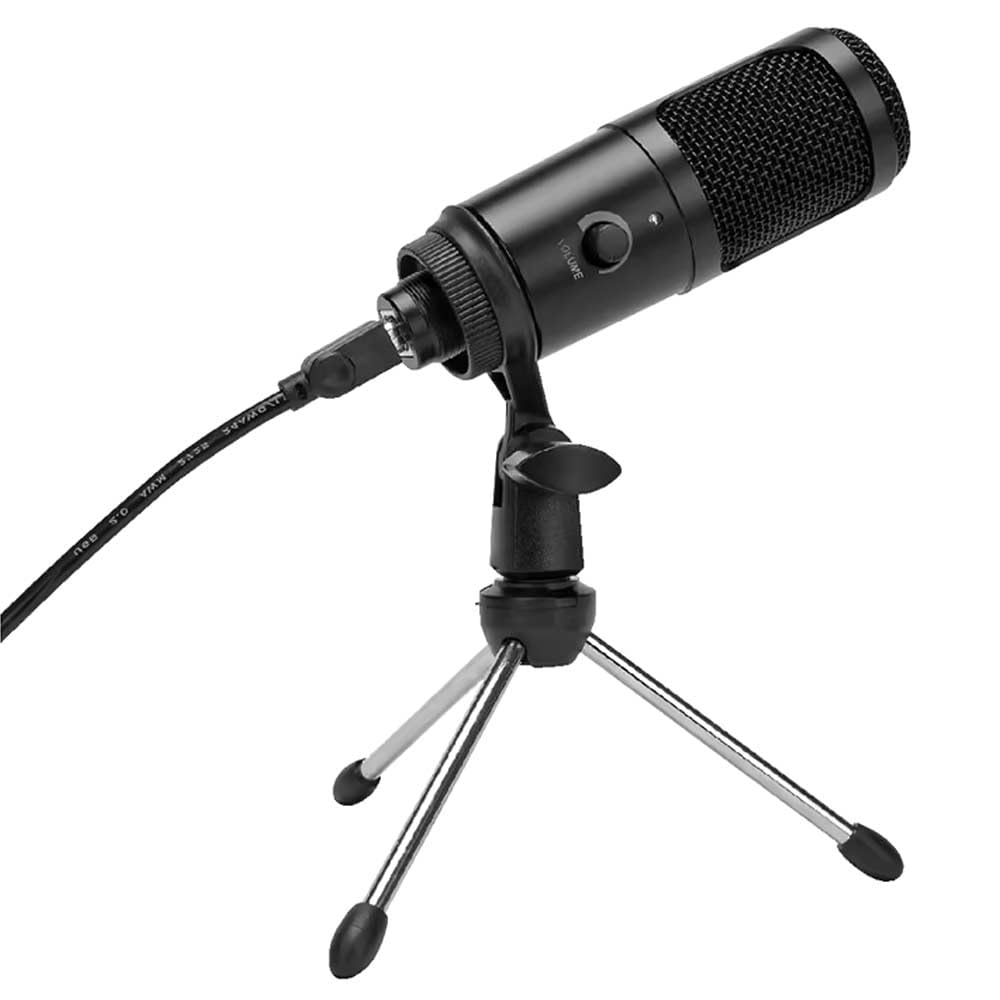
1-сүрөт: Vivitar MIC918 Microphone unit attached to its tripod stand, showing the integrated USB cable.

2-сүрөт: Side view of the Vivitar MIC918 Microphone, highlighting the volume control knob and the Vivitar brand logo.
The microphone unit features a durable metal construction. The front side includes a volume control knob for easy audio level adjustments. The microphone is designed with a unidirectional polar pattern to focus on sound directly in front of it, reducing background noise.
Жайгашуу
Микрофонду туташтыруу
- Стендди чогултуу: If not already assembled, unfold the tripod stand and ensure it is stable on a flat surface. Securely attach the microphone unit to the stand's mounting point. The rotating shaft ring allows for angle adjustment.
- Түзмөккө туташуу: Plug the integrated USB cable from the microphone into an available USB port on your computer, laptop, or compatible gaming console.
- Plug and Play: The Vivitar MIC918 is a plug-and-play device. Your operating system (Windows, macOS, etc.) should automatically detect and install the necessary drivers. No additional software installation is typically required.
- Киргизүү түзмөгү катары тандаңыз: After connecting, navigate to your device's sound settings or the audio settings within your recording/streaming software. Select the "Vivitar MIC918" or similar USB audio device as your primary input (microphone) device.
Иштеп жатат
Үндү тууралоо
The microphone features a built-in volume control knob located on its side (refer to Figure 2). Rotate this knob clockwise to increase the microphone's input sensitivity (volume) and counter-clockwise to decrease it. Adjust this to achieve the desired recording level without distortion.
Микрофонду жайгаштыруу
For optimal audio capture, position the microphone directly in front of the sound source (e.g., your mouth for speaking or singing). The tilting tripod stand allows you to adjust the microphone's angle to best suit your needs. Due to its unidirectional polar pattern, the microphone is most sensitive to sounds coming from the front and less sensitive to sounds from the sides or rear, helping to minimize ambient noise.
Техникалык тейлөө
- Тазалоо: Use a soft, dry, lint-free cloth to wipe the microphone's exterior. Do not use liquid cleaners, aerosols, or solvents.
- Сактагыч: When not in use, store the microphone in a clean, dry place, away from dust and extreme temperatures.
- Колдонуу: Микрофонду этияттык менен кармаңыз. Аны түшүрүп албоо же катуу сокку уруудан алыс болуңуз.
Проблемаларды чечүү
| Көйгөй | Мүмкүн себеп | Чечим |
|---|---|---|
| No sound output from microphone. | Микрофон туура эмес туташтырылган. Туура эмес киргизүү түзмөгү тандалды. Микрофондун үнү өтө төмөн. | Ensure USB cable is securely plugged into both the microphone and the device. Verify that "Vivitar MIC918" is selected as the input device in your system's sound settings or recording software. Increase the volume using the knob on the microphone and check system input levels. |
| Poor sound quality (e.g., muffled, too quiet, background noise). | Микрофондун туура эмес жайгашуусу. High ambient noise. Input level too high or too low. | Position the microphone closer to the sound source and ensure it's facing directly towards it. Тынчыраак чөйрөдө жаздырыңыз. Adjust the microphone's volume knob and system input levels to an optimal range, avoiding clipping or being too faint. |
| Микрофон компьютер тарабынан таанылган жок. | USB порту же кабель туура эмес. System driver issue. | Микрофонду компьютериңиздин башка USB портуна туташтырып көрүңүз. Restart your computer. If the issue persists, check your operating system's device manager for any driver conflicts or updates. |
Техникалык шарттар
| Өзгөчөлүк | Спецификация |
|---|---|
| Бренд | Vivitar |
| Модель номери | MIC918 |
| Байланыш | USB (Plug and Play) |
| Микрофон түрү | Конденсатор |
| Полярдык үлгү | Бир багыттуу |
| Ызы-чуунун катышы | 78 дБ |
| Коргоочу материал | Металл |
| Элемент Салмагы | 0.95 фунт (болжол менен 0.43 кг) |
| Элементтин өлчөмдөрү (L x W x Y) | 8.86 x 5.36 x 2.49 дюйм (болжол менен 22.5 x 13.6 x 6.3 см) |
| Power Source | Зымдуу электр (USB аркылуу) |
| Шайкеш түзмөктөр | Computers, Laptops, Gaming Consoles |
Кепилдик маалымат
The Vivitar Podcast and Social Media Microphone MIC918 comes with a 3-Year USA Warranty. For specific terms, conditions, and to register your product, please refer to the official Vivitar webсайтка же түздөн-түз кардарларды колдоо менен байланышыңыз. Кепилдик дооматтар үчүн сатып алганыңыздын далилин сактаңыз.
Кардарларды колдоо
For further assistance, technical support, or inquiries regarding your Vivitar MIC918 microphone, please visit the official Vivitar website or contact their customer service department. Contact information can typically be found on the Vivitar webсайттын "Колдоо" же "Биз менен байланыш" бөлүмдөрүнөн.