
Introduction
This manual provides essential instructions for setting up, operating, maintaining, and troubleshooting your Surfans K7 Kids Tablet. Please read this guide thoroughly to ensure proper use and to maximize the tablet's features for a safe and engaging experience for children.
Продукт бүттүview
Негизги өзгөчөлүктөрү
- Android 10.0 операциялык системасы: Provides a secure and fast user experience.
- 7-inch IPS FHD Display: Features a 1920 x 1200 resolution eye-care touchscreen with a 178-degree wide viewбурч.
- Төрт ядролуу процессор: Ensures smooth performance for apps and games.
- 2GB RAM, 32GB ROM: Sufficient memory for multitasking and storage, expandable via MicroSD card.
- Кош камералар: Equipped with 2MP front and 5MP rear cameras for photos and video calls.
- Байланыш: Includes Wi-Fi and Bluetooth for wireless connections.
- Pre-installed iWAWA App: Offers updated educational content including games, videos, e-books, drawing, puzzles, and creative arts.
- Google Play Store Access: Allows downloading additional applications like YouTube Kids, Netflix, and Hulu.
- Parental Control Mode: Enables parents to manage content, set time limits, and customize child profiles.
- Durable Kid-Proof Case: Comes with a colorful, soft, and high-quality silicone case with an integrated 360-degree adjustable stand, suitable for children aged 2 to 10 years.

Image: The Surfans K7 Kids Tablet showcasing its GMS Certified Android 10.0 operating system and access to various applications via Google Play Store.

Image: The Surfans K7 Kids Tablet in use, illustrating its key features including quad-core processor, Android 10.0, 2GB RAM, 32GB ROM, WiFi, and Parent Mode.
Планшет компоненттери
Планшетиңиздин физикалык компоненттери менен таанышып алыңыз:
- Кубат баскычы: Typically located on the side, used to turn the tablet on/off or put it to sleep/wake it up.
- Үн баскычтары: Аудио чыгаруу деңгээлин тууралаңыз.
- USB-C порту: Планшетті кубаттоо жана маалыматтарды өткөрүп берүү үчүн компьютерге туташтыруу үчүн.
- 3.5 мм аудио уячасы: Наушниктерди же тышкы динамиктерди туташтыруу үчүн.
- MicroSD картасынын уячасы: Allows for memory expansion using a compatible MicroSD card.
- Алдыңкы камера: Used for video calls and taking selfies.
- Арткы камера: Сүрөттөрдү жана видеолорду тартуу үчүн.
- Баяндамачы: Provides audio output for media and notifications.
Жайгашуу
1. Планшетти заряддоо
Before first use, fully charge the tablet. Connect the provided USB cable to the tablet's USB-C port and the other end to the power adapter. Plug the adapter into a wall outlet. The battery indicator on the screen will show the charging status.
2. Күйгүзүү / Өчүрүү
- Күйгүзүү үчүн: Press and hold the Power Button until the screen lights up and the Surfans logo appears.
- Өчүрүү үчүн: Press and hold the Power Button until a menu appears on the screen. Select "Power off" and confirm.
- Уйку/ойгонуу үчүн: Briefly press the Power Button to put the tablet to sleep or wake it up.
3. Баштапкы орнотуу
Upon first power-on, follow the on-screen prompts to configure basic settings:
- Каалаган тилиңизди тандаңыз.
- Connect to a Wi-Fi network (see next step).
- Set up your Google account or create a new one. This is necessary for downloading apps from the Google Play Store.
- Review жана шарттарды кабыл алуу.
4. Wi-Fiга туташуу
To connect your tablet to the internet:
- барыңыз Орнотуулар.
- Басыңыз Тармак жана интернет.
- Тандоо Wi-Fi жана аны күйгүзүңүз.
- The tablet will scan for available networks. Select your desired network from the list.
- Эгер суралса, Wi-Fi сырсөзүн киргизиңиз, андан кийин таптаңыз Туташуу.
Иштөө нускамалары
1. Негизги навигация
The Surfans K7 tablet uses a touchscreen for interaction:
- таптаңыз: Бир нерсени тандоо, колдонмону ачуу же баскычты басуу үчүн экранга бир жолу тийип коюңуз.
- Серпүү: Барактарды, тизмелерди сыдыруу же үй экрандарынын ортосунда которулуу үчүн манжаңызды экранда сүйрөңүз.
- Чымчып-кичирейтүү: Place two fingers on the screen and move them apart or together to zoom in or out.
- Эскертмелер жана Ыкчам жөндөөлөр: Эскертмелерге жана тез жөндөөлөргө (Wi-Fi, Bluetooth ж.б.) кирүү үчүн экрандын жогору жагынан ылдый сүрүңүз.
2. Downloading Apps from Google Play Store
With a Google account set up, you can download a wide variety of applications:
- басыңыз Play Store Башкы экраныңыздагы же колдонмо суурмасындагы сүрөтчө.
- Browse or search for apps, games, movies, and books.
- Select an item and tap Орнотуу аны жүктөп алуу жана орнотуу үчүн.
3. Using Pre-installed iWAWA App
The iWAWA app provides a safe and engaging environment for children:
- Табыңыз жана басыңыз iWAWA сөлөкөтү.
- Explore the various categories such as games, videos, e-books, and creative activities.
- Content within iWAWA is curated to be age-appropriate and educational.
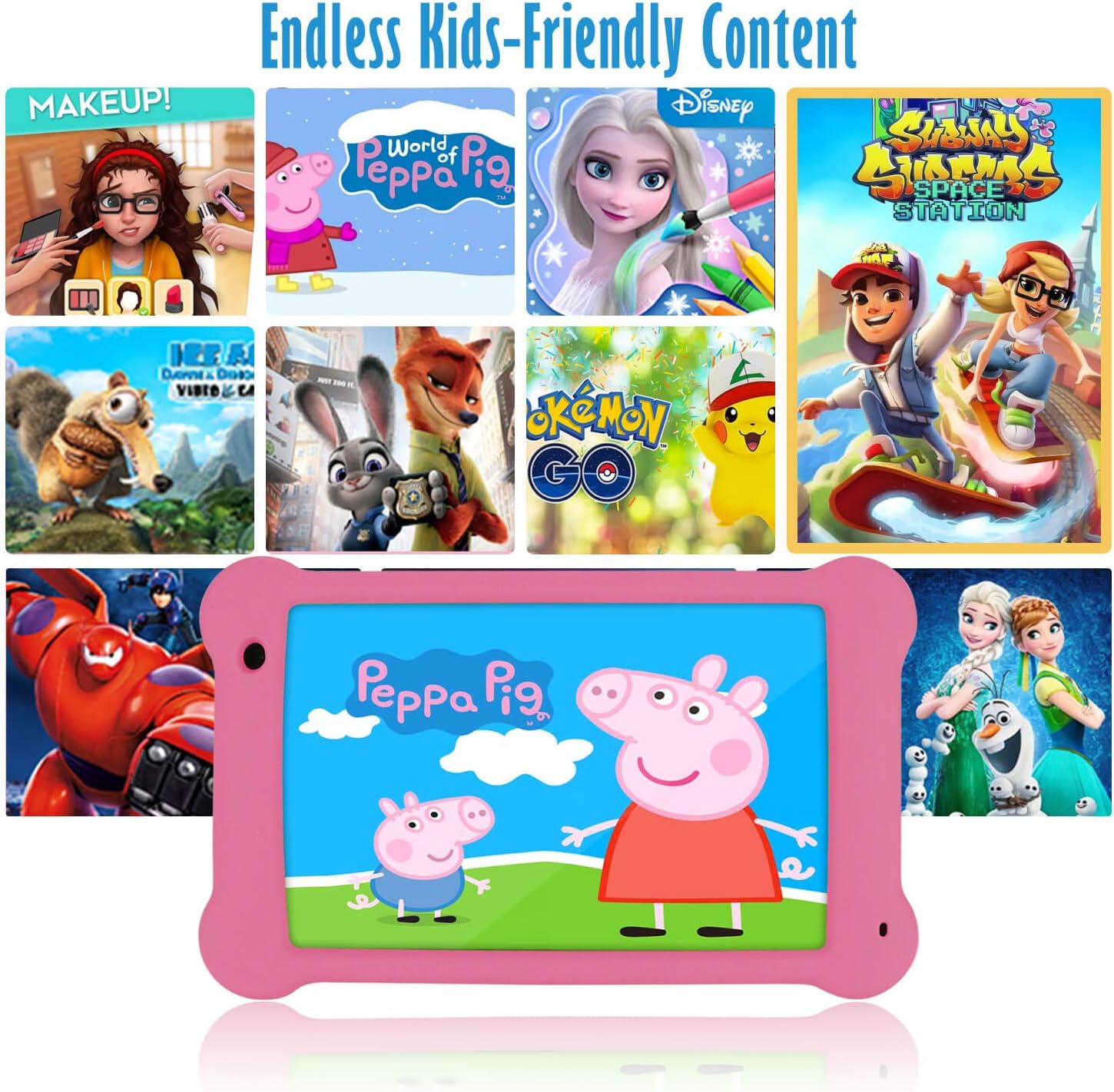
Image: The Surfans K7 Kids Tablet showcasing a variety of popular kid-friendly content, accessible through pre-installed apps and Google Play Store.
Ата-энелик көзөмөл режими
The Surfans K7 tablet includes a dedicated Parental Control Mode to manage your child's usage and ensure a safe digital environment.
1. Accessing Parental Mode
To access and configure parental controls:
- табыңыз жана ачыңыз Ата-эне режими or iWAWA Parent планшетте колдонмо.
- You will be prompted to set up a password or PIN for secure access. Remember this password.
2. Setting Time Limits
Manage how long your child can use the tablet:
- Configure daily usage limits for the tablet.
- Set specific time blocks during which the tablet can or cannot be used (e.g., bedtime restrictions).
3. Content Filtering
Ensure your child accesses only appropriate content:
- Select and approve specific applications, websites, and media content that your child is allowed to access.
- Block inappropriate content categories or specific webсайттар.
4. Managing Child Profiles
Create personalized experiences for each child:
- Жеке адис түзүүfiles for multiple children.
- Customize settings, content access, and time limits for each profile based on age and preferences.

Image: A parent and child using the Surfans K7 Kids Tablet, demonstrating the ease of setting up and managing parental controls for time limits, child lock, and content filtering.
Техникалык тейлөө
1. Планшетти тазалоо
To keep your tablet clean and functional:
- Use a soft, lint-free cloth (e.g., microfiber cloth) to gently wipe the screen and tablet body.
- өжөр тактар үчүн, бир аз гampen the cloth with water. Avoid using harsh chemicals, abrasive cleaners, or excessive moisture, as these can damage the screen or internal components.
- Планшетті тазалоодон мурун, анын өчүрүлгөнүн жана розеткадан суурулганын текшериңиз.
2. Батареяга кам көрүү
Proper battery care extends the tablet's lifespan:
- Avoid fully discharging the tablet frequently. Charge the tablet when the battery level is low (e.g., below 20%).
- Do not expose the tablet to extreme temperatures (hot or cold), as this can degrade battery performance.
- Берилген кубаттагычты же сертификатталган шайкеш кубаттагычты гана колдонуңуз.
3. Программалык камсыздоону жаңыртуу
Keep your tablet's software up-to-date for optimal performance and security:
- Periodically check for system updates by going to Орнотуулар > Система > Системаны жаңыртуу.
- Ensure your tablet is connected to Wi-Fi and has sufficient battery charge before starting an update.
4. Коргоочу капкактарды тейлөө
The included kid-proof silicone case offers protection:
- Ишти жарнама менен тазалаңызamp кездеме кир болсо.
- Ensure the case is properly fitted around the tablet to provide maximum protection against drops and bumps.

Сүрөт: деталдуу view of the Surfans K7 Kids Tablet's durable kid-proof case, highlighting its soft silicone material and anti-drop corner design for enhanced protection.
Проблемаларды чечүү
This section addresses common issues you might encounter with your Surfans K7 Kids Tablet.
Планшет күйбөйт
- Батареяны текшерүү: Ensure the tablet is charged. Connect it to the charger for at least 30 minutes, then try powering it on again.
- Мажбурлап кайра иштетүү: Press and hold the Power Button for about 10-15 seconds until the tablet restarts.
Screen is Black but Audio is Playing
This can sometimes occur:
- Briefly press the Power Button to put the screen to sleep, then press it again to wake it up.
- If the issue persists, perform a force restart by pressing and holding the Power Button for 10-15 seconds.
Wi-Fi туташуу маселелери
- Wi-Fi иштетүү: барыңыз Орнотуулар > Тармак жана интернет > Wi-Fi and ensure Wi-Fi is turned on.
- Маршрутизаторду кайра иштетүү: Wi-Fi роутериңизди жана модемиңизди өчүрүп күйгүзүңүз.
- Тармакты унутуңуз: Go to Wi-Fi settings, tap on your network, and select "Forget network." Then, reconnect to the network and re-enter the password.
- Сигнал күчү: If the signal is weak, move closer to your Wi-Fi router.
Apps Are Slow or Crashing
- Колдонулбаган колдонмолорду жабуу: Swipe up from the bottom of the screen (or tap the square navigation button) to view recent apps, then swipe them away to close.
- Планшетти кайра жүктөө: A simple restart can often resolve performance issues.
- Колдонмонун кэшин тазалоо: барыңыз Орнотуулар > Колдонмолор > [Колдонмонун аты] > Сактагыч жана кэш > Кэшти тазалоо.
Tablet is Unresponsive
If the tablet freezes and does not respond to touch:
- Perform a force restart by pressing and holding the Power Button for approximately 10-15 seconds until the device powers off and restarts.
Заводдук баштапкы абалга кайтаруу (Акыркы чара)
If all other troubleshooting steps fail, a factory reset may be necessary. Warning: This will erase all data on the tablet, including apps, photos, and user settings. Back up any important data before proceeding.
- барыңыз Орнотуулар > Система > Параметрлерди кайра орнотуу.
- таптаңыз Бардык дайындарды өчүрүү (дескриптке кайтаруу).
- Чечимиңизди ырастап, экрандагы нускамаларды аткарыңыз.
Техникалык шарттар

Image: Visual comparison highlighting the superior clarity of the 1920x1200 FHD IPS display with a 178-degree wide viewing angle on the Surfans K7 Kids Tablet.
| Өзгөчөлүк | Спецификация |
|---|---|
| Бренд | Surfans |
| Модель аты | K7 |
| Операция системасы | Android 10.0 |
| Screen Size | 7 дюйм |
| Max Screen Resolution | 1920 x 1200 пиксель |
| Процессор бренди | ARM (Quad-core 1.6GHz) |
| Installed RAM Memory | 2 ГБ |
| Эстутум сактоо сыйымдуулугу | 32 ГБ |
| Кеңейтүүчү сактагыч | MicroSD карта слоту |
| Алдыңкы сүрөт сенсорунун чечилиши | 2 депутат |
| Макс Webcam Image Resolution | 5 депутат |
| Видео жаздыруу чечими | FHD 1080p |
| Байланыш технологиясы | Bluetooth, USB, Wi-Fi |
| Зымсыз шайкештик | 802.11a/b/g/n |
| Аппараттык байланыш | 3.5 mm Audio Jack, USB-C Port |
| Батарея түрү | Литий полимери |
| Батарея сыйымдуулугу | 3000 мАч |
| Батареянын орточо иштөө мөөнөтү | 8 саат |
| Элемент Салмагы | 450 грамм |
| Түс | Кызгылт |
| Жаш диапазонунун сүрөттөлүшү | Baby, Children (2-10 years) |
Кепилдик жана колдоо
The Surfans K7 Kids Tablet comes with a standard manufacturer's warranty. For specific warranty terms, conditions, and duration, please refer to the warranty card included in the product packaging or contact Surfans customer support.
For technical assistance, troubleshooting beyond this manual, or further inquiries, please visit the official Surfans website or contact their customer service department through the contact information provided with your purchase or on their webсайт.