
1. Киришүү
The KuWFi AC1200 Dual Band Wireless USB Adapter provides high-speed Wi-Fi connectivity for your desktop or laptop PC. This adapter supports both 2.4GHz and 5GHz frequency bands, offering flexible and reliable wireless performance. Its compact design ensures portability and ease of use.

Image 1.1: The KuWFi AC1200 adapter highlighting its dual-band capabilities with speeds of 867Mbps on 5GHz and 300Mbps on 2.4GHz.
2. Продукциянын өзгөчөлүктөрү
- Кош диапазондуу туташуу: 2.4 ГГц (300 Мбит/сек чейин) жана 5 ГГц (867 Мбит/сек чейин) жыштыктарын колдойт, бул жалпы ылдамдыкты 1200 Мбит/сек чейин жеткире алат.
- Жогорку ылдамдыктагы аткаруу: Ideal for online gaming, HD video streaming, and large file которуулар.
- Кеңири шайкештик: Compatible with Windows 10 (32/64bit), Windows 8, and Windows 7 operating systems.
- Драйверсиз орнотуу: Plug-and-play functionality for Windows 10 (32/64bit) systems.
- Өркүндөтүлгөн коопсуздук: Supports WEP, WPA-PSK, WPA2-PSK, and WPA/WPA2 64/128bit encryption protocols.
- Мини жана көчмө дизайн: Compact size for easy carrying and convenient use.
- AP Mode Support: Can function as a Wi-Fi hotspot (SimulationAP).

Image 2.1: Key features of the KuWFi AC1200 adapter, including its compact size and AP mode capability.

Image 2.2: The adapter's mini size, making it highly portable.
3. Системалык талаптар
- Operating System: Windows 10 (32/64bit), Windows 8, Windows 7
- Available USB Port (USB 2.0 or higher recommended)
- CD-ROM drive (for driver installation on Windows 7/8, not required for Windows 10)
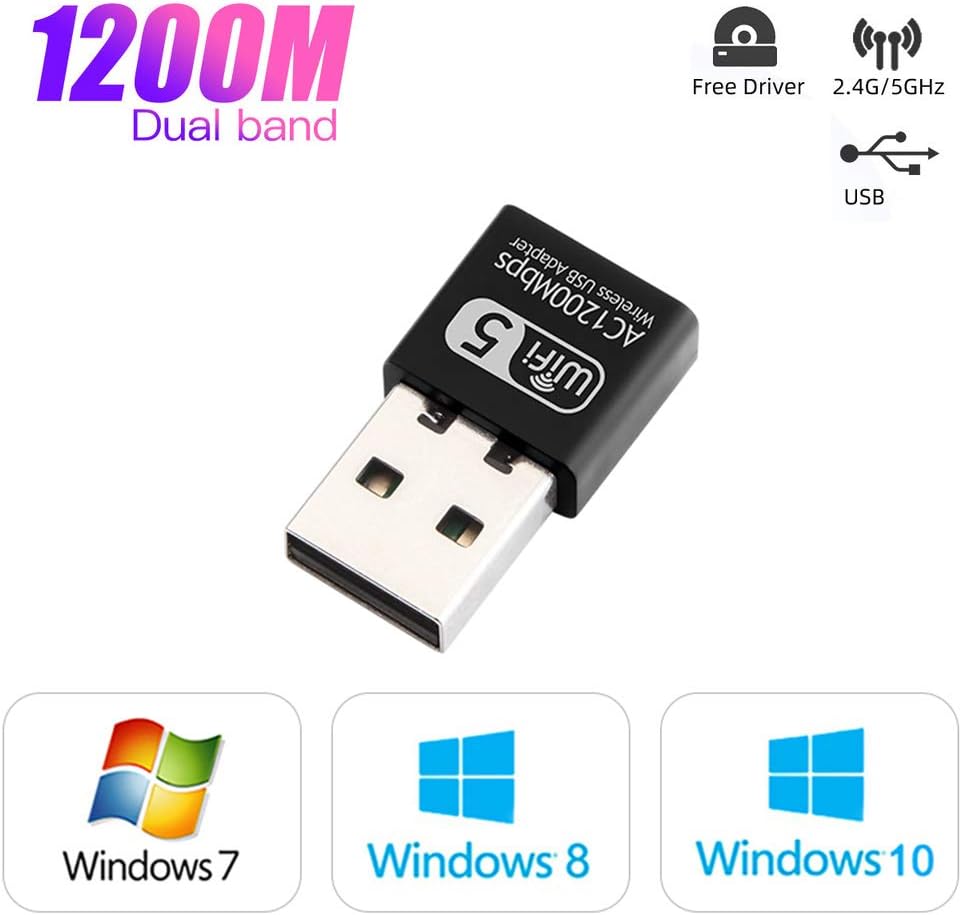
Image 3.1: Operating system compatibility and driver-free support for Windows 10.
4. Пакеттин мазмуну
- 1 x KuWFi AC1200 Dual Band Wireless USB Adapter
- 1 x Driver CD (for Windows 7/8)
5. Орнотуу боюнча колдонмо
Step 1: Insert the USB Adapter
Carefully insert the KuWFi AC1200 Wireless USB Adapter into an available USB port on your desktop or laptop computer.

Image 5.1: Inserting the USB adapter into a computer's USB port.
2-кадам: Драйверди орнотуу
For Windows 10 (32/64bit): The adapter is designed for plug-and-play functionality. The system should automatically detect and install the necessary drivers. If not, proceed with the CD driver installation steps.
Windows 7/8 үчүн:
- Insert the provided Driver CD into your computer's CD-ROM drive.
- "Менин компьютерим" же "Бул компьютерди" ачыңыз.
- Double-click on the CD Driver icon to open it.
- Locate and double-click the setup or install file.
- Драйверди орнотууну аяктоо үчүн экрандагы нускамаларды аткарыңыз.

Image 5.2: Visual guide for installing drivers from the CD.
Step 3: Connect to a Wi-Fi Network
Once the drivers are installed, your computer will detect available Wi-Fi networks. Select your desired network and enter the password to connect.
6. Иштөө нускамалары
Dual Band операциясы
The KuWFi AC1200 adapter supports both 2.4GHz and 5GHz Wi-Fi bands. You can choose the band that best suits your needs:
- 2.4 ГГц диапазону: Offers wider coverage and better penetration through walls, suitable for general internet browsing and tasks that do not require very high speeds.
- 5 ГГц диапазону: Provides faster speeds and less interference, ideal for online gaming, HD video streaming, and large file downloads. This band typically has a shorter range.
Your computer's Wi-Fi settings will display available networks. Networks operating on the 5GHz band often have '5G' or '5GHz' in their name (e.g., 'MyWiFi_5G'). Select the appropriate network based on your requirements.
AP Mode (Soft AP)
The adapter can function as a Wi-Fi hotspot (Soft AP) if your computer has an internet connection via Ethernet. This allows other devices to connect to your computer's internet through the adapter. Refer to your operating system's network settings for instructions on enabling mobile hotspot or Soft AP functionality.
7. Техникалык тейлөө
- Адаптерди таза жана чаңдан алыс кармаңыз.
- Адаптерге экстремалдык температурага же нымдуулукка жол бербеңиз.
- Do not shake or plug/unplug the adapter excessively to prevent damage to the USB port or the adapter itself.
- Store the adapter in a safe place when not in use.
8. Кыйынчылыктарды
No Wi-Fi Networks Detected
- Адаптердин USB портуна бекем сайылганын текшериңиз.
- Драйверлердин туура орнотулганын текшериңиз. Түзмөк башкаргычында (Windows) тармак адаптеринин жанындагы сары илеп белгилеринин бар-жогун текшериңиз.
- Компьютериңизди өчүрүп күйгүзүңүз.
- Адаптерди башка USB портуна сайып көрүңүз.
Байланыш ылдамдыгы жай
- Эгер роутериңиз аны колдосо жана сиз диапазондо болсоңуз, 5 ГГц диапазонуна туташканыңызды текшериңиз.
- Reduce the distance between your computer and the Wi-Fi router.
- Minimize obstacles (walls, large metal objects) between the adapter and the router.
- Check for other devices causing interference (e.g., microwaves, cordless phones).
- Роутериңиздин микропрограммасын жаңыртыңыз.
Байланыш тез-тез үзүлөт
- Ensure the adapter is not loose in the USB port.
- Check for driver updates from the manufacturer's webсайт бар болсо.
- Adjust the position of your computer or router to improve signal strength.
- Disable power-saving features for the USB port or network adapter in your computer's settings.
9. Техникалык шарттар
| Модел | AC1200 |
| Аппараттык интерфейс | USB |
| Маалыматтарды өткөрүү ылдамдыгы | 1200 Мбит/сек чейин (5 ГГцде 867 Мбит/сек, 2.4 ГГцде 300 Мбит/сек) |
| Жыштык тилкелери | 2.4 ГГц, 5 ГГц |
| Шайкеш түзмөктөр | Иш такта, ноутбук |
| Операциялык системалар | Windows 10 (32/64bit), Windows 8, Windows 7 |
| Encryption Support | WEP, WPA-PSK, WPA2-PSK, WPA/WPA2 64/128bit |
| Элемент Салмагы | 0.634 унция (болжол менен 18 грамм) |
| Пакеттин өлчөмдөрү | 3.78 x 3.35 x 0.47 дюйм |