
1. Продукт бүтүп калдыview
The SIIG JU-DK0L11-S1 is a versatile USB 3.0 Dual Monitor Docking Station designed to expand your laptop or desktop's connectivity and display capabilities. It supports up to two 1080p@60Hz Full HD video displays via two HDMI ports, along with multiple USB ports, Gigabit Ethernet, and a 3.5mm audio jack. This docking station is compatible with both Windows and macOS operating systems, including Mac M1/M2/M3 Pro&Max.
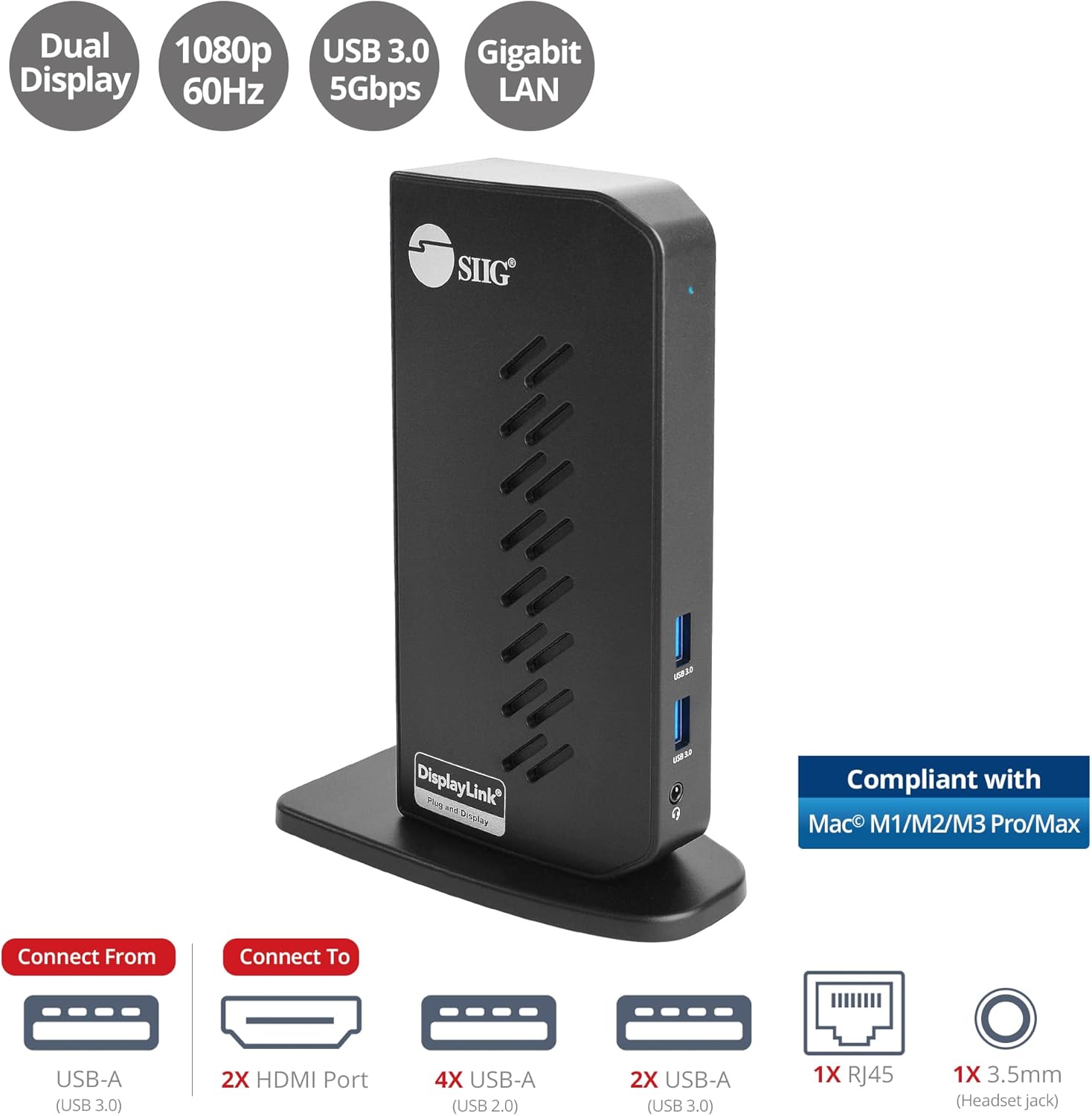
Image 1.1: The SIIG JU-DK0L11-S1 Dual Monitor Docking Station, showcasing its compact vertical design and various connectivity options.
2. Пакеттин мазмуну
Орнотууну улантуудан мурун пакетте бардык элементтер бар экенин текшериңиз.
- SIIG JU-DK0L11-S1 Dual Head Full HD HDMI Video Docking Station
- Кубат адаптери (12V/2A)
- USB 3.0 Type-A to Type-B Cable
- Driver CD (Drivers can also be downloaded from the official SIIG webсайт)
- User Manual

Image 2.1: All components included in the SIIG JU-DK0L11-S1 docking station package, including the docking station, power adapter, USB cable, driver CD, and user manual.
3. Аппараттык камсыздоонун макети
Familiarize yourself with the ports and indicators on the docking station.
Front Panel
- Power LED: Кубаттын абалын көрсөтөт.
- 2 USB 3.0 порттору: For connecting high-speed USB devices (5Gbps, 4.5W/900mA).
- 3.5 мм гарнитура уясы: For connecting headphones or stereo speakers with microphone input.
Арткы панель
- 4 USB 2.0 порттору: For connecting standard USB devices (480Mbps, 5V/900mA).
- RJ45 Гигабит Ethernet порту: For wired network connection (10/100/1000Mbps).
- 2x HDMI Outputs: For connecting external displays (up to 1080p@60Hz).
- USB 3.0 Type-B Port: For connecting the docking station to your host computer.
- Power Jack: For connecting the 12V/2A power adapter.

Сүрөт 3.1: Детальдуу view of the front and rear panels of the docking station, highlighting all available ports and their functions.
4. Орнотуу нускамалары
Док станцияңызды орнотуу үчүн төмөнкү кадамдарды аткарыңыз:
- Install DisplayLink Drivers: Before connecting the docking station, install the necessary DisplayLink drivers on your computer. You can use the included driver CD or download the latest drivers from the official DisplayLink webсайт (www.displaylink.com/downloads) or SIIG's support page.
- Туташуу кубаты: Plug the provided 12V/2A power adapter into the docking station's power jack and then into a wall outlet. The Power LED on the front panel should illuminate.
- Хост компьютерине туташуу: Use the supplied USB 3.0 Type-A to Type-B cable to connect the docking station's USB 3.0 Type-B port to an available USB 3.0 Type-A port on your laptop or desktop computer.
- Туташуу дисплейлери: Connect your external monitors to the two HDMI output ports on the rear of the docking station using HDMI cables.
- Перифериялык түзүлүштөрдү туташтыруу: Connect your USB devices (keyboard, mouse, printer, flash drives, etc.) to the available USB 3.0 and USB 2.0 ports. Connect an Ethernet cable to the RJ45 port for a wired network connection. Plug your headset or speakers into the 3.5mm audio jack.
Video 4.1: An official video demonstrating the setup and connectivity of the SIIG JU-DK0L11-S1 Dual Head Full HD HDMI Docking Station, showing how to connect monitors and peripherals.
5. Иштөө нускамалары
Once the docking station is set up, you can configure your display settings and utilize the connected peripherals.
Дисплей режимдери
The docking station supports three primary display modes:
- MirrorMode: Duplicates your primary display onto the external monitors.
- Узартуу режими: Extends your desktop across multiple screens, allowing for increased workspace.
- Негизги режим: Designates one of the connected displays as the main display.
You can configure these settings through your operating system's display settings (e.g., Windows Display Settings or macOS System Settings > Displays).

Image 5.1: A typical dual 1080p monitor setup utilizing the SIIG docking station, demonstrating an extended display configuration for enhanced productivity.
USB туташуу
The docking station provides two USB 3.0 ports for high-speed data transfer (e.g., external hard drives, SSDs) and four USB 2.0 ports for standard peripherals (e.g., keyboard, mouse, printer). Simply plug your devices into the corresponding ports.
Гигабит Ethernet
For a stable and fast internet connection, connect an Ethernet cable from your router or modem to the RJ45 port on the docking station. This provides a more reliable connection than Wi-Fi, supporting 10/100/1000 BASE-T wired networks.

Сүрөт 5.2: Жакын пландан view of the Gigabit RJ45 Ethernet port and USB ports, illustrating their use for network and high-speed data transmission.
Аудио туташуу
The 3.5mm headset jack allows you to connect headphones, speakers, or a microphone. Ensure your operating system's audio settings are configured to use the docking station's audio output/input.
6. Specifications (Model: JU-DK0L11-S1)
| Бренд | SIIG |
| Модель номери | ЖУ-ДК0Л11-С1 |
| Аппараттык интерфейс | 3.5mm Audio, Ethernet, HDMI, USB 1.1, USB 2.0, USB 3.0 |
| Шайкеш түзмөктөр | Desktop or laptop computer with an available USB 3.0 Type-A port. Compatible with Windows® 11/10/8.1/8/7 and macOS® 11 / 10.15 to 10.10. |
| Жалпы USB порттору | 6 (2x USB 3.0, 4x USB 2.0) |
| Жалпы HDMI порттору | 2 |
| Max чечим | 1080p@60Hz (per display) |
| Ethernet ылдамдыгы | Gigabit (10/100/1000Mbps) |
| Киргизүү көлөмүtage | 100 вольт (AC) |
| Продукциянын өлчөмдөрү (L x W x Y) | 5.31" x 2.87" x 7.36" |
| Элемент Салмагы | 0.75 фунт |

Image 6.1: Physical dimensions of the SIIG JU-DK0L11-S1 docking station, illustrating its compact and space-saving design.
7. Кыйынчылыктарды
- Дисплей чыгышы жок:
- Ensure the docking station is powered on and the Power LED is lit.
- Verify that the USB 3.0 cable is securely connected between the docking station and your computer.
- Check that HDMI cables are firmly connected to both the docking station and your monitors.
- Confirm that DisplayLink drivers are correctly installed and up to date.
- Компьютериңизди өчүрүп күйгүзүп көрүңүз.
- USB түзмөктөрү таанылбайт:
- Ensure the docking station is powered and connected to your computer.
- USB түзмөгүн док станциясындагы башка портко туташтырып көрүңүз.
- Connect the USB device directly to your computer to rule out device issues.
- Тармак туташуусу жок:
- Verify the Ethernet cable is securely connected to the RJ45 port on the docking station and your network source.
- Ethernet адаптери иштетилгенин текшерүү үчүн компьютериңиздин тармак жөндөөлөрүн текшериңиз.
- Confirm that your router/modem is functioning correctly.
- Аудио көйгөйлөр:
- Ensure your headset/speakers are properly plugged into the 3.5mm jack.
- Check your computer's sound settings to select the docking station as the default audio output/input device.
8. Техникалык тейлөө
To ensure the longevity and optimal performance of your SIIG docking station, follow these maintenance guidelines:
- Keep the device clean by wiping it with a soft, dry cloth. Avoid using liquid cleaners or aerosols.
- Ensure proper ventilation around the docking station to prevent overheating. The vertical design with heat dissipation features aids in this.
- Аппаратты экстремалдык температурага, нымдуулукка же тике күн нуруна тийгизүүдөн сактаңыз.
- Зыяндын алдын алуу үчүн кабелдерди жана туташтыргычтарды акырын кармаңыз.
9. Кепилдик жана колдоо
For warranty information and technical support, please refer to the documentation included with your product or visit the official SIIG website. SIIG is committed to providing reliable products and customer assistance.
For further assistance, you may contact SIIG customer support directly through their webсайт же продуктунун таңгагында көрсөтүлгөн байланыш маалыматы.