
1. Киришүү
This manual provides instructions for the ELECROW 8-inch Portable Monitor, Model DIS00008R. This compact monitor features a 1280x800 resolution, a 16:10 aspect ratio, and built-in dual speakers. It is designed for compatibility with various HDMI-enabled devices, including Raspberry Pi, PCs, and game consoles. The monitor supports VESA mounting for flexible installation options.

Image 1.1: The ELECROW 8-inch Portable Monitor displaying a colorful image.
2. Кутуда эмне бар
Сиздин пакетте төмөнкү компоненттердин бардыгы камтылганын текшериңиз:
- 1 x ELECROW 8-inch Portable Monitor
- 1 x HDден Mini HD кабелине чейин
- 1 x USB Power Cord (USB A to Micro USB)
- 1 х Металл стенд
- 1 х Колдонуучунун колдонмосу (бул документ)

Сүрөт 2.1: Продукциянын таңгагына кирген бардык буюмдар.
3. Орнотуу нускамалары
3.1 Мониторду туташтыруу
To set up the monitor, connect the mini HD port for video signal transmission and the USB port for power. Only two cables are required for operation.
- Connect one end of the provided HD to Mini HD cable to your source device (e.g., PC, Raspberry Pi, game console) and the other end to the mini HD port on the monitor.
- Connect the USB power cord to the monitor's USB port and the other end to a USB power source (e.g., PC USB port, USB wall adapter, power bank).

Image 3.1: The monitor is powered via a USB cable, compatible with various USB power sources.
3.2 VESA орнотуу
The monitor supports VESA mounting for alternative installation options. Refer to the VESA mounting standard for compatible brackets and installation procedures.

Image 3.2: The monitor offers wide compatibility with devices outputting HD signals.
4. Иштөө нускамалары
4.1 Негизги операция
Once connected to a power source and a video input, the monitor will automatically display the input signal. Use the buttons on the monitor (typically labeled Menu, +, -, Auto) to navigate the on-screen display (OSD) menu and adjust settings such as brightness, contrast, and color.
4.2 Resolution Adjustment
The optimal resolution for this monitor is 1280 x 800. If you experience display issues such as white lines or flickering, adjust the output resolution of your connected device to 1280 x 800.

Image 4.1: The monitor's native resolution is 1280x800.
4.3 Horizontal and Vertical Modes
The monitor can be used in both horizontal (landscape) and vertical (portrait) orientations, depending on your application needs. Adjust the display settings on your connected device to match the desired orientation.

Image 4.2: The monitor supports both horizontal and vertical display modes.
4.4 Wide Viewбурч
The IPS screen technology provides a wide 178-degree viewing angle, ensuring consistent image quality from various perspectives.

Image 4.3: The monitor offers a wide 178-degree viewбурч.
4.5 Орнотулган динамиктер
The monitor includes built-in dual speakers for audio output. Ensure your source device is configured to send audio through the HDMI connection.
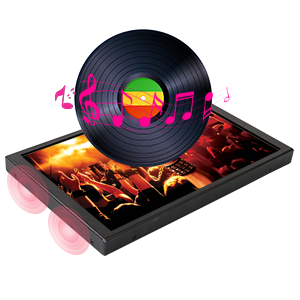
Image 4.4: The monitor features built-in speakers.
5. Техникалык тейлөө
To ensure the longevity and optimal performance of your ELECROW 8-inch Portable Monitor, follow these maintenance guidelines:
- Экранды тазалоо: Электроника үчүн атайын жасалган жумшак, мамыксыз чүпүрөктү колдонуңуз. Өтө катуу тактар үчүн, бир аз сүртүңүзampчүпүрөккө суу же экранды тазалоо эритмеси. Катуу химиялык заттарды, абразивдүү материалдарды же экранга түздөн-түз чачуудан алыс болуңуз.
- Тазалоо Casing: Wipe the monitor's metal casing жумшак, кургак чүпүрөк менен.
- Сактагыч: Колдонулбай турган учурда, мониторду салкын, кургак жерде, күндүн түз нурунан жана өтө жогорку температурадан алыс сактаңыз.
- Колдонуу: Handle the monitor carefully to prevent drops or impacts, which can damage internal components or the screen.
6. Кыйынчылыктарды
Бул бөлүмдө мониторуңузда кездешүүсү мүмкүн болгон жалпы маселелер каралат.
6.1 Display Flickering or White Lines
If the display flickers or shows white lines, the output resolution from your source device may not be optimal for the monitor.
- Чечим: Adjust the output resolution of your connected device (PC, Raspberry Pi, etc.) to the monitor's native resolution of 1280 x 800.
6.2 Washed-Out Colors
If the colors appear washed out, check the monitor's OSD settings for color adjustments (brightness, contrast, saturation). If the issue persists after adjusting settings, the unit may be faulty. Contact customer support if necessary.
6.3 Сигнал жок
If the monitor displays "No Signal", ensure the HD cable is securely connected to both the monitor and the source device. Verify that the source device is powered on and configured to output video.
6.4 Raspberry Pi Specific Display Issues (e.g., Black Border, Flickering)
For Raspberry Pi users experiencing issues like a black border around the screen or intermittent flickering, specific configuration adjustments may be required in the Raspberry Pi's `config.txt` file.
- Чечим: Access the Raspberry Pi's terminal and run the command: sudo leafpad /boot/config.txt
- Locate the following entries. If present, remove the '#' character at the beginning of the line to uncomment them, and set their values as shown:
- hdmi_force_hotplug=1
- hdmi_drive=1
- hdmi_mode=16
- disable_overscan=1
- Save the changes to the `config.txt` file and reboot your Raspberry Pi.
7. Техникалык шарттар
Detailed technical specifications for the ELECROW 8-inch Portable Monitor:
| Өзгөчөлүк | Спецификация |
|---|---|
| Бренд | ЭЛЕКРО |
| Модель аты | DIS00008R |
| Screen Size | 8 дюйм |
| Резолюция | 1280x800 |
| Аспект катышы | 16:10 |
| Дисплей түрү | ЖК (IPS) |
| Жаңыртуу ылдамдыгы | 60 Гц |
| Контраст катышы | 800:1 |
| Жарыктык | 300 лм |
| Viewбурч | 170 градус |
| Жооп убактысы | 16 Миллисекунд |
| Байланыш | Mini HDMI, USB Type C (for power) |
| Аудио | Built-In Dual Speakers |
| Монтаж түрү | Desk Mount, Wall Mount (VESA compatible) |
| Элементтин өлчөмдөрү (D x W x Y) | 0.6"D x 7.7"W x 4.8"H |
| Элемент Салмагы | 0.71 килограмм |
| Тtage | 5 вольт |

Image 7.1: Physical dimensions of the monitor.
8. Кепилдик жана колдоо
8.1 Кепилдик маалыматы
This ELECROW monitor comes with a 1 жылдык Өндүрүүчүнүн Кепилдиги. Кепилдик дооматтары үчүн сатып алганыңыздын далилин сактап коюңуз.
8.2 Кардарларды колдоо
For technical assistance, troubleshooting, or warranty inquiries, please contact ELECROW customer support. Refer to the contact information provided on the official ELECROW webсайт же сатып алуу документтери.