
1. Киришүү
This manual provides detailed instructions for the installation, operation, and maintenance of the NovaStar H Series 1x HDMI2.0 + 1x DP1.2 Input Card. This input card is designed for use with compatible NovaStar H Series video processors, offering high-definition video input capabilities for professional display applications. Please read this manual thoroughly before using the product to ensure proper functionality and to prevent damage.
The NovaStar H Series input card supports one HDMI 2.0 input and one DisplayPort 1.2 input, enabling connection to various high-resolution video sources. It is engineered for reliable performance in demanding environments.
2. Коопсуздук маалыматы
Жабдуулардын бузулушун жана жаракат алуусун алдын алуу үчүн төмөнкү коопсуздук чараларын сактаңыз:
- Электр коопсуздугу: Ensure the power supply is disconnected from the main video processor before installing or removing the input card. Only use power adapters and cables specified by NovaStar.
- Колдонуу: Always handle the input card by its edges. Avoid touching the electronic components or connectors directly to prevent electrostatic discharge (ESD) damage. Use an anti-static wrist strap if available.
- Курчап турган чөйрө: Do not expose the card to moisture, extreme temperatures, or corrosive substances. Operate within the specified environmental conditions.
- Вентиляция: Ensure adequate ventilation around the video processor where the card is installed to prevent overheating.
- Тейлөө: Do not attempt to service the card yourself. Refer all servicing to qualified personnel.
3. Пакеттин мазмуну
Пакетте бардык буюмдар бар экенин текшериңиз:
- NovaStar H Series 1x HDMI2.0 + 1x DP1.2 Input Card (1 unit)
- Quick Start Guide (1 copy)
- Anti-static bag (1 unit)
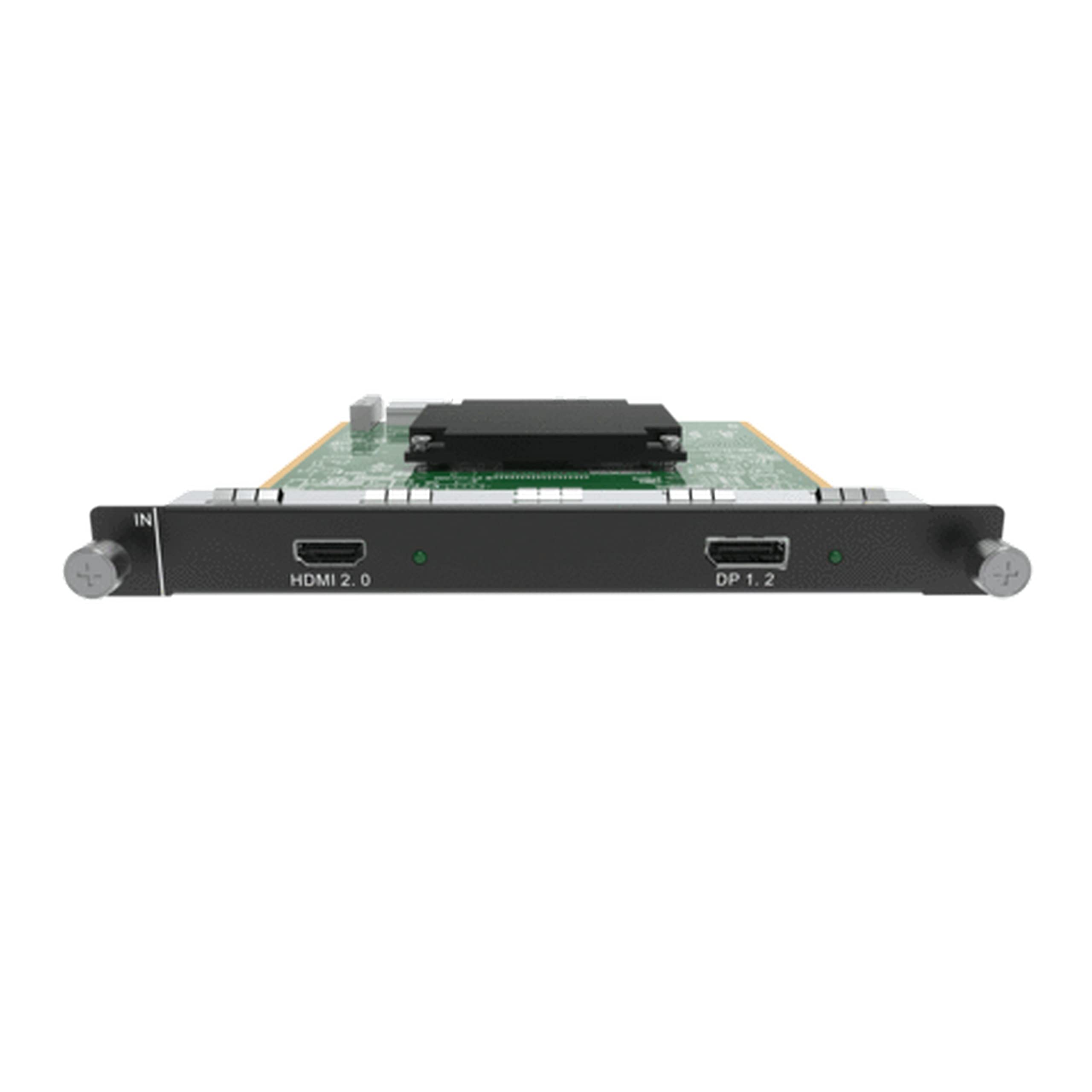
Figure 1: NovaStar H Series 1x HDMI2.0 + 1x DP1.2 Input Card. This image shows the front panel of the input card with its HDMI 2.0 and DisplayPort 1.2 connectors, along with the card's PCB and mounting bracket.
4. Орнотуу жана орнотуу
Follow these steps to properly install the input card into a compatible NovaStar H Series video processor:
- Өчүрүү: Ensure the NovaStar H Series video processor is completely powered off and disconnected from the main power supply.
- Орун табыңыз: Identify an available input card slot on the rear panel of the video processor. Refer to your video processor's manual for slot locations.
- Remove Blank Panel: If a blank panel covers the slot, carefully remove it by unscrewing any retaining screws and gently pulling it out.
- Картаны кыстаруу: Align the input card with the chosen slot. Gently push the card firmly into the slot until it is fully seated. Ensure the connectors on the card align with the backplane of the processor. Do not force the card.
- Коопсуз карта: Once seated, secure the input card using the retaining screws provided with the video processor or the card itself.
- Кабелдерди туташтыруу: Connect your HDMI 2.0 or DisplayPort 1.2 video sources to the corresponding ports on the newly installed input card.
- Күйгүзүү: Reconnect the power supply to the video processor and power it on. The system should detect the new input card automatically.
Figure 2: Illustrative diagram of input card installation. This image would typically show a step-by-step visual guide for inserting the input card into a compatible video processor slot.
5. Иштөө нускамалары
After installation, configure and operate the input card through the NovaStar video processor's control software or front panel interface.
5.1. Киргизүү булагын тандоо
Киргизүү булагын тандоо үчүн:
- Access the input source management menu on your NovaStar video processor.
- Identify the newly installed input card and its corresponding HDMI 2.0 or DisplayPort 1.2 ports.
- Select the desired input port as your active video source.
5.2. Resolution and EDID Management
The input card supports various resolutions up to 1080p (as per product specifications). For optimal display, ensure the input source resolution matches the display's native resolution or a supported resolution by the video processor.
- Automatic EDID: The card typically uses automatic EDID (Extended Display Identification Data) to communicate with the source device and negotiate the best common resolution.
- Кол менен EDID: If issues arise, you may need to manually configure EDID settings via the video processor's software. Refer to the video processor's manual for detailed EDID management procedures.
5.3. Signal Status Indicators
The input card may feature LED indicators on its front panel to show signal status:
- Жашыл LED: Indicates a stable video signal is detected.
- Red/Orange LED: May indicate no signal, an unsupported signal, or an error.
- Өчүк: No power or card not detected.
Consult the video processor's manual for specific LED indicator meanings.
6. Техникалык тейлөө
The NovaStar H Series input card requires minimal maintenance. Follow these guidelines to ensure longevity and optimal performance:
- Тазалоо: Periodically clean the external connectors with a soft, dry, lint-free cloth. Do not use liquid cleaners or solvents. Ensure the video processor is powered off before cleaning.
- Программалык камсыздоонун жаңыртуулары: Check the official NovaStar website for firmware updates for your H Series video processor and input card. Firmware updates can improve performance, add features, or fix bugs. Follow the update instructions provided by NovaStar carefully.
- Экологиялык көзөмөл: Maintain a stable operating environment, avoiding excessive dust, humidity, and temperature fluctuations.
7. Кыйынчылыктарды
If you encounter issues with your input card, refer to the following common problems and solutions:
| Көйгөй | Мүмкүн себеп | Чечим |
|---|---|---|
| No video output from the card. |
|
|
| Intermittent video signal. |
|
|
| Card not detected by video processor. |
|
|
8. Техникалык шарттар
Technical specifications for the NovaStar H Series 1x HDMI2.0 + 1x DP1.2 Input Card:
| Өзгөчөлүк | Деталь |
|---|---|
| Модел | H_1xHDMI2.0+1xDP1.2 |
| Киргизүү порттору | 1x HDMI 2.0, 1x DisplayPort 1.2 |
| Max Resolution (HDMI) | Up to 3840x2160@60Hz (4K@60Hz) (Note: Product description states 1080p, but HDMI 2.0 supports 4K. Refer to specific processor compatibility.) |
| Max Resolution (DisplayPort) | Up to 3840x2160@60Hz (4K@60Hz) (Note: Product description states 1080p, but DP 1.2 supports 4K. Refer to specific processor compatibility.) |
| Шайкеш түзмөктөр | NovaStar H Series Video Processors, Personal Computers |
| Видео тартуунун резолюциясы | 1080p (as per provided specifications) |
| Иштөө температурасы | 0°C to 40°C (32°F to 104°F) (Typical) |
| Сактоо температурасы | -20°C to 60°C (-4°F to 140°F) (Typical) |
| Нымдуулук | 10%тен 90%ке чейин конденсацияланбайт |
Note: Specifications are subject to change without prior notice. For the most current information, please refer to the official NovaStar website or product documentation. The "Video Capture Resolution: 1080p" from the product specifications might refer to a specific operational mode or a general compatibility statement, while HDMI 2.0 and DP 1.2 interfaces inherently support higher resolutions. Always verify compatibility with your specific video processor and source devices.
9. Кепилдик маалыматы
NovaStar products typically come with a limited manufacturer's warranty. The exact terms and duration of the warranty may vary by region and product. Please refer to the warranty card included with your product or visit the official NovaStar webтолук кепилдик маалымат алуу үчүн сайт.
The warranty generally covers:
- Нормалдуу пайдаланууда материалдардагы жана жасалгадагы кемчиликтер.
Кепилдик, адатта, төмөнкүлөрдү камтыбайт:
- Damage caused by improper installation, misuse, abuse, neglect, or accident.
- Уруксатсыз өзгөртүүлөр же оңдоолордон улам келип чыккан зыян.
- Жаратылыш кырсыктары же Кудайдын иштеринин натыйжасында келтирилген зыян.
- Сарпталуучу бөлүктөр.
To claim warranty service, you may need to provide proof of purchase and contact NovaStar customer support or an authorized service center.
10. Кардарларды колдоо кызматы
For technical assistance, product inquiries, or warranty claims, please contact NovaStar customer support through the following channels:
- Официалдуу Webсайт: зыярат кылыңыз NovaStar official webсайт for product documentation, FAQs, and support contact information.
- Электрондук почта колдоо: караңыз website for specific email addresses for technical support in your region.
- Телефондук колдоо: Check the NovaStar website for regional phone numbers for direct support.
- Ыйгарым укуктуу дилерлер: Contact your local authorized NovaStar dealer or distributor for localized support and service.
When contacting support, please have your product model number (H_1xHDMI2.0+1xDP1.2) and proof of purchase readily available.