
1. Продукт бүтүп калдыview
The UNITOPSCI UT-CP501 is a versatile single DIN car stereo featuring a 7-inch HD retractable touch screen. It integrates modern connectivity options such as Apple CarPlay, Android Auto, Bluetooth, FM Radio, Mirror Link, and supports various multimedia inputs. This manual provides essential information for installation, operation, and maintenance.

Сүрөт 1.1: Алдыңкы view of the UNITOPSCI UT-CP501 Single Din Car Stereo with its 7-inch retractable screen extended, displaying a smartphone-like interface. The main unit features a volume knob, buttons for various functions, and USB/AUX inputs.
2. Пакеттин мазмуну
Орнотууну улантуудан мурун пакетте бардык элементтер бар экенин текшериңиз:
- UNITOPSCI UT-CP501 Car Stereo Unit
- Электр кабели
- Алыстан башкаруу
- Руль башкаруучусу
- Арткы View Камера
- Монтаждоо кронштейндери
- Колдонуучунун Колдонмосу (бул документ)

Image 2.1: A visual representation of the UNITOPSCI UT-CP501 package contents, including the main stereo unit, power cable, remote control, mounting brackets, steering wheel controller, user manual, and rear camera.
3. Орнотуу жана орнотуу
Proper installation is crucial for optimal performance and safety. If you are unfamiliar with car audio wiring, professional installation is recommended.
3.1. Электр схемасы
Refer to the detailed wiring diagram provided with your unit's physical manual for specific connections. Key connections typically include:
- Күч: Туруктуу 12V (Сары), Кошумча 12V (Кызыл), Жерге туташтыруу (Кара).
- Баяндамачылар: Connect to appropriate positive and negative speaker wires.
- Антенна: Унаанын радио антеннасына туташтырыңыз.
- Арткы View Камера: Connect video input and power to the reverse light circuit.
- Руль башкаруусу (SWC): Connect to the vehicle's SWC wires (may require an adapter for some vehicles).
- Колдонуучу: For external audio sources.
- USB/TF картасы: Мультимедиа ойнотуу үчүн.
Сүрөт 3.1: Детальдуу view of the UNITOPSCI UT-CP501's rear interface, showing various input/output ports such as ANT, OUT-L, OUT-R, V-OUT1, V-IN, CAM-IN, and the Power cable connector. Dimensions of the unit are also indicated.
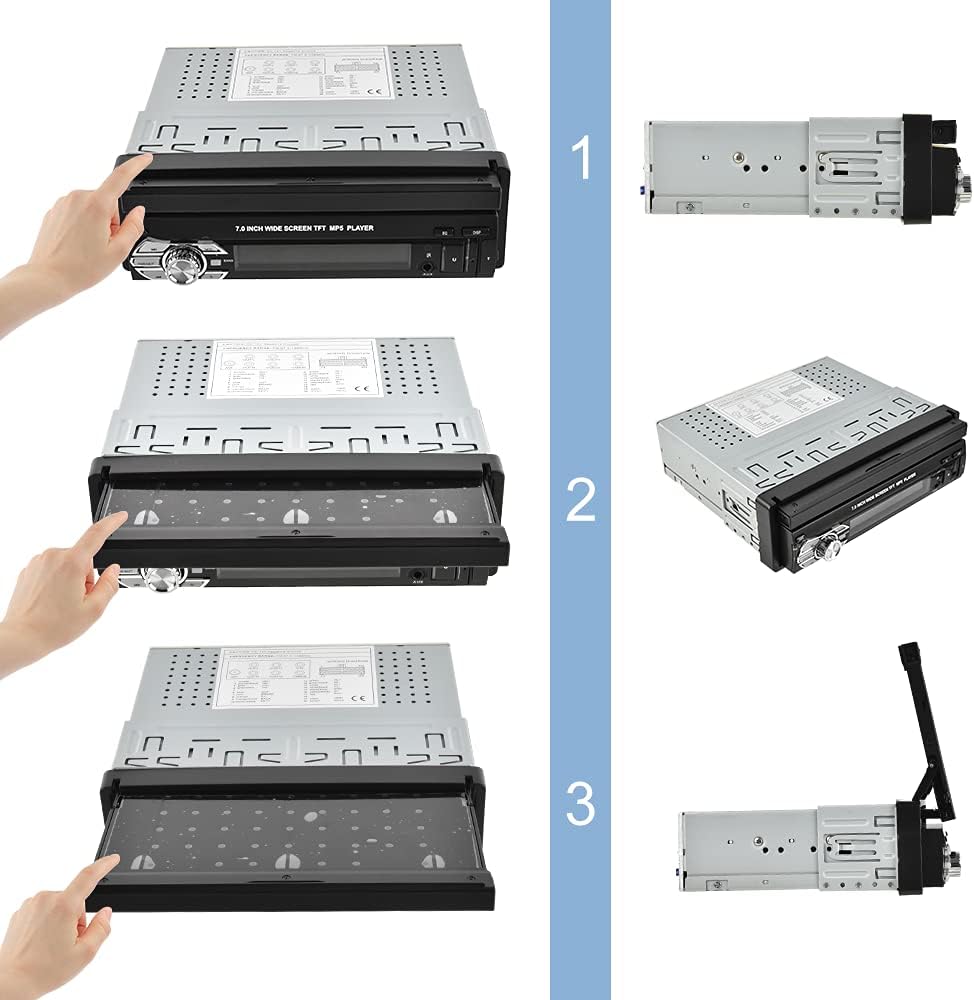
3.2. Screen Retraction and Extension
The 7-inch screen is retractable. To extend or retract the screen, gently pull or push the screen until it locks into position. Ensure no obstructions are present during movement.

Image 3.2: A sequence of three images demonstrating the manual retraction and extension of the 7-inch screen on the UNITOPSCI UT-CP501 car stereo. The screen can be folded down into the unit or pulled up for use.
3.3. Баштапкы күйгүзүү
After installation, turn on your vehicle's ignition. The stereo should power on automatically. If not, press the power button on the unit. Adjust basic settings like language, time, and radio region as prompted.
Video 3.1: This video demonstrates the UNITOPSCI Single Din 7 Inch Flip Out Car Stereo in operation, showcasing its retractable screen mechanism, USB/TF card input, and the user interface for CarPlay and Android Auto. It highlights the seamless integration and functionality within a car's dashboard.
4. Иштөө нускамалары
4.1. Apple CarPlay жана Android Auto
Connect your compatible iPhone or Android smartphone via a USB cable to enable CarPlay or Android Auto. This allows access to navigation, music, calls, and messages directly from the stereo's touch screen.
- Навигация: Use maps applications like Apple Maps, Google Maps, or Waze.
- Байланыш: Make calls, send messages, and access contacts.
- Медиа: Play music, podcasts, and audiobooks.
- Үн менен башкаруу: Utilize Siri or Google Assistant for hands-free operation.

Image 4.1: The car stereo screen displaying the Apple CarPlay interface, showing icons for Phone, Music, Maps, Messages, and other applications. A user is shown interacting with voice commands like 'Hi, Siri' and 'Call John'.

Image 4.2: A comparison showing the interfaces for Wired CarPlay (supporting iOS), Android Auto (supporting Android System), and Mirror Link (for both iOS/Android) on the car stereo screen, demonstrating the wired connectivity options.
4.2. Mirror Link
Mirror Link allows you to display your smartphone's screen directly onto the car stereo. This feature is compatible with both iOS and Android devices. Connect your phone via USB and follow the on-screen prompts to activate Mirror Link.

Image 4.3: The car stereo screen displaying a mirrored smartphone interface, showing various apps. The image also highlights multimedia input options including USB, TF card, and AUX-in.
4.3. Bluetooth байланышы
Колсуз чалуулар жана аудио агымы үчүн смартфонуңузду Bluetooth аркылуу стерео система менен жупташтырыңыз.
- Смартфонуңузда Bluetooth'ду иштетиңиз.
- Стереодо Bluetooth менюсуна өтүңүз.
- Издөө available devices on your phone and select 'UNITOPSCI' (or similar device name).
- Эгер суралса, жупташтыруу кодун ырастаңыз.

Image 4.4: The car stereo screen showing the Bluetooth interface for making calls, with a smartphone displaying an incoming call. This illustrates the hands-free calling capability.
4.4. FM радиосу
Access the FM radio tuner to listen to local radio stations. Use the touch screen or physical buttons to scan for stations, save presets, and adjust settings.

Image 4.5: The car stereo screen displaying the FM radio interface, showing the current frequency (107.90 MHz) and options for scanning and saving presets.
4.5. Мультимедиа ойнотуу
The unit supports multimedia playback from USB drives, TF cards, and AUX-in connections. Insert the storage device or connect an external audio player to the respective ports.

Image 4.6: The car stereo screen showing multimedia options like Radio, USB, Card, BT Music, and BT Phone. Below, icons represent a 3.5mm jack (AUX), a USB drive, and a TF card, indicating various input methods.
4.6. Арткы View Камера
When the vehicle is shifted into reverse, the stereo automatically displays the feed from the connected rear view camera, assisting with parking and maneuvering.

Image 4.7: The car stereo screen displaying a clear view from a rear camera, showing parking guidelines and a vehicle in a parking lot. Features like HD 1080, 170° wide angle, night vision, and waterproof design are highlighted.
4.7. Рулду башкаруу (SWC)
Program the stereo to respond to your vehicle's existing steering wheel controls for convenient operation without taking your hands off the wheel. Refer to the SWC setup section in the full manual for detailed programming steps.

Image 4.8: The car stereo screen showing the Steering Wheel Control setup interface, with various function icons. A separate steering wheel controller is also depicted, indicating compatibility with external controllers.
4.8. Үн менен башкаруу
Utilize voice commands through CarPlay or Android Auto for hands-free control of navigation, music, and calls, enhancing driving safety.

Image 4.9: The car stereo screen displaying a voice assistant interface, with text bubbles indicating voice commands like 'Hey, Siri' and 'Play popular music'.
4.9. User Interface and Settings
The stereo features a customizable user interface with various settings for audio, display, and system preferences. Explore the settings menu to personalize your experience.

Image 4.10: A collage of multiple screen captures from the car stereo's user interface, showing various settings menus including FM radio, date/time, Bluetooth, equalizer, language selection, and display adjustments (brightness, contrast, hue).
4.10. 7-Color Backlight
The unit features a customizable 7-color backlight for the physical buttons, allowing you to match it with your vehicle's interior lighting or personal preference.

Image 4.11: The car stereo unit with its screen extended, showcasing the 7-color backlight options for the control buttons, displayed as a row of colored circles below the unit.
5. Техникалык тейлөө
Үзгүлтүксүз тейлөө сиздин унааңыздын стерео музыкасынын узак иштөөсүн жана оптималдуу иштешин камсыз кылууга жардам берет.
- Экранды тазалоо: Use a soft, lint-free cloth to gently wipe the touch screen. Avoid abrasive cleaners or harsh chemicals.
- Агрегатты тазалоо: Use a dry, soft cloth to clean the main unit. Do not spray liquids directly onto the device.
- Программалык камсыздоо жаңыртуулары: Мезгил-мезгили менен өндүрүүчүнүн текшерүү website for any available firmware updates to improve performance and add new features. Follow the provided instructions carefully for any update procedures.
6. Кыйынчылыктарды
If you encounter issues with your UNITOPSCI UT-CP501 car stereo, refer to the following common problems and solutions:
| Көйгөй | Мүмкүн себеп | Чечим |
|---|---|---|
| Күч жок | Incorrect wiring; Blown fuse; Vehicle ignition off | Check power connections (Yellow, Red, Black wires). Inspect vehicle fuses. Ensure ignition is on. |
| Үн жок | Динамиктин зымдары ажыратылды; Үнү өтө төмөн; Үнсүз режим иштетилди | Динамиктердин туташуусун текшериңиз. Үнүн жогорулатыңыз. Үнсүз функция иштеп турганын текшериңиз. |
| Screen freezes or is unresponsive | Software glitch; Temporary system error | Restart the unit by turning the vehicle ignition off and on. If persistent, perform a factory reset (refer to the full manual for instructions). |
| Bluetooth туташпай жатат | Bluetooth off on phone/stereo; Device not in pairing mode; Interference | Ensure Bluetooth is enabled on both devices. Put stereo in pairing mode. Try pairing in a different location to avoid interference. |
| Radio not receiving stations | Antenna disconnected; Poor signal area; Incorrect region settings | Check antenna connection. Move to an area with better signal. Verify radio region settings in the system menu. |
| CarPlay/Android Auto ишке кирбей жатат | Faulty USB cable; Incompatible phone; Software issue | Use a high-quality, original USB cable. Ensure your phone's OS is updated and compatible. Restart both phone and stereo. |
Бул чечимдерди колдонуп көргөндөн кийин көйгөй чечилбесе, кардарларды колдоо менен байланышыңыз.
7. Техникалык шарттар
| Өзгөчөлүк | Спецификация |
|---|---|
| Продукциянын өлчөмдөрү | 6.77 x 5.39 x 2.24 дюйм |
| Элемент Салмагы | 3.58 фунт |
| Элемент моделинин номери | UT-CP501 |
| Байланыш технологиясы | Көмөкчү, Bluetooth, USB |
| Controller Type | Android, iOS |
| Өзгөчөлүктөр | Built-In Bluetooth, Touchscreen |
| Шайкеш түзмөктөр | Баяндамачы |
| Жалпы HDMI порттору | 1 |
| Туташтыргыч түрү | 3.5 мм Jack |
| Аудио чыгаруу режими | AUX, Stereo |
| Көлөмдүү үн каналынын конфигурациясы | 4.0 |
8. Кепилдик маалыматы
This product is covered by a manufacturer's warranty. Please refer to the warranty card included in your product packaging or visit the official UNITOPSCI webКепилдиктин толук шарттары жана эрежелери үчүн сайтка кириңиз. Кепилдик боюнча дооматтар үчүн сатып алуунун далили катары сатып алуу квитанцияңызды сактап коюңуз.
9. Кардарларды колдоо кызматы
For further assistance, technical support, or inquiries regarding your UNITOPSCI UT-CP501 car stereo, please contact UNITOPSCI customer service through their official webсайт же продукт документациясында көрсөтүлгөн байланыш маалыматы.