
1. Киришүү
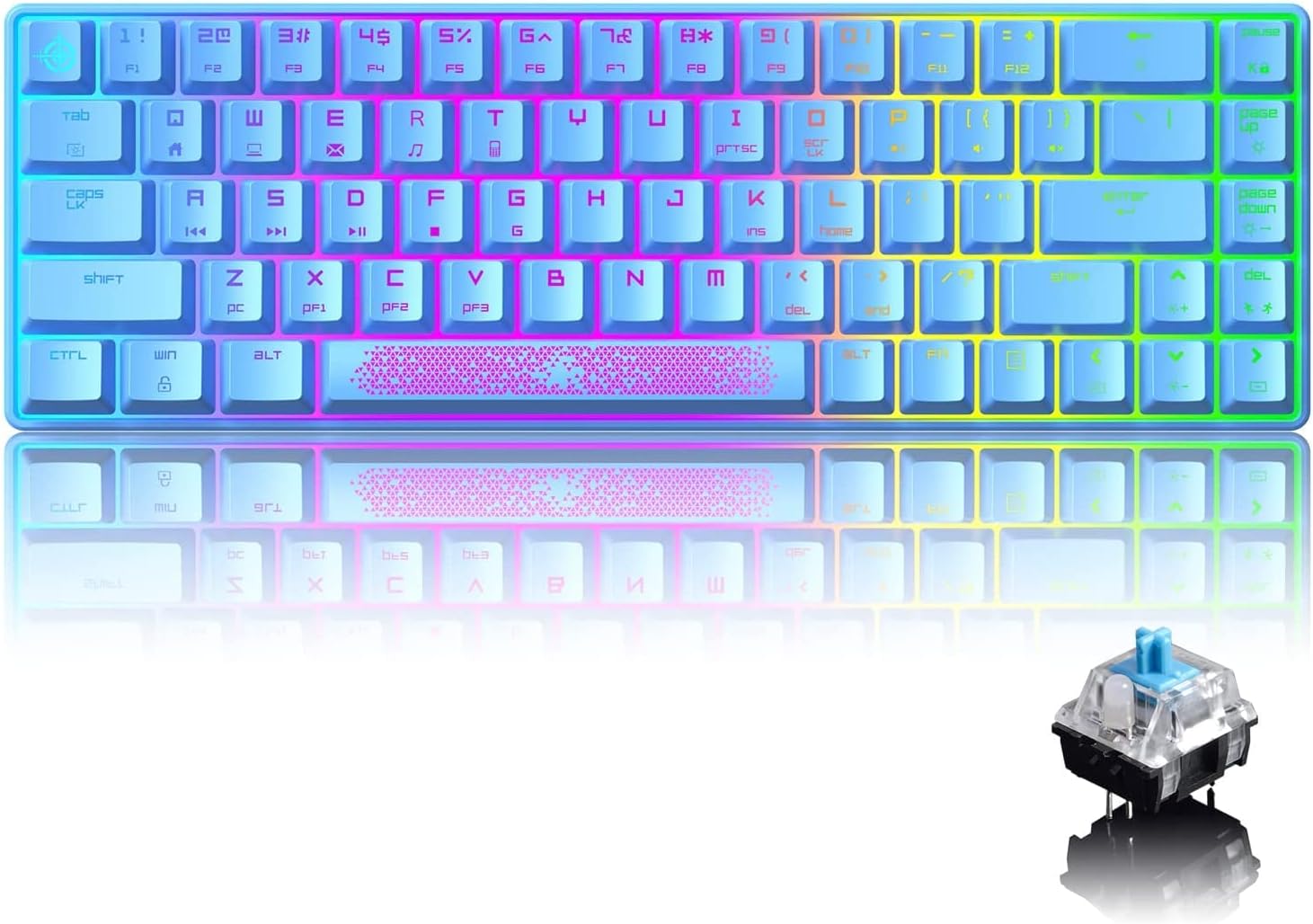
This manual provides detailed instructions for the setup, operation, and maintenance of your MAGIC-REFINER 60% RGB Mini Mechanical Gaming Keyboard. This compact 68-key keyboard is designed for gaming and general use, featuring mechanical blue switches, RGB backlighting, and a detachable USB Type-C cable for portability and convenience. Please read this manual thoroughly to ensure proper use and to maximize your keyboard's performance.
2. Пакеттин мазмуну
Пакетте бардык буюмдар бар экенин текшериңиз:
- MAGIC-REFINER 60% RGB Mini Mechanical Gaming Keyboard
- Алынуучу USB Type-C кабели
- Two Extra Keycaps (Space Bar + ESC key with unique design)
3. Техникалык шарттар
| Өзгөчөлүк | Деталь |
|---|---|
| Продукциянын өлчөмдөрү | 12.2 x 4.72 x 1.45 дюйм (30.99 x 11.99 x 3.68 см) |
| Элемент Салмагы | 1.76 фунт (0.8 кг) |
| Өндүрүүчү | СЫЙКЫРДУУ ТАЗАЛООЧУ |
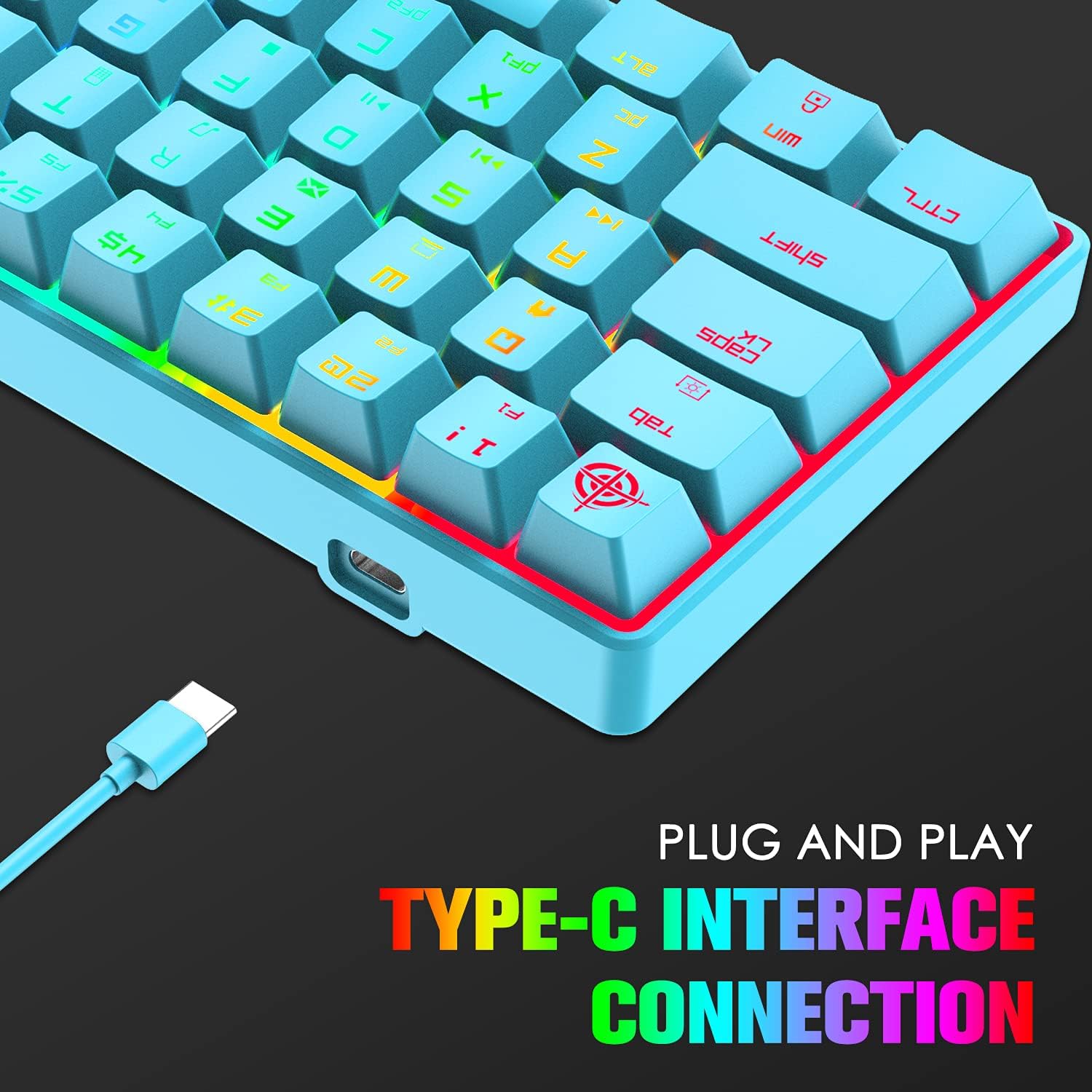
| Байланыш технологиясы | USB Type-C (зымдуу) |
| Keyboard Description | Mechanical, 68 Keys, 60% Layout |
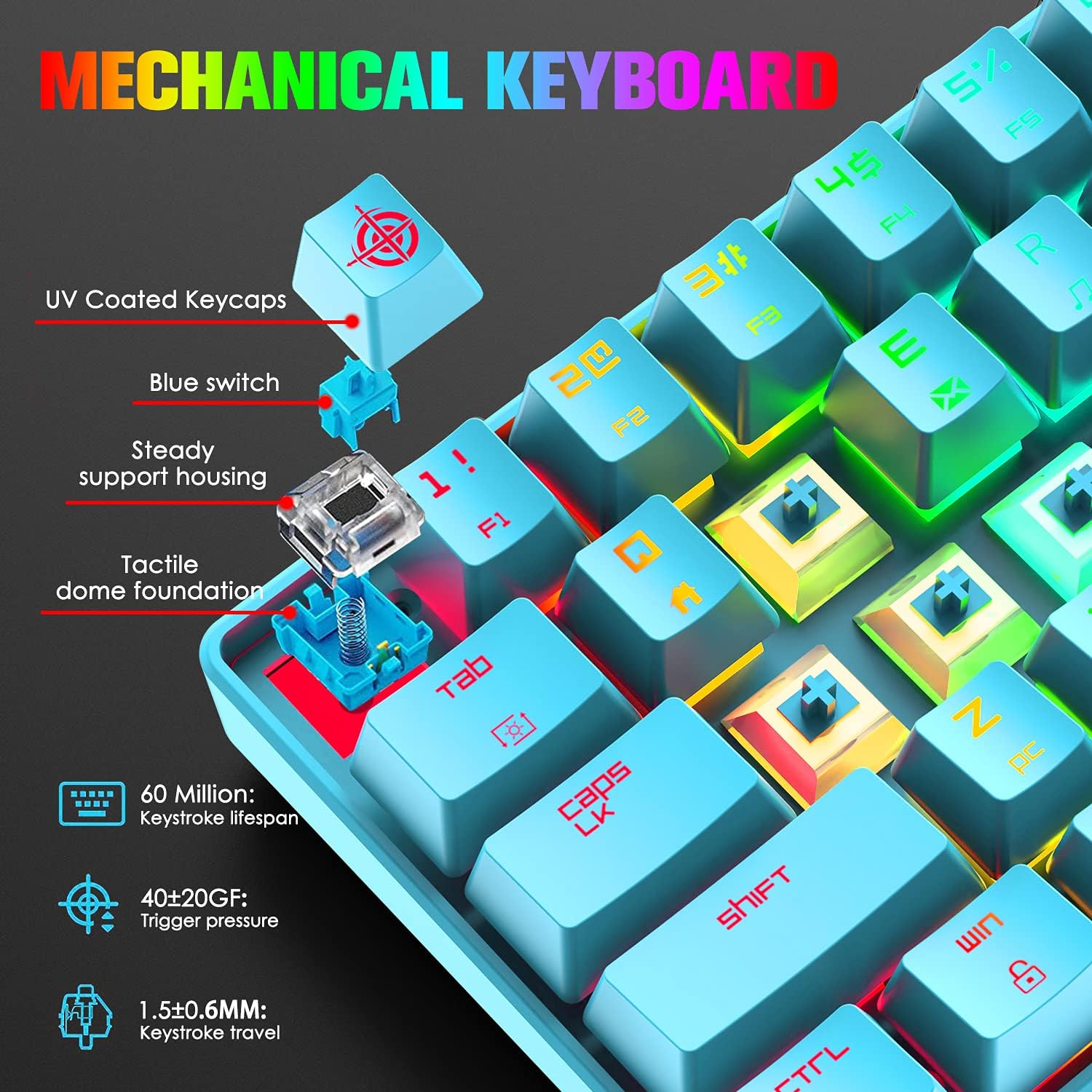
| Которуу түрү | Көк өчүргүчтөр |
| Арткы жарыктандыруу | RGB (18 modes, 8 monochrome, 1 full color) |
| Өзгөчөлүктөр | Anti-ghosting (68 keys), Waterproof, Dust-proof, Non-slip mat, Removable keycaps |
| Шайкеш түзмөктөр | PC, Mac, Laptop (Windows / MacOS / Android) |
| Клавиатура түрү | UV Coated, Two-shot injection |
| Баскычты басуу мөөнөтү | 60 млн |
| Trigger Pressure | 40±20GF |
| Баскыч басуу менен саякаттоо | 1.5±0.6MM |
4. Орнотуу
4.1 Баскычтопту туташтыруу
- Locate the detachable USB Type-C cable included in your package.
- Connect the Type-C end of the cable to the port on the back or side of the keyboard.
- Connect the standard USB-A end of the cable to an available USB port on your computer (PC, Mac, or laptop).
- Баскычтоп "plug and play" режиминде иштейт жана аны операциялык системаңыз автоматтык түрдө таанышы керек. Адатта, кошумча драйверлердин кереги жок.
5. Иштөө нускамалары
5.1 RGB арткы жарыкты башкаруу
The keyboard features 18 RGB backlight modes, 8 monochrome modes, and 1 full-color backlight mode. Use the following FN key combinations to control the backlighting:
- FN +: Арткы жарыктын ылдамдыгын жогорулатуу.
- FN + >: Арткы жарыктын ылдамдыгын азайтыңыз.
- FN + ↑: Арткы жарыктын жарыктыгын жогорулатуу.
- FN + ↓: Арткы жарыктын жарыктыгын азайтыңыз.
- FN + ←: Cycle through backlight modes.
- FN + →: Cycle through backlight colors (for certain modes).
- FN + \|: Turn backlight on/off.
- First Press FN+G: Enter game backlight mode (A, S, D, W, ←, ↑, →, ↓ keys light up).

5.2 Multimedia Keys and Shortcuts
The keyboard utilizes FN key combinations to access multimedia functions and other shortcuts:
- FN + Q: Башкы бет
- FN + W: Менин компьютерим
- FN + E: E-mail
- FN + R: Музыка
- FN + T: Калькулятор
- FN + Y: Издөө
- FN + U: Мурунку ыр
- FN + I: Ойнотуу/Тыныгуу
- FN + O: Кийинки ыр
- FN + P: Токто
- FN + [ {: Үнүн азайтуу
- FN + ]}: Үнүн жогорулатуу
- FN + \|: Үнсүз
- FN + Esc: Заводдук орнотууларды калыбына келтириңиз
- FN + Тыныгуу: Lock the keyboard

5.3 Ыңгайлаштыруу
The keyboard includes two extra keycaps (Space Bar + ESC key with a unique design) allowing for personalized aesthetic customization. These can be swapped with the default keycaps to alter the keyboard's appearance.

5.4 Арбактарга каршы
The keyboard features full 68-key anti-ghosting, meaning all keys can be pressed simultaneously without conflict or missed inputs. This is particularly beneficial for fast-paced gaming and typing.
6. Техникалык тейлөө
Туура тейлөө клавиатураңыздын узак мөөнөттүү жана оптималдуу иштешин камсыз кылат:
- Клавиатураны тазалоо: Use a keycap puller (not included) to carefully remove keycaps. Clean them with a soft cloth dampened with mild soap and water. Ensure keycaps are completely dry before reattaching.
- Клавиатуранын негизин тазалоо: Use compressed air to remove dust and debris from between the switches. A soft brush can also be used. Avoid spraying liquids directly onto the keyboard.
- төгүлүүчү башкаруу: The keyboard is designed to be waterproof. In case of a spill, immediately disconnect the keyboard from your computer, wipe off excess liquid, and allow it to air dry completely before reconnecting.
- Кабельге кам көрүү: Handle the detachable USB Type-C cable gently. Avoid sharp bends or excessive pulling to prevent damage.
7. Кыйынчылыктарды
Эгер клавиатураңызда көйгөйлөргө туш болсоңуз, төмөнкү жалпы чечимдерди караңыз:
- Баскычтоп жооп бербейт:
- USB Type-C кабелинин клавиатурага жана компьютериңизге бекем туташтырылганын текшериңиз.
- Баскычтопту компьютериңиздин башка USB портуна туташтырууга аракет кылыңыз.
- Системага тиешелүү маселени болтурбоо үчүн баскычтопту башка компьютерде сынап көрүңүз.
- Компьютериңизди өчүрүп күйгүзүңүз.
- Арткы жарык иштебейт же туура эмес:
- Басыңыз FN + \| арткы жарыктын күйүп турганын камсыз кылуу үчүн.
- жардамы менен жарыктыгын тууралаңыз FN + ↑ or FN + ↓.
- Режимдерди колдонуп цикл аркылуу өтүү FN + ←.
- баскычын басып, заводдук жөндөөлөргө кайтарыңыз FN + Esc.
- Катталбаган ачкычтар:
- Ачкычтын капкагынын же которгучтун астында эч кандай таштанды калбаганын текшериңиз.
- If a specific key is consistently failing, it may indicate a faulty switch.
- Баскычтоп кулпуланган:
- If the keyboard is unresponsive, you may have accidentally activated the lock function. Press FN + Тыныгуу клавиатуранын кулпусун ачуу үчүн.
8. Кепилдик жана колдоо
MAGIC-REFINER products are manufactured to high-quality standards. For specific warranty information, please refer to the documentation included with your purchase or contact the seller directly. If you encounter any issues or have questions regarding your keyboard, please do not hesitate to contact MAGIC-REFINER customer support. We are committed to providing the best service to every customer.