
1. Киришүү
The JMT Eport-E20 is a highly integrated embedded module designed for industrial applications, smart grids, and personal health medical applications. It functions as a TTL Serial to Ethernet converter, enabling serial data transmission over a 10/100M Ethernet network. This compact module integrates serial data into an ultra-small RJ45 interface, allowing for easy integration and modification within existing products.

Figure 1: JMT Eport-E20 Network Server Port Module. This image shows the compact design of the Eport-E20 module with its RJ45 port and serial pins.
2. Өзгөчөлүктөрү
- Процессор: Cortex-M3 MCU with 128KB SRAM and 2MB Flash.
- Операция системасы: FreeRTOS real-time operating system.
- Протоколду колдоо: TCP / IP / Telnet / Modbus TCP protocols.
- Serial to Ethernet: Supports serial port to 10/100M Ethernet data transmission.
- Serial Port Rate: Up to 921600 bps.
- Ethernet интерфейси: 10/100M Ethernet auto-negotiation, 1 RJ45 port with LED.
- Конфигурация: Жөнөкөй webpage configuration, CLI command, XML file import, Telnet, IoTService software, serial port quick configuration.
- Коопсуздук: Data SSL / AES / DES security encryption.
- Орнотулган программаны жаңыртуу: Web OTA wireless upgrade.
- Иштөө температурасы: Industrial-grade -40°C to +85°C.
- Электр камсыздоо: Single +3.3V.
- Өлчөмдөрү: 50 x 23 x 11 мм (L x W x Y).
- Сертификаттар: 3C/FCC/CE/ROHS.
3. Орнотуу
This section outlines the basic steps for connecting and configuring your JMT Eport-E20 module.
3.1 Физикалык байланыш
- Сериялык түзмөктү туташтыруу: Connect your serial device (e.g., PLC, MCU) to the TTL serial interface of the Eport-E20 module. Ensure correct TX/RX and ground connections.
- Ethernet туташуусу: Plug a standard RJ45 Ethernet cable into the Eport-E20 module and connect the other end to your network router, switch, or directly to a PC.
- Күйгүзүү: Apply a stable +3.3V power supply to the module.
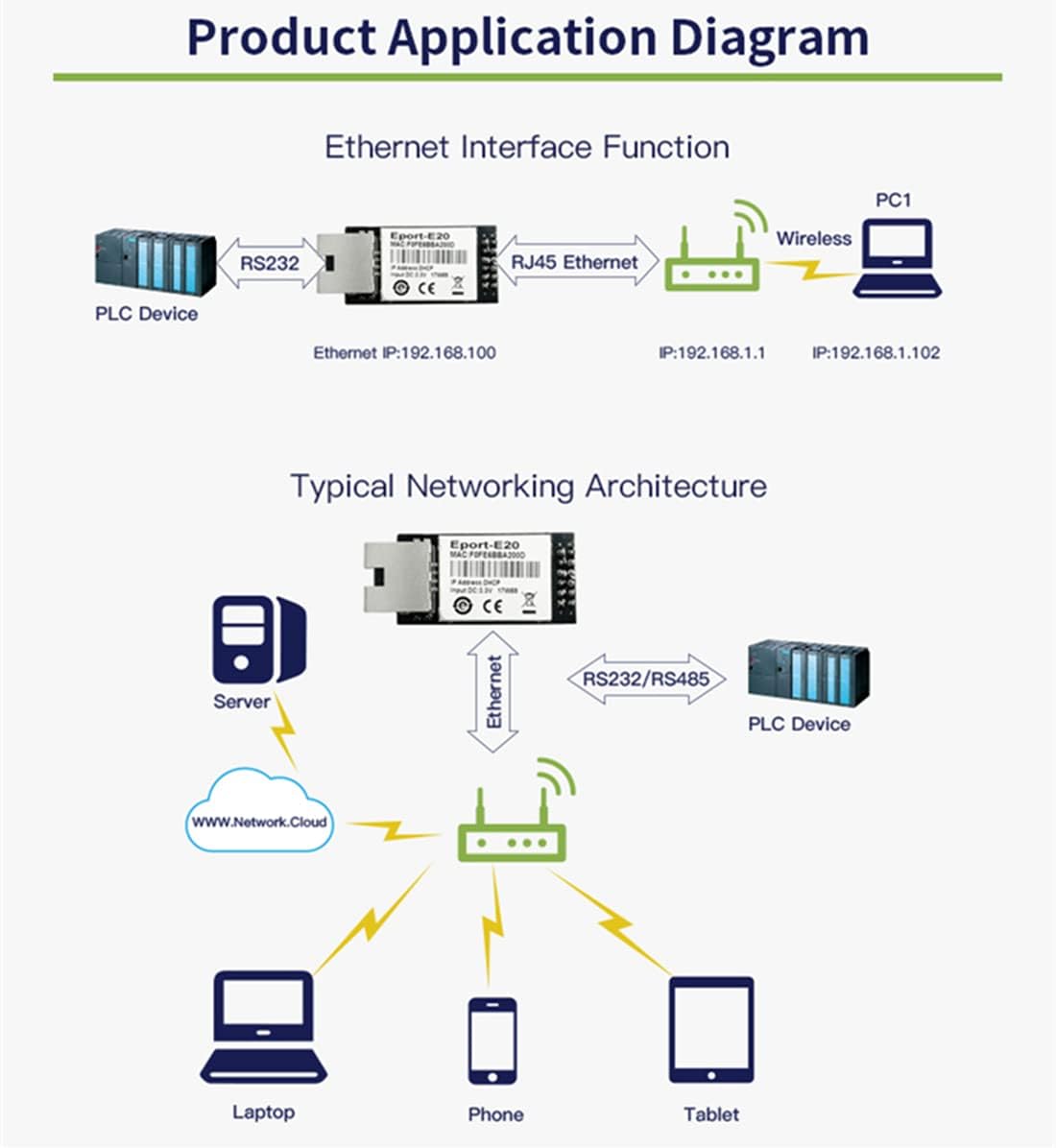
Figure 2: Product Application Diagram. This diagram illustrates how the Eport-E20 connects a serial device (like an RS232 PLC) to an Ethernet network, allowing access from various devices such as laptops, phones, and tablets.
3.2 Баштапкы конфигурация
The Eport-E20 supports various configuration methods. The most common is via a web бет интерфейси.
- Тармакка кирүү: Ensure your computer is on the same local network as the Eport-E20 module. The module typically defaults to a specific IP address (e.g., 192.168.1.100 as shown in some diagrams, though this may vary or be assigned via DHCP).
- Мүмкүнчүлүк Web Интерфейс: ачуу а web browser and enter the IP address of the Eport-E20 module.
- Кирүү: If prompted, enter the default username and password (refer to specific product documentation for default credentials, if any).
- Параметрлерди конфигурациялоо: ичинде web interface, you can configure network settings (static IP, DHCP), serial port parameters (baud rate, data bits, stop bits, parity), and operating modes.
Other configuration methods include CLI commands, XML file import, Telnet, and the dedicated IoTService Configuration Software.
4. Иштөө режимдери
The Eport-E20 module supports several operating modes to suit different application requirements.
4.1 Transparent Transmission Mode
In this mode, the device acts as a transparent bridge, transferring data directly between the serial interface and the Ethernet network without modification. Users only need to set necessary communication parameters. After power-on, the device automatically connects to the default network and server based on the configured settings.

Figure 3: Transparent Transmission Mode Configuration. This image displays a software interface for configuring the Eport-E20 in transparent transmission mode, showing network and serial port settings.
4.2 TCP Server Mode
The transparent transmission mode supports communication applications such as TCP Server, TCP Client, UDP Server, and UDP Client. By default, a socket is created. This socket can be modified to select one of the working modes. When the socket is set to a TCP Server, it supports multiple TCP connections, allowing up to 5 TCP clients to connect to this socket simultaneously.
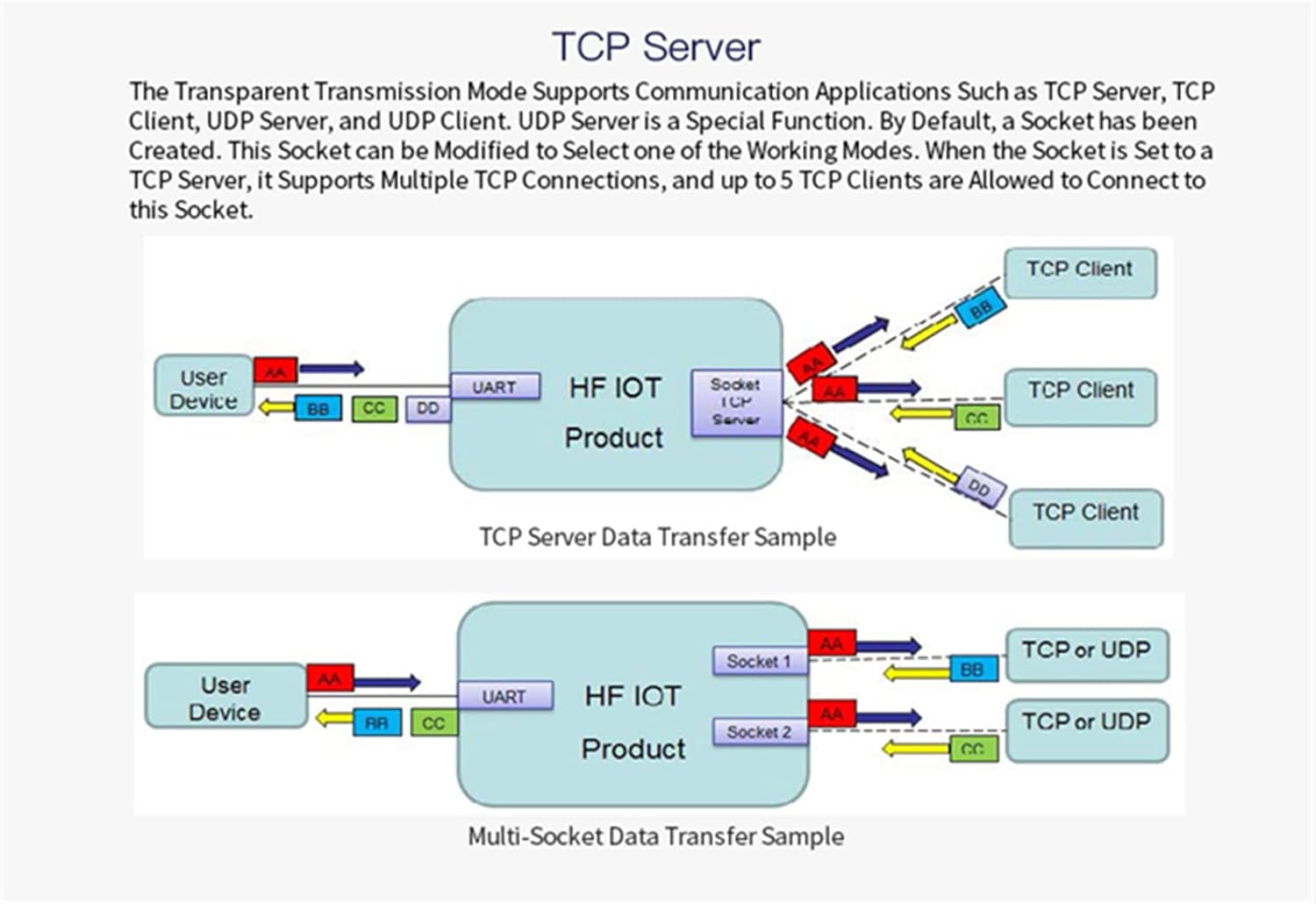
Figure 4: TCP Server Data Transfer Sample. This diagram illustrates data flow in TCP Server mode, showing how a user device communicates with multiple TCP clients through the Eport-E20 module.
4.3 HTTP Mode
In HTTP Mode, the Eport-E20 supports sending data to an HTTP Server via the HTTP protocol. The product can be configured to work in this mode through IoT Service software or the web page. When operating in HTTP Mode, the module automatically sends the HTTP protocol header to the received serial port data. The HTTP header is then removed by the HTTP Server, and the serial port data is output.

Figure 5: HTTP Transmission Sample. This image shows a software interface demonstrating data transmission in HTTP mode, including HTTP GET requests and responses.
4.4 Telnetd Mode
When the device is operating in Telnetd Mode, the UART port can be connected to the console port of the user device. Gateways and switch devices may utilize this console port to set their operating mode parameters. User equipment can be configured using the Eport-E20's Telnetd mode.

Figure 6: Telnetd Display Sample. This image shows a Telnet console interface displaying network and serial port parameters, indicating configuration options available in Telnetd mode.
5. Техникалык шарттар
| Параметр | Нарк |
|---|---|
| Processor / Frequency | Cortex-M3 / 96MHz |
| Flash / SDRAM | 2MB / 128KB |
| Операция системасы | FreeRTOS |
| Ethernet Interface Port | 1 RJ45 with LED |
| Ethernet стандарты | 10/100 Base-T Auto-negotiation |
| Ethernet Protection | 1.5KV Electromagnetic Isolation, Housing Isolation Protection |
| Network Transformator | Интеграцияланган |
| Network Protocols | IP, TCP, UDP, DHCP, DNS, HTTP Server/кардар, ARP, BOOTP, AutoIP, ICMP, Web socket, Telnet, FTP, TFTP, uPNP, NTP, SNMP, Modbus TCP |
| Коопсуздук протоколдору | TLS, AES 128Bit, DES3 |
| IPV6 колдоо | Жок |
| Serial Port Number | 1 + 1 debug interface |
| Serial Interface Standard | 3.3V TTL, 2 wire (TX, RX) |
| Маалымат биттери | 5, 6, 7, 8 |
| Токтотуу биттери | 1, 2 |
| Check Digit (Parity) | Жок, Жуп, Так |
| Baud Rate (TTL) | 600 bps - 921600 bps |
| Агымды башкаруу | No Aow Control, Hardware RTS/CTS, Software Xon/Xoff |
| Тарам методдору | WEB Page, CLI Command, XML File Import, Telnet, IoTService Software, Serial Port Quick Configuration |
| Микропрограмманы жаңыртуу | Web Page, IoTService Tool |
| Өлчөмдөр | 50 x 23 x 11 мм |
| Иштөө температурасы | -45°Cден 85°Cге чейин |
| Сактоо чөйрөсү | -45°C to 85°C, 5-95% RH (No Condensation) |
| Киргизүү көлөмүtage | 3.3V |
| Иштөө агымы | ~100mA |
| Энергияны керектөө | <400мВт |
| Сертификаттар | 3C/FCC/CE/ROHS |
6. Кыйынчылыктарды
If you encounter issues with your JMT Eport-E20 module, consider the following troubleshooting steps:
- Кубат жок: Ensure the +3.3V power supply is correctly connected and providing stable voltage. Check for proper polarity.
- Тармак туташуусу жок: Verify the Ethernet cable is securely connected to both the module and the network device (router/switch). Check the LED indicators on the RJ45 port for activity. Ensure your network settings (IP address, subnet mask, gateway) are correctly configured, especially if using a static IP.
- Сериялык байланыш көйгөйлөрү: Double-check the TX/RX connections between the Eport-E20 and your serial device. Ensure the baud rate, data bits, stop bits, and parity settings match on both ends.
- Кирүү мүмкүн эмес Web Интерфейс: Confirm your computer is on the same network segment as the Eport-E20. Try pinging the module's IP address. Clear your browser cache or try a different browser.
- Маалыматтын бузулушу: Verify that flow control settings (if used) are correctly configured. Ensure there is no electrical interference affecting the serial or Ethernet lines.
- Микропрограмманы жаңыртуу маселелери: Ensure a stable power supply during firmware updates. Do not interrupt the process. If an update fails, refer to the manufacturer's recovery procedure.
7. Кепилдик жана колдоо
For warranty information, technical support, or further assistance with your JMT Eport-E20 module, please contact the manufacturer or your authorized reseller. Keep your purchase receipt and product model number (N23959-5$) handy when seeking support.
Manufacturer: HF