
Tukzer TZ-ML-02
Tukzer 19-Inch Monitor Screen Light Bar User Manual
Model: TZ-ML-02
1. Киришүү
This manual provides detailed instructions for the installation, operation, and maintenance of your Tukzer 19-Inch Monitor Screen Light Bar. Please read this manual thoroughly before use to ensure proper functionality and to extend the product's lifespan. Keep it for future reference.

Сүрөт 1.1: Алдыңкы жана арткы view of the Tukzer Monitor Screen Light Bar.
2. Продукциянын өзгөчөлүктөрү
- Экрандын жаркыроосу жок: Asymmetrical optical design illuminates the desktop and keyboard without reflecting glare on the screen, reducing eye strain.
- Smart Touch Sensor Controls: Intuitive touch controls for power and settings adjustments.
- Өчүрүү эстутуму: Automatically resumes the last used brightness and color temperature settings upon restart.
- Кадамсыз күңүрттөө: Adjustable brightness from -5 to +45 levels for personalized illumination.
- Үч түстүү температура режими:
- Warm Light (3000K): Ideal for reading and relaxation.
- Warm-White Light (4500K): Balanced light for comfortable viewing.
- White Light (6500K): Bright, clear light for efficient work.
- USB менен иштейт: Convenient 5W LED operation via any standard USB port (1A~5V Min).
- Мейкиндикти үнөмдөөчү дизайн: C-clamp mounting system saves desk space.
- High Color Rendering Index (Ra >80): Ensures accurate color representation.

Image 2.1: Key features of the Tukzer Monitor Screen Light Bar.
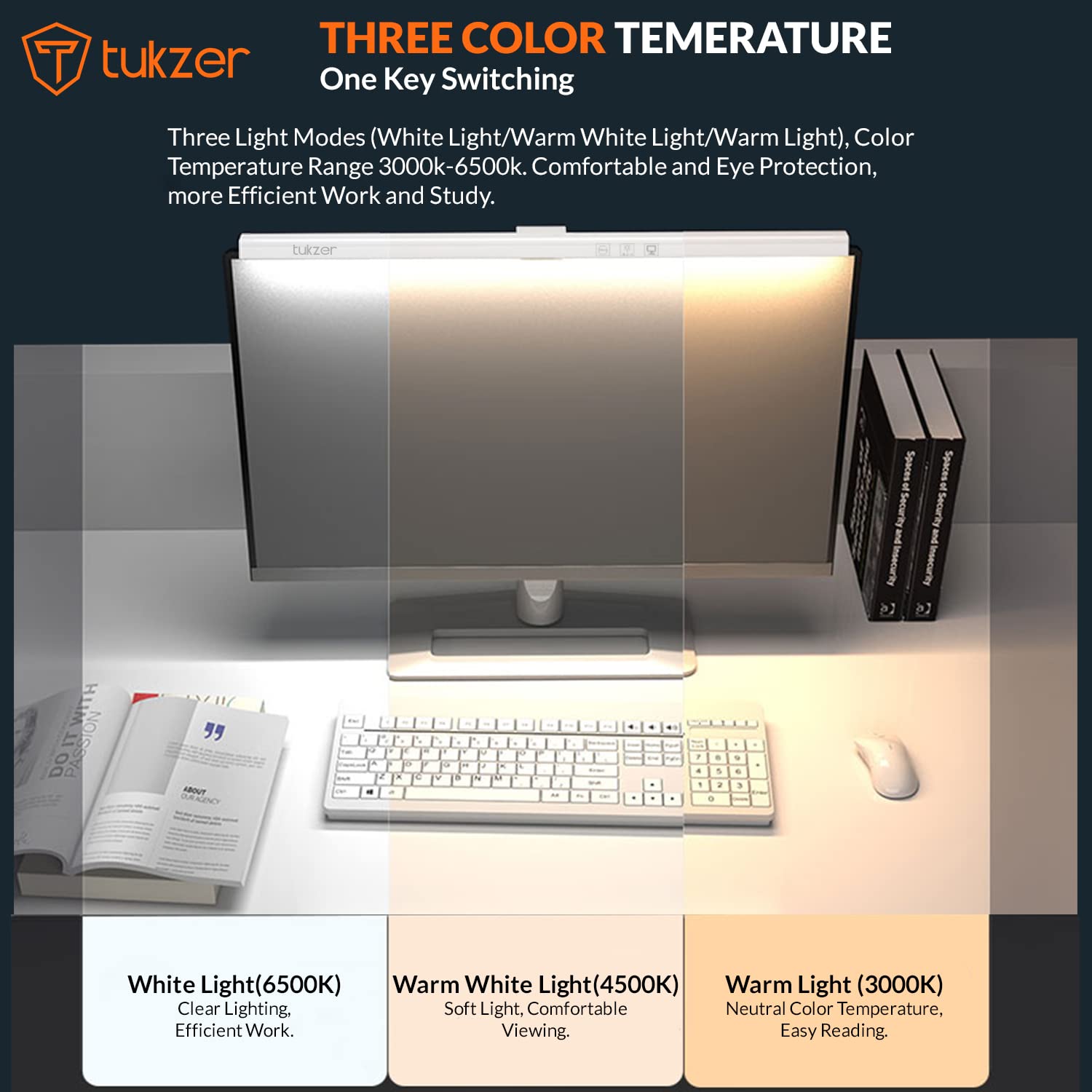
Image 2.2: Visual representation of the three adjustable color temperature modes.

Image 2.3: Asymmetric light source design for glare-free illumination.
3. Орнотуу жана орнотуу
Follow these steps to properly install your monitor screen light bar:
- Мониторду даярдоо: Ensure the top surface of your monitor is clean and dry.
- Силикон жаздыкчасын тиркөө: If your monitor's back is not flat, or for added stability, peel off the protection paper from the provided silicone pad and stick it onto the monitor's top edge where the light bar will rest.
- Жарык тилкесин жайгаштырыңыз: Place the light bar's C-clamp mechanism over the top edge of your monitor.
- Сорох чөйчөктү бекитиңиз: Press the suction cup firmly onto the monitor's back to secure the light bar in place.
- USB кубатын туташтыруу: Connect the USB power cable from the light bar to any available USB port (e.g., computer, monitor, phone charger, power bank) with a minimum output of 1A at 5V.
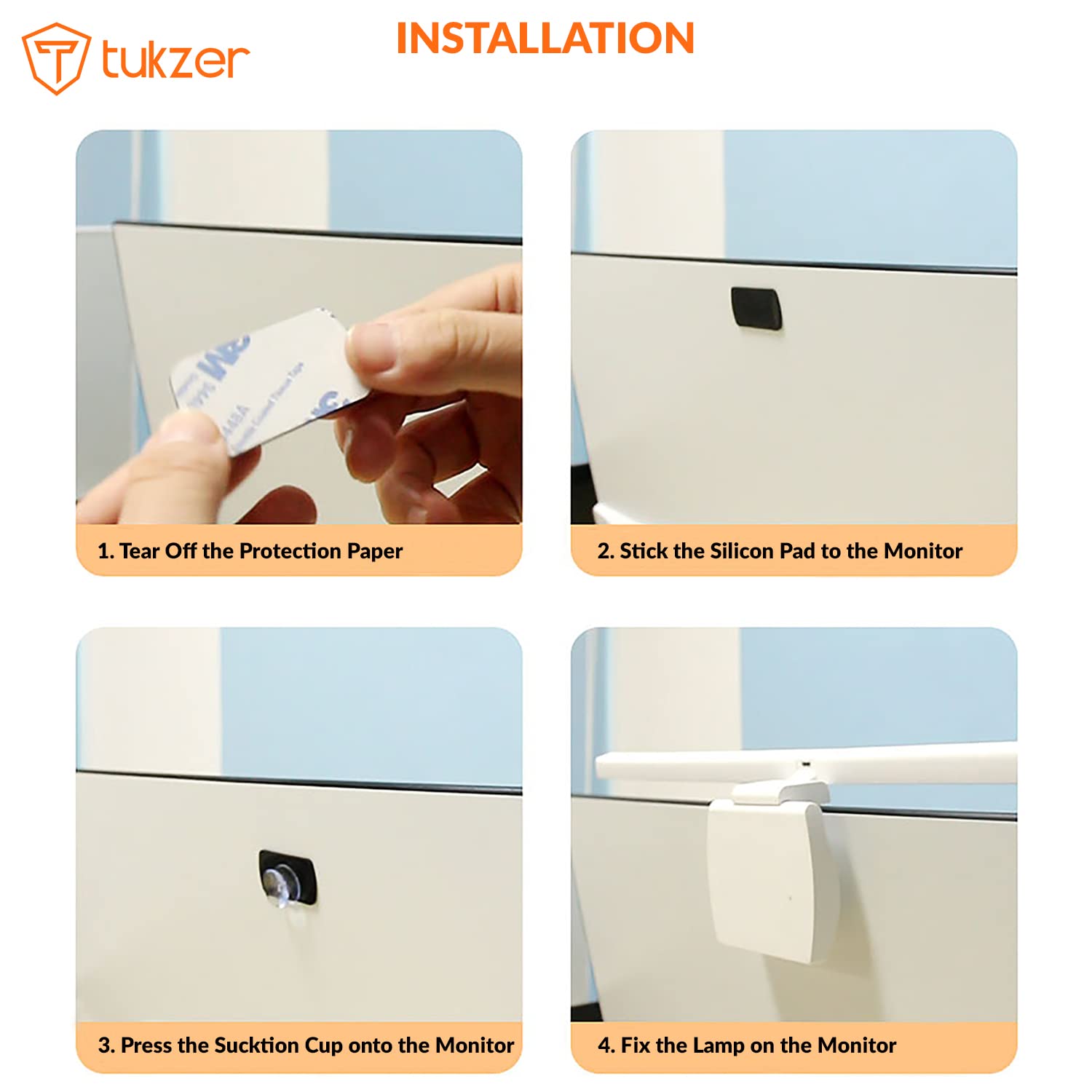
Сүрөт 3.1: Кадам-кадам орнотуу процесси.

Image 3.2: Product parts and hanging angle adjustment range.
4. Иштөө нускамалары
The Tukzer Monitor Screen Light Bar features smart touch sensor controls for easy operation.
- Күйгүзүү/өчүрүү: Lightly touch the power icon once to turn the light bar on or off.
- Жарыктыкты тууралоо (кадамсыз күңүрттөө): Press and hold the brightness adjustment icon to smoothly increase or decrease the light intensity. Release when the desired brightness is reached.
- Түс температурасын өзгөртүү: Tap the color temperature icon to cycle through the three modes: Warm Light (3000K), Warm-White Light (4500K), and White Light (6500K).
- 60 мүнөттүк таймер: Tap the timer icon once to activate the 60-minute timer. The light will automatically turn off after 60 minutes.
- Өчүрүү эстутуму: The light bar will remember your last brightness and color temperature settings when turned off and on again.

Image 4.1: Smart touch sensor controls for operation.
5. Техникалык тейлөө жана кам көрүү
To ensure the longevity and optimal performance of your light bar, follow these maintenance guidelines:
- Тазалоо: Use a soft, dry cloth to gently wipe the surface of the light bar. Avoid using abrasive cleaners, solvents, or sprays that could damage the finish or electronic components.
- Сактагыч: Узак мөөнөткө колдонулбаганда, жарык тилкесин салкын, кургак жерде, тике күн нурунан жана экстремалдык температурадан алыс сактаңыз.
- Колдонуу: Handle the light bar with care. Avoid dropping it or subjecting it to strong impacts.
- Демонтаж: Буюмду бөлүктөргө бөлүүгө же өзгөртүүгө аракет кылбаңыз. Бул кепилдикти жокко чыгарат жана зыянга же жаракатка алып келиши мүмкүн.
6. Кыйынчылыктарды
If you encounter any issues with your Tukzer Monitor Screen Light Bar, please refer to the following common problems and solutions:
| Көйгөй | Мүмкүн себеп | Чечим |
|---|---|---|
| Жарык тилкеси күйбөйт. |
|
|
| Жарык бүлбүлдөп же туруксуз. |
|
|
| Сенсордук башкаруу элементтери жооп бербейт. |
|
|
| Light bar is not stable on the monitor. |
|
|
Бул чечимдерди колдонуп көргөндөн кийин көйгөй чечилбесе, кардарларды колдоо менен байланышыңыз.
7. Техникалык шарттар
| Өзгөчөлүк | Деталь |
|---|---|
| Модель номери | TZ-ML-02 |
| Продукт материалы | Акрилонитрил бутадиен стирол (ABS) |
| Rated Voltage | 5V |
| Продукт күчү | 5W MAX (78x0.2W/LED Module) |
| Номиналдуу ток | 1A |
| Жарык булагы | LED |
| Түстөрдү көрсөтүү индекси (CRI) | > 80 Ra |
| Иштөө температурасы | -5°Cден +45°Cге чейин |
| Түс температурасы режимдери | Warm Light (3000K), Warm-White Light (4500K), White Light (6500K) |
| Жарык агымы | >90 LM |
| Продукт Салмагы | 170 грамм |
| Продукциянын өлчөмдөрү | 50 cm (Length) x 10.4 cm (Width) x 6.5 cm (Depth) |
| USB кубат кабелинин узундугу | 1.2 метр |
| Башкаруу ыкмасы | Touch Sensor |
| Монтаж түрү | Screen Mount (C-clamp with suction cup) |
| Камтылган компоненттер | Monitor Screen Light Bar |

Сүрөт 7.1: Продукциянын өлчөмдөрү жана деталдуу мүнөздөмөлөрү.
8. Кепилдик жана колдоо
8.1. Кепилдик маалыматы
The Tukzer Monitor Screen Light Bar comes with a 06 айлык кепилдик сатып алынган күндөн тартып. Бул кепилдик кадимки колдонуудагы өндүрүштүк кемчиликтерди жана бузулууларды камтыйт. Ал туура эмес колдонуудан, кырсыктардан, уруксатсыз өзгөртүүлөрдөн же туура эмес орнотуудан келип чыккан зыянды камтыбайт.
Кепилдик дооматтары үчүн сатып алуунун далили катары сатып алуу дүмүрчөгүңүздү сактап коюңуз.
8.2. Кардарларды колдоо кызматы
For technical assistance, warranty claims, or any other inquiries, please contact Tukzer customer support. Refer to the official Tukzer webБайланыш маалыматы үчүн сайтка же сатып алуу документтериңизге кайрылыңыз.
When contacting support, please provide your product model number (TZ-ML-02) and a detailed description of the issue.
9. Маанилүү эскертүүлөр
- Бул продукт ички колдонуу үчүн гана иштелип чыккан.
- Do not expose the product to water or high humidity. It is not water resistant.
- Балдар жетпеген жерде сактаңыз.
- The light source of this product is not replaceable. When the light source reaches the end of its life, the entire lamp алмаштырылышы керек.
- Use only with a 5V/1A USB power supply.
Ask a question about this manual
Ask about setup, troubleshooting, compatibility, parts, safety, or missing instructions. Manuals+ will review the question and use this page’s manual context to help answer it.