
Introduction
The HyperGear HyperStream 1080P Webcam provides high-definition video and clear audio for various applications, including online meetings, classes, and streaming. This manual provides instructions for setup, operation, maintenance, and troubleshooting to ensure optimal performance of your webкамера
Пакеттин мазмуну
Пакетиңизде бардык буюмдар бар экенин текшериңиз:
- HyperGear HyperStream 1080P Webcam
- USB кабели
- Камтылган микрофон
Продукт бүттүview
The HyperGear HyperStream 1080P Webcam is designed for ease of use and high-quality performance. Key features include:
- Crystal-Clear 1080P HD Resolution: Delivers sharp and vibrant visuals.
- Built-in Noise Reduction Microphone: Captures clear audio by reducing background sounds.
- Plug & Play USB туташуу: Requires no additional software or drivers for quick setup.
- Wide-Angle 110° Lens: Кеңири талааны камтыйт view, suitable for group interactions.
- Auto-White Balance: Automatically adjusts to various lighting conditions for optimal image quality.
- Жөнгө салынуучу монтаждоо: Securely attaches to monitors or laptops, and can also be positioned as a standalone unit.
Орнотуу нускамалары
Follow these steps to set up your HyperGear HyperStream 1080P Webкамера:
- Пакеттен чыгаруу Webкамера: Кылдаттык менен алып салуу webcam and its USB cable from the packaging.

Image: The HyperGear HyperStream 1080P Webcam is designed for instant plug-and-play setup without requiring additional drivers. Simply connect the USB cable to your computer.
- монтаждоо Webкамера:
- Монитордо/ноутбуктарда: Open the adjustable clip and place it securely on top of your monitor or laptop screen. Adjust the angle to ensure the webкамера туруктуу жана сизге караган абалда.
- Иш столунда: Туруктуу стенд түзүү үчүн клипсти бүктөп, ордуна коюңуз webcam on a flat surface, such as your desk.

Сүрөт: The webcam features an adjustable mount that allows it to be clamped onto any screen or display, or positioned as a standalone unit on your desk. It offers 180-degree rotation for flexible positioning.
- Түзмөгүңүзгө туташуу: USB кабелин туташтыргычтан сайыңыз webcam into an available USB port on your computer (PC, Mac) or Xbox console. The webcam is plug-and-play, so no additional drivers are typically required.
- Байланышты текшерүү: Your operating system should automatically detect the webcam. You can verify its connection in your device settings or within your preferred video conferencing/streaming application.
Иштөө нускамалары
Once connected, the HyperGear HyperStream 1080P Webкамера ар кандай тиркемелер менен колдонууга даяр.
Системанын шайкештиги
The webcam is compatible with multiple operating systems and platforms:
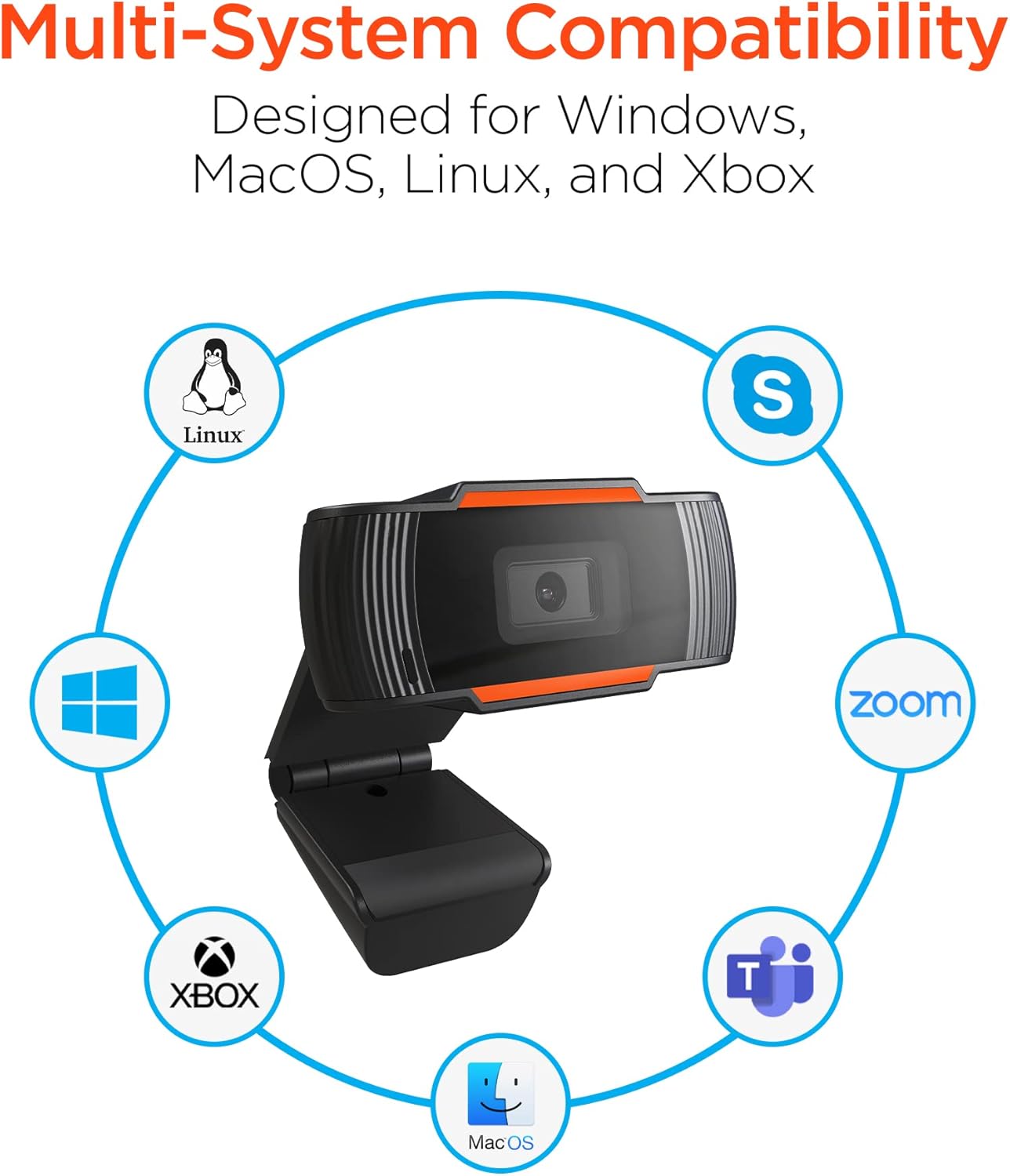
Image: The HyperGear HyperStream 1080P Webcam offers multi-system compatibility, designed for use with Windows, MacOS, Linux, and Xbox, as well as popular communication platforms like Skype, Zoom, and Microsoft Teams.
- Windows
- macOS
- Linux
- Xbox
- Compatible with popular video conferencing software (e.g., Skype, Zoom, Microsoft Teams).
колдонуу Webcam
- тандаңыз Webкамера: In your video conferencing or streaming application, navigate to the video and audio settings. Select "HyperGear HyperStream 1080P Webcam" as your video input device and its integrated microphone as your audio input device.
- Adjust Position and Angle: камсыз кылуу webcam is positioned to capture your desired view. The 110° wide-angle lens is ideal for capturing multiple participants or a broader background.

Image: The 110° ultra wide-angle lens ensures that your entire team and presentations fit within the frame, making it suitable for group meetings and collaborative environments.
- Benefit from Auto-White Balance and Fixed Focus: The webcam automatically adjusts for optimal lighting and maintains a sharp focus on subjects within its field of view, eliminating the need for manual adjustments.

Сүрөт: The webcam features fixed focus and auto-white balance (AWB) to automatically adjust to various lighting conditions (like daylight or fluorescent), ensuring clear and sharp visuals without manual intervention.
- Utilize Noise Reduction Microphone: The built-in microphone actively reduces ambient noise, ensuring your voice is clear and easily understood during calls.

Image: The integrated noise reduction microphone minimizes unwanted background noise and distortions, ensuring clear audio during your video calls and streams.
Техникалык тейлөө
Сиздин узак жана оптималдуу иштешин камсыз кылуу үчүн webкамераны тейлөө үчүн, төмөнкү техникалык тейлөө көрсөтмөлөрүн аткарыңыз:
- Тазалоо: Линзаны жумшак, мамыксыз чүпүрөк менен акырын сүртүңүз. Линзаны тырмап же линзага зыян келтире турган катуу химиялык заттарды же абразивдүү материалдарды колдонуудан алыс болуңуз.asing.
- Сактагыч: Колдонулбаган учурда, дүкөндү сактаңыз webкамераны таза, кургак жерде, өтө жогорку температурадан жана түз күн нурунан алыс сактаңыз.
- Колдонуу: Түшүрүп салуудан алыс болуңуз webcam or subjecting it to strong impacts, which could damage internal components.
Проблемаларды чечүү
If you encounter issues with your HyperGear HyperStream 1080P Webкамера, төмөнкү көйгөйлөрдү чечүү кадамдарын колдонуп көрүңүз:
- WebКамера аныкталган жок:
- USB кабелинин экөөнө тең бекем сайылганын текшериңиз webcam and your computer's USB port.
- сайып көрүңүз webкамераны башка USB портуна.
- Компьютериңизди өчүрүп күйгүзүңүз.
- Check your operating system's device manager (Windows) or System Information (macOS) to see if the webкамера тизмеде көрсөтүлгөн.
- Видео чыгаруу жок:
- экендигин текшериңиз webcam колдонмоңуздун жөндөөлөрүндө видео киргизүү түзмөгү катары тандалып алынган.
- Башка эч бир тиркеме учурда колдонбогонун текшериңиз webcam, as some systems only allow one application to access it at a time.
- Линзаны жаап турган кандайдыр бир физикалык тоскоолдуктарды текшериңиз.
- No Audio Input (Microphone):
- экенин ырастаңыз webcam's microphone is selected as the audio input device in your application's settings and your system's sound settings.
- Check that the microphone is not muted in your application or system settings.
- Ensure your system's privacy settings allow applications to access the microphone.
- Видеонун сапаты начар:
- Ensure you have adequate lighting in your environment. While the webcam has auto-white balance, sufficient ambient light is crucial for best results.
- тазалаңыз webcam lens if it appears smudged or dirty.
- Check your internet connection speed if streaming or video conferencing, as a slow connection can affect video quality.
Техникалык шарттар
| Өзгөчөлүк | Деталь |
|---|---|
| Бренд | HyperGear |
| Модель аты | HyperStream Portable 1080P |
| Видео тартуунун резолюциясы | 1080p |
| Байланыш технологиясы | USB |
| Түс | кара |
| Өзгөчө өзгөчөлүк | Жөнгө салынуучу |
| Видеокамера түрү | Webcam |
| Операция системасы | Windows, macOS |
| Линзанын түрү | Wide Angle |
| Фокус түрү | Fixed Focus |
| Сүрөттүн катышы | 16:9 |
| Экспозицияны башкаруу түрү | Автоматтык |
| Натыйжалуу Video Resolution | 1920 пиксел |
| Шайкеш түзмөктөр | Персоналдык компьютер |
| Камтылган медиа | Microphone, USB Cable |
| Элемент Салмагы | 4.72 унция |
| UPC | 633755155390 |
| ASIN | B09S51KSC4 |
Кепилдик жана колдоо
For warranty information and customer support, please refer to the documentation included with your purchase or visit the official HyperGear webсайт.
Сиз да зыярат кылсаңыз болот HyperGear Store on Amazon көбүрөөк продукт маалымат жана колдоо ресурстар үчүн.