
1. Киришүү
This manual provides essential information for the safe and efficient use of your INNOCN 24C1Q 24-inch QHD IPS Monitor. Please read this manual thoroughly before operating the device and retain it for future reference.
2. Коопсуздук маалыматы
- Өрткө же электр тогуна урунбоо үчүн мониторду жамгырдын же нымдуулуктун таасирине дуушар кылбаңыз.
- Мониторду ачпаңыз casinг. Ичинде колдонуучу тейлей турган бөлүктөр жок. Бардык тейлөөлөрдү квалификациялуу кызматкерлерге тапшырыңыз.
- Монитор кулап калбаш үчүн аны туруктуу, тегиз бетке коюңуз.
- Монитордун айланасында туура желдетүүнү камсыз кылыңыз. Вентиляция тешиктерин жаап албаңыз.
- Өндүрүүчү тарабынан берилген кубат адаптерин жана кабелдерин гана колдонуңуз.
- Чагылганда же узак убакыт бою колдонбогондо мониторду розеткадан сууруп алыңыз.
3. Пакеттин мазмуну
Төмөндө тизмеленген нерселердин баары пакетиңизге камтылганын текшериңиз:

3.1-сүрөт: Пакеттин мазмуну
- INNOCN 24C1Q Monitor x 1
- Кубат кабели x 1
- Кубат адаптери x 1
- Жогорку сапаттуу Cable X 1
- USB-C кабели x 1
- USB-A - USB-B кабели x 1
- Color-calibration report x 1
- Колдонмо колдонмо x 1
4. Орнотуу
4.1 Стендди чогултуу
Attach the monitor stand to the back of the monitor. Ensure it clicks securely into place. The stand allows for height, tilt, and swivel adjustments.

4.1-сүрөт: Стендди чогултуу жана жөндөө
4.2 Мониторду туташтыруу
Connect the monitor to your computer or other devices using the appropriate cables. The monitor features multiple input interfaces:

Figure 4.2: Monitor Input Interfaces
- DP 1.2: For DisplayPort connections.
- USB-C: Provides video signal, data transfer, and up to 90W power delivery for compatible devices.
- USB-A (x2): For connecting USB peripherals.
- USB-B: For upstream USB connection to your computer.
- HDMI2.0: For HDMI connections.
- HDMI1.4: For additional HDMI connections.
- 3.5 мм аудио уячасы: For audio output to external speakers or headphones.
Кубат адаптерин мониторго, андан кийин розеткага туташтырыңыз.
5. Иштөө нускамалары
5.1 Күйгүзүү/өчүрүү
Аны күйгүзүү же өчүрүү үчүн монитордо жайгашкан кубат баскычын басыңыз.
5.2 Экрандагы дисплей (OSD) менюсу
Use the buttons on the monitor to navigate the OSD menu. The OSD menu allows you to adjust various display settings.
5.3 Дисплей орнотуулары
- Чечим: The monitor supports QHD (2560 x 1440p) resolution. Ensure your device's display settings are configured to this resolution for optimal clarity.
- Жаңыртуу ылдамдыгы: The monitor operates at a 75Hz refresh rate, providing smooth visuals.
- Түс гаммасы: Features 100% sRGB wide color gamut for accurate color reproduction. A factory color calibration report is included.
- Жарыктык жана контраст: Adjust these settings via the OSD menu to suit your viewing environment. The monitor offers 300 nits brightness and a 1000:1 contrast ratio.

Figure 5.1: QHD Resolution and 100% sRGB
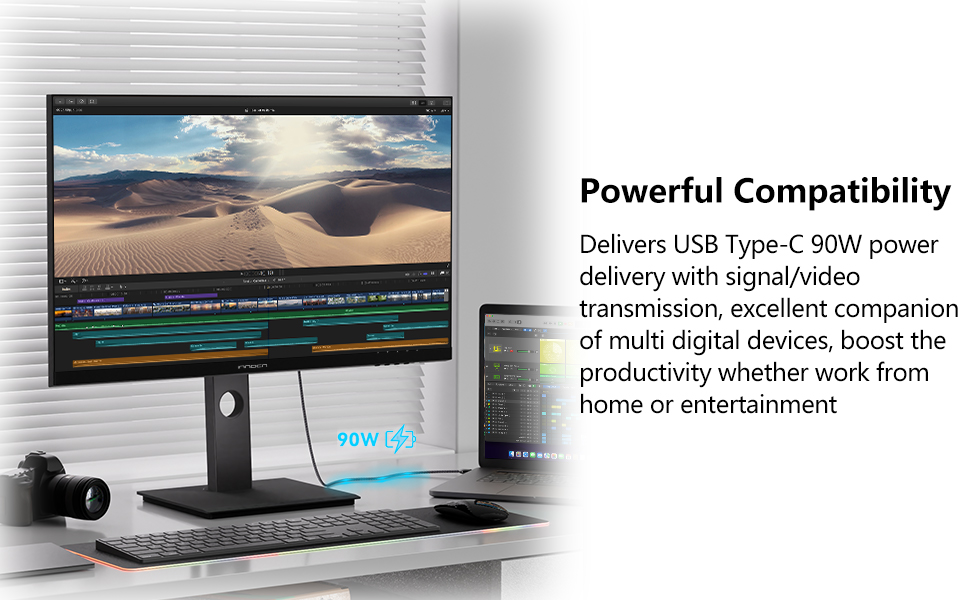
Figure 5.2: 75Hz Refresh Rate
5.4 Өзгөчөлүктөр
- USB Type-C кубат жеткирүүсү: Connect compatible laptops or devices via USB-C for video, data, and up to 90W charging.
- Flicker-Free & Blue Light Filter: These technologies reduce eye strain during prolonged use. Activate the Low Blue Light mode via the OSD menu.
- Сүрөт ичиндеги сүрөт (PIP) / Сүрөт боюнча сүрөт (PBP): Display content from multiple sources simultaneously. Refer to the OSD menu for configuration options.
- Эргономикалык стенд: The included stand allows for height, tilt, and swivel adjustments, and can pivot 90 degrees for portrait mode.
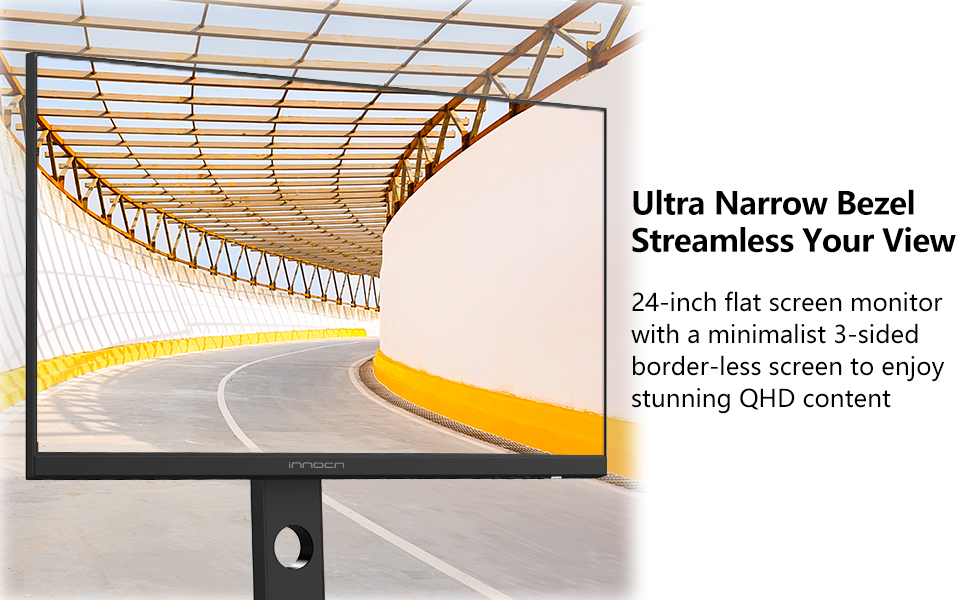
Figure 5.3: USB Type-C Power Delivery

Figure 5.4: Flicker-Free & Blue Light Filter

Figure 5.5: PIP/PBP Features
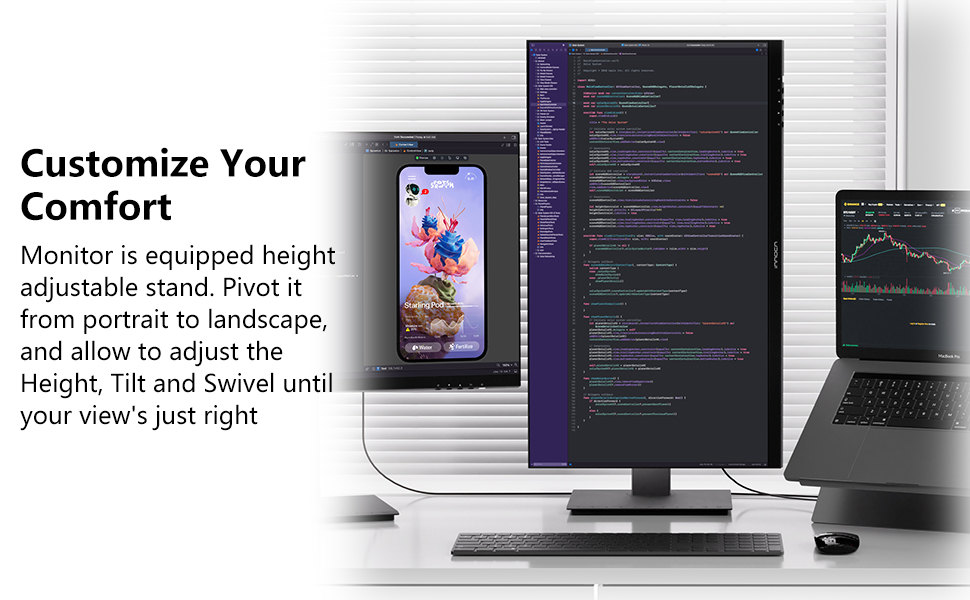
Figure 5.6: Customizable Comfort with Adjustable Stand
6. Техникалык тейлөө
6.1 Мониторду тазалоо
- Тазалоодон мурун ар дайым мониторду сууруп коюңуз.
- Жумшак, түксүз кездемени жеңил колдонуңуз dampсуу же жумшак, абразивдүү эмес экран тазалагыч менен иштетиңиз.
- Тазалоочу каражатты түз экранга чачпаңыз.
- Катуу химиялык заттарды, эриткичтерди же абразивдүү материалдарды колдонуудан алыс болуңуз.
6.2 Сактоо
When storing the monitor, ensure it is in a cool, dry place away from direct sunlight and extreme temperatures. Use original packaging if available for protection.
7. Кыйынчылыктарды
Мониторуңузда көйгөйлөргө туш болсоңуз, төмөнкү жалпы көйгөйлөрдү жана чечимдерди караңыз:
| Көйгөй | Мүмкүн себеп | Чечим |
|---|---|---|
| Күч жок | Электр кабели туташкан эмес; розетка туура эмес | Электр кабели бекем туташтырылганын текшериңиз; Башка электр розеткасын колдонуп көрүңүз. |
| Сигнал жок | Видео кабели туташкан эмес; Туура эмес киргизүү булагы тандалды | Check video cable connections (HDMI, DP, USB-C); Select the correct input source via the OSD menu. |
| Сүрөт бүдөмүк же бурмаланган | Туура эмес чечилиш; Бузук видео кабель | Set the display resolution to 2560 x 1440p; Try a different video cable. |
| Экран жылтылдайт | Refresh rate issue; External interference | Ensure refresh rate is set to 75Hz; Check for nearby electronic devices causing interference. |
| No sound from audio jack | External speakers/headphones not connected; Volume too low | Connect external audio device; Adjust volume settings on the monitor and connected device. |
8. Техникалык шарттар
| Өзгөчөлүк | Спецификация |
|---|---|
| Бренд | INOCN |
| Модель номери | 24C1Q |
| Screen Size | 24 дюйм |
| Резолюция | QHD кең 1440p (2560 x 1440 пиксел) |
| Аспект катышы | 16:9 |
| Дисплей түрү | IPS LCD |
| Жаңыртуу ылдамдыгы | 75 Гц |
| Жооп убактысы | 1 Миллисекунд |
| Жарыктык | 300 Кандела |
| Контраст катышы | 1000:1 |
| Түс гаммасы | 100% sRGB |
| Viewбурч | 178 градус |
| Байланыш | 1x DP 1.2, 1x USB-C (90W PD), 2x USB-A, 1x USB-B, 1x HDMI 2.0, 1x HDMI 1.4, 1x 3.5mm Audio Jack |
| Монтаж түрү | Height Adjustable Stand, VESA Mountable (75x75mm) |
| Өзгөчөлүктөр | Flicker-Free, Blue Light Filter, Color Calibrated, Tilt/Height/Pivot Adjustable, USB Type-C Power Delivery |
| Өлчөмдөр (D x W x H) | 6.1"D x 25"W x 16.1"H |
9. Кепилдик жана колдоо
9.1 Кепилдик маалыматы
The INNOCN 24C1Q monitor comes with a 1-year manufacturer warranty. Please retain your proof of purchase for warranty claims.
9.2 Техникалык колдоо
For technical assistance, troubleshooting beyond this manual, or warranty inquiries, please contact INNOCN customer support. Refer to the official INNOCN website or your product documentation for contact details.