
keydous NJ80-AP
Keydous NJ80-AP зымсыз механикалык клавиатура Колдонуучунун колдонмосу
Model: NJ80-AP | Brand: keydous
1. Киришүү
Welcome to the comprehensive user manual for your Keydous NJ80-AP Wireless Mechanical Keyboard. This guide provides detailed instructions for setup, operation, maintenance, and troubleshooting to ensure you get the most out of your new keyboard.
2. Негизги өзгөчөлүктөрү
- 75% Layout with Multi-function Rotary Knob
- Triple Mode Connectivity: Bluetooth 5.0, 2.4G Wireless, USB-C Wired
- Hot-Swappable Switch Sockets for Easy Customization
- Full RGB Backlighting with Customizable Effects
- Programmable Keys and Macro Creation via Software
- Бышык PBT баскыч капкактары
- Wide Compatibility: Windows, Mac, iOS, Android, and Linux
- Орнотулган 4800 мАч литий-иондук батарея
3. Пакеттин мазмуну
- Keydous NJ80-AP Mechanical Keyboard
- USB-C - USB-A кабели
- 2.4G зымсыз кабыл алгыч
- Баскыч капкагын тарткыч
- Switch Puller
- Additional Keycaps (e.g., Mac/PC specific, accent keys)
- Колдонуучунун Колдонмосу (бул документ)
4. Орнотуу жана туташуу
4.1 Байланыш режимдери
4.1.1 Wired Mode Connection
Connect the keyboard to your computer using the provided USB-C cable. The keyboard will automatically switch to wired mode and begin charging.

4.1.2 2.4 ГГц зымсыз туташуу
- Locate the 2.4G wireless receiver. It is usually stored in a dedicated slot on the back of the keyboard.
- 2.4G кабыл алгычын компьютериңиздеги жеткиликтүү USB портуна сайыңыз.
- Toggle the switch on the back of the keyboard to the 2.4G wireless mode (often indicated by a 'G' or 2.4G icon).
- Баскычтоп автоматтык түрдө туташуу керек. Болбосо, басыңыз fn+4 жупташууну баштоо.

4.1.3 Bluetooth Connection (Up to 3 Devices)
- Toggle the switch on the back of the keyboard to Bluetooth mode (often indicated by a 'B' or Bluetooth icon).
- Түзмөгүңүздө (PC, Mac, планшет, смартфон) Bluetooth'ду иштетип, жаңы түзмөктөрдү издеңиз.
- To enter pairing mode on the keyboard, press and hold fn+1, fn+2, же fn+3 for 3-5 seconds until the corresponding key flashes rapidly. This indicates it's ready to pair.
- Select "Keydous NJ80-AP" from the list of available Bluetooth devices on your computer/device.
- Once connected, the corresponding Fn key (Fn+1, Fn+2, or Fn+3) will stop flashing and remain steadily lit.
- Жупташтырылган Bluetooth түзмөктөрүнүн ортосунда которулуу үчүн, жөн гана басыңыз fn+1, fn+2, же fn+3.

5. Иштөө нускамалары
5.1 Keyboard Layout and Key Functions
The NJ80-AP features a compact 75% layout with dedicated function keys and a multi-function rotary knob.
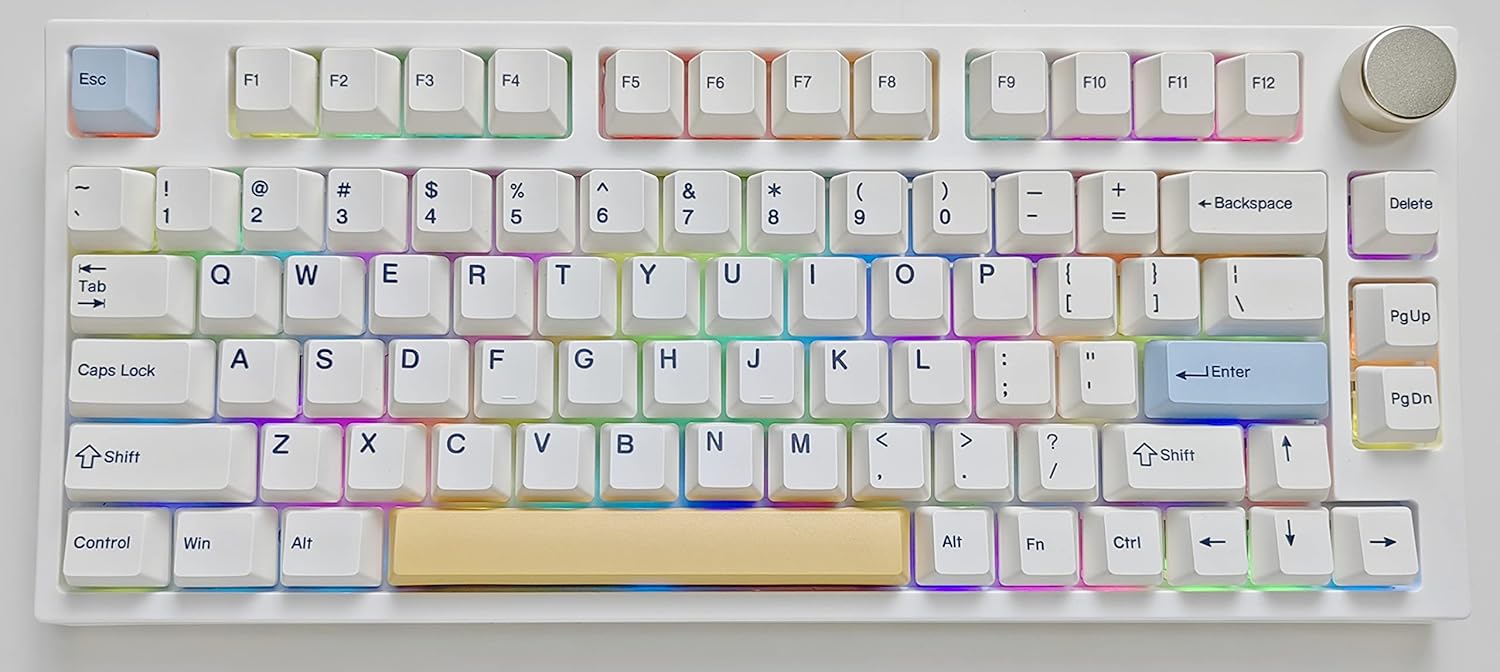
5.1.1 Айлануучу баскычтын иштеши
- Айлантуу: Adjusts system volume (clockwise to increase, counter-clockwise to decrease).
- Пресс: Аудионун үнүн басуу/ачуу.
5.1.2 Функциялык (Fn) баскыч айкалыштары
The Fn key (located near the right Alt key) can be combined with other keys to access additional functions:
| Комбинация | Функция |
|---|---|
| Fn+F1-F12 | Standard F-key functions (e.g., F5 for refresh) |
| Fn + 1/2/3 | Switch Bluetooth devices (hold for pairing) |
| fn+4 | Switch to 2.4G Wireless mode (hold for pairing) |
| Fn + Backspace | Delete (alternative) |
| Fn + Left Shift | Toggle Mac/Windows layout (if applicable) |
| Fn + Оңго Alt | Check battery status (F12 and 4 keys may indicate) |
| Fn + \ (Backslash) | Cycle RGB lighting effects |
| Fn + [ { | Decrease RGB brightness |
| Fn + ] } | Increase RGB brightness |
| Fn + ; : | RGB эффектинин ылдамдыгын азайтыңыз |
| Fn + ' " | RGB эффектинин ылдамдыгын жогорулатуу |
| Fn + Enter | Toggle RGB backlight on/off |
5.2 RGB жарыкты башкаруу
The Keydous NJ80-AP features extensive RGB backlighting customization. Use the Fn key combinations listed above to cycle through various effects, adjust brightness, and change speed.
For advanced customization, including per-key lighting and creating custom effects, please use the official Keydous software.
5.3 Программалык камсыздоону ыңгайлаштыруу
Unlock the full potential of your NJ80-AP keyboard with the official Keydous software. The software allows for:
- Key remapping and macro creation.
- Advanced RGB lighting customization (per-key, custom effects).
- Микробдор жаңыртуулары.
The software can typically be downloaded from the official Keydous webсайтына же продуктуну колдоо барагына өтүңүз.


5.4 Typing Experience (Gateron Pro Milky Yellow)
The Keydous NJ80-AP with Gateron Pro Milky Yellow switches offers a smooth and satisfying typing experience. Listen to the sound profile төмөндө:
6. Техникалык тейлөө
6.1 Клавиатураңызды тазалоо
Оптималдуу иштешин жана көрүнүшүн сактоо үчүн клавиатураңызды дайыма тазалаңыз:
- Клавиатураны бардык кубат булактарынан ажыратыңыз.
- Use the provided keycap puller to carefully remove keycaps.
- Кысылган абаны өчүргүчтөрдүн ортосундагы чаңды жана калдыктарды тазалоо үчүн колдонуңуз.
- Wipe keycaps with a damp, lint-free cloth and mild soap solution if necessary. Ensure they are completely dry before reattaching.
- Wipe the keyboard chassis with a soft, dry cloth.

6.2 Которгучту жана клавиатураны алмаштыруу
The NJ80-AP features hot-swappable switch sockets, allowing you to easily change switches without soldering.
- Баскыч капкактарын алып салуу: Берилген баскычтоптун капкагын тартуучу каражатты колдонуп, баскычтоптун капкактарын акырын түз өйдө тартыңыз.
- Которгучтарды алып салуу: Use the provided switch puller to grasp the top and bottom clips of the switch and pull it straight up.
- Которгучтарды орнотуу: Жаңы өчүргүчтүн төөнөгүчтөрүн платадагы тешиктер менен тегиздеңиз. Өчүргүч ордуна чыкылдаганча бекем басыңыз. Төөнөгүчтөрдүн ийилбегенин текшериңиз.
- Баскыч капкактарын орнотуу: Align the keycap stem with the switch stem and press down firmly.
6.3 Батарея маалыматы
The keyboard is equipped with a 4800 mAh Lithium Ion battery. To check the battery status, press Fn + Оңго Alt. The F12 and 4 keys may indicate battery level.
Charge the keyboard using the USB-C cable connected to a powered USB port or charger.

7. Кыйынчылыктарды
7.1 Баскычтоп жооп бербейт
- Баскычтоп кубатталганын текшериңиз.
- Check the connection mode switch (Wired, 2.4G, Bluetooth) is set correctly.
- Зымдуу режим үчүн башка USB портун же кабелин колдонуп көрүңүз.
- For 2.4G wireless, ensure the receiver is properly plugged in and try re-pairing (fn+4).
- For Bluetooth, ensure Bluetooth is enabled on your device and try re-pairing (Fn + 1/2/3).
- Компьютериңизди/түзмөгүңүздү өчүрүп күйгүзүңүз.
7.2 RGB жарыктандыруу иштебей жатат
- Арткы жарык күйүп турганын текшериңиз (Fn + Enter).
- жарыктыгын тууралоо (Fn + [ { / ] }).
- Try cycling through effects (Fn + \).
- Ensure the keyboard firmware is up to date using the Keydous software.
7.3 Баскычтар катталбай жатат / Эки жолу терүү
- This could indicate a faulty switch. Use the switch puller to remove the problematic switch and inspect its pins. Try re-inserting it or replacing it with a new one.
- Баскыч капкагын которгучка туура орнотулганын текшериңиз.
- Клавиатуранын капкагынын астындагы же которгучтун айланасындагы бардык таштандыларды тазалаңыз.
7.4 Connectivity Lag or Disconnections
- Баскычтоп толук кубатталганын текшериңиз.
- Reduce interference by moving other wireless devices away from the keyboard and receiver.
- Түзмөгүңүздүн Bluetooth драйверлери жаңыртылганын текшериңиз.
- Try connecting to a different USB port (for 2.4G receiver).
8. Техникалык шарттар
| Өзгөчөлүк | Деталь |
|---|---|
| Модель номери | NJ80-AP |
| Байланыш | Bluetooth 5.0, 2.4G зымсыз, USB-C зымдуу |
| Макет | 75% (80 ачкыч) |
| Которуу түрү | Hot-swappable (Gateron Pro Milky Yellow included) |
| Клавиатура материалы | PBT |
| Арткы жарыктандыруу | Толук RGB |
| Батарея сыйымдуулугу | 4800 мАч литий-ион |
| Продукциянын өлчөмдөрү | 15 x 13 x 12 дюйм |
| Элемент Салмагы | 2.2 фунт |
| Шайкештик | Windows, Mac, iOS, Android, Linux |
9. Кепилдик жана колдоо
For warranty information, technical support, and driver downloads, please visit the official Keydous website or contact Keydous Direct customer service.
A PDF version of the user guide is also available for download: https://manuals.plus/m/216d6acd653ac75dbcae637b953d1d2c0df0f04d0a092d6f8bbbca6263b50b48
Ask a question about this manual
Ask about setup, troubleshooting, compatibility, parts, safety, or missing instructions. Manuals+ will review the question and use this page’s manual context to help answer it.