
Cuifati Cuifati4mt3r5uke67610
Cuifati USB Portable Mouse Keyboard PC Laptop Remote Control
User Manual
Introduction
Thank you for choosing the Cuifati USB Portable Mouse Keyboard PC Laptop Remote Control. This device is designed to provide convenient and flexible control over your computer's media functions, acting as both a mouse and a keyboard. With its plug-and-play functionality and portable design, it enhances your multimedia experience from a distance.
Продукт бүттүview
The Cuifati Remote Control combines the functionality of a mouse and a keyboard into a single, ergonomic device. It features dedicated buttons for media playback, navigation, and customizable shortcuts, along with a central mouse control area.

Сүрөт 1: Алдыңкы view of the Cuifati USB Portable Remote Control, showcasing анын эргономикалык дизайны жана баскычтардын жайгашуусу.

Figure 2: The Cuifati Remote Control alongside its USB Infrared Receiver, which is required for wireless communication with your computer.
Жайгашуу
- Батареяны орнотуу: Open the battery compartment on the back of the remote control. Insert two (2) AAA batteries, ensuring correct polarity (+/-). Close the compartment securely.

3-сүрөт: Арткы view батареянын капкагы алынып салынган алыстан башкаруу пультунун батарея бөлүмүн көрсөтөт.
- Connect USB Infrared Receiver: Plug the USB Infrared Receiver into an available USB port on your PC or laptop.
Figure 4: The USB Infrared Receiver, which plugs into your computer to enable communication with the remote.
- Автоматтык драйверди орнотуу: The device is plug-and-play. Your operating system (WINME, WINXP, MCE, Vista, etc.) will automatically detect and install the necessary drivers. No manual driver installation is required.
- Колдонууга даяр: Once the drivers are installed, the remote control is ready for immediate use.
Иштөө нускамалары
The Cuifati remote offers versatile control for your PC's multimedia functions. It operates within a range of up to 10 meters.

Figure 5: The remote control demonstrating its effective transmission distance of 10 meters, allowing flexible use.
Чычкандын иштеши
- The central "Mouse" button and directional pad allow for cursor movement.
- The remote utilizes 360° space motion recognition for accurate and flexible cursor control.
- Use the "L" (Left Click) and "R" (Right Click) buttons for mouse clicks.

6-сүрөт: Детальдуу view of the upper section of the remote, highlighting the "Mouse" button, directional controls, and left/right click buttons.
Keyboard and Media Control
- Multimedia Buttons: Dedicated buttons for Play/Pause, Stop, Previous Track, Next Track, Volume Up/Down, and Mute are available for controlling media playback.
- Навигация: Buttons like "Full Screen", "My PC", "Backspace", "Page Up", and "Page Down" assist in navigating your computer's interface.
- Alphanumeric Input: The lower section of the remote features buttons with alphanumeric characters (e.g., "1-?", "2abc", "3def") for basic text input.
- Атайын ачкычтар: "Tab", "Enter", "Esc", "Numlock", and "Desktop" buttons provide common keyboard functionalities.

Figure 7: Close-up of the lower section of the remote, showing the alphanumeric and special function buttons for keyboard input.
Customized Program Shortcuts
- The remote features 4 customized program shortcuts (labeled A, B, C, D, or with icons like Power, E-mail, WWW, Close).
- Each shortcut key can be configured to launch up to three programs.
- This allows for quick access to frequently used applications or functions with a single press.
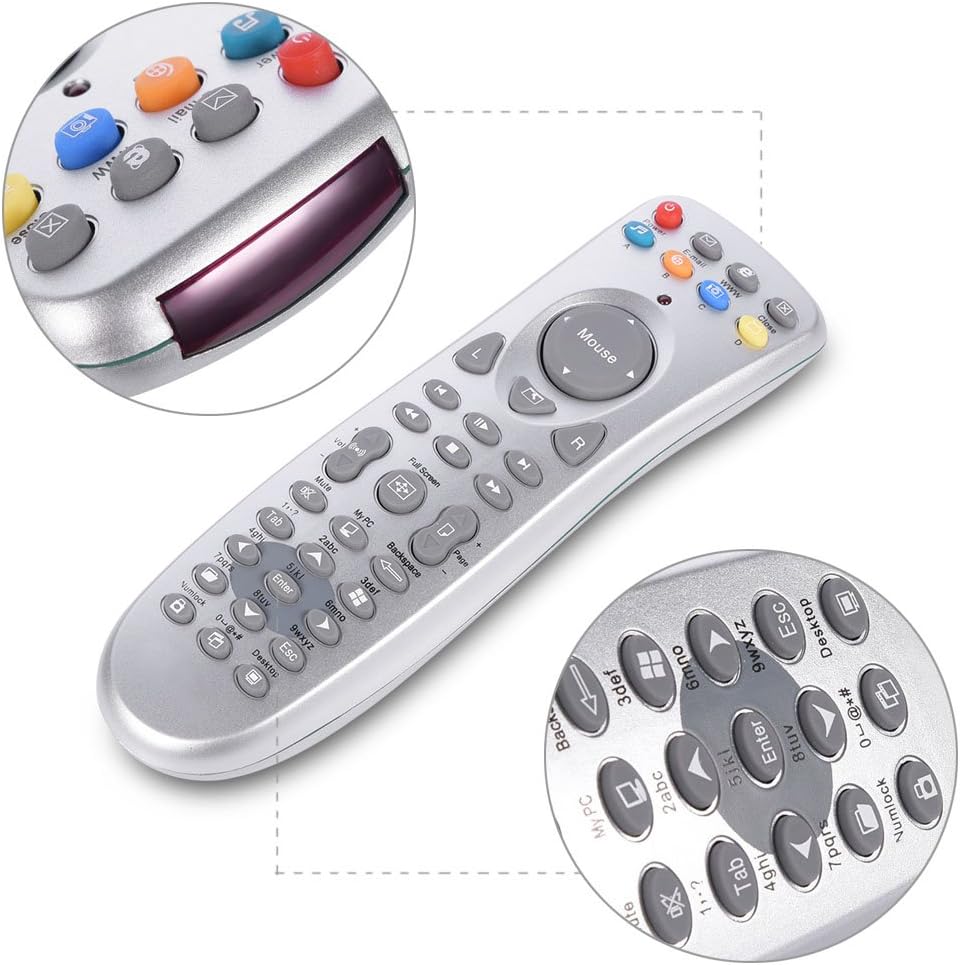
8-сүрөт: Детальдуу view of the top part of the remote, highlighting the customizable shortcut buttons and the infrared emitter.
Шайкештик
The remote is compatible with various Windows operating systems, including WINME, WINXP, MCE, and Vista. It supports most popular playback software such as WinDvd, RealPlayer, Winamp, MediaPlayer, PowerDvd, IE, and Word.
Техникалык тейлөө
- Тазалоо: Пультту тазалоо үчүн жумшак, кургак чүпүрөктү колдонуңуз. Суюк тазалоочу каражаттарды же абразивдүү материалдарды колдонбоңуз.
- Батареяны алмаштыруу: Replace batteries when the remote's performance degrades or it stops responding. Always use new AAA batteries.
- Сактагыч: Пультту күн нурунан жана экстремалдык температурадан алыс, салкын, кургак жерде сактаңыз.
- Колдонуу: Avoid dropping the remote or exposing it to excessive force, as this may damage internal components.
Проблемаларды чечүү
| Көйгөй | Мүмкүн себеп | Чечим |
|---|---|---|
| Пульт жооп бербей жатат. |
|
|
| Курсордун кыймылы туруксуз же жооп бербей жатат. |
|
|
| Custom shortcuts not working. |
|
|
Техникалык шарттар
| Модель номери | Cuifati4mt3r5uke67610 |
| Материал | Пластик |
| Батарея түрү | 2 х AAA (Not киргизилди) |
| Интерфейс | USB |
| Өткөрмө аралык | 10 метрге чейин |
| Элемент Салмагы | 4.7 унция (болжол менен 135 г) |
| Пакеттин өлчөмдөрү | 7.87 x 3.15 x 1.57 дюйм |
| Шайкеш операциялык системалар | WINME, WINXP, MCE, Vista, and similar Windows versions |
| Шайкеш түзмөктөр | Компьютер, ноутбук |
Кепилдик жана колдоо
For warranty information or technical support, please refer to the product packaging or contact the manufacturer directly. Specific warranty terms may vary by region and retailer.
Ask a question about this manual
Ask about setup, troubleshooting, compatibility, parts, safety, or missing instructions. Manuals+ will review the question and use this page’s manual context to help answer it.