
1. Киришүү
This manual provides instructions for the installation, operation, and maintenance of your Nivian NVS-IPC-0S2B PTZ WiFi Camera. Please read this manual carefully before use and retain it for future reference.
The Nivian NVS-IPC-0S2B is a 2K PTZ (Pan-Tilt-Zoom) WiFi camera designed for both indoor and outdoor surveillance. It features 360° remote movement, automatic motion tracking, human detection, and 10-meter night vision. The camera is compatible with Amazon Alexa and Google Assistant for smart home integration.

Image 1.1: Nivian NVS-IPC-0S2B PTZ WiFi Camera overview, highlighting key features like WiFi connectivity, 2K resolution, motion auto-tracking, human detection, outdoor suitability, and compatibility with smart home platforms.
2. Пакеттин мазмуну
Пакетте бардык компоненттер бар экенин текшериңиз:
- Nivian NVS-IPC-0S2B PTZ WiFi Camera
- Кубаттуу адаптер
- Орнотуу комплекти (бурамалар, дубалга бекиткичтер)
- Колдонуучунун Колдонмосу (бул документ)
Note: MicroSD card is not included.
3. Техникалык шарттар
| Өзгөчөлүк | Деталь |
|---|---|
| Модел | NVS-IPC-0S2B |
| Сүрөттүн сапаты | SuperHD 2K (2304 x 1296) |
| Объектив | 3.6 mm, 105° diagonal view |
| Түнкү көрүнүш | Infrared, up to 10 meters |
| Аудио | Two-way audio (speaker & microphone with noise reduction) |
| Pan / Tilt кыймылы | Pan: 355° horizontal, Tilt: 155° vertical |
| аныктоо өзгөчөлүктөрү | Motion detection, Automatic motion tracking, Human detection |
| Байланыш | 2.4 ГГц Wi-Fi |
| Сактагыч параметрлери | MicroSD card (max 128 GB, not included), Tuya Cloud storage (subscription) |
| Шайкештик | Tuya App (Android/iOS), Google Assistant, Amazon Alexa |
| Экологиялык рейтинг | IP65 (suitable for indoor/outdoor) |
| Күч | 5 Ватт |
| Өлчөмдөрү (L x W x Y) | 20 x 20 x 20 см |
| Салмагы | 720 грамм |
| Материал | Пластик |
4. Орнотуу
4.1. Камераны орнотуу
Камера дубалга орнотуу үчүн иштелип чыккан. Каалаган жерди тандаңыз viewing angle and is within range of your 2.4 GHz Wi-Fi network.
- Монтаждык кронштейнди калып катары колдонуп, дубалга бургулоо жерлерин белгилеңиз.
- Тешиктерди бургула жана дубал тыгындарын салгыла.
- Орнотуу кронштейнин дубалга бурама менен бекитиңиз.
- Камераны монтаждоо кронштейнине бекитиңиз.

Image 4.1: Camera mounted on a wall, illustrating remote pan and tilt control via a smartphone application.
4.2. Күйгүзүү жана баштапкы туташуу
- Кубат адаптерин камерага туташтырыңыз жана аны розеткага сайыңыз.
- Камеранын индикатор жарыгы күйүп-өчүшүн күтө туруңуз, бул анын жупташууга даяр экенин билдирет.
- Download the "Tuya Smart" app from your smartphone's app store (available for Android and iOS).
- Катталыңыз же Tuya Smart аккаунтуңузга кириңиз.
- In the app, tap "+" to add a new device. Select "Security & Video Surveillance" and then "Smart Camera (Wi-Fi)".
- Follow the on-screen instructions to connect the camera to your 2.4 GHz Wi-Fi network. This typically involves scanning a QR code displayed on your phone with the camera.
- Туташкандан кийин, камераңызга ат коюп, түз эфирди баштасаңыз болот viewing.

Image 4.2: Tuya Smart app interface on a smartphone, demonstrating live view and smart home integration.
4.3. MicroSD картасын орнотуу (милдеттүү эмес)
To store recordings locally, install a MicroSD card (up to 128 GB, not included).
- Камера өчүк экенин текшериңиз.
- Locate the MicroSD card slot, usually under a protective cover on the camera body.
- MicroSD картаны ордуна чыкылдаганча акырындык менен уячага салыңыз.
- Power on the camera. The app will prompt you to format the card if necessary.
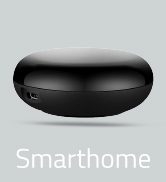
Image 4.3: MicroSD card slot for local storage.
5. Иштөө нускамалары
5.1. Түз эфир View жана Алыстан башкаруу
Open the Tuya Smart app and select your camera to access the live feed. From here, you can:
- Панорама жана жантайтуу: Use the on-screen controls to remotely adjust the camera's horizontal (355°) and vertical (155°) viewбурчтар.
- Эки тараптуу аудио: Use the microphone icon to speak through the camera's speaker and the speaker icon to listen to audio from the camera's location.
- Скриншот/Жазуу: Түз эфирден түз сүрөттөрдү тартыңыз же видеоклиптерди жазыңыз view.
5.2. Кыймылды аныктоо жана автокөзөмөл
Камера өркүндөтүлгөн аныктоо мүмкүнчүлүктөрүнө ээ:
- Кыймылды аныктоо: Configure motion detection zones and sensitivity in the app settings. You will receive notifications when motion is detected.
- Адамды аныктоо: The camera can differentiate human shapes from other moving objects, reducing false alarms.
- Автоматтык түрдө көзөмөлдөө: When motion (or human motion) is detected, the camera can automatically pan and tilt to follow the moving object within its field of view.

Image 5.1: Camera demonstrating auto-tracking of a person and a pet.
5.3. Түнкү көрүнүш
The camera automatically switches to infrared night vision in low-light conditions, providing clear black and white images up to 10 meters.

Image 5.2: Comparison of day and night vision modes of the camera.
5.4. Сактоо жана ойнотуу
- MicroSD картасы: Recordings are saved to the installed MicroSD card. You can access and play back these recordings via the Tuya Smart app.
- Булуттагы сактагыч: Nivian offers optional cloud storage services (subscription required) for secure off-site storage of your video recordings.
5.5. Smart Home интеграциясы
The camera is compatible with Google Assistant and Amazon Alexa:
- Link your Tuya Smart account with Google Home or Amazon Alexa in their respective apps.
- Бул үчүн үн буйруктарын колдонуңуз view the camera feed on compatible smart displays (e.g., Echo Show, Google Nest Hub) or Smart TVs with Chromecast/Amazon FireTV.
- Create smart automations within the Tuya Smart app, such as activating lights when motion is detected by the camera.
Image 5.3: Smart home integration with Google Assistant and Amazon Alexa.
6. Техникалык тейлөө
- Тазалоо: Камера линзасын жана корпусун жумшак, кургак чүпүрөк менен акырын сүртүңүз. Катуу химиялык заттарды же абразивдүү тазалоочу каражаттарды колдонбоңуз.
- Программалык камсыздоонун жаңыртуулары: Regularly check the Tuya Smart app for available firmware updates to ensure optimal performance and security.
- Тармактын туруктуулугу: Ensure your Wi-Fi network is stable and strong at the camera's location for uninterrupted operation.
- Курчап турган чөйрөнү коргоо: While IP65 rated, avoid direct high-pressure water jets or prolonged submersion.
7. Кыйынчылыктарды
| Көйгөй | Мүмкүн себеп | Чечим |
|---|---|---|
| Камера оффлайн | No power, Wi-Fi disconnected, poor signal | Check power connection. Restart camera and router. Ensure camera is within Wi-Fi range. Re-pair if necessary. |
| Wi-Fi'га туташпай жатат | Туура эмес Wi-Fi сырсөзү, 5 ГГц тармак, алсыз сигнал | Verify Wi-Fi password. Ensure you are connecting to a 2.4 GHz network. Move camera closer to router. |
| Сүрөттүн сапаты начар | Dirty lens, low bandwidth, poor lighting | Clean the lens. Check internet speed. Ensure adequate lighting or proper night vision activation. |
| Кыймылды аныктоо иштебей жатат | Settings incorrect, sensitivity too low | Check motion detection settings in the app. Adjust sensitivity and detection zones. |
| No audio or poor audio | Микрофон/динамик бөгөттөлдү, колдонмонун жөндөөлөрү | Ensure nothing is obstructing the microphone or speaker. Check audio settings in the app. |
| MicroSD карта жаздырылбай жатат | Card full, not formatted, faulty card | Check card capacity. Format the card via the app. Try a different MicroSD card. |
If the issue persists, please contact Nivian customer support.
8. Кепилдик жана колдоо
8.1. Кепилдик маалыматы
Nivian products are covered by a limited warranty. Please refer to the warranty card included with your product or visit the official Nivian webдеталдуу кепилдик шарттары жана шарттары үчүн сайт. Кепилдик дооматтар үчүн сатып алганыңыздын далилин сактаңыз.
8.2. Кардарларды колдоо кызматы
For technical assistance, troubleshooting, or product inquiries, please contact Nivian customer support through their official webсайт же продукт таңгагында көрсөтүлгөн байланыш маалыматы.
Онлайн ресурстар:
- Official Nivian Webсайт: www.nivian.com (Чыгampшилтеме, чыныгы шилтеме ар кандай болушу мүмкүн)
- Tuya Smart App Support: Refer to the "Me" or "Profile" section within the Tuya Smart app for support options.