
Hexgears X1 Pro
Hexgears X1 Pro Wireless Mechanical Gaming Keyboard User Manual
Модели: X1 Pro
Brand: Hexgears
Introduction
The Hexgears X1 Pro is a versatile mechanical gaming keyboard designed for performance and comfort. It features triple connectivity modes (2.4G wireless, Bluetooth 5.0, USB-C wired), a compact 65% layout with 68 keys, and hot-swappable Kailh Box switches. This manual provides detailed instructions for setup, operation, maintenance, and troubleshooting to ensure optimal use of your keyboard.

Image: Hexgears X1 Pro Wireless Mechanical Gaming Keyboard with detachable wrist rest.
Кутуда эмне бар
- Hexgears X1 Pro Wireless Mechanical Gaming Keyboard
- Алынуучу билек эс алуу
- USB-C - USB-A кабели
- 2.4G USB Dongle
- Баскыч капкагын тарткыч
- Switch Puller

Image: The Hexgears X1 Pro keyboard shown with its included accessories: wrist rest, USB cable, and USB dongle.
Жайгашуу
1. Баскычтопту заряддоо
Before first use, it is recommended to fully charge the keyboard. Connect the provided USB-C cable to the keyboard's USB-C port and the other end to a USB power source (e.g., computer USB port, wall adapter). The LED indicator will show charging status.

Image: The Hexgears X1 Pro keyboard illustrating its long battery life, with a graphic indicating 2300mAh battery and 100 million keystroke test durability.
2. Баскычтопту туташтыруу
The Hexgears X1 Pro supports three connection modes:
a. 2.4G Wireless Connection
- Locate the 2.4G USB dongle included in the package.
- USB жабдыгын компьютериңиздеги жеткиликтүү USB портуна сайыңыз.
- On the keyboard, ensure the mode switch (usually on the back or side) is set to 2.4G wireless mode.
- Клавиатура автоматтык түрдө туташышы керек.
b. Bluetooth 5.0 Connection
- Баскычтоптун режим которгучу Bluetooth режимине коюлганын текшериңиз.
- On your device (PC, Mac, Laptop), enable Bluetooth and search for new devices.
- Select "Hexgears X1 Pro" from the list of available devices to pair.
- Жупташтыруу процессин аяктоо үчүн экрандагы көрсөтмөлөрдү аткарыңыз.
c. USB-C Wired Connection
- Берилген USB-C кабелинин бир учун клавиатуранын USB-C портуна туташтырыңыз.
- Connect the other end of the USB-C cable to a USB-A port on your computer.
- Баскычтоп автоматтык түрдө зымдуу режимге өтүп, кубаттай баштайт.

Image: The Hexgears X1 Pro keyboard from the underside, highlighting the USB-C port, 2.4G dongle storage, and illustrating the three connection methods: 2.4G, Bluetooth, and wired USB-C.
3. Билек таянычын бекитүү
The Hexgears X1 Pro comes with a detachable wrist rest for enhanced ergonomic comfort. Align the wrist rest with the front edge of the keyboard and gently push to attach it. It is designed to provide support and reduce strain during extended use.
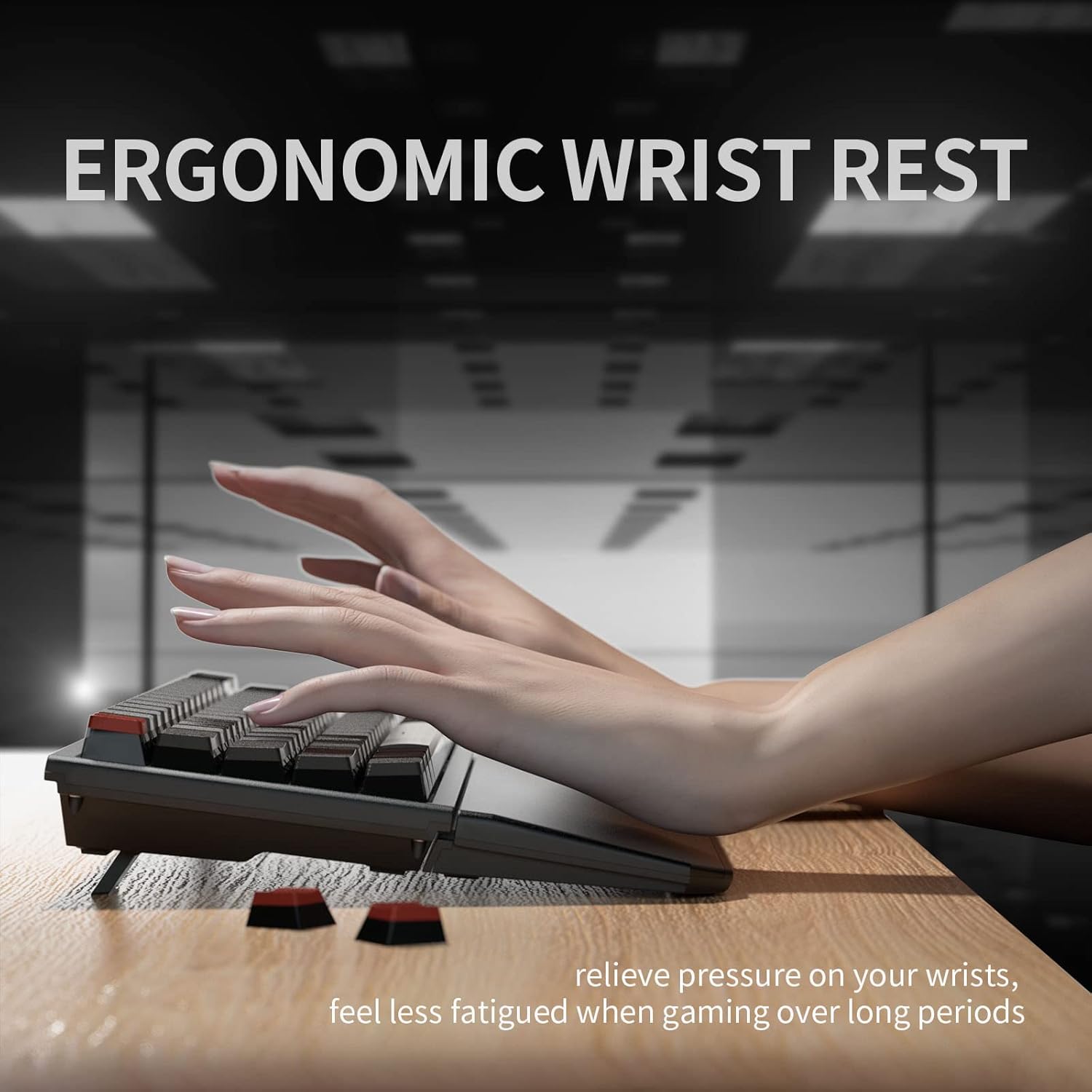
Image: A user's hands positioned comfortably on the Hexgears X1 Pro keyboard with the ergonomic wrist rest attached, demonstrating proper wrist support.
Иштөө нускамалары
1. Негизги баскычтоп функциялары
The Hexgears X1 Pro features a 65% layout with 68 keys. Standard alphanumeric keys function as expected. Many keys have secondary functions accessible via the Fn ачкыч.
- Fn+F1-F12: Access multimedia controls and system functions (e.g., volume, play/pause, brightness). Refer to the keycaps for specific icons.
- Fn + Q/W/E: Switch between Bluetooth profiles (эгер бар болсо).
- Fn + R: 2.4G зымсыз режимине которулуу.
- Fn + T: Switch to wired USB-C mode.
- Fn + Жебе баскычтары: Adjust backlight brightness or effects (if applicable).
2. Ыкчам алмаштыруучу которгучтар
The X1 Pro features hot-swappable sockets, allowing you to change mechanical switches without soldering. This keyboard is compatible with 3-pin and 5-pin mechanical switches.
- Removing a Keycap: Use the included keycap puller to gently lift the keycap straight up.
- Которгучту алып салуу: Use the included switch puller. Align the prongs of the puller with the two clips on the top and bottom of the switch. Squeeze the clips and gently pull the switch straight up.
- Installing a New Switch: Ensure the pins on the new switch are straight. Align the pins with the holes on the PCB (Printed Circuit Board). Gently push the switch down until it clicks into place. Do not force it; if resistance is met, check pin alignment.
- Re-installing a Keycap: Align the keycap with the stem of the switch and press down firmly until it is seated.

Сүрөт: жакын план view of the Hexgears X1 Pro keyboard demonstrating the hot-swappable Kailh Box switches, with individual switches shown detached from the board.

Image: A detailed diagram of a Kailh Box switch, highlighting its internal components, dust seal, and safety box for conductors, indicating 100 million click durability.
3. Арткы жарыкты башкаруу
The Hexgears X1 Pro features a soft white LED backlight. Use the Fn key combined with specific keys (refer to keycap legends) to adjust brightness or cycle through lighting modes. The soft white backlight is designed to be gentle on the eyes.
Техникалык тейлөө
1. Баскычтопту тазалоо
Клавиатураңызды тазалоо үчүн, алгач аны компьютериңизден ажыратыңыз. Жумшак, түксүз чүпүрөктү бир аз сүртүңүз.ampened with water or a mild cleaning solution. Avoid spraying liquids directly onto the keyboard. For dust and debris between keycaps, use compressed air or a small brush.
2. Keycap and Switch Maintenance
The X1 Pro uses double-shot PBT keycaps, which are durable and resistant to wear and oil. If keycaps become dirty, they can be removed using the keycap puller and washed with mild soap and water. Ensure they are completely dry before re-installing. Switches generally require no maintenance, but if a switch feels inconsistent, it can be replaced using the hot-swap feature.

Image: A close-up of the Hexgears X1 Pro keyboard highlighting its double-colored PBT keycaps, emphasizing their excellent touch experience.
3. Төгүлүүгө туруктуу дизайн
While the keyboard features a spill-resistant design, it is not waterproof. In case of a spill, immediately disconnect the keyboard, wipe off any liquid, and allow it to air dry completely before reconnecting. Do not attempt to use the keyboard if it is still wet.

Image: The Hexgears X1 Pro keyboard with water droplets on its surface, illustrating its spill-resistant design.
Проблемаларды чечүү
| Көйгөй | Мүмкүн себеп | Чечим |
|---|---|---|
| Клавиатура жооп бербей жатат (зымсыз) | Low battery; Incorrect mode selected; Dongle not connected; Bluetooth not paired. | Charge the keyboard; Ensure correct mode (2.4G/BT) is selected; Re-insert USB dongle; Re-pair Bluetooth. |
| Баскычтоп жооп бербей жатат (Зымдуу) | Cable not properly connected; Faulty cable/port. | Ensure USB-C cable is securely connected; Try a different USB port or cable. |
| Ачкычтар катталбайт | Loose or faulty switch; Debris under keycap. | Remove keycap and switch, re-seat or replace switch; Clean under keycap. |
| Арткы жарык иштебейт | Арткы жарык өчүрүлгөн; Батареянын кубаты аз. | Adjust backlight brightness using Fn key combinations; Charge the keyboard. |
| Bluetooth байланышы туруксуз | Интервенция; Түзмөктөн алыстык; Батареянын заряды аз. | Move closer to the device; Ensure no strong interference sources; Charge the keyboard. |
Техникалык шарттар
- Модел: Hexgears X1 Pro
- Макет: 65% (68 Keys)
- Которгучтар: Kailh Box Hot-Swappable Mechanical Switches
- Баскыч капкактары: Double-shot PBT
- Байланыш: Triple Mode (2.4G Wireless, Bluetooth 5.0, USB-C Wired)
- Батареянын иштөө мөөнөтү: Up to 300 hours (with LED lights off, based on 8 hours/day usage)
- Батарея сыйымдуулугу: 2300mAh (Lithium Ion)
- Арткы жарык: Soft White LED
- Өлчөмдөр: 16 x 5 x 2.4 дюйм (болжол менен)
- Салмагы: 2.75 фунт (болжол менен)
- Шайкештик: Windows, macOS, Linux, Gaming Consoles (via USB)
Кепилдик жана колдоо
For warranty information and technical support, please refer to the official Hexgears webсайтка же түздөн-түз кардарларды тейлөөгө кайрылыңыз. Сатып алуу квитанциясын кепилдик дооматтары үчүн сатып алуунун далили катары сактаңыз.
Hexgears Official Store Link: Visit Hexgears Store on Amazon
Ask a question about this manual
Ask about setup, troubleshooting, compatibility, parts, safety, or missing instructions. Manuals+ will review the question and use this page’s manual context to help answer it.