
1. Киришүү
This manual provides essential information for the proper installation, operation, and maintenance of your SUNMI T2s Lite 15.6-inch Android Point of Sale (POS) system. Please read this manual thoroughly before using the device to ensure optimal performance and safety. Keep this manual for future reference.
2. Коопсуздук маалыматы
- Аппаратты экстремалдык температурага, нымдуулукка же түз күн нуруна калтырбаңыз.
- Аппаратты түшүрүүдөн же катуу таасирлерден сактаныңыз.
- Аппарат менен кошо берилген кубат адаптерин гана колдонуңуз. Туура эмес адаптерди колдонуу зыянга же өрткө алып келиши мүмкүн.
- Аппаратты өз алдынча бөлүүгө же оңдоого аракет кылбаңыз. Квалификациялуу тейлөө кызматкерлерине кайрылыңыз.
- Аппаратты суудан же башка суюктуктардан алыс кармаңыз.
- Иштеп жаткан учурда аппараттын айланасында туура желдетүүнү камсыз кылыңыз.
3. Пакеттин мазмуну
Пакетте бардык буюмдар бар экенин текшериңиз:
- SUNMI T2s Lite POS Terminal
- Кубаттуу адаптер
- Электр кабели
- Ыкчам баштоо колдонмосу (эгер бар болсо)
- Кепилдик картасы (эгер бар болсо)
Эгерде кандайдыр бир буюмдар жок болсо же бузулуп калса, дароо сатуучуга кайрылыңыз.
4. Продукт бүтүп калдыview
The SUNMI T2s Lite is an integrated Android-based POS system designed for retail environments. It features a 15.6-inch capacitive touchscreen display and various connectivity options.
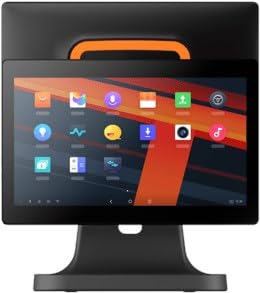
4.1-сүрөт: Фронт view of the SUNMI T2s Lite POS system. This image displays the main 15.6-inch touchscreen, which is the primary interface for operating the device. The design is compact and suitable for various retail settings.
4.1 Негизги компоненттер
- 15.6 дюймдук сенсордук экран: High-resolution (1920x1080) capacitive touch interface.
- Кубат баскычы: Located typically on the side or rear for turning the device on/off.
- USB порттору: For connecting peripherals such as barcode scanners, external printers, or cash drawers.
- Ethernet порту: Зымдуу тармак туташуусу үчүн.
- Кубат киргизүү: Кубат адаптерин туташтыруу үчүн.
- Алдыңкы камера: For specific applications requiring image capture.
5. Орнотуу
5.1 Пакеттен чыгаруу жана жайгаштыруу
- Түзмөктү жана бардык кошумча жабдууларды таңгактан этияттык менен алып чыгыңыз.
- Place the POS terminal on a stable, flat surface in a well-ventilated area.
- Ensure there is sufficient space around the device for cable connections and heat dissipation.
5.2 Кубатты туташтыруу
- Электр кабелин кубат адаптерине туташтырыңыз.
- Plug the power adapter into the power input port on the back of the SUNMI T2s Lite.
- Электр кабелинин экинчи учун жерге туташтырылган электр розеткасына сайыңыз.
5.3 Initial Boot and Network Connection
- Press and hold the power button until the screen lights up. The device will boot into the Android operating system.
- Тил тандоо жана убакыт алкагын кошо алганда, баштапкы орнотуу үчүн экрандагы көрсөтмөлөрдү аткарыңыз.
- Wi-Fi туташуусу: барыңыз Орнотуулар > Тармак жана интернет > Wi-Fi, тармагыңызды тандап, сырсөздү киргизиңиз.
- Ethernet туташуусу: Connect an Ethernet cable from your router/switch to the Ethernet port on the device. The device should automatically connect to the wired network.
5.4 Перифериялык түзүлүштөрдү туташтыруу
- USB түзмөктөрү: Plug USB peripherals (e.g., barcode scanner, external printer, cash drawer) into the available USB ports. The system will typically recognize them automatically.
- Bluetooth түзмөктөрү: барыңыз Орнотуулар > Туташкан түзмөктөр > Bluetooth, enable Bluetooth, and pair with your desired device.
6. Иштөө нускамалары
6.1 Күйгүзүү/өчүрүү
- Күйгүзүү үчүн: Экран күйгүчө кубат баскычын басып, кармап туруңуз.
- Өчүрүү үчүн: Press and hold the power button until a power menu appears. Select "Power off" and confirm. Alternatively, a short press of the power button will put the device to sleep.
6.2 Touchscreen Usage
- таптаңыз: To select an item or activate a button.
- Таптап кармаңыз: To open context menus or drag items.
- Серпүү: To scroll through lists or navigate between screens.
- Чымчып-кичирейтүү: Сүрөттөрдү чоңойтуу же кичирейтүү үчүн же web барактар.
6.3 Android OS навигациясы
- Башкы экран: The central hub for your applications and widgets.
- Колдонмо тартмасы: Бардык орнотулган колдонмолорго кириңиз.
- Эскертме панели: Экрандын өйдө жагынан төмөн карай сүрүңүз view эскертмелер жана тез орнотуулар.
- Орнотуулар: Configure Wi-Fi, Bluetooth, display, sound, and other system options.
6.4 Basic POS Functions
The specific POS functions will depend on the software application installed on your device. Refer to the documentation provided with your POS software for detailed instructions. Generally, you will:
- Launch your POS application from the home screen or app drawer.
- Колдонуучунун эсептик дайындары менен кириңиз.
- Process transactions using the touchscreen and connected peripherals (e.g., scanning items, accepting payments).
- Print receipts if an external or integrated printer is configured.
7. Техникалык тейлөө
7.1 Аппаратты тазалоо
- Тазалоодон мурун ар дайым аппаратты өчүрүп, розеткадан ажыратыңыз.
- Бир аз жумшак, түксүз кездемени колдонуңуз dampened with water or a mild, non-abrasive cleaner to wipe the screen and exterior surfaces.
- Суюктуктарды түз эле аппаратка чачпаңыз.
- Катуу химиялык заттарды, эриткичтерди же абразивдүү материалдарды колдонуудан алыс болуңуз.
7.2 Программалык камсыздоо жаңыртуулары
Regularly check for and install system and application updates to ensure optimal performance, security, and access to new features. You can usually find system updates in Орнотуулар > Система > Системаны жаңыртуу.
7.3 Сактоо
When not in use for extended periods, store the device in a cool, dry place, away from direct sunlight and extreme temperatures. If storing for a long time, ensure the battery is charged to about 50% to prolong its lifespan.
8. Кыйынчылыктарды
Бул бөлүм сиз кабылышы мүмкүн болгон жалпы көйгөйлөрдү карайт. Татаал көйгөйлөр үчүн кардарларды колдоо бөлүмүнө кайрылыңыз.
- Түзмөк күйгүзүлбөйт:
- Кубат адаптери аспапка жана иштеген электр розеткасына бекем туташып турганын текшериңиз.
- Электр розеткасынын иштешин текшериңиз.
- Try holding the power button for 10-15 seconds to force a restart.
- Touchscreen is unresponsive:
- Аппаратты кайра иштетиңиз.
- Экрандын таза жана таштандылардан же суюктуктардан таза экенин текшериңиз.
- Network connection issues (Wi-Fi/Ethernet):
- Check if the Wi-Fi is enabled and you are connected to the correct network with the right password.
- For Ethernet, ensure the cable is properly connected and your router/switch is working.
- Роутериңизди/модемиңизди өчүрүп күйгүзүңүз.
- Peripherals (e.g., printer, scanner) not working:
- Перифериялык түзмөк туура портко туура туташкандыгын текшериңиз.
- Перифериялык түзүлүштүн өзүнчө кубат булагы бар экенин жана күйүк экенин текшериңиз.
- Verify that the necessary drivers or software for the peripheral are installed and configured within your POS application.
9. Техникалык шарттар
The following are key technical specifications for the SUNMI T2s Lite:
| Өзгөчөлүк | Спецификация |
|---|---|
| Бренд | SUNMI |
| Өндүрүүчү | Sunmi |
| Native Display Resolution | 1920x1080 пиксел |
| Байланыш технологиясы | Bluetooth, Ethernet, USB, WLAN |
| Камера сүрөттөмөсү | Frontal |
| ASIN | B0B53FLFT8 |
10. Кепилдик жана колдоо
The SUNMI T2s Lite POS system comes with a standard manufacturer's warranty. Please refer to the warranty card included in your package for specific terms and conditions, including warranty period and coverage details.
For technical support, service, or warranty claims, please contact your authorized SUNMI dealer or the customer support channel specified in your purchase documentation. Ensure you have your product model number (T2s Lite) and ASIN (B0B53FLFT8) ready when contacting support.