
cellularline KEYBSTANDHOMEITAK
cellularline Stand Keyboard Universal Instruction Manual
Model: KEYBSTANDHOMEITAK
Introduction
Thank you for choosing the cellularline Stand Keyboard Universal. This Bluetooth® keyboard is designed to enhance your productivity by providing a comfortable typing experience for your smartphone or tablet, complete with an integrated stand. Please read this manual carefully before using the product to ensure proper operation and maintenance.
Пакеттин мазмуну
- cellularline Stand Keyboard Universal
- USB заряддоо кабели
- Instruction Manual
Продукт бүттүview
The cellularline Stand Keyboard Universal combines a full-sized keyboard with a convenient integrated stand, allowing you to position your device at an optimal viewing angle for typing, video calls, or media consumption. It connects wirelessly via Bluetooth, offering broad compatibility with various smartphones and tablets.

Image: The cellularline Stand Keyboard Universal with a smartphone securely placed in its integrated stand, demonstrating its primary use for typing and viewing.
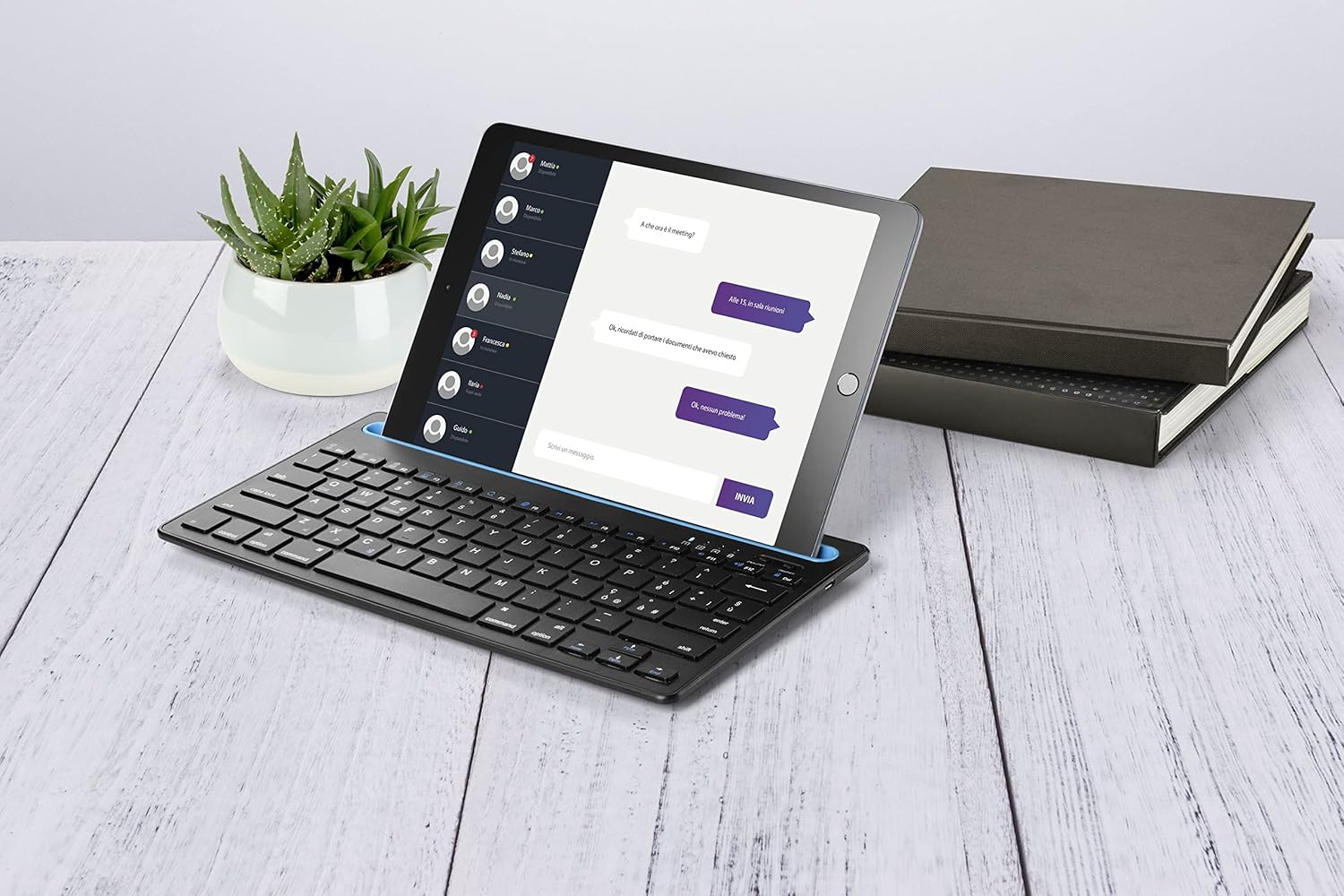
Image: The keyboard in use with a tablet, showcasing its versatility for larger devices and a typical desk setup.
Жайгашуу
1. Баскычтопту заряддоо
Before first use, ensure the keyboard is fully charged. Locate the charging port (usually Micro-USB or USB-C) on the side or back of the keyboard. Connect the provided USB charging cable to the keyboard and the other end to a USB power source (e.g., computer USB port, USB wall adapter).
- Адатта, кубаттоо индикатору кубаттоо учурунда күйүп, толук кубатталганда өчөт же түсүн өзгөртөт.
- Charging time may vary, but usually takes 2-4 hours for a full charge.
2. Pairing with Your Device (Bluetooth Connection)
- Баскычтопту күйгүзүңүз: Locate the power switch (often on the side or back) and slide it to the "ON" position. A power indicator light may briefly flash.
- Жупташтыруу режимин иштетүү: Press and hold the Bluetooth pairing button on the keyboard. This button is often labeled with a Bluetooth symbol or "Connect". The Bluetooth indicator light will start blinking, indicating it's in pairing mode.
- Түзмөгүңүздө Bluetooth иштетүү: On your smartphone or tablet, go to Settings > Bluetooth and ensure Bluetooth is turned "ON".
- Баскычтопту тандаңыз: Your device will scan for available Bluetooth devices. Look for "cellularline Keyboard" or a similar name in the list of devices. Tap on it to connect.
- Жупташтыруу ырастоо: Some devices may prompt you to enter a code displayed on your screen using the keyboard, then press Enter. Follow the on-screen instructions. Once connected, the Bluetooth indicator light on the keyboard will stop blinking and remain solid or turn off.
The keyboard should now be successfully paired and ready for use with your device. It will typically reconnect automatically to the last paired device when turned on and within range.
Иштөө нускамалары
Using the Integrated Stand
The integrated stand is designed to securely hold your smartphone or tablet in landscape or portrait orientation (depending on device size and stability). Simply place your device into the groove at the top of the keyboard.
- Ensure your device is stable in the stand before typing.
- The stand is suitable for devices up to a certain thickness and size. Refer to product specifications for maximum compatibility.
Баскычтоптун функциялары
The keyboard features standard QWERTY layout keys, along with function keys (F1-F12) that often have secondary multimedia or system control functions when pressed in combination with the "Fn" key. Specific functions may vary slightly depending on your device's operating system (iOS, Android, Windows).
| Ачкыч айкалышы | Функция |
|---|---|
| Fn + F1 | Башкы экран |
| Fn + F2 | издөө |
| Fn + F3 | Баарын тандаңыз |
| Fn + F4 | Көчүрүү |
| Fn + F5 | Паста |
| Fn + F6 | Кесүү |
| Fn + F7 | Мурунку трек |
| Fn + F8 | Ойнотуу/Тыныгуу |
| Fn + F9 | Кийинки трек |
| Fn + F10 | Үнүн өчүрүү |
| Fn + F11 | Үндү төмөндөтүү |
| Fn + F12 | Үндү көтөрүү |
Note: Some function keys may require specific operating system support or app compatibility.
Техникалык тейлөө
Тазалоо
- Тазалоодон мурун клавиатураны өчүрүңүз.
- Бир аз жумшак, түксүз кездемени колдонуңуз dampсуу же жумшак, абразивдүү эмес тазалоо эритмеси менен.
- Катуу химиялык заттарды, аэрозолдорду же абразивдүү тазалоочу каражаттарды колдонбоңуз.
- Ар кандай тешиктерге ным кирүүдөн сактаңыз.
Сактагыч
- Клавиатураны күн нурунан жана экстремалдык температурадан алыс, салкын, кургак жерде сактаңыз.
- If storing for an extended period, ensure the keyboard is fully charged before storage and recharge it every few months to preserve battery life.

Image: The keyboard's compact design allows for easy portability, making it convenient for on-the-go use and storage.
Проблемаларды чечүү
| Көйгөй | Мүмкүн болгон себеп / Чечим |
|---|---|
| Баскычтоп күйбөйт. |
|
| Баскычтоп Bluetooth аркылуу туташпайт. |
|
| Ачкычтар жооп бербей жатат же туура эмес терип жатат. |
|
| Device does not fit in the stand. |
|
Эгерде сизде көйгөйлөр улана берсе, колдоо бөлүмүнө кайрылыңыз же кардарларды тейлөө кызматына кайрылыңыз.
Техникалык шарттар
| Өзгөчөлүк | Деталь |
|---|---|
| Модель аты | KEYBSTANDHOMEITAK |
| Бренд | уюлдук линия |
| Байланыш | Bluetooth |
| Шайкеш түзмөктөр | Смартфондор, планшеттер |
| Баскычтоптун жайгашуусу | QWERTY |
| Интегралдык стенд | Ооба |
| Power Source | Заряддалуучу батарея |
| Иштөө диапазону | 10 метрге чейин (33 фут) |
Note: Specifications are subject to change without notice. For the most up-to-date information, please refer to the product packaging or manufacturer's webсайт.
Кепилдик жана колдоо
Кепилдик маалымат
cellularline products are covered by a limited warranty from the date of purchase. Please retain your proof of purchase for warranty claims. The warranty typically covers defects in materials and workmanship under normal use. It does not cover damage caused by misuse, accidents, unauthorized modifications, or normal wear and tear.
For specific warranty terms and conditions, please refer to the warranty card included with your product or visit the official cellularline webсайт.
Кардарларды колдоо
If you encounter any issues not covered in the troubleshooting section or require further assistance, please contact cellularline customer support. You can usually find contact information (phone number, email, or support portal) on the product packaging, the official cellularline website, or by searching for "cellularline support" online.
When contacting support, please have your product model number (KEYBSTANDHOMEITAK) and proof of purchase ready.
Ask a question about this manual
Ask about setup, troubleshooting, compatibility, parts, safety, or missing instructions. Manuals+ will review the question and use this page’s manual context to help answer it.