
1. Киришүү
Сатып алганыңыз үчүн рахматasing the Yifeng Wireless Keyboard. This keyboard offers versatile connectivity options, supporting both 2.4 GHz USB wireless and Bluetooth connections. It is designed for multi-device use, allowing simultaneous pairing with up to four devices and quick switching between them. Featuring a comfortable scissor-switch mechanism and an integrated stand, it enhances productivity across various platforms including Windows, iOS, and Android devices.
2. Коопсуздук маалыматы
- Баскычтопту суюктуктарга же экстремалдык температурага тийгизбеңиз.
- Avoid disassembling or attempting to repair the device yourself.
- Балдар жетпеген жерде сактаңыз.
- Заряддоо үчүн берилген USB кабелин гана колдонуңуз.
3. Пакеттин мазмуну
Сураныч, бардык элементтер бар экенин текшериңиз:
- Yifeng Wireless Keyboard
- USB заряддоо кабели
- 2.4 GHz USB Receiver (may be stored in the keyboard's battery compartment)
- Колдонуучунун Колдонмосу (бул документ)
4. Орнотуу
4.1. 2.4 GHz USB Wireless Connection
- Locate the 2.4 GHz USB receiver. It is often stored in a dedicated slot on the keyboard.
- USB кабыл алгычты компьютериңиздеги же түзмөгүңүздөгү жеткиликтүү USB портуна сайыңыз.
- Кубат баскычын колдонуп, баскычтопту күйгүзүңүз (адатта капталында же артында жайгашкан).
- The keyboard should automatically connect to your device. If not, press the dedicated 2.4GHz connection key (often labeled with a '4' or '2.4G' icon) to activate pairing mode.
4.2. Bluetooth туташуусу
- Баскычтоп кубатталып, күйгүзүлгөнүн текшериңиз.
- Bluetooth канал баскычтарынын бирин басып, кармап туруңуз (мисалы, Bluetooth 1, Bluetooth 2, же Bluetooth 3) индикатор жарыгы күйүп-өчкөнгө чейин 3-5 секунд басып туруңуз, бул жупташуу режимин көрсөтөт.
- On your device (tablet, smartphone, PC), go to Bluetooth settings and enable Bluetooth.
- Издөө available devices. The keyboard should appear as "Yifeng Keyboard" or similar.
- Жупташтыруу үчүн клавиатураны тандаңыз. Жупташтыруу кодун киргизүү сыяктуу экрандагы көрсөтмөлөрдү аткарыңыз.
- Жупташтырылгандан кийин, индикатор жарыгы өчүп-өчүүнү токтотот жана бир нече секунд бою туруктуу бойдон калат.
4.3. Multi-Device Pairing
This keyboard supports connecting up to 4 devices simultaneously: one via 2.4 GHz USB and three via Bluetooth. Follow the steps above to pair each device to a different channel (2.4GHz, Bluetooth 1, Bluetooth 2, Bluetooth 3).
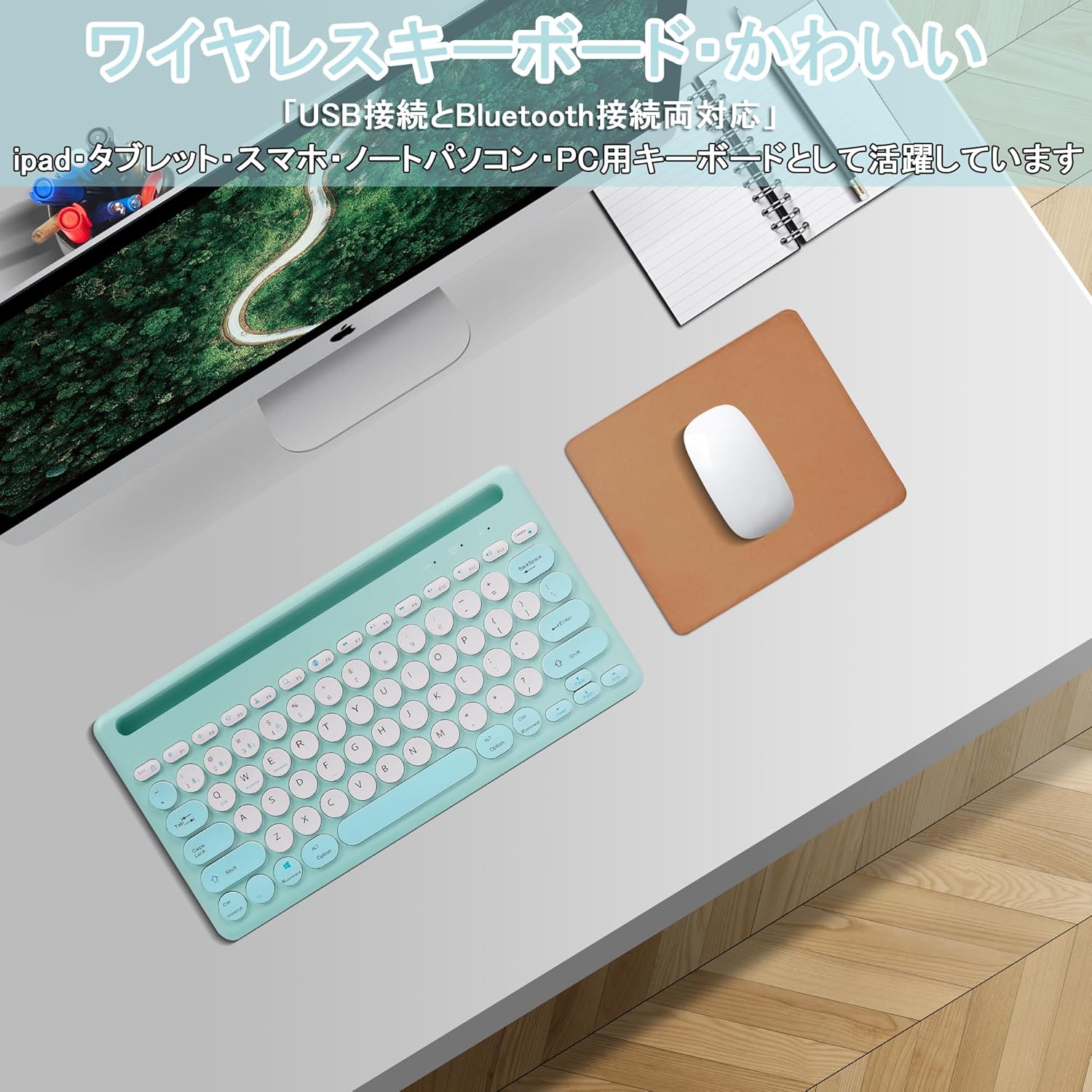
Image: The Yifeng Wireless Keyboard connected to a tablet, smartphone, and laptop, demonstrating its multi-device pairing capability.
5. Иштөө нускамалары
5.1. Туташкан түзмөктөрдүн ортосунда которулуу
To switch between your paired devices, simply press the corresponding connection key:
- Басыңыз Bluetooth 1 биринчи Bluetooth түзмөгүнө которулуу үчүн.
- Басыңыз Bluetooth 2 экинчи Bluetooth түзмөгүнө которулуу үчүн.
- Басыңыз Bluetooth 3 to switch to the third Bluetooth device.
- басыңыз 2.4 ГГц key (often labeled with a '4' or '2.4G' icon) to switch to the USB wireless device.
5.2. System Compatibility Switching
The keyboard supports Windows, iOS, and Android operating systems. Use the dedicated system keys to optimize key functions for your current device:
- Басыңыз Fn + Q iOS үчүн.
- Басыңыз Fn + W Android үчүн.
- Басыңыз Fn + E Windows үчүн.
5.3. Баскычтопту заряддоо
The keyboard features a built-in rechargeable lithium-ion battery. A single full charge provides approximately 30 days of continuous use.
- Connect the included USB charging cable to the charging port on the keyboard.
- USB кабелинин экинчи учун USB кубат булагына сайыңыз (мисалы, компьютердин USB порту, USB дубал адаптери).
- Заряддоо индикатору кубаттоо учурунда күйөт жана толук заряддалганда өчөт.

Image: The Yifeng Wireless Keyboard connected to a power strip via its USB charging cable, indicating the rechargeable feature.
5.4. Интегралдык стендди колдонуу
The keyboard includes an integrated stand slot at the top, designed to hold your tablet or smartphone upright. This allows for comfortable viewing and typing, making it ideal for document creation, chatting, or watching media while commenting.
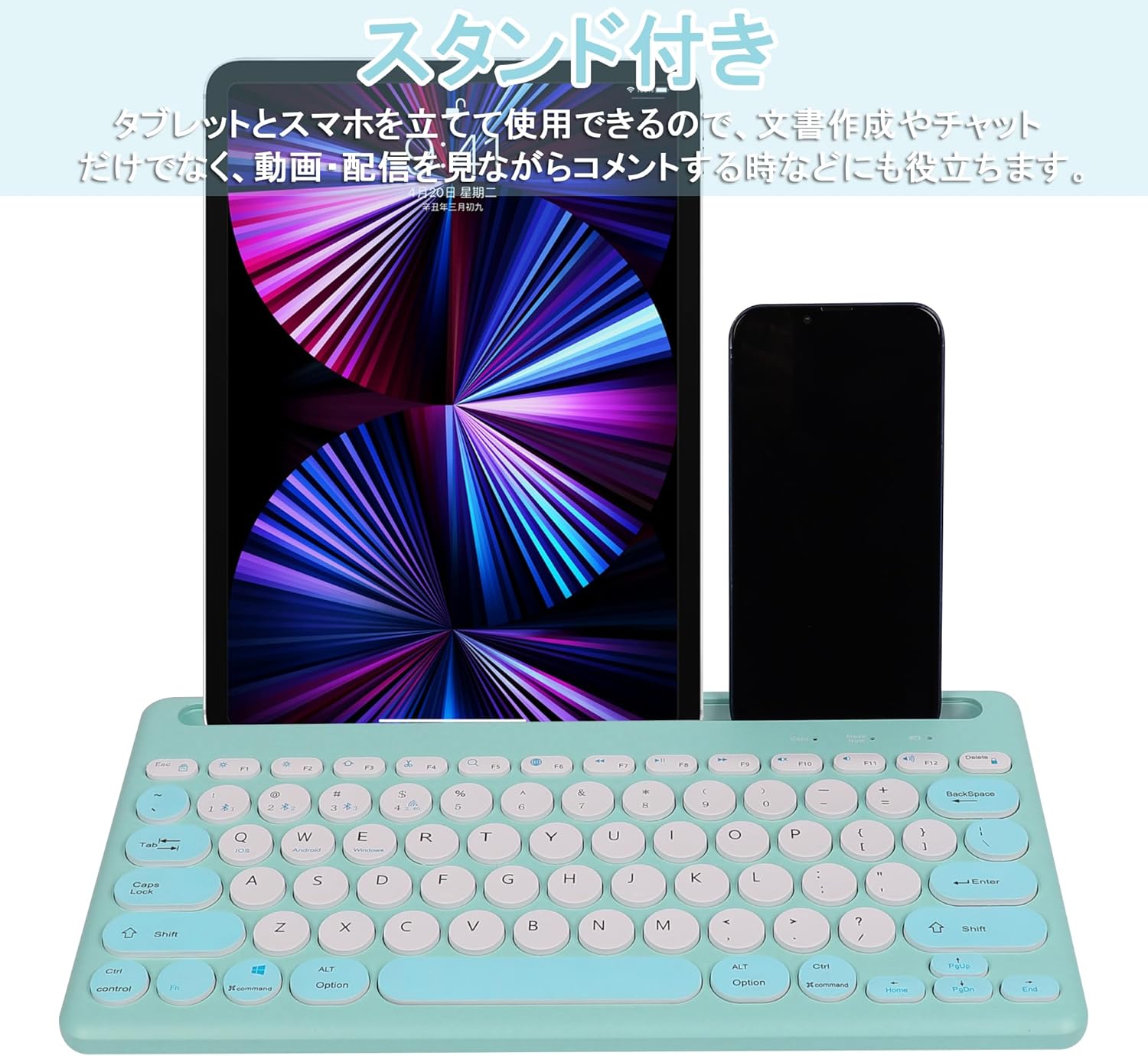
Image: The Yifeng Wireless Keyboard with a tablet and smartphone securely positioned in its integrated stand, demonstrating its utility for multi-device setups.
6. Техникалык тейлөө
- Clean the keyboard regularly with a soft, dry cloth. For stubborn dirt, a slightly damp cloth can be used, ensuring no moisture enters the keyboard.
- Катуу химиялык заттарды же абразивдүү тазалагычтарды колдонуудан алыс болуңуз.
- Колдонбогондо клавиатураны салкын, кургак жерде сактаңыз.
- The keyboard features anti-slip pads on the back for stable use. Ensure these pads are clean and intact for optimal stability.

Image: The underside of the Yifeng Wireless Keyboard, highlighting the four anti-slip pads designed for stable placement on various surfaces.
7. Кыйынчылыктарды
7.1. Клавиатура туташпай жатат
- Күчтү текшерүү: Баскычтоптун күйгүзүлгөнүн жана батареясынын заряды жетиштүү экенин текшериңиз.
- Кайра жупташтыруу: For Bluetooth, delete the keyboard from your device's Bluetooth list and attempt to pair again. For 2.4 GHz USB, try plugging the receiver into a different USB port.
- Каналдарды алмаштыруу: Ensure you have selected the correct channel (Bluetooth 1/2/3 or 2.4GHz) for your device.
- Түзмөктүн Bluetooth: Verify that Bluetooth is enabled on your device and that it is discoverable.
7.2. Баскычтар жооп бербей жатат
- Батарея деңгээли: Эгерде батареянын заряды аз болсо, клавиатураны кайра заряддаңыз.
- Система режими: Ensure the keyboard is set to the correct operating system mode (Windows, iOS, Android) using Fn + Q/W/E.
- Интерференция: Баскычтопту түзмөгүңүзгө жакыныраак жана тоскоолдук жаратышы мүмкүн болгон башка зымсыз түзмөктөрдөн алысыраак жылдырыңыз.
7.3. Заряддоо маселелери
- Кабель текшерүү: Ensure the USB charging cable is securely connected to both the keyboard and the power source.
- Кубат булагы: Башка USB портун же дубал адаптерин колдонуп көрүңүз.
- Индикатор жарыгы: If the charging indicator light does not turn on, the cable or power source may be faulty.
8. Техникалык шарттар
| Бренд | Yifeng |
| Модель номери | AMWS0584A-L |
| Байланыш технологиясы | Bluetooth, 2.4 GHz Wireless (USB) |
| Шайкеш түзмөктөр | Tablets, Smartphones, PCs, Laptops (Windows, iOS, Android) |
| Баскычтоптун жайгашуусу | QWERTY (US Layout) |
| Негизги механизм | Scissor-Switch |
| Өзгөчө өзгөчөлүк | Rechargeable, Integrated Stand, Multi-Pairing (4 devices) |
| Батарея түрү | 1 литий-иондук батарейка (кошулган) |
| Батареянын иштөө мөөнөтү | Болжол менен 30 күн (ар бир төлөм үчүн) |
| Өлчөмдөр | 33.7 x 16.7 x 2.9 см |
| Салмагы | 820 г |
| Камтылган компоненттер | USB кабели |
9. Кепилдик жана колдоо
Бул продукт менен келет 1 жылдык сапат кепилдиги from the date of purchase. In case of initial defects or malfunctions occurring within the warranty period, we offer return or exchange services.
Should you encounter any issues or require assistance, please contact us directly through your purchase platform:
- Сиздин барыңыз Заказ тарыхы.
- Select the order for this product.
- чыкылдатыңыз Сатуучу менен байланышуу.
Our support team will be happy to assist you.