
1. Киришүү
The TP-Link Archer AX80/A is a high-performance AX6000 WiFi 6 router designed to deliver ultra-fast wireless speeds and enhanced network capacity. Featuring advanced technologies like OFDMA, MU-MIMO, and 8-stream connectivity, it ensures a stable and efficient network experience for numerous connected devices, including smartphones, tablets, and IoT devices. This manual provides detailed instructions for setting up, operating, and maintaining your Archer AX80/A router.


2. Пакеттин мазмуну
Пакетиңизде төмөнкү заттар бар экенин текшериңиз:
- TP-Link Archer AX80/A AX6000 WiFi 6 Router
- Кубаттуу адаптер
- Ethernet кабели
- Ыкчам орнотуу колдонмосу
3. Физикалык бүтүрүүview
3.1 Порттор жана баскычтар
The Archer AX80/A router features various ports and buttons for connectivity and control.

- 2.5 Гбит/сек WAN/LAN порту: One port for high-speed internet connection or LAN device.
- Гигабиттик WAN/LAN порту: One port for standard internet connection or LAN device.
- Гигабиттик LAN порттору: Three ports for connecting wired devices.
- USB 3.0 порт: One port for connecting external storage devices for network sharing.
- Күйгүзүү / Өчүрүү баскычы: To power the router on or off.
- Калыбына келтирүү баскычы: To restore factory default settings (use a pin to press and hold).

3.2 Жайгаштыруу параметрлери
The Archer AX80/A offers flexible placement options to suit your environment.

4. Орнотуу колдонмосу
4.1 Аппараттык туташуу
- Power off your modem and remove the backup battery if it has one.
- Connect the modem to the router's WAN port (usually the 2.5Gbps port) using an Ethernet cable.
- Power on the modem, then power on the router.
- Wait for the router's LED indicators to stabilize, indicating a successful connection.
4.2 Easy Setup via TP-Link Tether App
The TP-Link Tether app provides an intuitive way to set up and manage your router from your smartphone or tablet.
- TP-Link Tether колдонмосун App Store же Google Play дүкөнүнөн жүктөп алыңыз.
- Connect your mobile device to the router's default Wi-Fi network (SSID and password are on the router's label).
- Open the Tether app and follow the on-screen instructions to complete the initial setup, including creating a TP-Link ID, setting up your Wi-Fi name and password, and configuring internet settings.

5. Иштөө нускамалары
5.1 Түзмөктөрдү туташтыруу
- Зымсыз туташуу: Издөө your Wi-Fi network name (SSID) on your device and enter the password you set during setup.
- Зымдуу туташуу: Connect your computer or other wired devices to the router's LAN ports using Ethernet cables.

5.2 Managing Your Network
You can manage your router settings through the TP-Link Tether app or by accessing the web management interface via a web browser (typically at http://tplinkwifi.net or http://192.168.0.1).
- Wi-Fi жөндөөлөрүн өзгөртүү (SSID, сырсөз, коопсуздук түрү).
- Туташкан түзмөктөрдү көзөмөлдөө.
- Configure advanced network settings.
6. Өркүндөтүлгөн функциялар
6.1 OneMesh™ Support
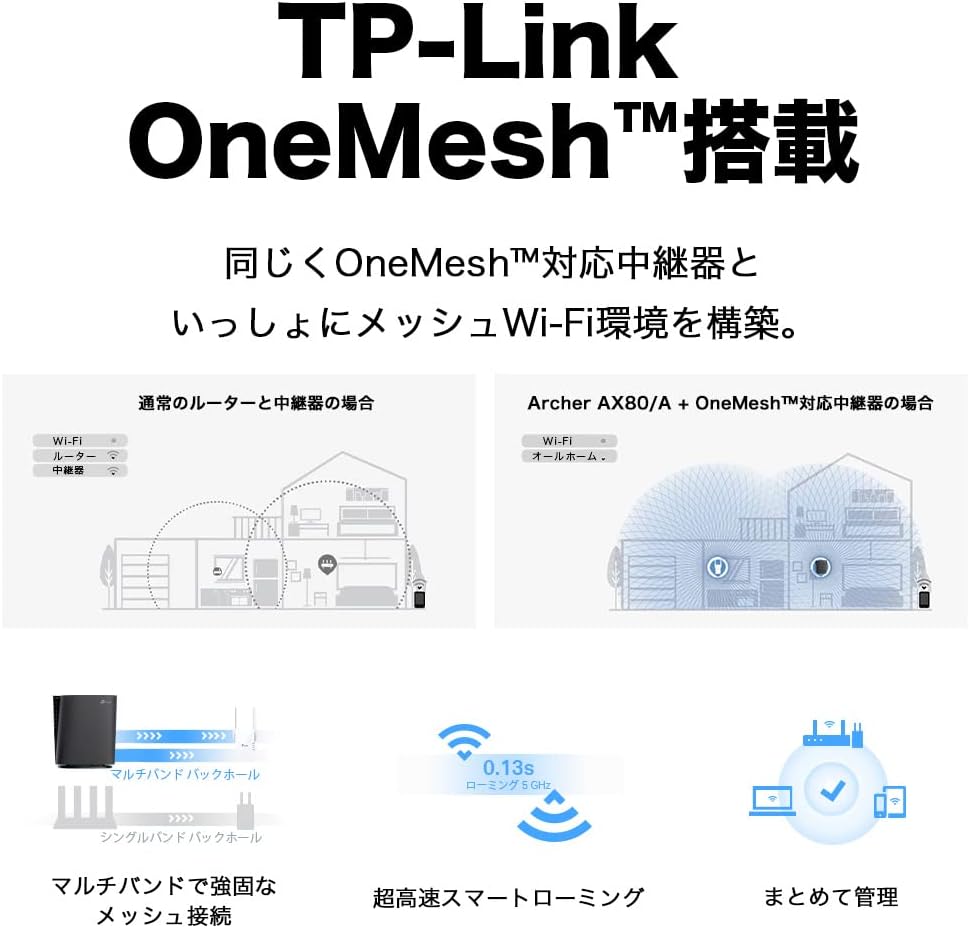
The Archer AX80/A supports TP-Link OneMesh™, allowing you to create a seamless whole-home Wi-Fi network by connecting to OneMesh-compatible range extenders. This eliminates Wi-Fi dead zones and provides uninterrupted roaming.
6.2 VPN Client Functionality
The router includes VPN client functionality, enabling you to establish a secure VPN connection without needing additional VPN software on each device. It supports OpenVPN, PPTP VPN, and L2TP VPN protocols.

6.3 IPv6 IPoE Support
The Archer AX80/A supports IPv6 IPoE (IPv4 over IPv6), including v6 Plus, OCN Virtual Connect, and DS-Lite, ensuring compatibility with modern internet service provider configurations for optimal performance.
6.4 Ата-эненин көзөмөлү
Manage and control internet access for family members with robust parental control features available through the Tether app. Set time limits, block inappropriate content, and monitor usage.

6.5 WPA3 коопсуздугу
The router supports WPA3, the latest Wi-Fi security protocol, providing enhanced encryption and protection against cyber threats for a more secure home network.

6.6 US-Based Security Standards
TP-Link adheres to US government cybersecurity and infrastructure security agency (CISA) promoted "Secure-by-Design" principles, ensuring high-level security throughout design, development, and maintenance.

7. Техникалык тейлөө
7.1 Микропрограмма жаңыртуулары
Оптималдуу иштөөнү, коопсуздукту жана жаңы функцияларга жетүүнү камсыз кылуу үчүн роутериңиздин микропрограммасын үзгүлтүксүз жаңыртып туруңуз. Микропрограмманы жаңыртууларды Tether колдонмосу же web башкаруу интерфейси.
- Open the Tether app or log in to the web башкаруу интерфейси.
- Тутум куралдары > Микропрограмманы жаңыртуу бөлүмүнө өтүңүз.
- Follow the instructions to check for and install available updates.
7.2 Rebooting the Router
If you experience network issues, a simple reboot can often resolve them. You can reboot the router through the Tether app, web management interface, or by unplugging and replugging the power adapter.
8. Кыйынчылыктарды
8.1 Интернетке кирүү жок
- Модемиңиз туура иштеп жатканын текшериңиз.
- Бардык кабелдер туура портторго бекем туташтырылганын текшериңиз.
- Модемди да, роутерди да өчүрүп күйгүзүңүз.
- Verify your internet settings in the router's management interface.
8.2 Wi-Fi сигналы начар
- Relocate the router to a central location, away from obstructions and interference sources.
- Consider adding a TP-Link OneMesh™ compatible range extender to expand coverage.
- Adjust Wi-Fi channel settings in the router's management interface to avoid interference.
8.3 Wi-Fi сырсөзүн унуткан же Логин сырсөзүн
- Демейки Wi-Fi сырсөзү роутердин ылдый жагындагы этикеткада басылган.
- If you changed it and forgot, you can retrieve or reset it via the Tether app or web башкаруу интерфейси.
- If you forgot the router's login password, you may need to perform a factory reset (see Section 3.1) and reconfigure the router.
9. Техникалык шарттар
| Өзгөчөлүк | Description |
|---|---|
| Бренд | TP-Link |
| Модель аты | Archer AX80/A |
| Зымсыз стандарт | 802.11ax (Wi-Fi 6) |
| Жыштык тилкесинин классы | Кош тилкелүү |
| Маалыматтарды өткөрүү ылдамдыгы | AX6000 (4804 Mbps on 5GHz + 1148 Mbps on 2.4GHz) |
| Порттар | 1x 2.5Gbps WAN/LAN, 1x Gigabit WAN/LAN, 3x Gigabit LAN, 1x USB 3.0 |
| Антенна түрү | Ички |
| Коопсуздук протоколу | WPA3 |
| Башкаруу ыкмасы | Tether колдонмосу, Web UI |
| Шайкеш түзмөктөр | Смартфондор, планшеттер, ноутбуктар |
| Өлчөмдөрү (L x W x Y) | 18.9 см х 5.9 см х 20 см |
10. Кепилдик жана колдоо
10.1 Кепилдик маалыматы
The TP-Link Archer AX80/A router comes with a 3 жылдык өндүрүүчүнүн кепилдиги. Кепилдик дооматтары үчүн сатып алганыңыздын далилин сактап коюңуз. Кепилдик нормалдуу колдонуудагы материалдардагы жана жасалгадагы кемчиликтерди камтыйт.
10.2 Техникалык колдоо
For technical support, firmware updates, and additional resources, please visit the official TP-Link website or contact TP-Link customer support. You can find contact information and FAQs on the TP-Link support page: