
1. Киришүү
This manual provides essential instructions for the setup, operation, maintenance, and troubleshooting of your Shuttle XPC Slim DH610 Barebone PC. The DH610 is a compact and versatile barebone system designed to support Intel 12th and 13th Generation LGA1700 processors, offering robust performance for various applications including office, digital signage, and kiosks.
2. Коопсуздук маалыматы
Аппаратка зыян келтирбөө жана өзүңүзгө зыян келтирбөө үчүн бул коопсуздук көрсөтмөлөрүн окуп, аткарыңыз:
- Always disconnect the power cord before performing any installation or maintenance.
- Ensure the system is placed on a stable, flat surface with adequate ventilation.
- Аппаратты нымдуулукка, экстремалдык температурага же түз күндүн нуруна калтырбаңыз.
- Only use the power adapter provided or an approved equivalent.
- Refer to qualified service personnel for any repairs not covered in this manual.
3. Пакеттин мазмуну
Пакетиңизде бардык буюмдар бар экенин текшериңиз:
- Shuttle XPC Slim DH610 Barebone PC Unit
- VESA орнотуу комплекти
- Адаптер жана шнур
- Accessory Pack (screws, cables, etc.)
- Ыкчам баштоо колдонмосу (эгер камтылган болсо)
4. Орнотуу жана орнотуу
The Shuttle DH610 is a barebone system, requiring the installation of a CPU, RAM, and storage devices before operation.
4.1. Opening the Chassis
Carefully remove the chassis cover to access the internal components. Typically, this involves unscrewing a few screws on the rear or sides of the unit and sliding the cover off.

Image: The Shuttle XPC Slim DH610 with its top cover removed, showing the internal layout including cooling fans and the motherboard.
4.2. CPU орнотуу
The DH610 supports Intel 12th/13th Generation Alder Lake-S LGA1700 processors with a maximum TDP of 65W. Ensure your chosen CPU has integrated graphics, as the system does not support F-series processors without integrated graphics or K-series processors.
- CPU розеткасынын рычагын ачып, коргоочу капкагын алып салыңыз.
- Carefully align the CPU with the socket, matching the triangular markers.
- Процессорду мажбурлабастан акырын розеткага салыңыз.
- CPUну бекитүү үчүн розетка рычагын жабыңыз.
- CPU муздаткычын өндүрүүчүнүн көрсөтмөлөрүнө ылайык орнотуңуз.
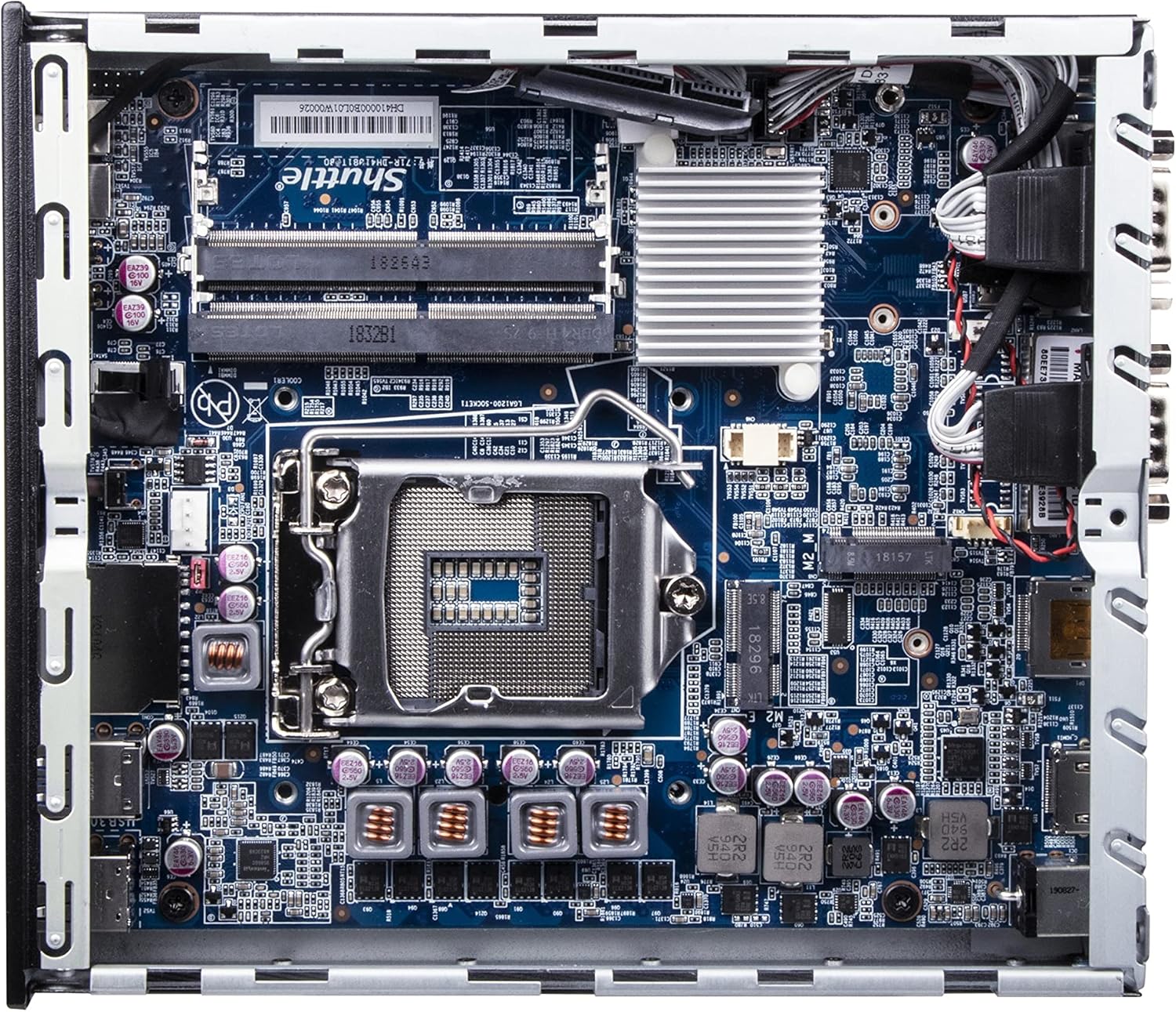
Сүрөт: деталдуу view of the Shuttle DH610 motherboard, highlighting the LGA1700 CPU socket, RAM slots, and other integrated circuits.
Note: For 13th Gen Intel Processors, BIOS Version DH610000.202 or newer is required. Update BIOS if necessary after initial setup with a 12th Gen CPU or via a compatible method.
4.3. RAM орнотуу
The system features two 260-pin dual-channel DDR4 SODIMM slots, supporting up to 64GB (2x 32GB) at 3200MHz. Dual-channel memory is recommended for optimal performance.
- Locate the SODIMM slots on the motherboard.
- Align the notch on the RAM module with the key in the slot.
- Insert the module at a 45-degree angle and push down until the clips on both sides snap into place.
4.4. Сактоочу жайды орнотуу
The DH610 supports one 2.5-inch HDD/SSD and one M.2 2280 SSD.
- 2.5" Drive: Mount the 2.5" HDD/SSD into the designated bay using the provided screws and connect the SATA data and power cables.
- M.2 SSD: Insert the M.2 2280 SSD into its slot, securing it with the provided screw.
4.5. Перифериялык түзүлүштөрдү туташтыруу
After installing internal components, reattach the chassis cover. Connect your peripherals to the available ports:
- Дисплей: Connect your monitor(s) to the HDMI 2.0b port or one of the two DisplayPort outputs. The system supports up to three 4K UHD displays.
- USB түзмөктөрү: Use the four USB 3.2 Gen1 ports (including one Type-C) and four USB 2.0 ports for keyboard, mouse, and other USB devices.
- Тармак: Connect to your network using either of the two Gigabit Ethernet LAN ports (Intel 2.5GbE + Intel 1GbE).
- Serial Devices: Utilize the two RS232 COM ports for compatible devices.
- Аудио: Connect headphones or a microphone to the front audio jacks.

Image: The front panel of the Shuttle DH610, featuring the power button, USB 3.2 Gen1 ports (one Type-C), and audio input/output jacks.

Image: The rear panel of the Shuttle DH610, displaying the DC-IN power input, HDMI, two DisplayPort outputs, two LAN ports, USB ports, and two COM ports.
4.6. Power Connection
Connect the power adapter to the DC-IN port on the rear of the unit, then plug the power cord into an electrical outlet.
5. Иштөө нускамалары
5.1. Күйгүзүү / Өчүрүү
- Күйгүзүү: Алдыңкы панелде жайгашкан кубат баскычын басыңыз.
- Өчүрүү: Perform a graceful shutdown through your operating system. Alternatively, press and hold the power button for 4-5 seconds for a forced shutdown (use only when necessary).
5.2. Операциялық системаны орнотуу
The DH610 is compatible with Windows 11/10 (64-bit) and Linux (64-bit) operating systems. Follow the standard installation procedures for your chosen OS. Ensure all necessary drivers are installed for optimal performance, which can typically be found on the Shuttle support webсайт.
5.3. BIOS/UEFI мүмкүнчүлүгү
BIOS/UEFI орнотуунун утилитасына кирүү үчүн, басыңыз Жок кылуу or F2 key repeatedly during system startup. This allows configuration of boot options, system settings, and hardware parameters.
6. Техникалык тейлөө
6.1. Тазалоо
Regularly clean the exterior of the unit with a soft, dry cloth. Use compressed air to clear dust from ventilation openings to ensure proper airflow and prevent overheating. Do not use liquid cleaners directly on the device.
6.2. BIOS жаңыртуулары
Periodically check the Shuttle website for BIOS updates. BIOS updates can improve system stability, add support for new hardware (like 13th Gen Intel CPUs), and fix bugs. Follow the instructions provided with the BIOS update package carefully.
7. Кыйынчылыктарды
If you encounter issues with your DH610, refer to the following common problems and solutions:
- Дисплей чыгышы жок:
- Ensure the monitor is powered on and correctly connected to the HDMI or DisplayPort.
- Verify that the CPU has integrated graphics and that the display cable is connected to the motherboard's video output, not a discrete graphics card (if applicable).
- Башка дисплей кабелин же мониторду колдонуп көрүңүз.
- Система күйбөй жатат:
- Check that the power adapter is securely connected to both the unit and the electrical outlet.
- Ensure the CPU and RAM are correctly installed and seated.
- Электр розеткасын башка аспап менен текшериңиз.
- 13th Gen CPU Not Recognized:
- The system requires BIOS Version DH610000.202 or newer for 13th Gen Intel processors. If you have an older BIOS, you may need to install a 12th Gen CPU first to update the BIOS.
- Системанын ысып кетиши:
- Ensure the chassis ventilation holes are not obstructed.
- Clean any dust accumulation from the internal fans and heatsinks.
- Verify the CPU cooler is properly installed and making good contact with the CPU.
8. Техникалык шарттар
| Өзгөчөлүк | Спецификация |
|---|---|
| Бренд | Шатл |
| Модель аты | DH610 |
| CPU розетка | LGA 1700 |
| Колдоого алынган процессорлор | Intel 12th/13th Gen Alder Lake-S (65W max, with integrated graphics) |
| Чипсет | Intel H610 |
| RAM түрү | DDR4 SODIMM (2x slots) |
| Максималдуу RAM сыйымдуулугу | 64 GB (2x 32GB) |
| Memory Speed | 3200 МГц чейин |
| Графика | Integrated Intel UHD Graphics (CPU dependent) |
| Video Output | 1x HDMI 2.0b, 2x DisplayPort (Supports triple 4K UHD displays) |
| Сактагыч | 1x 2.5" HDD/SSD bay, 1x M.2 2280 slot |
| USB порттору | 4x USB 3.2 Gen1 (1x Type-C), 4x USB 2.0 (Total 8) |
| LAN | 1x Intel 2.5GbE, 1x Intel 1GbE |
| Сериялык порттор | 2x RS232 (COM) |
| Операциялык системанын шайкештиги | Windows 11/10 (64-bit), Linux (64-bit) |
| Энергияны керектөө | 65 Watts (CPU) |
| Камтылган компоненттер | VESA тоосу |
9. Кепилдик жана колдоо
9.1. Өндүрүүчүнүн Кепилдиги
The Shuttle XPC Slim DH610 Barebone PC comes with a 3-Year Manufacturer's Warranty. This warranty covers defects in materials and workmanship under normal use. Please retain your proof of purchase for warranty claims.
9.2. Техникалык колдоо
For technical assistance, driver downloads, BIOS updates, or further troubleshooting not covered in this manual, please visit the official Shuttle website or contact Shuttle customer support. Free lifetime technical support is typically provided by the manufacturer.
Көбүрөөк маалымат алуу үчүн төмөнкүгө кириңиз: www.shuttle.com