
Продукт бүттүview
The ROFAVEZCO USB 3.0 4-Port 4K 60Hz HDMI KVM Switch is designed to control up to four HDMI source devices (such as PCs, game consoles, or media players) from a single USB keyboard, mouse, and monitor. This switch supports high-resolution video up to 4K@60Hz and offers versatile connectivity with USB 3.0 ports for peripherals. It includes SPDIF 5.1 audio output and is compatible with various operating systems including Windows and Linux.
Its robust metal casing ensures stable performance and efficient heat dissipation, while the threaded power adapter connection prevents accidental power loss. The compact design allows for easy integration into any workspace.
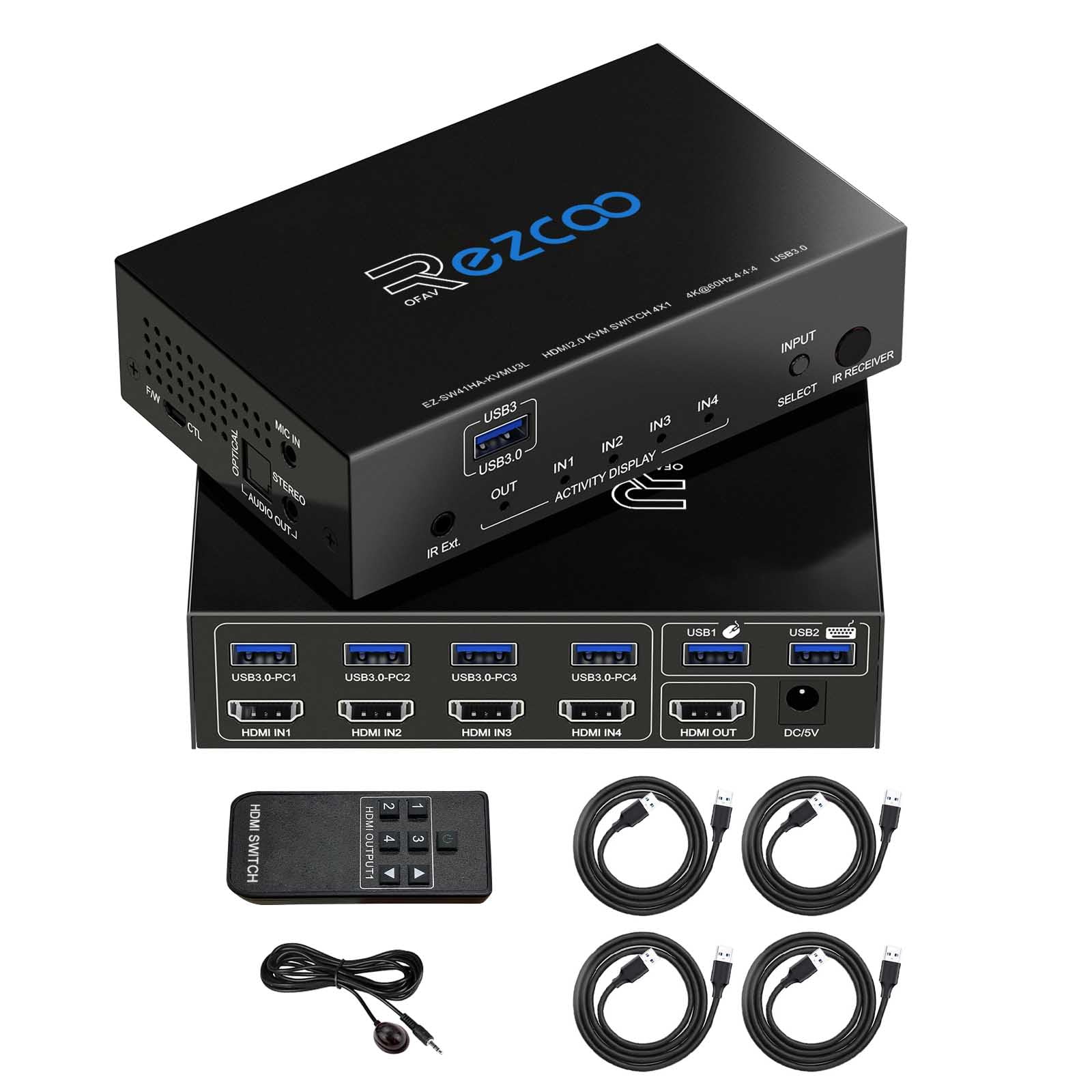
Figure 1: The ROFAVEZCO KVM Switch in a typical setup, connecting four PCs to a single monitor, keyboard, and mouse.
Орнотуу колдонмосу
- Күйгүзүү: Connect the power adapter to the KVM switch and a power outlet.
- Connect HDMI and USB Cables: For each source device (PC, console, etc.), connect an HDMI cable from the device's HDMI output to an HDMI-IN port on the KVM switch. Simultaneously, connect a USB 3.0 cable from the source device's USB port to the corresponding USB IN port on the KVM switch. Ensure both HDMI and USB cables are connected for each source.
- Мониторду туташтыруу: Connect your monitor's HDMI input to the HDMI OUT port on the KVM switch.
- Баскычтоп менен чычканды туташтыруу: Connect your USB keyboard and mouse to the dedicated USB ports on the KVM switch.
- Перифериялык түзүлүштөрдү туташтыруу: Utilize the additional USB 3.0 ports for other peripherals such as printers, scanners, or USB drives.
- Аудио байланыштары: For external audio, connect your audio system to the SPDIF or 3.5mm audio output ports.
- Алгачкы активдештирүү: After connecting all cables, allow approximately 20 seconds for the USB switch to activate. The KVM switch will remember the last active HDMI input source when power is cycled.

Figure 2: Connection Diagram for the KVM Switch. This image illustrates how to connect multiple PCs, a monitor, keyboard, mouse, and other USB peripherals to the KVM switch.

Figure 3: Rear Panel Connections. This image highlights the HDMI input and output ports, USB input ports for source devices, and the power input.
KVM которууну иштетүү
The KVM switch offers multiple methods for switching between connected source devices:
1. Front Panel Button Switching
басыңыз ТАНДОО button on the front panel of the KVM switch to cycle through the connected input sources (IN1, IN2, IN3, IN4). The active input will be indicated by an LED light.
2. IR алыстан башкаруу
Use the provided IR remote control to switch between inputs. Point the remote at the IR receiver on the KVM switch and press the corresponding input number (1, 2, 3, or 4) to select a source. The IR remote allows for convenient switching, especially if the KVM switch is placed out of direct reach.
3. Hotkey Switching (Keyboard)
The KVM switch supports hotkey commands via your connected keyboard. Specific hotkey combinations can be used to switch inputs without needing to press buttons on the device or use the remote. Refer to the detailed hotkey list in the full user manual for specific commands.

Figure 4: Switching Methods. This image illustrates the button switch, IR remote control, and IR extension cable for input selection.
Аудио чыгаруу
The KVM switch extracts audio from the HDMI signal and provides it through SPDIF 5.1 and 3.5mm stereo audio outputs. This allows you to connect external speakers or headphones for enhanced audio experience.

Figure 5: Audio Extraction Setup. This image demonstrates connecting external audio devices like speakers and a microphone to the KVM switch.
Техникалык тейлөө
- Тазалоо: Use a soft, dry cloth to clean the exterior of the KVM switch. Avoid using liquid cleaners or aerosols.
- Вентиляция: Ensure the KVM switch is placed in a well-ventilated area to prevent overheating. Do not block the ventilation openings.
- Кабелдик башкаруу: Зыян келтирбөө үчүн кабелдерди иреттүү жана ийилип кетпеген же ашыкча ийилбеген абалда кармаңыз.
- Программалык камсыздоонун жаңыртуулары: Мезгил-мезгили менен өндүрүүчүнүн текшерүү website for any available firmware updates to ensure optimal performance and compatibility. The device supports firmware upgrades via its Micro USB port.
Проблемаларды чечүү
- Видео сигнал жок:
- Ensure all HDMI cables are securely connected to both the source devices and the KVM switch, as well as to the monitor.
- Verify that the correct input source is selected on the KVM switch.
- If experiencing a RE-HDMI signal issue, press and hold the ТАНДОО button for 5 seconds to re-read EDID for 4K@60Hz, 5.1 audio.
- Try connecting the HDMI cable directly from the source to the monitor to rule out cable or source issues.
- Баскычтоп/чычкан жооп бербейт:
- Ensure the USB 3.0 cables from the source devices are connected to the corresponding USB IN ports on the KVM switch.
- Verify that the keyboard and mouse are connected to the dedicated USB ports on the KVM switch.
- Some gaming or specialized keyboards/mice may require direct connection or specific drivers. Try a standard keyboard/mouse to test functionality.
- Restart the KVM switch and the connected computers.
- Аудио чыгышы жок:
- Check all audio cable connections (SPDIF, 3.5mm) to your audio system.
- Ensure the audio output settings on your source device are correctly configured to output audio via HDMI.
- Verify that your audio system is powered on and set to the correct input.
- Үзгүлтүксүз туташуу:
- Ensure the power adapter is securely connected and providing stable power. The threaded design helps prevent accidental disconnection.
- Кабелдик туташуулардын бошоп калганын текшериңиз.
- Reduce cable lengths if possible, especially for HDMI, to minimize signal degradation.
Продукт спецификациялары
| Модель номери | EZ-SW41KVMU3L |
| Бренд | ROFAVEZCO |
| Өндүрүүчү | EZCOOTECH |
| Материал | Металл |
| Өлчөмдөрү (L x W x Y) | 0.1 x 0.1 x 0.1 cm (Product); 1 x 1 x 1 mm (Item) |
| Салмагы | 871 грамм |
| Video Resolution Support | Up to 4K@60Hz (3840x2160@60Hz), 1920x1080@144Hz, 2560x1440@144Hz |
| HDMI стандарты | HDMI 2.0, HDCP 2.2 |
| USB порттору | 4 x USB 3.0 (Input), Additional USB 3.0 ports for peripherals |
| Аудио чыгаруу | SPDIF 5.1, 3.5mm Stereo Audio |
| Которуу ыкмалары | Front Panel Button, IR Remote Control, Hotkey (Keyboard) |
| Operating Voltage | 100 вольт |
| Учурдагы рейтинг | 1 А |
| Шайкештик | Windows 10/7/2000/XP/Vista, Linux, UNIX, Ubuntu, Fedora, Mac, Android, Steam OS |
Кепилдик маалымат
The product comes with a standard manufacturer's warranty. For specific details regarding the warranty period and coverage, please refer to the documentation included with your purchase or contact ROFAVEZCO customer support.
The provided information indicates a warranty description of "1", which typically refers to a 1-year warranty. Please confirm with the manufacturer for precise terms.
Кардарларды колдоо
For technical assistance, troubleshooting, or warranty claims, please contact ROFAVEZCO customer support.
- Байланыш түрү: E-mail
- Сатуучу: ezcoo HITECH
- Онлайн колдоо: Сиз да зыярат кылсаңыз болот ROFAVEZCO Brand Store on Amazon кошумча продукт маалымат жана колдоо ресурстар үчүн.