
1. Киришүү
This manual provides detailed instructions for the HPRT N80 Barcode Scanner. It covers the scanner's features, setup, operation, maintenance, and troubleshooting. Please read this manual carefully before using the product to ensure proper and safe operation.

Image: HPRT N80 Barcode Scanner, USB cable, and included instruction manual.
2. Продукциянын өзгөчөлүктөрү
- 1D & 2D Scanning: Supports a wide range of 1D and 2D codes including UPC, UCC/EAN-128, ISBN/ISSN, Code 39, Code 128, Interleaved 2 of 5, QR Code, Data Matrix, and Postal Codes.
- Screen and Paper Scanning: Capable of scanning barcodes from both printed labels and digital screens.
- Кеңири шайкештик: Works with Windows, iOS, Android, Linux, and Mac OS. Connects to PCs, laptops, and iPads. (Note: Mac OS requires a USB wired connection).
- Fast and Precise Scan: Utilizes a superior CMOS sensor and image scanning technology for quick decoding. Achieves recognition precision up to 4 mil.
- Бир нече сканерлөө режимдери: Offers manual trigger mode, continuous scan mode, and auto-sensing mode.
- Эргономикалык дизайн: Features a comfortable grip and durable ABS plastic construction, designed to withstand drops from up to 3.93ft.

Image: The HPRT N80 barcode scanner demonstrating its ability to decode a wide range of 1D and 2D barcode formats, including QR codes, Data Matrix, and Aztec Code.

Image: Illustration showing the HPRT N80 barcode scanner's capability to read damaged, blurred, and stained barcodes effectively.

Image: The HPRT N80 barcode scanner being applied in various environments, including a supermarket, hospital, warehouse, and library.
3. Орнотуу жана туташуу
The HPRT N80 Barcode Scanner is designed for plug-and-play functionality, requiring no driver installation for most operating systems.
3.1 Зымдуу USB туташуусу
- USB кабелин сканердин портуна туташтырыңыз.
- Plug the USB connector into an available USB port on your computer or device.
- The scanner will be automatically recognized by your system. No additional drivers are typically needed.
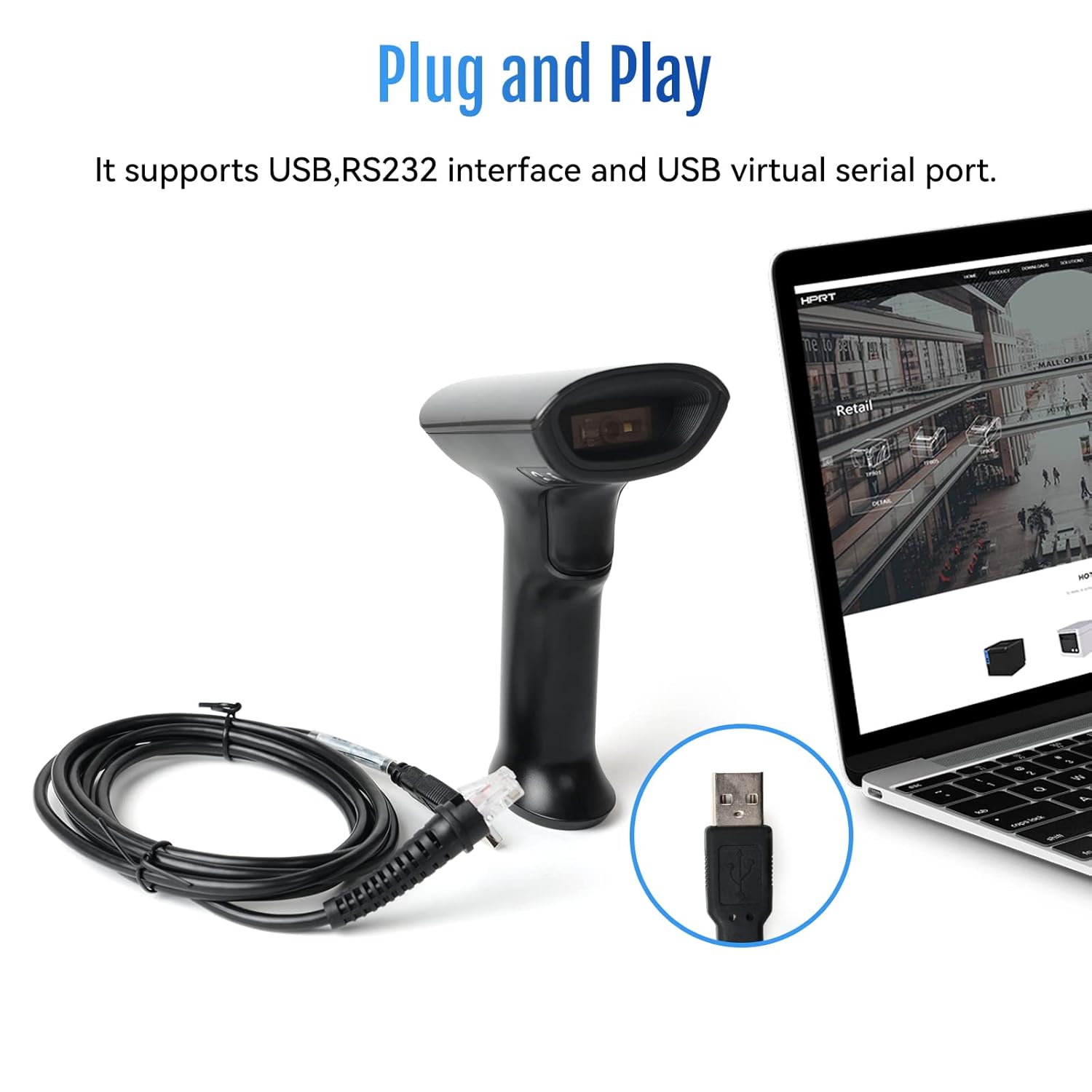
Image: The HPRT N80 barcode scanner with its USB cable, illustrating the plug-and-play connection to a laptop.

Image: A close-up of the HPRT N80 barcode scanner being connected to a laptop, demonstrating the plug-and-play functionality.
4. Операция
The HPRT N80 Barcode Scanner offers various modes for efficient scanning.
4.1 Штрихкоддорду сканерлөө
- Hold the scanner with the scanning window facing the barcode.
- Press the trigger button to activate the scan beam.
- Ensure the scan beam covers the entire barcode. A successful scan is usually indicated by an audible beep and/or a visual indicator.
- The decoded data will appear on your connected device.
4.2 Скандоо режимдери
- Кол менен иштетүү режими: Press the trigger for each scan.
- Үзгүлтүксүз сканерлөө режими: Сканер тынымсыз сканерлөө нурун чыгарып, аныктаган ар кандай штрих-кодду сканерлейт.
- Автоматтык сезүү режими: The scanner activates the scan beam automatically when a barcode is presented within its field of view.

Image: The HPRT N80 barcode scanner performing a fast scan of both 1D and QR codes displayed on a smartphone screen.

Image: The HPRT N80 barcode scanner accurately scanning a barcode even in a dark environment, highlighting its low-light performance.
4.3 Операциялык видео
Video: Demonstrates the HPRT N80 barcode scanner's fast scanning capabilities for both 1D and 2D barcodes on paper and screens, highlighting its plug-and-play setup and ergonomic design.
5. Техникалык тейлөө
To ensure the longevity and optimal performance of your HPRT N80 Barcode Scanner, follow these maintenance guidelines:
- Тазалоо: Сканердин сыртын тазалоо үчүн жумшак, кургак чүпүрөктү колдонуңуз. Сканерлөө терезеси үчүн жеңил чүпүрөктү колдонуңуз dampжумшак, абразивдүү эмес тазалоочу менен жасалган. Катуу химиялык заттардан же абразивдүү материалдардан алыс болуңуз.
- Сактагыч: Сканерди күн нурунан жана экстремалдык температурадан алыс салкын, кургак жерде сактаңыз.
- Колдонуу: While the scanner is designed to be durable, avoid unnecessary drops or impacts.
- Кабельге кам көрүү: USB кабелин өтө ийип же бурап албаңыз. Сууруп жатканда ар дайым кабелди эмес, сайгычын кармаңыз.
6. Кыйынчылыктарды
If you encounter issues with your HPRT N80 Barcode Scanner, please refer to the following common troubleshooting steps:
- Сканер жооп бербей жатат:
- USB кабелинин сканерге да, хост түзмөгүнө да бекем туташтырылганын текшериңиз.
- Сканерди башка USB портуна сайып көрүңүз.
- Компьютериңизди же хост түзмөгүңүздү өчүрүп-күйгүзүңүз.
- Штрих-коддорду сканерлөө мүмкүн эмес:
- Verify that the barcode is not excessively damaged, blurred, or stained.
- Ensure the scanning window is clean and free of obstructions.
- Check if the scanner is in the correct scanning mode (e.g., manual trigger, continuous, auto-sensing).
- Штрих-код үчүн жетиштүү жарыкты камсыз кылыңыз.
- Туура эмес маалымат чыгаруу:
- Confirm that the correct keyboard layout or input method is selected on your host device.
- Refer to the full product manual (if available) for advanced configuration barcodes to reset settings or adjust data formatting.
If the problem persists, please contact HPRT customer support.
7. Техникалык шарттар
| Өзгөчөлүк | Деталь |
|---|---|
| Бренд | HPRT |
| Модел | N80 |
| Байланыш технологиясы | USB кабели |
| Power Source | Батарея менен иштейт |
| Шайкеш түзмөктөр | Laptop (Windows, iOS, Android, Linux, Mac OS) |
| Скандоо мүмкүнчүлүгү | 1D & 2D (UPC, EAN, QR, Data Matrix, etc.) |
| Туруктуу | Withstands drops from up to 3.93ft |
8. Кепилдик жана колдоо
For warranty information or technical support, please contact HPRT customer service.
- Кардарларды тейлөө электрондук почтасы: pravin.m@hprt.com
- Официалдуу Webсайт: https://www.hprt.com

Image: HPRT customer service contact details, including email and official webсайт.