
1. Киришүү
Сатып алганыңыз үчүн рахматasing the Bewinner Dilwe90y38cgo7q Mini Drone. This foldable FPV drone features a 1080P HD camera, altitude hold, and one-key start for an enjoyable flight experience. This manual provides essential information for safe operation, setup, and maintenance of your drone. Please read it thoroughly before use.
2. Коопсуздук боюнча көрсөтмөлөр
- Дронду ар дайым ачык жерлерде, адамдардан, жаныбарлардан жана тоскоолдуктардан алыс иштетиңиз.
- Аэропорттордун, чектелген аба мейкиндигинин же сезимтал аймактардын жанында учпаңыз.
- Ensure the drone battery is fully charged and the remote control has fresh batteries before each flight.
- Манжаларды жана чачты айлануучу пропеллерлерден алыс кармаңыз.
- Катуу шамалда же жагымсыз аба ырайында иштебеңиз.
- Supervise children during drone operation. Recommended age is 14 years and above.
- Turn off the drone and remote control when not in use.
3. Пакеттин мазмуну
Пакетиңизде бардык буюмдар бар экенин текшериңиз:
- 1 x Bewinner Mini Drone
- 1 x Алыстан башкаруу
- 1 x Screwdriver
- 1 x USB заряддоо кабели
- 5 x Propellers (4 installed, 1 spare)
- 4 x Guard Frames
- 2 x User Manuals (this document)
- 1 x сактоо баштык

Image: All components included in the Bewinner Mini Drone package, laid out for inspection.
4. Техникалык шарттар
| Өзгөчөлүк | Деталь |
|---|---|
| Продукт модели | Dilwe90y38cgo7q (Internal reference: E58) |
| Материал | ABS |
| Жыштык | 2.4G |
| Түс | Кара көк |
| Ачылган өлчөм | Болжол менен 28 x 22 см (11 x 8.7 дюйм) |
| Катталган өлчөмү | Болжол менен 12 x 7.5 см (4.7 x 3 дюйм) |
| Дрон Батареясы | 3.7V 600mAH Li-Ion Battery (integrated) |
| Заряддоо ыкмасы | USB порту |
| Заряддоо убактысы | Болжол менен 40 мүнөт |
| Учуу убактысы | Болжол менен 8 мүнөт |
| Алыстан башкаруунун батареялары | 3 x AA батарейкалар (киргизилген эмес) |
| Remote Control Distance | Болжол менен 150 метр |
| Камера режими | FPV (Биринчи жак View) |
| Video Resolution | 2048x1080 (1080P HD) |
| Сүрөттүн чечилиши | 4096x2160 (4K) |
| Maximum Moving Speed | 10 Km/H |
| Maximum Ascent Speed | 3 Km/H |
| Жашы боюнча сунуш | 14+ Жыл |

Image: The drone's camera, capable of 4K image and 1080P video recording.
5. Орнотуу
5.1 Дронду ачуу
Gently unfold the drone arms until they lock into position. Ensure all four arms are fully extended.
5.2 Installing Propeller Guards
Attach the four propeller guard frames to the drone's motor arms. These guards help protect the propellers from damage during flight.
5.3 Дрондун батареясын кубаттоо
- Connect the drone's integrated battery to the USB charging cable.
- Plug the USB cable into a standard USB power adapter (e.g., computer USB port, phone charger).
- The charging indicator will show the charging status. Charging typically takes about 40 minutes.
- Disconnect the drone once charging is complete.
5.4 Алыстан башкаруу пульту үчүн батареяларды орнотуу
Open the battery compartment on the back of the remote control. Insert 3 AA batteries (not included), ensuring correct polarity. Close the compartment securely.
5.5 Алыстан башкарууview

Image: Labeled diagram of the remote control, showing functions like Headless Mode, One Key Return, Photo/Video, Speed Switch, One Key Take-off, One Key Landing, Fine Tuning, 360 Rolling, and Emergency Stop.
- Сол джойстик: Ascend/Descend, Turn Left/Right
- Оң Джойстик: Forward/Backward, Fly Left/Right
- Бир негизги алып салуу: Initiates automatic takeoff.
- Бир негизги конуу: Initiates automatic landing.
- Башсыз режим: Башсыз учууну иштетет.
- Бир ачкыч менен кайтаруу: Учуп кетүү чекитине автоматтык түрдө кайтып келүүнү баштайт.
- Сүрөт/Видео баскычы: Press for photo, long press for video.
- Ылдамдык которуштуруу: Toggles between high and low-speed modes.
- 360 Rolling/Emergency Stop: Performs a 360-degree roll or emergency stop.
- Так жөндөө: Adjusts drone drift (Rightward, Leftward, Forward, Backward).
- ON/OFF которуу: Powers the remote control on or off.
6. Иштөө нускамалары
6.1 Power On and Frequency Matching
- Дронду тегиз, тегиз жерге орнотуңуз.
- Long press the power button on the drone to turn it on. The drone's indicator lights will flash.
- Анын ON/OFF которгучу аркылуу алыстан башкарууну күйгүзүңүз.
- Move the left throttle stick (joystick) fully up, then fully down. You will hear a sound, and the drone's indicator lights will stop flashing, indicating successful frequency matching.
6.2 Учуу жана конуу
- Бир негизги алып салуу: After successful frequency matching, press the One Key Take-off button on the remote control. The drone will automatically ascend and hover at a stable altitude.
- Кол менен учуу: Alternatively, after frequency matching, push both joysticks down and outwards simultaneously to unlock the motors. Then, push the left joystick up to ascend.
- Бир негизги конуу: During flight, press the One Key Landing button. The drone will automatically descend and land gently.
- Кол менен конуу: Slowly pull the left joystick down to descend and land the drone. Once landed, push both joysticks down and inwards to lock the motors.

Image: Visual representation of One Key Return and One Key Takeoff/Landing features, simplifying drone operation.
6.3 Учууну башкаруу
- Өтүү/Төмөн: Өйдө көтөрүлүү үчүн сол джойстикти басыңыз, ылдый түшүү үчүн ылдый тартыңыз.
- Алдыга артка: Алдыга учуу үчүн оң джойстикти өйдө түртүңүз, артка учуу үчүн ылдый тартыңыз.
- Солго/Оңго буруңуз: Push the left joystick left to turn left, push right to turn right.
- Fly Left/Right (Sideways): Солго учуу үчүн оң джойстикти солго басыңыз, оңго учуу үчүн оңго басыңыз.
6.4 Бийиктикте кармоо
The drone features an atmospheric pressure altitude hold function. After takeoff, release the left joystick, and the drone will maintain its current altitude, allowing for stable hovering and easier control for photography.

Image: The drone demonstrating stable hovering due to its altitude hold function, making aerial photography convenient.
6.5 Башсыз режим
In Headless Mode, the drone's orientation is relative to the pilot, regardless of the drone's actual front direction. This simplifies flight control, especially for beginners.
- Press the Headless Mode button on the remote control to activate.
- Press it again to exit Headless Mode.

Image: Depiction of Headless Mode, where the drone flies relative to the remote, and Trajectory Flight, where the drone follows a drawn path on a mobile device.
6.6 Бир ачкычты кайтаруу
When in Headless Mode, pressing the One Key Return button will cause the drone to fly back towards the remote control's position. This is useful if you lose sight of the drone's orientation.
6.7 Ылдамдык режимдери
The drone offers high and low-speed modes. Press the Speed Switch button on the remote control to toggle between them. Low speed is recommended for beginners, while high speed provides greater torque for experienced pilots or windy conditions.
6.8 360-Degree Rolling
To perform a 360-degree roll:
- Fly the drone to a height of at least 3 meters.
- Press the 360 Rolling button.
- Immediately push the right joystick in any direction (forward, backward, left, or right) to execute the roll.
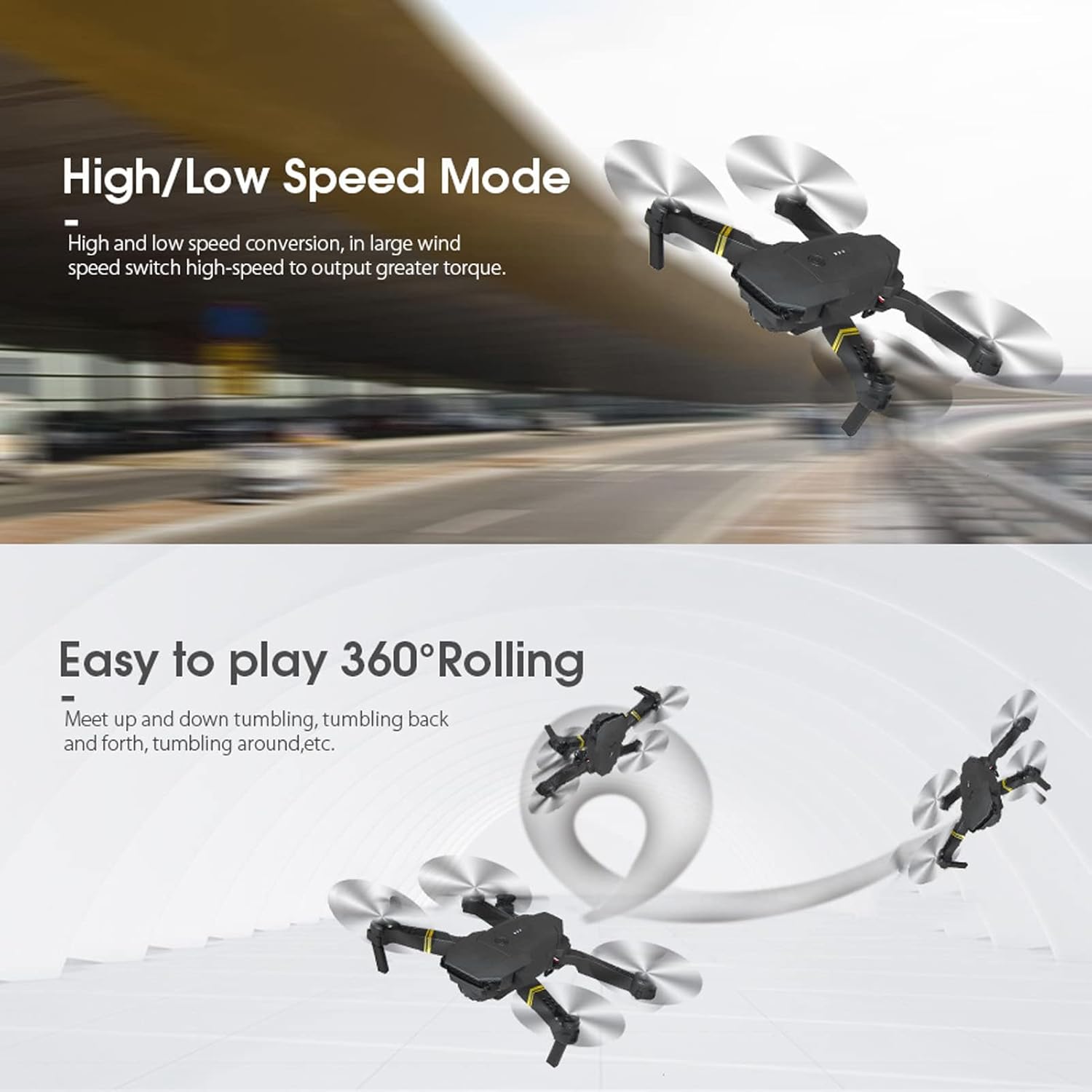
Image: Demonstrations of the drone's High/Low Speed Mode and its ability to perform 360-degree rolling stunts.
6.9 APP Control and FPV
The drone supports control via a mobile application, enabling real-time FPV (First Person View) жана өркүндөтүлгөн функциялар.
- Download the dedicated drone APP from your mobile device's app store (refer to the packaging or quick start guide for the specific APP name/QR code).
- Дронду күйгүзүңүз.
- On your mobile device, go to Wi-Fi settings and connect to the drone's Wi-Fi network (usually named something like 'WIFI-UFO' or similar, followed by a series of numbers/letters).
- Open the drone APP. You should see a live video feed from the drone's camera.
- Use the APP interface to control the drone, take photos, record videos, and access features like Trajectory Flight.

Image: The drone, remote control, and a smartphone showing the live FPV feed, highlighting the Wi-Fi APP compatibility for an immersive real-time experience.
7. Техникалык тейлөө
- Тазалоо: Дронду жана пультту тазалоо үчүн жумшак, кургак чүпүрөктү колдонуңуз. Суу же химиялык тазалоочу каражаттарды колдонбоңуз.
- Пропеллерди алмаштыруу: If a propeller is damaged, use the included screwdriver to carefully remove the old propeller and install a new one. Ensure the correct propeller type (A or B) is installed on the corresponding motor.
- Батареяга кам көрүү: Store the drone battery in a cool, dry place. Do not overcharge or over-discharge the battery. If not used for a long time, charge it periodically to maintain battery health.
- Сактагыч: Колдонулбай турган учурда, дронду бүктөп, чаңдан жана бузулуудан коргоо үчүн берилген сактоочу баштыкка салыңыз.
8. Кыйынчылыктарды
| Көйгөй | Мүмкүн себеп | Чечим |
|---|---|---|
| Дрон пультка жооп бербейт. | Not paired, low remote battery, drone battery low. | Perform frequency matching again. Replace remote batteries. Charge drone battery. |
| Учуу учурунда учкучсуз учат. | Not calibrated, environmental factors (wind). | Land the drone and recalibrate (refer to quick start guide for calibration steps). Use fine-tuning buttons on the remote. Fly in calm conditions. |
| Кыска учуу убактысы. | Батарея толук заряддалган эмес, эски батарея, агрессивдүү учуп жатат. | Ensure full charge (40 minutes). Consider replacing battery if old. Fly more gently. |
| Камерадагы сүрөт/видео сапаты начар. | Low light, camera lens dirty, Wi-Fi interference. | Ensure good lighting. Clean camera lens. Fly in areas with minimal Wi-Fi interference. |
| APP not connecting to drone Wi-Fi. | Drone not powered on, incorrect Wi-Fi selected, APP issue. | Ensure drone is on. Select the correct Wi-Fi network. Restart APP and drone. |
9. Кепилдик жана колдоо
For warranty information or technical support, please refer to the purchase platform or contact Bewinner customer service directly. Keep your purchase receipt as proof of purchase.