
1. Киришүү
Welcome to the user manual for your Havit Gaming Mouse MS1032. This document provides essential information for setting up, operating, maintaining, and troubleshooting your device. Please read it carefully to ensure optimal performance and longevity of your mouse.
The Havit MS1032 is a gaming mouse featuring six adjustable DPI settings, a comfortable ergonomic design, and a non-slip surface. It is engineered for smooth and quiet operation, aiming to reduce fatigue during extended use.
2. Орнотуу
2.1 Пакеттин мазмуну
- Havit Gaming Mouse MS1032
- User Manual
2.2 Системалык талаптар
- Operating System: Windows XP, Windows 7, Linux
- Жеткиликтүү USB порту
2.3 Чычканды туташтыруу
- Unpack the Havit Gaming Mouse MS1032 from its packaging.
- Компьютериңизден жеткиликтүү USB портун табыңыз.
- Чычкандын USB туташтыргычын USB портуна кыстарыңыз.
- Сиздин иштөө тутумуңуз керектүү драйверлерди автоматтык түрдө таап, орнотууга тийиш. Бул процесс бир нече мүнөткө созулушу мүмкүн.
- Орнотуу аяктагандан кийин, чычкан колдонууга даяр.
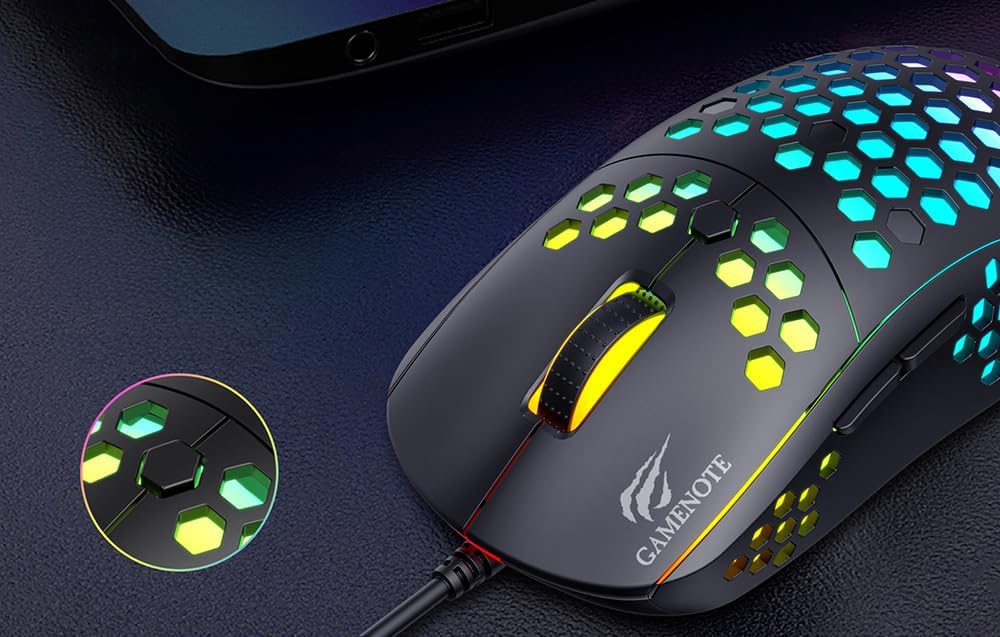
Figure 1: Havit MS1032 Gaming Mouse connected via USB.
3. Иштөө нускамалары
3.1 Негизги функциялар
- Сол чыкылдатуу: Primary action, selection, activation.
- Оң чыкылдатуу: Opens context menus, performs secondary actions.
- Жылдыруу дөңгөлөгү: Scrolls up/down documents or web барактар. Ошондой эле, ортоңку чыкылдатуу функциясы үчүн басууга болот.
- Каптал баскычтары: Адатта алдыга/артка багыттоо үчүн колдонулат web browsers or custom functions in games.
3.2 DPI жөндөө
The Havit MS1032 features six adjustable DPI (Dots Per Inch) settings, allowing you to change the mouse sensitivity on the fly. This is useful for adapting to different tasks, such as precise aiming in games or fast navigation across multiple monitors.
To adjust the DPI, locate the DPI button, typically positioned behind the scroll wheel. Press this button to cycle through the available DPI settings. The LED lighting on the mouse may change to indicate the current DPI level, providing visual feedback for your selection.
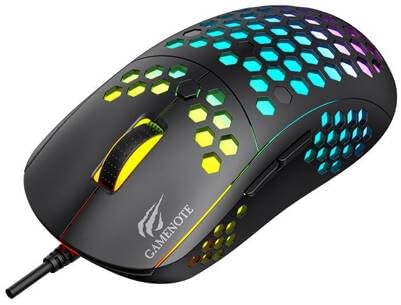
Figure 2: Location of the DPI button (behind the scroll wheel).
4. Техникалык тейлөө
4.1 Тазалоо
Оптималдуу иштөөсүн жана көрүнүшүн сактоо үчүн, чычканыңызды үзгүлтүксүз тазалап туруңуз:
- Тазалоодон мурун чычканды компьютериңизден ажыратыңыз.
- Бир аз жумшак, түксүз кездемени колдонуңуз dampсуу же жумшак, абразивдүү эмес тазалоо эритмеси менен.
- Чычкандын бетин акырын сүртүңүз.
- For crevices and the optical sensor, use a cotton swab or compressed air to remove dust and debris.
- Avoid using harsh chemicals, abrasive cleaners, or excessive moisture, as these can damage the mouse's finish or internal components.
4.2 Сактоо
When not in use, store the mouse in a clean, dry environment away from direct sunlight and extreme temperatures to prevent damage.
4.3 Жалпы кам көрүү
- Чычканды түшүрүүдөн же катуу соккулардан сактаныңыз.
- Do not attempt to disassemble the mouse, as this will void the warranty and may cause irreparable damage.
- Keep the mouse away from liquids to prevent electrical damage.
5. Кыйынчылыктарды
If you encounter issues with your Havit Gaming Mouse MS1032, please refer to the following common solutions:
5.1 Чычкан жооп бербейт
- USB туташуусун текшерүү: USB кабели компьютериңиздеги иштеген USB портуна бекем сайылганын текшериңиз. Башка USB портун колдонуп көрүңүз.
- Компьютерди кайра иштетүү: Sometimes a simple computer restart can resolve connectivity issues.
- Башка компьютерде сыноо: Мүмкүн болсо, чычканды башка компьютерде сынап көрүңүз, маселе чычканда же сиздин компьютериңиздин орнотулушунда экенин аныктаңыз.
5.2 Курсордун кыймылы туура эмес же секирик
- Таза сенсор: Чычкандын түбүндөгү оптикалык сенсор таза жана чаң же таштандыдан таза экенин текшериңиз.
- Текшерүү бети: Use the mouse on a clean, non-reflective, and uniform surface (e.g., a mouse pad). Avoid glass or highly reflective surfaces.
- DPI жөндөө: If the cursor is too fast or too slow, adjust the DPI setting using the DPI button.
5.3 Buttons Not Working
- Тоскоолдуктарды текшерүү: Баскычтардын астына таштанды калбагандыгын текшериңиз.
- Программалык камсыздоо конфликти: If you have custom mouse software installed, try uninstalling it temporarily to see if it resolves the issue.
5.4 LED чырактары иштебей жатат
- Байланышты текшерүү: Чычкандын компьютерге туура туташканын текшериңиз.
- Power Cycle: Disconnect and reconnect the mouse to reset its power.
6. Техникалык шарттар

Figure 3: Havit MS1032 Gaming Mouse design overview.
| Өзгөчөлүк | Деталь |
|---|---|
| Модел | MS1032 |
| Бренд | Хавит |
| Өлчөмдөр | 15 x 8 x 5.2 см |
| Салмагы | 200г |
| DPI орнотуулары | 6 жөнгө салынуучу деңгээл |
| Операциялык системалар | Linux, Windows 7, Windows XP |
| Байланыш | Зымдуу USB |
| Батареялар талап кылынат | Жок |
7. Кепилдик жана колдоо
For detailed warranty information and technical support, please refer to the official Havit website or contact your local retailer where the product was purchased. It is recommended to keep your purchase receipt as proof of purchase for any warranty claims.
Өндүрүүчү: Хавит
Модель номери: MS1032