
1. Киришүү
Thank you for choosing the Edtiske WiFi Extender. This device is designed to expand your existing Wi-Fi network coverage, eliminate dead zones, and provide a stable, high-speed internet connection throughout your home or office. With dual-band support (5GHz and 2.4GHz) and speeds up to 1200Mbps, it ensures seamless streaming, gaming, and browsing for multiple devices.
2. Пакеттин мазмуну
Пакетиңизде бардык буюмдар бар экенин текшериңиз:
- 1 x Edtiske WiFi Extender Unit
- 1 x Power Adapter (integrated)
- 1 х Инструкция (бул документ)
3. Продукт бүтүп калдыview

Figure 3.1: Edtiske WiFi Extender plugged into a standard wall outlet.
The Edtiske WiFi Extender is a compact device designed for easy integration into your home. It features a direct plug-in design, eliminating the need for external power adapters.
3.1. Негизги өзгөчөлүктөрү
- Кош тилкелүү туташуу: Supports both 5GHz (up to 866Mbps) and 2.4GHz (up to 300Mbps) Wi-Fi bands for flexible and high-speed connections.
- Кеңири камтуу: Extends Wi-Fi signal up to 10,000 sq. ft, covering large homes and multiple floors.
- Түзмөктүн жогорку кубаттуулугу: Бир эле учурда 45ке чейин түзмөктү туташтыра алат.
- Бир нече иштөө режимдери: Functions as an Access Point (AP), Repeater, or Router.
- Ethernet порттору: Equipped with WAN and LAN ports for wired connections.

Figure 3.2: Dual-band capabilities of the WiFi Extender.

Figure 3.3: High-gain antennas and Ethernet ports for stable connections.
3.2. LED көрсөткүчтөрү
- Power LED: Кубаттын абалын көрсөтөт.
- WLAN LED: Wi-Fi аракетин көрсөтөт.
- LAN LED: LAN портундагы активдүүлүктү көрсөтөт.
- WAN LED: WAN портундагы активдүүлүктү көрсөтөт.
- Сигнал күчү LEDs: Indicate the strength of the Wi-Fi signal received from the main router.
3.3. Баскычтар жана порттор
- WPS/Reset баскычы: Used for WPS (Wi-Fi Protected Setup) pairing or to reset the device to factory defaults (press and hold for 10 seconds).
- WAN порту (RJ45): Used for connecting to a modem in Router mode or for internet access in AP mode.
- LAN порту (RJ45): Used for connecting wired devices (e.g., PC, game console) to the network.
4. Орнотуу
The Edtiske WiFi Extender supports three main operating modes: Repeater Mode, AP Mode, and Router Mode. Choose the mode that best suits your network needs.
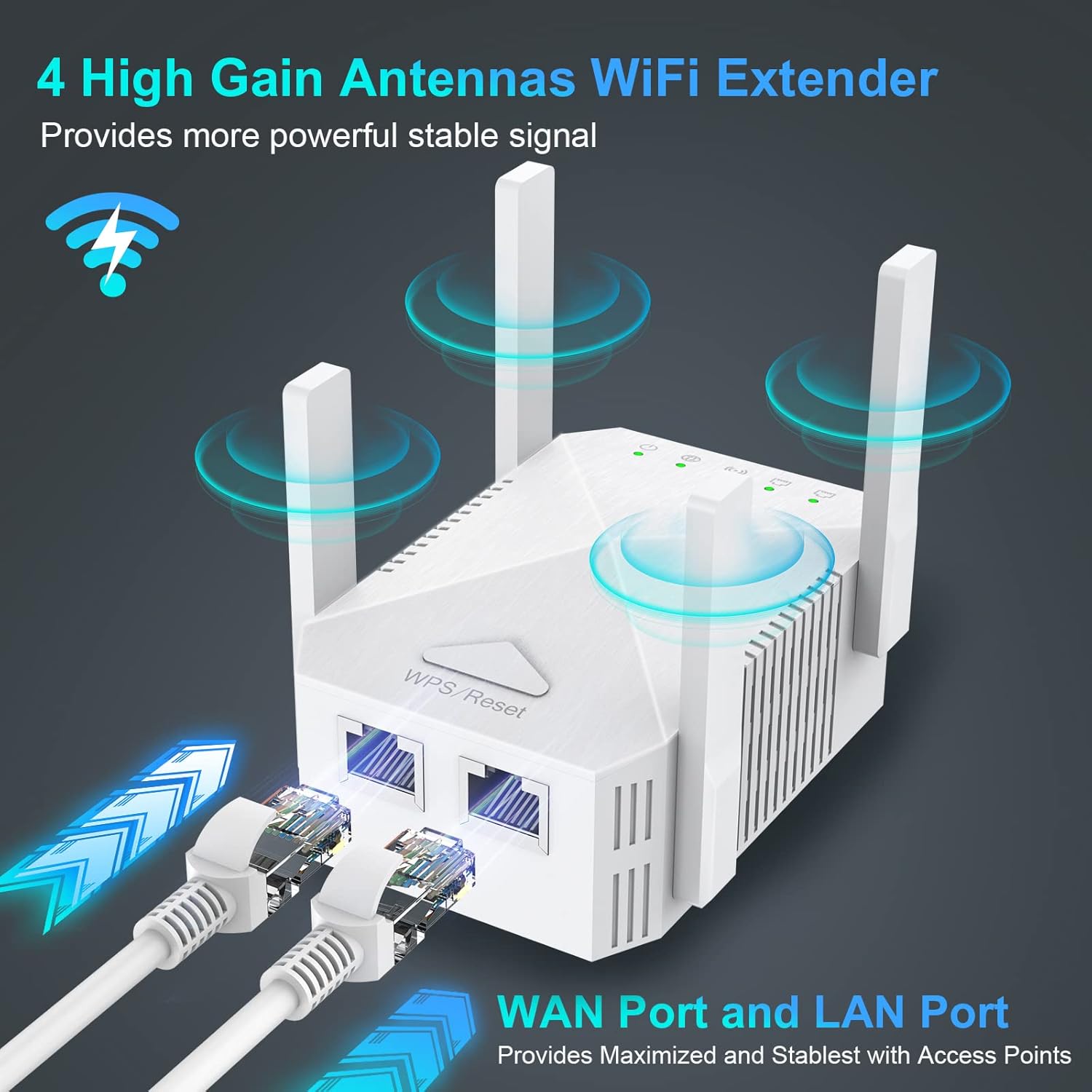
Figure 4.1: Three-in-one mode application.
4.1. Initial Setup Steps (Common to all modes)
- Күйгүзүү: Plug the WiFi Extender into a power outlet near your main router. Wait for the Power LED to turn solid.
- Extender менен туташуу: On your computer or mobile device, connect to the Wi-Fi network broadcast by the extender (e.g., "WiFi_Extender_XXXX"). No password is required initially.
- Орнотуу барагына кирүү: ачуу а web browser and enter the default IP address (usually 192.168.10.1) or the setup URL provided in the quick guide.
- Кирүү: Демейки колдонуучу атын жана сырсөздү киргизиңиз (адатта экөө тең "admin").
- Режимди тандоо: Follow the on-screen wizard to select your desired operating mode (Repeater, AP, or Router).
4.2. Repeater Mode Setup
In Repeater Mode, the extender wirelessly connects to your existing router and rebroadcasts the signal to extend coverage.
- After selecting Repeater Mode, the extender will scan for available Wi-Fi networks.
- Select your main Wi-Fi network (SSID) from the list.
- Enter the Wi-Fi password for your main network.
- You can choose to keep the same SSID for the extended network or create a new one.
- Click "Apply" or "Save" to complete the setup. The extender will restart.
- Once restarted, relocate the extender to a location between your router and the Wi-Fi dead zone. Ensure the Signal Strength LEDs indicate a good connection.
4.3. AP Mode Setup (Access Point)
In AP Mode, the extender connects to your router via an Ethernet cable and creates a new wireless network, converting a wired network into a wireless one.
- Connect an Ethernet cable from your main router's LAN port to the Extender's WAN port.
- Select AP Mode in the setup wizard.
- Configure the new Wi-Fi network's SSID and password.
- "Колдонуу" же "Сактоо" баскычын чыкылдатыңыз. Кеңейткич кайра жүктөлөт.
4.4. Router Mode Setup
In Router Mode, the extender acts as a primary router, connecting directly to your modem and creating a new Wi-Fi network.
- Connect an Ethernet cable from your modem to the Extender's WAN port.
- Select Router Mode in the setup wizard.
- Choose your internet connection type (e.g., PPPoE, Dynamic IP, Static IP) and enter necessary details provided by your ISP.
- Configure the new Wi-Fi network's SSID and password.
- "Колдонуу" же "Сактоо" баскычын чыкылдатыңыз. Кеңейткич кайра жүктөлөт.
5. Кеңейтүүчүнү иштетүү
Once configured, the Edtiske WiFi Extender operates automatically. For optimal performance, consider the following:
- Жайгашкан жери: For Repeater Mode, place the extender roughly halfway between your main router and the area where you need improved Wi-Fi. Avoid placing it near large metal objects, concrete walls, or other electronic devices that may cause interference.
- Сигнал күчү: Monitor the Signal Strength LEDs on the extender. Green indicates a strong connection, yellow indicates a fair connection, and red indicates a weak or no connection. Adjust placement if necessary.
- Зымдуу байланыштар: Use the LAN port to connect wired devices for maximum stability and speed, especially for gaming consoles, smart TVs, or desktop computers.

Figure 5.1: Extended WiFi coverage throughout a property.

Figure 5.2: Wide compatibility with up to 45 connected devices.

Figure 5.3: Extending WiFi to every corner of the house.
6. Техникалык тейлөө
To ensure the longevity and optimal performance of your Edtiske WiFi Extender, follow these maintenance guidelines:
- Тазалыкты сактоо: Regularly wipe the device with a soft, dry cloth. Do not use liquid cleaners or aerosols.
- Вентиляция: Желдетүүчү тешиктердин бүтөлүп калбагандыгын текшериңиз. Туура аба агымы ысып кетүүдөн сактайт.
- Программалык камсыздоонун жаңыртуулары: Мезгил-мезгили менен өндүрүүчүнүн текшерүү webмикропрограммалык камсыздоону жаңыртуу сайты. Жаңыртуулар иштин натыйжалуулугун жакшыртып, функцияларды кошуп, каталарды оңдой алат.
- Power Cycle: If you experience intermittent issues, try unplugging the extender from the power outlet for 10 seconds and then plugging it back in. This can resolve minor glitches.
- Экологиялык шарттар: Аппаратты экстремалдык температурага, нымдуулукка же тике күн нуруна тийгизүүдөн сактаңыз.
7. Кыйынчылыктарды
Эгер сиз WiFi Extender менен көйгөйлөргө туш болсоңуз, төмөнкү кеңири таралган көйгөйлөрдү жана чечимдерди караңыз:
- Орнотуудан кийин интернетке кирүү мүмкүн эмес:
- Ensure the extender is receiving a strong signal from your main router (check Signal Strength LEDs).
- Орнотуу учурунда киргизилген Wi-Fi сырсөзүнүн туура экенин текшериңиз.
- Негизги роутериңизди жана кеңейтүүчүнү өчүрүп көрүңүз.
- If in Repeater Mode, ensure your main router is broadcasting both 2.4GHz and 5GHz bands if you intend to extend both. Note that some users have reported that in Repeater Mode, the extender may primarily communicate with the router on the 2.4GHz band, potentially limiting overall speed even if the extender broadcasts a 5GHz network.
- Cannot Access Setup Page:
- Ensure your device is connected to the extender's Wi-Fi network (not your main router's).
- Браузериңиздин кэшин тазалаңыз же башка браузерди колдонуп көрүңүз.
- Verify the IP address or URL туура.
- Жай ылдамдыктар:
- Relocate the extender closer to your main router to improve signal strength.
- Кеңейткичти башка электрондук түзүлүштөрдөн алыстатуу менен тоскоолдуктарды азайтыңыз.
- Ensure your main router is providing adequate internet speed.
- Consider using a wired connection via the LAN port for critical devices.
- Тез-тез өчүрүүлөр:
- Микропрограмма жаңыртууларын текшериңиз.
- Perform a factory reset (press and hold the WPS/Reset button for 10 seconds) and reconfigure the extender.
- Ensure the extender is not placed in an area with too many physical obstructions.
8. Техникалык шарттар
| Өзгөчөлүк | Description |
|---|---|
| Бренд | Edtiske |
| Модель номери | Ак |
| Продукциянын өлчөмдөрү | 3.45 x 2.24 x 1.18 дюйм |
| Элемент Салмагы | 4.2 унция |
| Зымсыз байланыш стандарты | 802.11ac |
| Маалыматтарды өткөрүү ылдамдыгы | 1200 Мегабит секундасына |
| Жыштык тилкесинин классы | Кош тилкелүү (5 ГГц/2.4 ГГц) |
| Туташтыргыч түрү | RJ45 (WAN/LAN) |
9. Кепилдик жана колдоо
The Edtiske WiFi Extender typically comes with a manufacturer's warranty. Please refer to the warranty information provided in the original packaging or contact the seller/manufacturer directly for details regarding warranty claims and technical support. Keep your purchase receipt as proof of purchase.