
Hexgears GK715
Hexgears GK715 Mechanical Gaming Keyboard User Manual
Model: GK715 | Brand: Hexgears
1. Киришүү
This manual provides comprehensive instructions for the setup, operation, and maintenance of your Hexgears GK715 Mechanical Gaming Keyboard. Designed for both office and gaming use, this 104-key full-size wired keyboard features hot-swappable Kailh Box mechanical switches, durable ABS double-shot keycaps, and white backlighting.
Please read this manual thoroughly to ensure proper use and to maximize your keyboard's performance and lifespan.
2. Продукт бүтүп калдыview
The Hexgears GK715 is a robust mechanical keyboard built for precision and durability. Key features include:
- 104-Key Full-Size Layout: Provides a complete set of keys, including a numeric keypad, suitable for various tasks.
- Kailh Box Mechanical Switches: Offers accurate tactile and audio feedback for an enhanced typing experience.
- Ысык алмаштырылуучу PCB: Allows for easy replacement of 3-pin switches without soldering, enabling customization of typing feel and sound.
- Durable ABS Double-Shot Keycaps: Engineered for longevity and resistance to wear.
- Ак түстөгү арткы жарыктандыруу: Features various static backlight modes for improved visibility and aesthetics.
- Эргономикалык дизайн: Includes adjustable feet for comfortable typing angles.
- Зымдуу туташуу: Ensures stable and responsive performance.

Figure 2.1: Hexgears GK715 Mechanical Gaming Keyboard with pink and white keycaps.
3. Орнотуу
Follow these steps to set up your Hexgears GK715 keyboard:
- Баскычтопту таңгактан чыгаруу: Баскычтопту жана башка аксессуарларды таңгактан этияттык менен алып салыңыз.
- Түзмөгүңүзгө туташуу: The Hexgears GK715 is a wired keyboard. Connect the USB cable from the keyboard to an available USB port on your computer (PC, laptop, or compatible device).
- Драйверди орнотуу: Your operating system (Windows, macOS, Android) should automatically detect and install the necessary drivers. No manual driver installation is typically required.
- Баскычтоп буттарын тууралоо: For ergonomic comfort, you can adjust the two-stage feet on the underside of the keyboard to your preferred typing angle.

3.1-сүрөт: Каптал view of the keyboard demonstrating the adjustable feet for ergonomic positioning.
Video 3.1: Official Hexgears video demonstrating the wired connection and basic usage of the GK715 Mechanical Keyboard.
4. Иштөө нускамалары
4.1 Негизги функциялар
The keyboard operates as a standard 104-key layout. Simply plug it in, and it's ready for use.
4.2 Жарыкты башкаруу
The Hexgears GK715 features white backlighting with multiple modes. Use the function (Fn) key combinations to control the backlight:
- Арткы жарык режимдерин өзгөртүү: Басыңыз Fn + Кыстаруу to cycle through various static backlight patterns.
- Жарыктыкты жөндөө: Колдонуу Fn + Өйдө жебе жарыктыгын жогорулатуу жана Fn + Төмөн жебе жарыктыгын азайтуу үчүн.
- Арткы жарыкты күйгүзүү/өчүрүү: Specific key combinations may vary, but typically Fn + Light Key (often located near the arrow keys or F-row) can toggle the backlight.
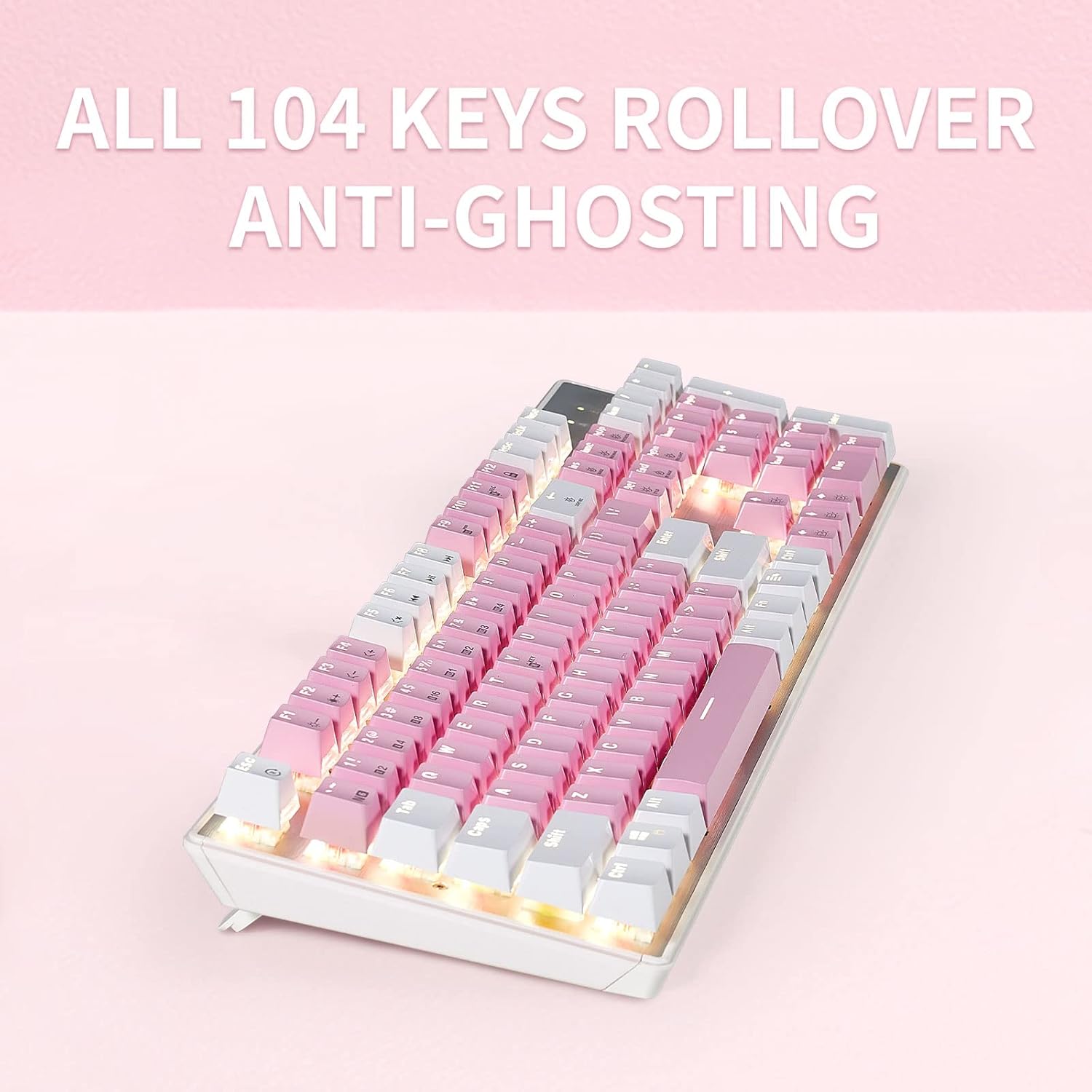
Figure 4.1: The white backlighting illuminates the keycaps, enhancing visibility.
4.3 N-Key оодарылып кетүү (NKRO)
The keyboard supports N-Key Rollover, which means every key press is registered independently, preventing ghosting even when multiple keys are pressed simultaneously. This feature is crucial for fast-paced gaming and typing.
- Toggle NKRO/6-Key Rollover: To switch between N-Key Rollover and 6-Key Rollover (for compatibility reasons), press Fn + Backtick (`). The default setting is usually NKRO.
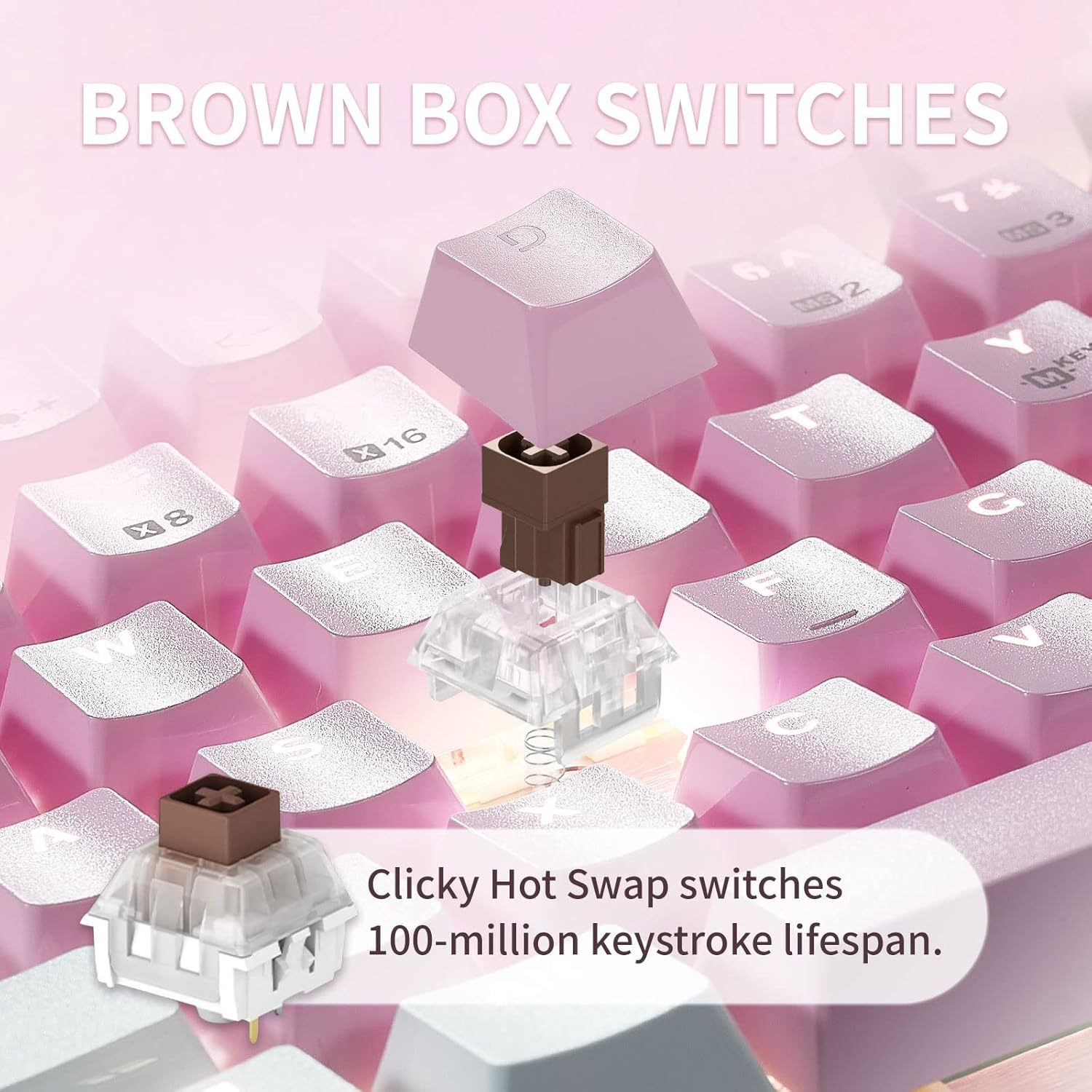
Figure 4.2: Illustration of the keyboard's full N-Key Rollover capability.
5. Техникалык тейлөө
5.1 Баскычтопту тазалоо
- Жалпы тазалоо: Use a soft, dry cloth to wipe down the keycaps and keyboard surface. For deeper cleaning, a slightly damp клавиатурага суюктук кирбеши үчүн жумшак самын менен кездеме колдонсо болот.
- Чаңды тазалоо: Баскыч капкактарынын ортосундагы чаңды жана калдыктарды тазалоо үчүн кысылган абаны колдонуңуз.
5.2 Баскычтын капкагын жана которгучту алмаштыруу
The Hexgears GK715 features hot-swappable switches and durable double-shot ABS keycaps, allowing for easy customization and maintenance.
- Баскыч капкактарын алып салуу: Use the included keycap puller tool to gently remove keycaps. Hook the tool onto the keycap and pull upwards evenly.
- Которгучтарды алып салуу: After removing the keycap, use the included switch puller tool. Squeeze the tabs on the top and bottom of the switch and pull upwards.
- Installing Switches/Keycaps: Align the new switch with the holes on the PCB and press down firmly until it clicks into place. Then, align the keycap and press down.

Figure 5.1: Double-shot ABS keycaps are designed for durability and clear backlighting.

Figure 5.2: Kailh Box mechanical switches provide a consistent and reliable typing experience.
6. Кыйынчылыктарды
| Көйгөй | Мүмкүн себеп | Чечим |
|---|---|---|
| Баскычтоп жооп бербей жатат | Бош USB туташуу, туура эмес USB порт, драйвер маселеси. |
|
| Keys are not registering or are "ghosting" | NKRO setting, software conflict, dirty switch, faulty switch. |
|
| Арткы жарык иштебей жатат же туура эмес | Backlight turned off, brightness set to minimum, software issue. |
|
| Sticking space bar or other keys | Debris under keycap/switch, misaligned stabilizer, faulty switch. |
|
7. Техникалык шарттар
| Өзгөчөлүк | Деталь |
|---|---|
| Продукциянын өлчөмдөрү | 17 x 1.42 x 5 дюйм |
| Элемент Салмагы | 2.66 фунт |
| Өндүрүүчү | HEXGEARS |
| Шайкеш түзмөктөр | PC (Windows, macOS, Android) |
| Байланыш технологиясы | USB (Зымдуу) |
| Keyboard Description | Оюн-зоок, механикалык |
| Өзгөчөлүктөр | Ergonomic, Hot-Swappable Switches, White Backlit |
| Түс | PinkWhite |
| Материал | Aluminum, Polybutylene Terephthalate (ABS Keycaps) |
| Камтылган компоненттер | Keycap Puller, Switch Puller |
8. Кепилдик жана колдоо
For warranty information and technical support, please refer to the official Hexgears webсайтка же түздөн-түз кардарларды тейлөөгө кайрылыңыз. Сатып алуу квитанциясын кепилдик дооматтары үчүн сатып алуунун далили катары сактаңыз.
You can visit the Hexgears Store for more information: Hexgears Store on Amazon
Ask a question about this manual
Ask about setup, troubleshooting, compatibility, parts, safety, or missing instructions. Manuals+ will review the question and use this page’s manual context to help answer it.