
1. Киришүү
This manual provides detailed instructions for the Hexgears GK715 Mechanical Gaming Keyboard. Please read this manual thoroughly before using the product to ensure proper operation and to maximize your experience.

Image 1.1: The Hexgears GK715 Mechanical Gaming Keyboard.
2. Негизги өзгөчөлүктөрү
- 104-Ачкыч жайгашуусу: Full-size keyboard for comprehensive functionality.
- Kailh Box Switches: Durable and responsive mechanical switches.
- Blue Backlighting: Enhances visibility and aesthetic appeal.
- Ысык алмаштырылуучу дизайн: Ширетпестен өчүргүчтү оңой алмаштырууга мүмкүндүк берет.
- Double Shot ABS Keycaps: Ensures legends do not fade over time and provides a premium feel.
- Арбактарга каршы: Бир эле учурда бир нече баскычты басуунун так каттоосун кепилдейт.
- Суу өткөрбөй турган курулуш: Provides protection against accidental spills.

Image 2.1: The GK715 keyboard showcasing its 104-key layout and anti-ghosting capability.

Сүрөт 2.2: Детальдуу view of the double-shot ABS keycaps and blue backlighting on the GK715 keyboard.
3. Орнотуу
- Баскычтопту таңгактан чыгаруу: Carefully remove the Hexgears GK715 keyboard from its packaging.
- Компьютерге туташуу: Plug the USB cable from the keyboard into an available USB port on your computer. The keyboard is a corded electric device and requires a USB connection.
- Драйверди орнотуу: Операциялык системаңыз керектүү драйверлерди автоматтык түрдө аныктап, орнотушу керек. Адатта, кошумча программалык камсыздоону орнотуунун кажети жок.
- Баскычтоптун бурчун тууралоо: The keyboard features dual-segment foot support. Adjust the feet on the underside of the keyboard to your preferred typing angle for ergonomic comfort.
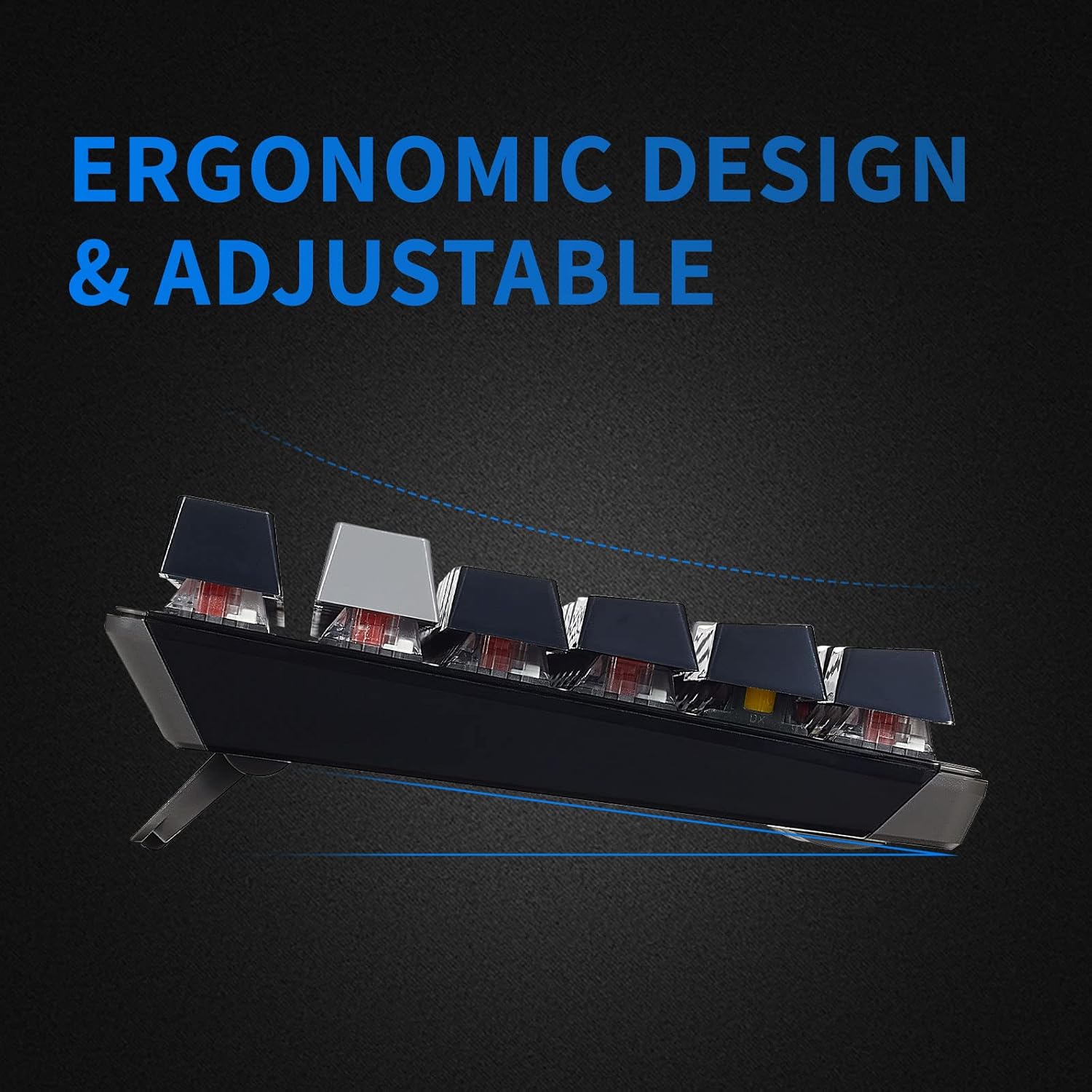
Image 3.1: The adjustable feet of the GK715 keyboard, allowing for ergonomic customization.

Image 3.2: The GK715 keyboard in a typical computer setup, demonstrating its wired connection and blue backlighting.
4. Иштөө нускамалары
4.1 Негизги колдонуу
The Hexgears GK715 functions as a standard 104-key mechanical keyboard. Simply begin typing after connecting it to your PC. The indicator lights (Caps Lock, Num Lock, Scroll Lock) will illuminate to show their active status.
4.2 Жарыкты башкаруу
The keyboard features blue backlighting. Specific key combinations (often involving the 'Fn' key) are used to adjust brightness or switch between lighting modes. Refer to the keycap legends for specific function key assignments related to lighting.
4.3 Ыкчам алмаштыруучу которгучтар
The GK715 supports hot-swappable Kailh Box switches, allowing you to change switches without soldering. Use the included keycap puller and switch puller tools for this process.
- Каалаган клавиатураны акырын алып салуу үчүн клавиатура тарткычын колдонуңуз.
- Use the switch puller to carefully grip and pull out the switch from the PCB.
- Жаңы которгучтун төөнөгүчтөрүн платадагы тешиктер менен тегиздеп, ал ордуна чыкылдаганча бекем басыңыз.
- Баскыч капкагын алмаштырыңыз.
Video 4.1: Demonstration of hot-swapping Kailh Box switches on the Hexgears GK715 keyboard, including keycap and switch removal and installation.
Видео 4.2: Бүттүview of the GK715 Black Grey keyboard, showcasing its design, backlighting, and typing experience.
5. Техникалык тейлөө
5.1 Тазалоо
To clean the keyboard, disconnect it from your computer. Use a soft, dry cloth to wipe down the keycaps and chassis. For deeper cleaning, you may remove keycaps using a keycap puller and clean underneath with compressed air or a small brush. Avoid using harsh chemicals or abrasive materials.
5.2 Суу өткөрбөөчү өзгөчөлүк
The GK715 is designed with waterproof features to protect against accidental spills. While it offers protection, it is not recommended to submerge the keyboard in liquid. In case of a spill, disconnect the keyboard immediately, wipe off any liquid, and allow it to air dry completely before reconnecting.
6. Кыйынчылыктарды
- Баскычтоп жооп бербейт:
- USB кабели клавиатурага жана компьютерге бекем туташып турганын текшериңиз.
- Баскычтопту башка USB портуна сайып көрүңүз.
- Компьютериңизди өчүрүп күйгүзүңүз.
- Backlight Not Working/Dim:
- Check if the backlight is turned off or set to the lowest brightness level using the designated function keys (e.g., Fn + arrow keys or other indicated keys).
- Баскычтоп USB портунан жетиштүү кубат алып жатканын текшериңиз.
- Катталбаган ачкычтар:
- If individual keys are not working, ensure the switch underneath is properly seated. If you have hot-swapped switches, try re-seating or replacing the affected switch.
- Clean any debris that might be under the keycap or switch.
- Connection Issues After Sleep Mode:
- If the keyboard experiences connection issues after the computer enters sleep mode, try unplugging and re-plugging the USB cable.
- Ensure your computer's USB power management settings are not set to turn off USB devices to save power.
7. Техникалык шарттар
| Өзгөчөлүк | Деталь |
|---|---|
| Бренд | Hexgears |
| Модель аты | GK715 |
| Байланыш технологиясы | USB (зымдуу электр) |
| Шайкеш түзмөктөр | PC |
| Ачкычтардын саны | 104 |
| Которуу түрү | Kailh BOX |
| Өзгөчө өзгөчөлүк | Waterproof, Hot-Swappable |
| Продукциянын өлчөмдөрү (L x W x Y) | 17.2" x 5.08" x 1.42" |
| Колдун багыты | Эки тараптуу |

Сүрөт 7.1: Бүттүview of various Kailh BOX switch types, highlighting their tactile and linear characteristics.
8. Кепилдик жана колдоо
For warranty information and technical support, please refer to the official Hexgears webсайтка же түздөн-түз кардарларды тейлөөгө кайрылыңыз. Сатып алуу квитанциясын кепилдик дооматтары үчүн сатып алуунун далили катары сактаңыз.