
1. Киришүү
Welcome to the BOSGAME H77 Mini PC user manual. This guide provides essential information for setting up, operating, maintaining, and troubleshooting your new mini PC. Please read this manual thoroughly to ensure proper usage and to maximize the performance and longevity of your device.
2. Продукт бүтүп калдыview
The BOSGAME H77 is a compact yet powerful mini PC designed for a wide range of applications, from daily productivity to light gaming. It features an AMD Ryzen 7 7735HS processor, 32GB DDR5 RAM, and a 512GB NVMe M.2 SSD, offering high performance in a small form factor.

Figure 2.1: Powerful Performance. This image illustrates the core specifications of the BOSGAME H77 Mini PC, emphasizing its AMD Ryzen 7 7735HS processor with 8 cores, 16 threads, a clock speed range of 3.2 to 4.75GHz, and a Thermal Design Power (TDP) of 35W. A benchmark comparison for Cinebench R23 (Multi-Core) is also shown, positioning the 7735HS favorably against other Ryzen models.

Figure 2.2: Speedy Response. This image highlights the gaming capabilities of the BOSGAME H77 Mini PC, powered by AMD Radeon 680M integrated graphics. It displays estimated frames per second (FPS) for popular games such as League of Legends (148.0 FPS), Fortnite (132.0 FPS), CS:GO (135.0 FPS), Grand Theft Auto (98.0 FPS), and DOTA 2 (178.0 FPS), indicating smooth performance. The image also notes the system's 32GB DDR5 RAM, 512GB SSD, and support for up to 2TB HDD.

Figure 2.3: Triple Screen Display Support. This image demonstrates the BOSGAME H77 Mini PC's ability to support up to three displays simultaneously. It features two HDMI 2.0 ports and one Type-C (USB4.0) port, allowing for a versatile multi-monitor setup suitable for daily tasks, work, and entertainment. Key features like Wi-Fi 6, Bluetooth 5.2, cooling fan with heat sink, and 4K 60Hz support are also highlighted.
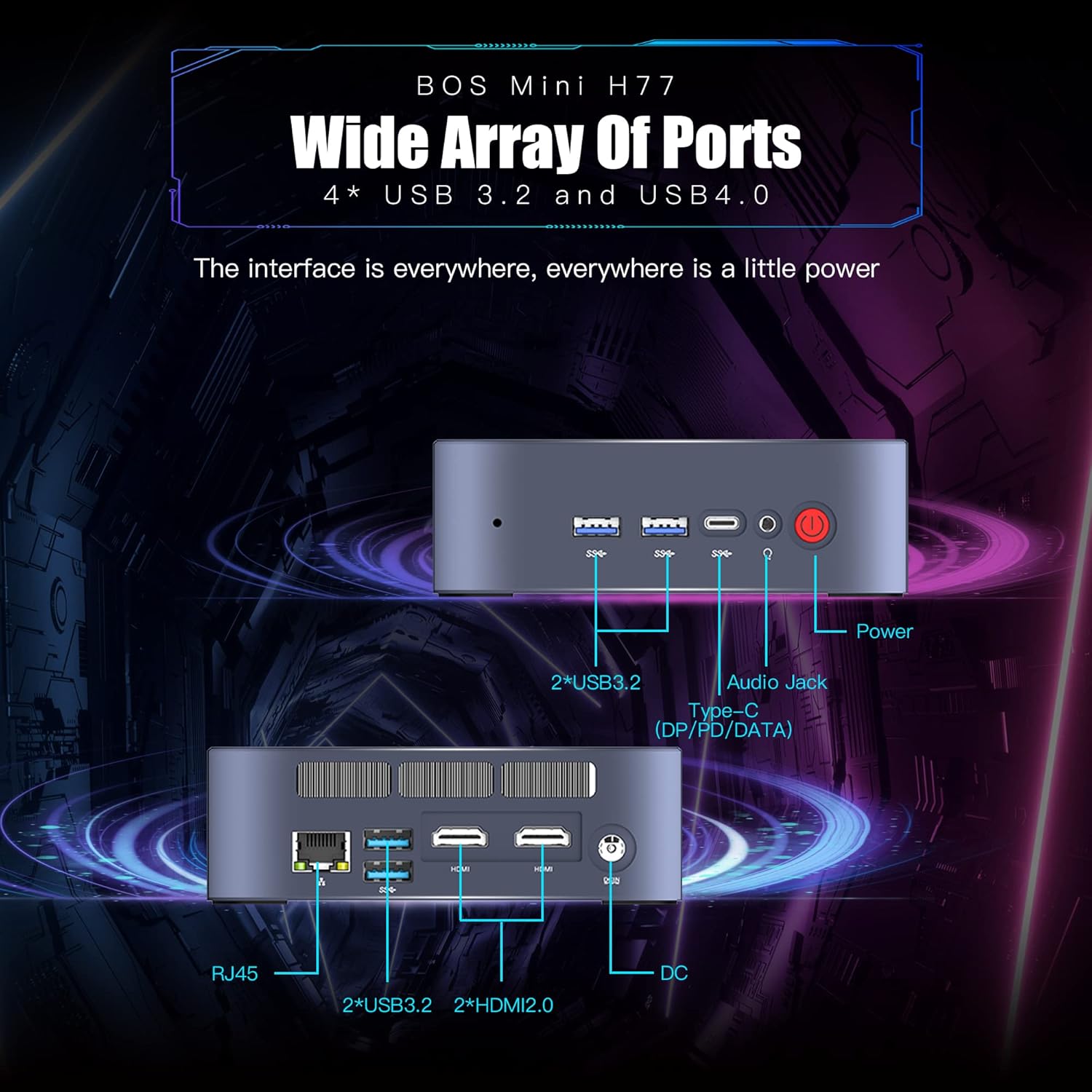
Figure 2.4: Wide Array of Ports. Бул сүрөт майда-чүйдөсүнө чейин камсыз кылат view of the BOSGAME H77 Mini PC's connectivity options. The front panel includes two USB 3.2 ports, one USB4.0 Type-C port (supporting DP/PD/DATA), an audio jack, and the power button. The rear panel features an RJ45 Ethernet port, two additional USB 3.2 ports, two HDMI 2.0 ports, and the DC power input. This comprehensive selection of ports ensures broad compatibility with various peripherals and displays.

2.5-сүрөт: Компакттуу дизайн. This image emphasizes the compact and space-saving design of the BOSGAME H77 Mini PC. With a 0.6L body and dimensions of 126mm (length), 112mm (width), and 40.8mm (height), its honeycomb design is both aesthetically pleasing and functional, allowing it to fit into various environments without occupying much space.
3. Орнотуу колдонмосу
3.1 Пакеттин мазмуну
Улантуудан мурун, пакетте бардык элементтер бар экенин текшериңиз:
- BOSGAME H77 Mini PC
- Кубаттуу адаптер
- HDMI кабели
- Колдонуучунун Колдонмосу (бул документ)
3.2 Перифериялык түзүлүштөрдү туташтыруу
- Дисплейди туташтыруу: Use the provided HDMI cable to connect your monitor to one of the HDMI ports on the rear of the Mini PC. For triple display, connect additional monitors using the second HDMI port and the USB4.0 Type-C port (requires a compatible adapter, not included).
- Баскычтоп менен чычканды туташтыруу: Plug your USB keyboard and mouse into any available USB 3.2 ports on the front or rear of the Mini PC.
- Туташуу кубаты: Connect the power adapter to the DC input port on the rear of the Mini PC, then plug the adapter into a power outlet.
- Тармакка туташуу (милдеттүү эмес): For a wired connection, plug an Ethernet cable into the RJ45 port on the rear. For wireless, ensure Wi-Fi is enabled during initial setup or via Windows settings.
3.3 Баштапкы жүктөө
- Press the power button on the front of the Mini PC. The power indicator light will illuminate.
- Follow the on-screen instructions to complete the Windows 11 Pro setup. This typically involves selecting your region, language, creating a user account, and connecting to a network.
4. Иштөө нускамалары
4.1 Күйгүзүү/өчүрүү
- Күйгүзүү: Кубат баскычын бир жолу басыңыз.
- Өчүрүү: Click the Windows Start button, then select Power > Shut down. Do not unplug the power adapter directly without proper shutdown to prevent data loss.
- Кайра баштоо: Windows Start баскычын чыкылдатып, андан кийин Кубат > Кайра баштоону тандаңыз.
4.2 Тармакка туташуу
- Wi-Fi: To connect to a wireless network, click the Wi-Fi icon in the taskbar, select your desired network, and enter the password. The device supports Wi-Fi 6 for fast wireless speeds.
- Ethernet: If an Ethernet cable is connected, the system will automatically detect and connect to the wired network.
- Bluetooth: To connect Bluetooth devices (e.g., headphones, speakers), go to Windows Settings > Bluetooth & devices, and pair your device. The Mini PC supports Bluetooth 5.2.
4.3 USB портторун колдонуу
The BOSGAME H77 features multiple USB 3.2 ports and a versatile USB4.0 Type-C port. These ports can be used for connecting external storage, peripherals, or for data transfer.
- USB 3.2: Provides high-speed data transfer for compatible devices.
- USB4.0 Type-C: This port supports DisplayPort (DP) for video output, Power Delivery (PD) for charging compatible devices, and high-speed data transfer.
4.4 Triple Display Setup
To utilize the triple display feature:
- Connect your primary monitor to one HDMI port.
- Connect your second monitor to the other HDMI port.
- Connect your third monitor to the USB4.0 Type-C port using a compatible USB-C to DisplayPort or USB-C to HDMI adapter (sold separately).
- Once connected, right-click on the desktop, select "Display settings," and configure your displays (extend, duplicate, etc.) as needed.
5. Техникалык тейлөө
5.1 Cleaning the Mini PC
Regular cleaning helps maintain optimal performance and extends the lifespan of your device.
- Сырткы: Сырткы беттерди аарчуу үчүн жумшак, кургак, мамыксыз чүпүрөктү колдонуңуз. Өжөр тактар үчүн бир аз сүртүңүзampчүпүрөктү суу менен. Катуу химиялык заттардан алыс болуңуз.
- Вентиляция: Periodically use compressed air to clear dust from the ventilation grilles to ensure proper airflow and prevent overheating.
5.2 Программалык камсыздоо жаңыртуулары
Keep your Windows 11 Pro operating system and drivers updated to ensure security, stability, and performance.
- Windows жаңыртуулары: Go to Windows Settings > Windows Update and check for available updates.
- Драйвер жаңыртуулары: Visit the BOSGAME official website for the latest drivers for your H77 Mini PC.
5.3 Сактагычты башкаруу
The 512GB NVMe M.2 SSD provides fast storage. To maintain performance:
- Дайыма керексиз жок кылуу fileлар жана колдонмолор.
- Utilize Windows Disk Cleanup tool to free up space.
- Consider external storage solutions for large files if the internal SSD becomes full.
6. Кыйынчылыктарды
This section addresses common issues you might encounter with your BOSGAME H77 Mini PC.
6.1 Күч жок
- Кубат адаптери Мини компьютерге жана иштеген электр розеткасына бекем туташып турганын текшериңиз.
- Башка аспапка сайып, розетка иштеп жатканын текшериңиз.
- Электр адаптеринде көрүнгөн зыяндын бар-жоктугун текшериңиз.
6.2 Дисплей жок
- Confirm the HDMI cable (or USB-C display cable) is securely connected to both the Mini PC and the monitor.
- Ensure the monitor is powered on and set to the correct input source (HDMI 1, HDMI 2, DisplayPort, etc.).
- Try connecting the Mini PC to a different monitor or TV to rule out monitor issues.
6.3 Тармакка туташуу маселелери
- Wi-Fi: Check if Wi-Fi is enabled in Windows settings. Restart your router/modem. Ensure you are within range of your Wi-Fi network.
- Ethernet: Verify the Ethernet cable is properly connected. Check your router/modem for internet access.
6.4 System Slowdown or Freezing
- Фондо иштеп жаткан керексиз тиркемелерди жабыңыз.
- CPU, RAM же дискти көп колдонгон процесстер үчүн Task Manager (Ctrl+Shift+Esc) функциясын текшериңиз.
- Ensure your system is up-to-date with the latest Windows and driver updates.
- Дискти тазалап, зыяндуу программаларды текшериңиз.
Бул жерде каралбаган маселелерге туш болсоңуз, кошумча жардам алуу үчүн колдоо бөлүмүнө кайрылыңыз.
7. Техникалык шарттар
| Өзгөчөлүк | Спецификация |
|---|---|
| Бренд | BOSGAME |
| Модель номери | H77 |
| Операция системасы | Windows 11 Pro |
| CPU модели | AMD Ryzen 7 7735HS (8 Cores, 16 Threads) |
| CPU ылдамдыгы | Up to 4.75 GHz (Base 3.2 GHz) |
| Графикалык сопроцессор | Интеграцияланган AMD Radeon 680M графикасы |
| RAM эстутум орнотулган өлчөмү | 32 ГБ DDR5 SDRAM |
| Эстутум Slots Жеткиликтүү | 2 |
| Hard Disk Description | 512 ГБ NVMe M.2 SSD |
| Видео чыгаруу интерфейси | 2x HDMI, 1x USB4.0 Type-C (DP support) |
| Дисплейдин максималдуу чечилиши | 3840 x 2160 пиксел (4K) |
| Жалпы USB порттору | 4x USB 3.2, 1x USB4.0 Type-C |
| Байланыш технологиясы | Ethernet, HDMI, LAN, Wi-Fi |
| Зымсыз шайкештик | Wi-Fi 6 (802.11ax), Bluetooth 5.2 |
| Муздатуу ыкмасы | Аба |
| Түс | Кара |
| Кошумча функциялар | Memory Card Reader |
8. Кепилдик жана колдоо
Your BOSGAME H77 Mini PC comes with a standard manufacturer's warranty. Please refer to the warranty card included in your package for specific terms and conditions, including warranty duration and coverage details.
For technical support, troubleshooting assistance, or warranty claims, please visit the official BOSGAME webсайтка же кардарларды тейлөөгө кайрылыңыз. Сатып алуу дүмүрчөгүңүздүн жана продуктунун сериялык номерин колдоо издеп жатканда колдо болуңуз.