
Keenetic KN-2112-01TR
Keenetic Extra DSL AC1200 Wi-Fi Mesh VDSL2/ADSL2+ Модем Гигабит була роутеринин колдонуучу колдонмосу
Model: KN-2112-01TR
Introduction
This manual provides comprehensive instructions for the setup, operation, maintenance, and troubleshooting of your Keenetic Extra DSL AC1200 Wi-Fi Mesh VDSL2/ADSL2+ Modem Gigabit Fiber Router. Please read this manual carefully before using the device to ensure optimal performance and safety.
The Keenetic Extra DSL AC1200 is a versatile networking device designed to provide high-speed internet access and robust Wi-Fi coverage. It supports VDSL2/ADSL2+ connections and features Gigabit Ethernet ports for wired connectivity, along with dual-band Wi-Fi for seamless wireless networking.
Пакеттин мазмуну
Орнотууну улантуудан мурун, пакетте бардык буюмдар бар экенин текшериңиз:
- Keenetic Extra DSL AC1200 Router (KN-2112-01TR)
- Кубаттуу адаптер
- Ethernet кабели
- DSL кабели
- Тез баштоо боюнча колдонмо (Бул колдонмо толук колдонмо катары кызмат кылат)
Физикалык бүттүview
Familiarize yourself with the various ports and indicators on your Keenetic Extra DSL router.

1-сүрөт: Алдыңкы жагы view of the Keenetic Extra DSL AC1200 Router, showing its compact design and antenna configuration.
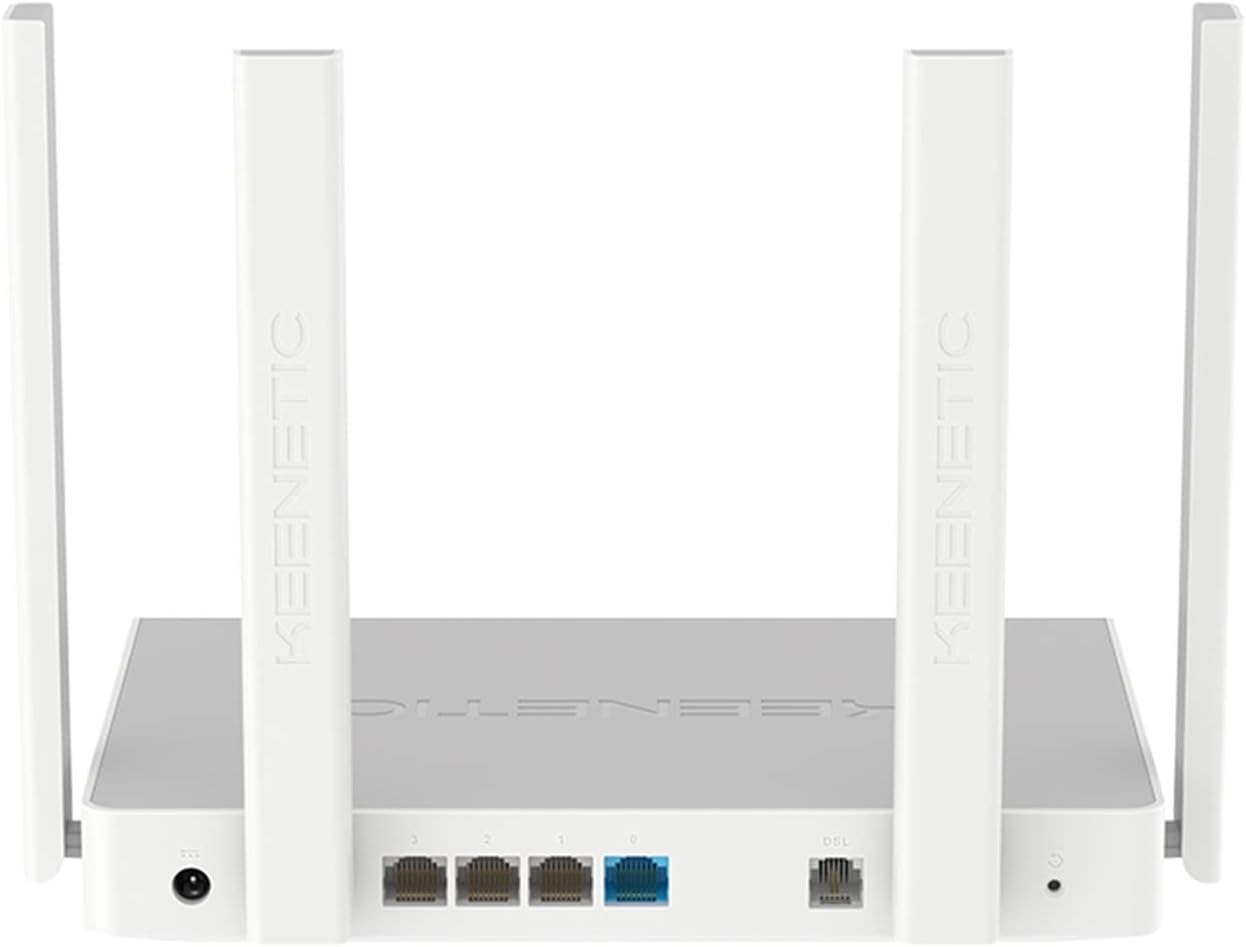
2-сүрөт: Арткы view of the Keenetic Extra DSL AC1200 Router, highlighting the DSL port, four Gigabit Ethernet ports, and the USB 2.0 port.
- DSL порту: Connects to your VDSL2/ADSL2+ line.
- Ethernet порттору (LAN/WAN): Four 1Gbit/s ports for wired devices or WAN connection.
- USB 2.0 порт: For connecting external storage or 3G/4G modems.
- Кубат киргизүү: Берилген кубат адаптерине туташат.
- Калыбына келтирүү баскычы: Заводдун демейки жөндөөлөрүн калыбына келтирүү үчүн колдонулат.
Жайгашуу
1. Аппараттык туташуу
- DSL линиясын туташтыруу: Plug one end of the DSL cable into the DSL port on the router and the other end into your wall's DSL jack.
- Кубатка туташуу: Connect the power adapter to the router's power input and then plug it into a power outlet. The router will power on automatically.
- Зымдуу түзмөктөрдү туташтыруу (кошумча): Use an Ethernet cable to connect your computer or other wired devices to any of the Gigabit Ethernet ports on the router.
- Инициализацияны күтүңүз: Allow a few minutes for the router to boot up and establish a connection. The indicator lights on the front panel will show the status of the connection.
2. Баштапкы конфигурация
The Keenetic Extra DSL features a user-friendly interface for easy setup.
- кирүү Web Интерфейс: ачуу а web browser on a device connected to the router (either wired or wirelessly using the default Wi-Fi name and password found on the router's label). Type
my.keenetic.netor192.168.1.1дарек тилкеси жана басма сөз кириш салып. - Орнотуу устасын аткарыңыз: The first time you access the interface, a setup wizard will guide you through the initial configuration steps, including setting up your internet connection (VDSL/ADSL parameters), Wi-Fi network name (SSID), and password.
- Администратордун сырсөзүн коюңуз: Create a strong administrator password for accessing the router's settings.
- Жөндөөлөрдү сактоо: After configuring, save your settings and restart the router if prompted.
Маршрутизаторду иштетүү
Wi-Fi туташуусу
The router supports dual-band Wi-Fi (2.4 GHz and 5 GHz) for optimal wireless performance.
- Түзмөктөрдү туташтыруу: On your wireless device, search for available Wi-Fi networks. Select your configured network name (SSID) and enter the password.
- Wi-Fi Mesh: This router supports Wi-Fi Mesh technology. For extending coverage, additional Keenetic devices can be added to create a seamless mesh network. Refer to the Keenetic website for detailed instructions on mesh setup.
Advanced Features
The Keenetic OS provides a wide range of features accessible through the web интерфейс:
- Конок Wi-Fi тармагы: Конокторду негизги тармагыңыздан бөлүп коюу үчүн өзүнчө Wi-Fi тармагын түзүңүз.
- Ата-энелик көзөмөл: Белгилүү бир түзмөктөр же колдонуучулар үчүн интернетке кирүүнү башкарыңыз.
- Портту багыттоо: Configure rules for specific applications or services.
- VPN Server/Client: Establish secure connections.
- USB колдонмолору: Utilize the USB 2.0 port for file sharing (FTP/SMB), connecting a printer, or using a 3G/4G USB modem as a backup internet source.
Техникалык тейлөө
- Программалык камсыздоонун жаңыртуулары: Маршрутизатор аркылуу микропрограмма жаңыртууларын дайыма текшерип, орнотуп туруңуз web интерфейс. Жаңыртуулар көбүнчө өндүрүмдүүлүктү жакшыртууларды, коопсуздук патчтарын жана жаңы функцияларды камтыйт.
- Маршрутизатордун жайгашуусу: Wi-Fi камтуусун максималдуу түрдө жогорулатуу үчүн роутерди борбордук жерге, тоскоолдуктардан жана тоскоолдук булактарынан (мисалы, микротолкундуу мештер, зымсыз телефондор) алыс коюңуз.
- Тазалоо: Роутерди таза жана чаңсыз кармаңыз. Тазалоо үчүн жумшак, кургак чүпүрөк колдонуңуз. Суюк тазалоочу каражаттарды колдонбоңуз.
- Кайра иштетилүүдө: Эгер сизде тармак көйгөйлөрү пайда болсо, роутерди өчүрүп күйгүзүп көрүңүз, кубат адаптерин 10 секундга сууруп, анан кайра сайыңыз.
Проблемаларды чечүү
| Көйгөй | Мүмкүн себеп | Чечим |
|---|---|---|
| Интернетке кирүү жок | DSL line not connected, incorrect ISP settings, modem not synced. | Check DSL cable connection. Verify ISP settings in the router's web interface. Restart the router and wait for DSL sync. Contact your ISP if the issue persists. |
| Wi-Fi сигналынын начардыгы | Router placement, interference, too many devices. | Relocate the router to a central, open area. Avoid placing near other electronics. Consider adding a Keenetic Wi-Fi Mesh extender. |
| Роутерге кирүү мүмкүн эмес Web Интерфейс | Incorrect IP address, network configuration issues. | Ensure your device is connected to the router. Try my.keenetic.net or 192.168.1.1. Clear browser cache. Try a different browser. If all else fails, perform a factory reset (see below). |
| Жай Интернет ылдамдыгы | Network congestion, outdated firmware, ISP issues. | Update router firmware. Limit bandwidth-intensive activities. Perform a speed test directly connected to the router. Contact your ISP. |
Заводдук абалга кайтаруу
If you encounter persistent issues, you may need to perform a factory reset. This will erase all custom settings and restore the router to its default configuration.
- Роутер күйүп турганда, аны табыңыз Калыбына келтирүү button (usually a small pinhole button) on the back panel.
- Use a paperclip or a thin object to press and hold the Reset button for approximately 10 seconds until the system LED blinks rapidly.
- Release the button and wait for the router to restart. You will then need to reconfigure the router from scratch.
Техникалык шарттар
| Өзгөчөлүк | Деталь |
|---|---|
| Модель аты | KN-2112-01TR |
| Бренд | Keenetic |
| Зымсыз стандарт | 802.11ac, 802.11n |
| Жыштык тилкесинин классы | Dual Band |
| Негизги өзгөчөлүктөрү | Wi-Fi Mesh, User-Friendly Interface |
| Ethernet порттору | 4 x Gigabit (1Gbit/s) |
| USB порттору | 1 x USB 2.0 |
| Өлчөмдөрү (L x W x Y) | 37 x 28.6 x 6.2 см |
| Салмагы | 1 килограмм |
| Түс | Ак |
| Келип чыккан өлкө | Кытай |
Кепилдик жана колдоо
For warranty information and technical support, please refer to the official Keenetic website or contact Keenetic customer service. Specific warranty terms may vary by region and retailer.
Note: No specific warranty duration or detailed support contact information was provided in the product data. Please consult your purchase documentation or the manufacturer's official resources for the most accurate and up-to-date information.
Ask a question about this manual
Ask about setup, troubleshooting, compatibility, parts, safety, or missing instructions. Manuals+ will review the question and use this page’s manual context to help answer it.