
1. Киришүү
Thank you for choosing the EBTOOLS 2.4G Wireless Keyboard and Mouse combo. This product is designed for comfortable and efficient use with its low-noise operation, adjustable DPI settings, and reliable 2.4G wireless connectivity. This manual provides detailed instructions for setup, operation, and maintenance to ensure optimal performance.
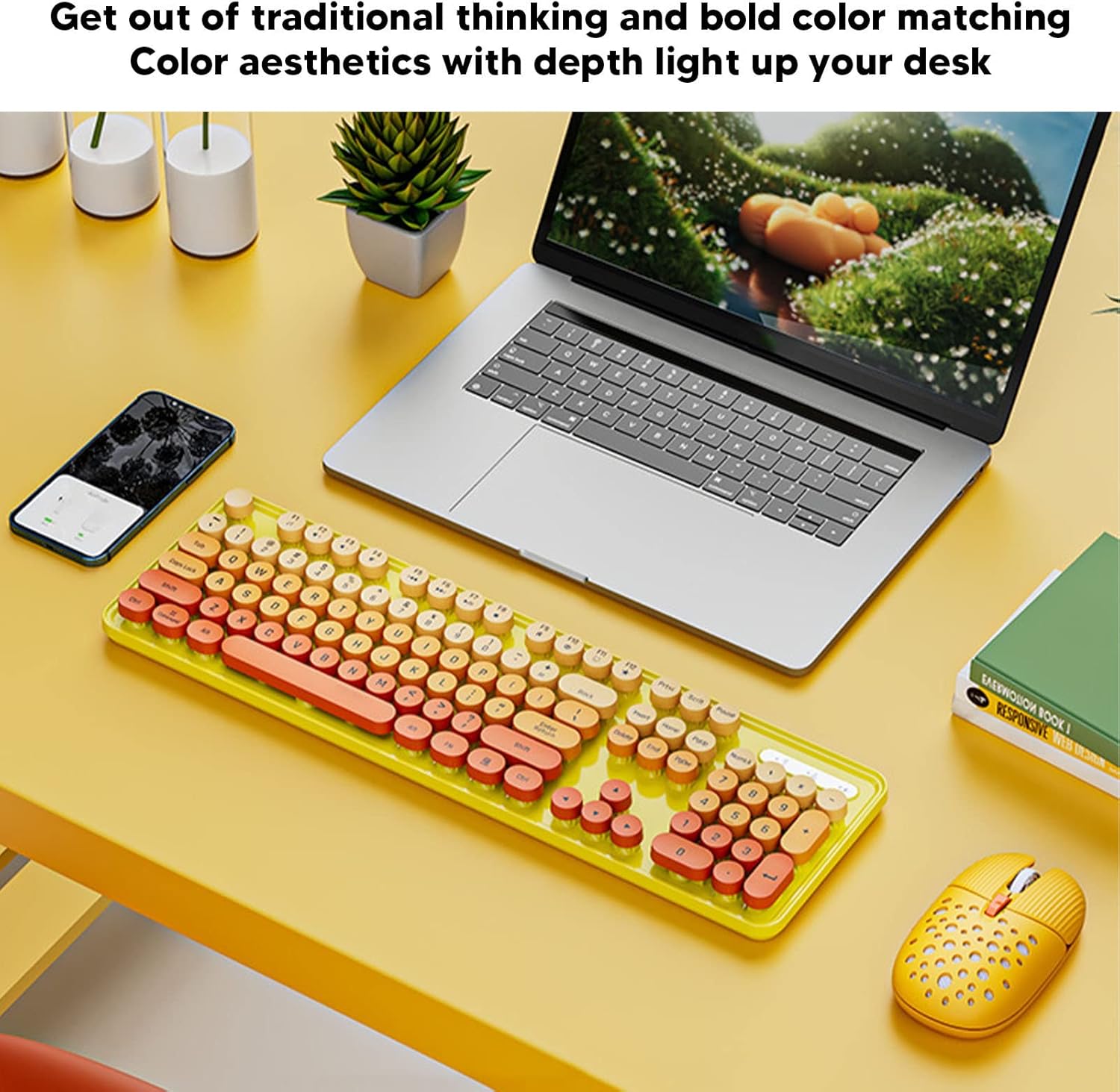
Image: The EBTOOLS 2.4G Wireless Keyboard and Mouse in mixed color yellow, displayed on a desk alongside a laptop and smartphone, showcasinанын дизайны жана компакттуу формасы.
2. Пакеттин мазмуну
- 1 x EBTOOLS 2.4G Wireless Keyboard
- 1 x EBTOOLS 2.4G Wireless Mouse
- 1 x USB Receiver (typically stored in the mouse battery compartment)
- Колдонуучунун Колдонмосу (бул документ)
3. Орнотуу нускамалары
3.1. Батареяны орнотуу
The keyboard and mouse require batteries for operation. Please ensure you have 1 AA battery for the keyboard and 1 AA battery for the mouse (batteries are not included).
- Баскычтоптун астыңкы жагындагы батарея бөлүкчөсүн табыңыз.
- Батарея уясынын капкагын ачыңыз.
- АА батарейканы бөлүмдүн ичиндеги полярдуулук көрсөткүчтөрүнө (+/-) ылайык салыңыз.
- Батарея уясынын капкагын бекем жабыңыз.

Image: The underside of the EBTOOLS keyboard with the battery compartment open, showing where to insert the AA battery.
3.2. USB кабылдагычты туташтыруу
The keyboard and mouse share a single 2.4G USB receiver for wireless connection.
- Locate the USB receiver. It is typically stored in the battery compartment of the mouse for safekeeping.
- USB кабыл алгычты сактоо уячасынан чыгарыңыз.
- Plug the USB receiver into an available USB port on your computer (desktop PC, laptop, etc.).
- Система керектүү драйверлерди автоматтык түрдө аныктап, орнотушу керек. Бул "plug and Play" түзмөгү.

Image: A diagram illustrating the compatibility of the keyboard and mouse with various systems, including desktop PCs, laptops, and other computers, highlighting its plug-and-play functionality.

Image: An illustration demonstrating the 2.4G wireless connection mode for the keyboard and mouse, emphasizing the ability to connect two devices wirelessly with a single receiver.
4. Иштөө нускамалары
4.1. Adjusting Mouse DPI
The mouse features three adjustable DPI (Dots Per Inch) settings to suit your preference and task requirements. You can cycle through these settings by pressing the DPI button, usually located near the scroll wheel on the mouse.
- 800н/д: Suitable for precise tasks or slower cursor movement.
- 1600н/д: Standard setting for general use.
- 2400н/д: Ideal for faster cursor movement, such as gaming or navigating large screens.
4.2. Using Multimedia Keys
The keyboard is equipped with 18 multimedia keys for quick access to various functions. These keys are typically activated by pressing the Fn key in combination with the corresponding function key (F1-F12) or dedicated multimedia keys.

Сүрөт: деталдуу view of the EBTOOLS keyboard layout, highlighting the standard keys and the 18 multimedia keys, along with their respective functions such as volume control, media playback, and quick access to applications.
Common multimedia functions include:
- Volume Down / Up / Mute
- Play / Pause / Previous Track / Next Track
- Home / My Computer / Mail / Favorites
- Other system-specific functions
5. Техникалык тейлөө
5.1. Тазалоо
Клавиатураңыздын жана чычканыңыздын узак мөөнөттүү иштешин жана көрүнүшүн сактоо үчүн:
- Жумшак, кургак чүпүрөктү колдонуп, беттерди сүртүңүз.
- өжөр кир үчүн, бир аз гampчүпүрөктү суу же жумшак тазалоо эритмеси менен жууп салыңыз. Катуу химиялык заттардан алыс болуңуз.
- Use compressed air to remove dust and debris from between the keyboard keys.
5.2. Батареяны алмаштыруу
When the keyboard or mouse becomes unresponsive or exhibits intermittent connectivity, it may be time to replace the batteries. Follow the battery installation steps in Section 3.1.

Image: An illustration depicting the energy-saving features of the keyboard and mouse, emphasizing lower power consumption and extended battery life for continuous use.
6. Кыйынчылыктарды
| Көйгөй | Чечим |
|---|---|
| Баскычтоп/чычкан жооп бербей жатат |
|
| үзгүлтүктүү байланыш |
|
| Чычкан курсору туура эмес же жылмакай эмес |
|
7. Техникалык шарттар
| Өзгөчөлүк | Деталь |
|---|---|
| Бренд | EBTOOLS |
| Түс | Mixed Color Yellow |
| Байланыш технологиясы | 2.4G радио жыштыктагы зымсыз байланыш |
| Өзгөчө өзгөчөлүк | Төмөн ызы-чуу иштеши |
| Шайкеш түзмөктөр | Personal Computer (Desktop PC, Laptop) |
| Операция системасы | Major PC Operating Systems |
| Колдун багыты (чычкан) | Эки тараптуу |
| Батареялар талап кылынат | Yes (1 AA for keyboard, 1 AA for mouse) |
| Number of Keys (Keyboard) | 104 |
| Power Source | Батарея менен иштейт |
| Баскычтоптун жайгашуусу | QWERTY |
| Чычкандын DPI жөндөөлөрү | 800, 1600, 2400 (Жөнгө салынуучу) |
| Материал | ABS |
8. Расмий продукт Videos
8.1. Keyboard and Mouse Overview
Видео: Бүттүview of the EBTOOLS Keyboard and Mouse, demonstrating its features and design. This video is provided by the seller, Zhiyavex-US.
8.2. Yunseity Wireless Keyboard and Mouse Demonstration
Video: A demonstration of the Yunseity Wireless Keyboard and Mouse, showcasing its functionality and user experience. This video is provided by the seller, Zhiyavex-US.
9. Кепилдик жана колдоо
EBTOOLS products are designed for reliability and performance. For any questions, technical support, or warranty inquiries, please refer to the contact information provided with your purchase or visit the official EBTOOLS webсайт. Кепилдик дооматтары үчүн сатып алганыңыздын далилин сактап коюңуз.
The product comes with a standard return policy of 30 days from the date of purchase for refund or replacement, as per seller terms.