
Keychron M3 Mini 4K
Keychron M3 Mini 4K зымсыз оптикалык чычкан колдонуучусунун колдонмосу
Model: M3 Mini 4K | Brand: Keychron
Introduction
This manual provides comprehensive instructions for the Keychron M3 Mini 4K Wireless Optical Mouse. It covers setup, operation, maintenance, and troubleshooting to ensure optimal performance and user experience. The M3 Mini 4K is an ultra-lightweight (55g) programmable mouse featuring a PixArt 3395 sensor, up to 26,000 DPI, 650 IPS, and a 4000 Hz polling rate for high-speed, precise input across Windows, Mac, and Linux systems.
Орнотуу колдонмосу
Пакеттин мазмуну
Баштоодон мурун, пакетте бардык элементтер бар экенин текшериңиз:
- 1x Keychron M3 Mini 4K Wireless Optical Mouse
- 1x 4K Wireless Receiver
- 1x Type-C - Type-C кабели
- 1x Type-A to Type-C адаптер

Image: Standard Version package contents, showing the mouse, 4K wireless receiver, Type-C to Type-C cable, and Type-A to Type-C adapter.
Туташуу параметрлери
The Keychron M3 Mini 4K mouse supports three modes of connection: 2.4 GHz Wireless, Bluetooth 5.1, and Wired (via USB-C cable).
2.4 ГГц зымсыз режим
- Locate the 4K Wireless Receiver.
- Connect the receiver to your computer's USB port. If your computer only has USB-C ports, use the provided Type-A to Type-C adapter.
- On the bottom of the mouse, slide the mode switch to the "2.4G" position.
- Чычкан автоматтык түрдө ресиверге туташып турушу керек.

Сүрөт: жакын план view of the 4K Wireless Receiver, which supports up to a 4K polling rate in 2.4 GHz mode.

Image: The Keychron M3 Mini 4K mouse shown alongside its dedicated 4K wireless receiver, illustrating the compact design.
Bluetooth 5.1 режими
- On the bottom of the mouse, slide the mode switch to the "BT" position.
- Компьютериңизде Bluetooth жөндөөлөрүн ачып, жаңы түзмөктөрдү издеңиз.
- Select "Keychron M3 Mini 4K" from the list of available devices to pair.
Зымдуу режим
- Connect the provided Type-C to Type-C cable (or Type-A to Type-C adapter with the cable) from the mouse to your computer's USB port.
- Чычкан зымдуу чычкан катары иштейт жана бир эле учурда заряддалат.
Иштөө нускамалары
DPI тууралоо
The M3 Mini 4K features a PixArt 3395 sensor, offering up to 26,000 DPI for precise control. You can adjust the DPI directly on the mouse without software.
- Locate the DPI button on the bottom of the mouse.
- Press the DPI button to cycle through preset DPI levels.
- The LED indicators on the bottom will show the current DPI setting.
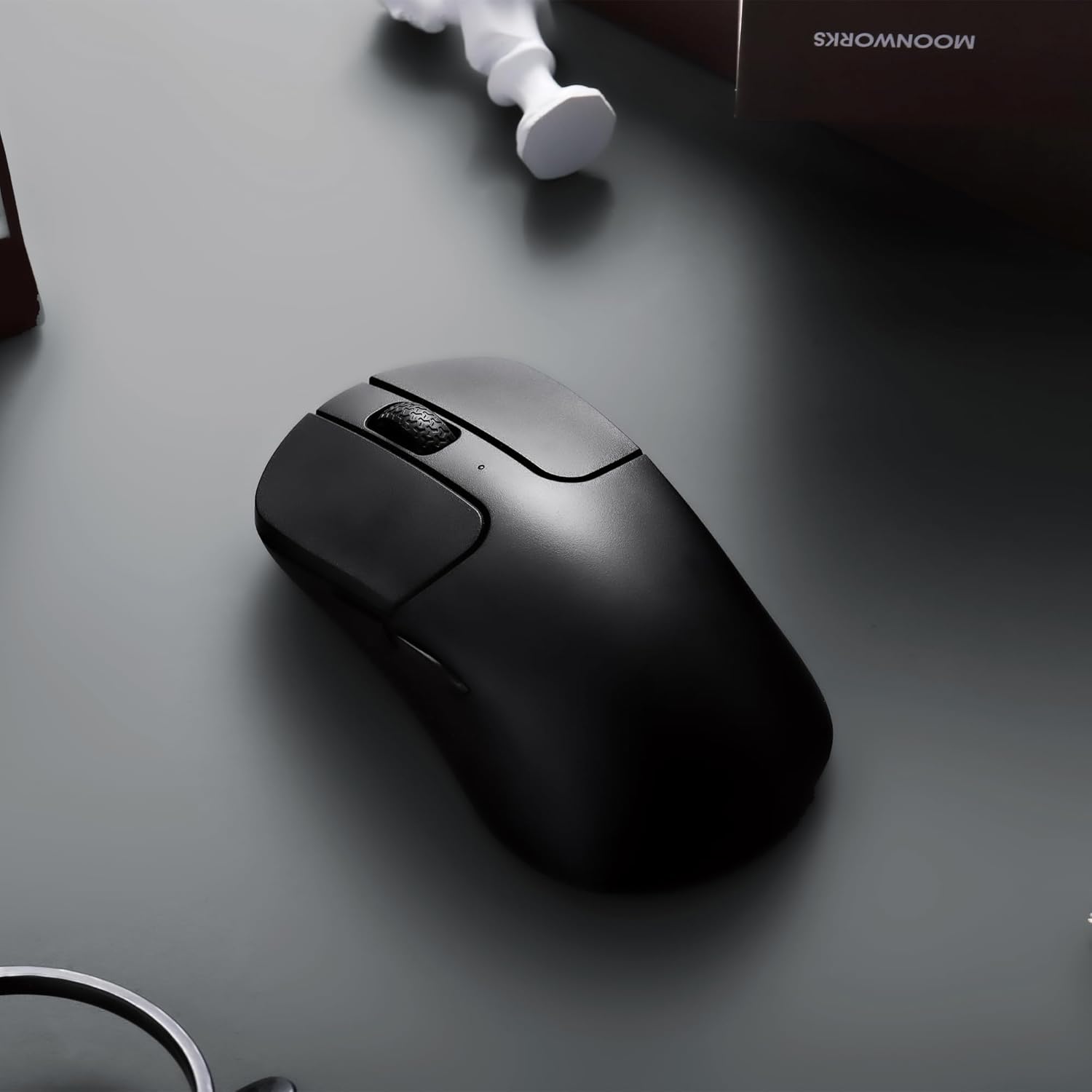
Image: The underside of the mouse, highlighting the PixArt 3395 sensor and the physical buttons for DPI and Report Rate adjustments.
Добуш берүү көрсөткүчүн тууралоо
The mouse supports an ultra-fast 4K (4000 Hz) polling rate in 2.4 GHz mode, ensuring minimal latency.
- Locate the "Report Rate" button on the bottom of the mouse.
- Press the button to switch among 5 levels of polling rate: 125 Hz, 500 Hz, 1000 Hz, 2000 Hz, and 4000 Hz.
- The corresponding LED indicator will light up to show the selected polling rate.

Image: A diagram illustrating how to switch polling rates using the dedicated button on the mouse, with a table showing LED color indications for different frequencies (125 Hz to 4000 Hz).
Keychron Engine Software
For advanced customization, including key remapping, macros, RGB lighting effects (if applicable), and professional settings for LOD (Lift-Off Distance), polling rate, and DPI, download and install the Keychron Engine software.
- The software is compatible with Windows 11/10 and macOS.
- Расмий Keychronга барыңыз webакыркы нускасын жүктөп алуу үчүн сайт.
- The software supports onboard memory, allowing your custom settings to be saved directly to the mouse.

Image: A visual representation of the Keychron Engine software interface, demonstrating options for personalization, key modification, shortcuts, macros, and professional settings.
Батареянын иштөө мөөнөтү жана заряддоо
The M3 Mini 4K is equipped with a 600 mAh battery, providing up to 135 hours of continuous working time in 1K Polling Rate mode. To charge the mouse, connect it to your computer using the provided USB-C cable.

Image: Icons illustrating key features: up to 135 hours of battery life (600 mAh), ultra-lightweight at 55g, and the ability to adjust settings without software.
Техникалык тейлөө
Чычканды тазалоо
To maintain optimal performance and hygiene, regularly clean your Keychron M3 Mini 4K mouse.
- Бир аз жумшак, түксүз кездемени колдонуңуз dampчычкандын бетин сүртүү үчүн суу же жумшак тазалоо эритмеси менен иштетилген.
- Катуу химиялык заттарды, абразивдүү тазалагычтарды же эриткичтерди колдонуудан алыс болуңуз.
- Оптикалык сенсор үчүн кебезди жеңил колдонуңуз dampened with isopropyl alcohol to gently clean the lens. Ensure no liquid enters the sensor opening.
- Clean the scroll wheel and button crevices with a dry brush or compressed air to remove dust and debris.
- Тазалоодон мурун, чычкандын өчүрүлгөнүн жана башка кубат булагынан ажыратылганын текшериңиз.
Батареяга кам көрүү
To prolong the battery life of your mouse:
- Батареяны бат-баттан толук кубаттап калуудан алыс болуңуз.
- Чычканды узак убакытка колдонбогондо салкын, кургак жерде сактаңыз.
- Заряддоо үчүн берилген USB-C кабелин колдонуңуз.
Проблемаларды чечүү
Байланыш маселелери
- 2.4 ГГц зымсыз:
- Ensure the 4K Wireless Receiver is securely plugged into a working USB port.
- Verify the mouse mode switch is set to "2.4G".
- Ресиверди башка USB портуна сайып көрүңүз.
- Ensure there are no strong interferences (e.g., other wireless devices) nearby.
- Bluetooth:
- Ensure the mouse mode switch is set to "BT".
- Make sure Bluetooth is enabled on your computer.
- Remove the mouse from your computer's paired devices list and attempt to re-pair it.
- Чычкандын батареясынын жетиштүү заряды бар экенин текшериңиз.
- текст:
- USB-C кабелинин чычканга да, компьютерге да бекем туташтырылганын текшериңиз.
- Компьютериңизде башка USB портун колдонуп көрүңүз.
- Мүмкүн болсо, башка USB-C кабели менен сынап көрүңүз.
DPI/Polling Rate Not Changing
- Ensure you are pressing the correct button (DPI or Report Rate) on the bottom of the mouse.
- Check the LED indicators on the bottom of the mouse to confirm changes.
- If using Keychron Engine software, ensure settings are applied and saved to onboard memory.
Чычкан жооп бербейт
- Check the battery level. Charge the mouse if the battery is low.
- Ensure the mouse is powered on (mode switch is not in "OFF" position).
- Компьютериңизди өчүрүп күйгүзүңүз.
- Try connecting the mouse to a different computer to rule out system-specific issues.
Техникалык шарттар
| Өзгөчөлүк | Деталь |
|---|---|
| Бренд | Keychron |
| Модел | M3 Mini 4K |
| Байланыш технологиясы | Bluetooth 5.1, 2.4 GHz Wireless, Wired (USB-C) |
| Кыймылды аныктоо технологиясы | Optical (PixArt 3395 Sensor) |
| DPI (Дюйм үчүн чекиттер) | 26,000 XNUMX DPI чейин |
| IPS (секундасына дюйм) | 650 IPS чейин |
| Добуш берүү көрсөткүчү | Up to 4000 Hz (2.4 GHz mode) |
| Micro Switch | Huano 80M (80 million clicks lifespan) |
| Салмагы | 55г (1.94 унция) |
| Батарея сыйымдуулугу | 600 мАч |
| Батареянын иштөө мөөнөтү | Up to 135 hours (1K Polling Rate) |
| Шайкештик | Windows, macOS, Linux |
| Өлчөмдөр | 7.48 x 5.31 x 2.05 дюйм (Пакет) |
| Дата биринчи жеткиликтүү | 6-июнь, 2023-жыл |
Кепилдик жана колдоо
For detailed warranty information and technical support, please refer to the official Keychron website or contact Keychron customer service directly. Keep your proof of purchase for warranty claims.
Keychron расмий Webсайт: www.keychron.com
Ask a question about this manual
Ask about setup, troubleshooting, compatibility, parts, safety, or missing instructions. Manuals+ will review the question and use this page’s manual context to help answer it.