
1. Киришүү
The Crestron HD-CONV-USB-300 is a versatile USB converter designed to seamlessly integrate HDMI and analog audio sources into a USB stream. This device facilitates the capture and conversion of high-definition video and audio signals for various applications, including conferencing, streaming, and recording. This manual provides essential information for the proper installation, operation, and maintenance of your HD-CONV-USB-300 converter.
2. Коопсуздук маалыматы
Please read and understand all safety instructions before operating this device to prevent injury or damage.
- Күч: Use only the power adapter supplied with the unit. Ensure the power source matches the voltagд талаптар.
- Вентиляция: Do not block ventilation openings. Install the device in a location with adequate airflow.
- Нымдуулук: Do not expose the unit to rain, moisture, or immerse it in water.
- Жылуулук: Түзмөктү радиаторлор, жылыткычтар, мештер же башка жылуулук чыгаруучу шаймандар сыяктуу жылуулук булактарынан алыс кармаңыз.
- Тазалоо: Disconnect power before cleaning. Use a dry cloth only. Do not use liquid cleaners or aerosol sprays.
- Тейлөө: Бул продуктту өзүңүз тейлөөгө аракет кылбаңыз. Бардык тейлөөнү квалификациялуу тейлөө кызматкерлерине тапшырыңыз.
3. Пакеттин мазмуну
Пакетиңизде бардык буюмдар бар экенин текшериңиз:
- 1x Crestron HD-CONV-USB-300 USB Converter
- 1x Power адаптер
- 1x USB Cable (Type A to Type B)
- 1x Quick Start Guide (or similar documentation)
4. Продукт бүтүп калдыview
The HD-CONV-USB-300 features multiple input and output ports for flexible connectivity.
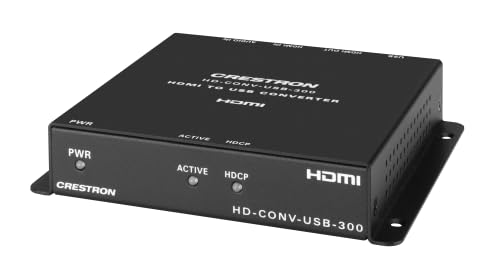
Сүрөт 1: Алдыңкы view of the Crestron HD-CONV-USB-300 USB Converter. This image shows the compact design and the Crestron branding on the device.
4.1. Алдыңкы панель
- Статус LED: Indicates power and operational status.
- Киргизүү Тандоо баскычы: Toggles between HDMI and Analog audio inputs.
4.2. Арткы панель
- HDMI киргизүү: Connect your HDMI video and audio source here.
- Analog Audio Input (3.5mm): Connect analog audio sources.
- USB Output (Type B): Connect to your computer for data transfer.
- Кубат киргизүү (DC 5V): Берилген кубат адаптерин туташтырыңыз.
5. Орнотуу
Follow these steps to set up your Crestron HD-CONV-USB-300 converter:
- HDMI булагын туташтырыңыз: Connect an HDMI cable from your video source (e.g., camera, media player) to the HDMI киргизүү port on the HD-CONV-USB-300.
- Connect Analog Audio Source (Optional): If using an analog audio source, connect a 3.5mm audio cable from your audio device to the Аналогдук аудио киргизүү порт.
- Компьютерге туташуу: Connect the supplied USB cable from the USB Output (Type B) port on the converter to an available USB port on your computer.
- Туташуу кубаты: Plug the supplied power adapter into the Киргизүү кубаты (DC 5V) port on the converter, then plug the adapter into a power outlet. The Status LED should illuminate.
- Драйверди орнотуу: The HD-CONV-USB-300 is typically plug-and-play and does not require specific drivers for most operating systems (Windows, macOS, Linux). It will be recognized as a standard USB Video Class (UVC) and USB Audio Class (UAC) device.
- Программанын конфигурациясы: Open your preferred video conferencing, streaming, or recording software (e.g., OBS Studio, Zoom, Microsoft Teams). In the software's settings, select the Crestron HD-CONV-USB-300 as your video and audio input device.
6. Иштөө нускамалары
Once the device is set up, follow these steps for operation:
- Күйгүзүү: Ensure the converter is powered on and connected to your computer. The Status LED should be solid green.
- Киргизүүнү тандоо: басыңыз Киргизүүнү тандоо баскычы on the front panel to switch between HDMI and Analog audio inputs. The Status LED may change color or blink to indicate the active input (refer to specific model documentation for LED behavior).
- Verify Input in Software: In your chosen software, confirm that the video and audio from your selected source are being received. Adjust any necessary settings within the software, such as resolution, frame rate, or audio levels.
- Колдонмону баштоо: Begin your video conference, streaming session, or recording.
Эскертүү: The quality of the captured video and audio will depend on the source device and the capabilities of your computer and software.
7. Техникалык тейлөө
Proper maintenance ensures the longevity and optimal performance of your HD-CONV-USB-300.
- Тазалоо: Disconnect the power before cleaning. Use a soft, dry, lint-free cloth to wipe the exterior of the device. Do not use abrasive cleaners, solvents, or chemical sprays.
- Сактагыч: If storing the device for an extended period, disconnect all cables and store it in a cool, dry place away from direct sunlight and extreme temperatures.
- Кабелдик башкаруу: Ensure all cables are routed neatly and are not under strain or sharply bent to prevent damage.
8. Кыйынчылыктарды
If you encounter issues with your HD-CONV-USB-300, refer to the following common problems and solutions:
| Көйгөй | Мүмкүн себеп | Чечим |
|---|---|---|
| No power / Status LED off | Кубат адаптери туташкан эмес же туура эмес. | Ensure the power adapter is securely connected to the converter and a working power outlet. Try a different outlet. |
| No video output in software | Incorrect input selected; HDMI cable issue; Software not configured correctly. |
|
| No audio output in software | Incorrect input selected; Audio cable issue; Software not configured correctly; Source audio settings. |
|
| Computer does not recognize device | USB cable issue; USB port issue; Driver conflict. |
|
9. Техникалык шарттар
| Модель номери | 6512272 |
| Бренд | Crestron |
| Interfaces | HDMI, USB, Analog Audio (3.5mm) |
| Өлчөмдөрү (L x W x Y) | 10.69 x 25.9 x 29.4 см |
| Салмагы | 730 грамм |
| Өндүрүүчү | Crestron |
| Date of Availability | 18-май, 2023-жыл |
10. Кепилдик маалыматы
Crestron products are typically covered by a limited manufacturer's warranty. The specific terms and duration of the warranty may vary by region and product type. For detailed warranty information, please refer to the warranty card included with your product or visit the official Crestron webсайт.
Эскертүү: Кепилдик дооматтар үчүн сатып алганыңыздын далилин сактаңыз.
11. Колдоо маалыматы
For technical support, product updates, or additional resources, please visit the official Crestron webсайт:
You may also find FAQs and community forums on their support pages.