
1. Киришүү
The Caavo JubileeTV Centro Remote Care System is designed to help seniors stay connected and provide caregivers with tools for remote support. This system integrates with an existing television setup, offering features like remote TV control via a mobile app, direct-to-TV video calls, personalized reminders, and activity monitoring.
This manual provides essential information for the proper setup, operation, and maintenance of your JubileeTV Centro system. Please read it thoroughly before use.
2. Эмнелер камтылган
Пакетте бардык компоненттер бар экенин текшериңиз:
- JubileeTV Hub with integrated web камера
- JubileeTV Voice Remote Control
- Power Adapter for JubileeTV Hub
- HDMI кабели
- IR Blaster кабели
- Smart Plug (for TV power control)
- 2 AAA батарейка (алыстан башкаруу үчүн)

Image: JubileeTV system components, showing the main hub with camera, the remote control, and various cables.
3. Орнотуу колдонмосу
The JubileeTV Centro system requires an active internet connection (Wi-Fi) and a television. It works with your existing cable box, streaming device (e.g., Roku), or satellite receiver.
3.1 Баштапкы туташуу
- Connect the JubileeTV Hub:
- Connect one end of the HDMI cable to the JubileeTV Hub and the other end to an available HDMI input on your television. Note the HDMI input number (e.g., HDMI 1, HDMI 2).
- Connect the power adapter to the JubileeTV Hub and plug it into a power outlet.
- Position the JubileeTV Hub's integrated camera on top of your television, ensuring a clear view бөлмөнүн.
- Connect the IR Blaster:
- Plug the IR Blaster cable into the designated port on the JubileeTV Hub.
- Position the IR blasters near your cable box, streaming device, or other TV source devices so they can send infrared signals to control them.
- Install Smart Plug:
- Смарт плагинди розеткага сайыңыз.
- Plug your television's power cord into the Smart Plug. This allows remote power control of the TV.
- Батареяларды пультка салыңыз:
- Open the battery compartment on the back of the JubileeTV Voice Remote.
- Insert the two AAA batteries, matching the polarity (+/-) indicators.


Image: The JubileeTV Hub with its integrated camera and the JubileeTV Voice Remote Control.
3.2 Software Setup and Activation
After physical connections, turn on your TV and switch to the correct HDMI input. Follow the on-screen instructions to connect the JubileeTV Hub to your Wi-Fi network and complete the initial setup. It is highly recommended to contact JubileeTV customer support for guided setup, as mentioned in user reviews, to ensure optimal configuration.
An active membership plan is required to access the full functionality of the JubileeTV system. Membership options (monthly, annual, or one-time) can be purchased after receiving your shipment. The system will not function without an active membership.
4. Иштөө нускамалары
4.1 JubileeTV Voice Remote Control
The JubileeTV Voice Remote is designed for ease of use with large, backlit buttons and voice control capabilities.
- Кубат баскычы: Turns the TV and connected devices on/off.
- Навигация панели (Өйдө, Төмөн, Солго, Оңго, ОК): Used to navigate menus and select options on the TV screen.
- Үнүн жогорулатуу/төмөндөтүү: Сыналгы үнүн тууралайт.
- Канал өйдө/төмөн: Телеканалдарды өзгөртөт.
- Voice Button (Microphone icon): Press and hold to use voice commands for channel changes, content search, or system functions.
- Сүйүктүүлөр: Accesses a personalized list of preferred channels or apps.
- Back/Home: Navigates back through menus or returns to the main JubileeTV home screen.

Image: Close-up of the JubileeTV Voice Remote Control, highlighting its user-friendly design with large, backlit buttons.
4.2 JubileeTV Mobile App (for Caregivers)
The JubileeTV mobile app allows caregivers to remotely manage the system from their smartphone or tablet. Download the app from your device's app store (available on Google Play and Apple App Store).
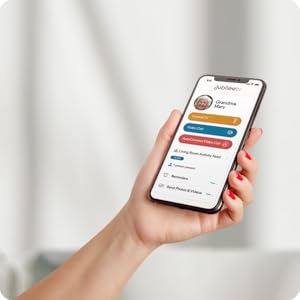
Image: A smartphone displaying the JubileeTV mobile app interface, showing options for controlling TV, video calls, and activity feed.
4.2.1 Remote TV Control
Колдонмодон сиз:
- Телевизорду күйгүзүңүз/өчүңүз.
- Change channels and adjust volume.
- Access specific apps or inputs.
- View what is currently playing on the TV.

Image: A hand holding a smartphone with the JubileeTV app, showing TV control options, with a television screen in the background.
4.2.2 Direct-to-TV Video Calling
Initiate video calls directly to the senior's television. The integrated camera on the JubileeTV Hub provides a full-room view. The system features an auto-answer option for convenience.
- Open the JubileeTV app and select the "Video Call" option for the desired contact.
- The call will appear on the TV screen.
- To end a call, the senior can press the designated button on their remote, or the caregiver can end it from the app.

Image: A family on a video call displayed on a television screen, with the JubileeTV camera visible above the TV.
4.2.3 Reminders, Messages & Updates
Send personalized reminders, notes, photos, or videos directly to the TV screen.
- Эскерткичтер: Schedule medication reminders, appointment alerts, or other important notes. These will appear as on-screen notifications.
- Messages/Photos/Videos: Share personal messages, family photos, or short videos to keep the senior engaged and informed.
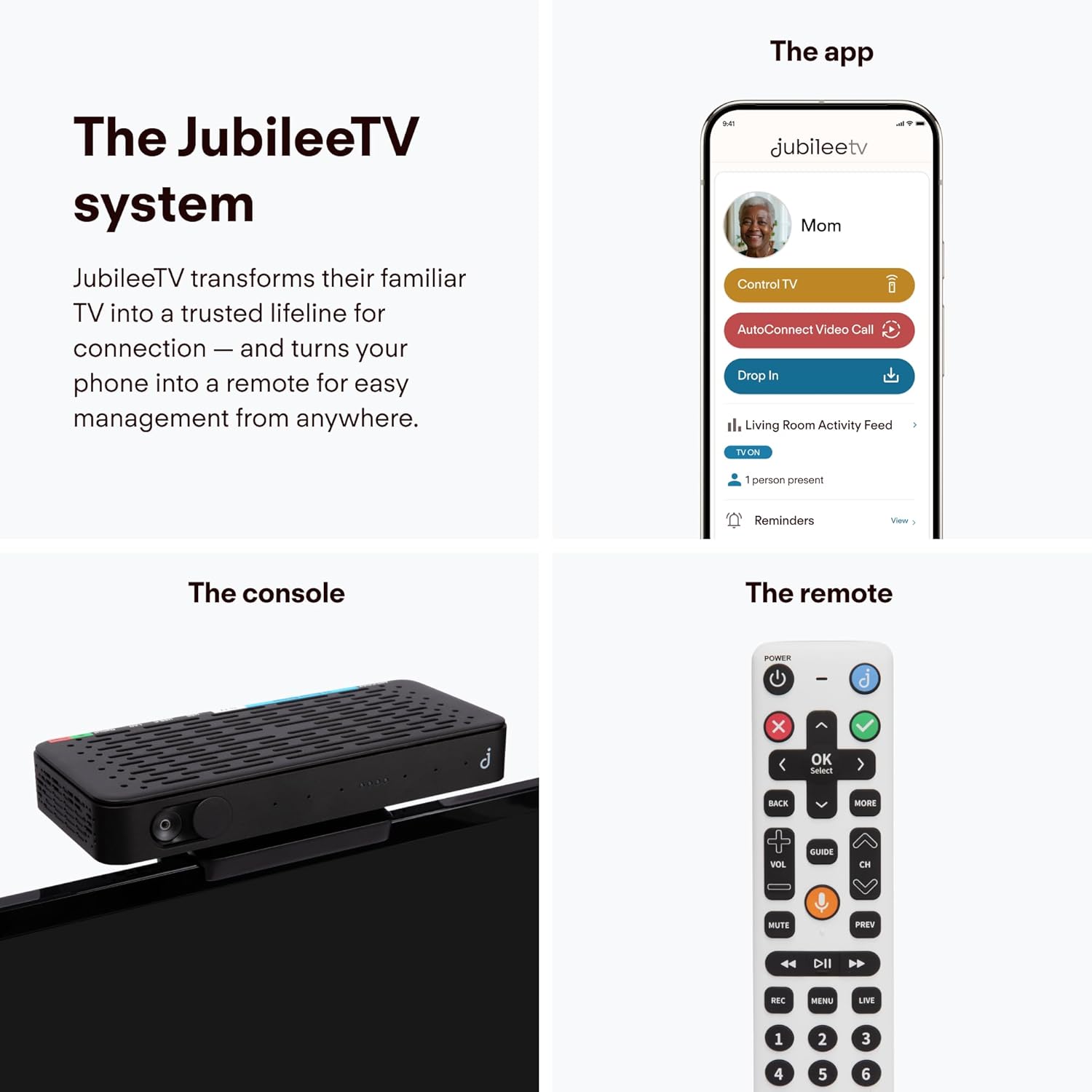
Image: A medication reminder pop-up displayed on a television screen, showing "Take your medication" with pill count.
4.2.4 Smart Monitoring & Alerts (Drop In Feature)
The app provides insights into TV usage and remote control activity. The "Drop In" feature allows for a one-way video and audio feed to quietly check in.
- Аракеттер түрмөгү: View logs of when the TV is used, remote control activity, and duration of viewing.
- Кирүү: Initiate a one-way video feed from the JubileeTV camera to your app to discreetly check on the senior without interrupting them.

Image: A hand holding a smartphone showing the JubileeTV app's activity feed, indicating TV usage and a "Drop In" option.
5. Техникалык тейлөө
- Тазалоо: Use a soft, dry cloth to clean the JubileeTV Hub, camera, and remote control. Do not use liquid cleaners or abrasive materials.
- Программалык камсыздоо жаңыртуулары: The JubileeTV system receives automatic software updates to improve performance and add new features. Ensure the device remains connected to the internet.
- Батареяны алмаштыруу: Replace the AAA batteries in the remote control when the indicator light flashes or responsiveness decreases.
6. Кыйынчылыктарды
| Көйгөй | Мүмкүн себеп | Чечим |
|---|---|---|
| No power to JubileeTV Hub. | Кубат адаптери туташкан эмес же розетка иштебейт. | Кубат адаптери хабга жана иштеп жаткан розеткага бекем туташтырылганын текшериңиз. |
| Телевизордо сүрөт жок. | Incorrect HDMI input selected on TV or HDMI cable loose. | Verify the TV is set to the correct HDMI input. Check HDMI cable connections at both the TV and the JubileeTV Hub. |
| Алыстан башкаруу жооп бербей жатат. | Батареялар түгөнүп калган же пульттан тышкары жайгашкан. | Replace batteries. Ensure there are no obstructions between the remote and the hub. |
| Video calls not connecting. | No internet connection or camera cover closed. | Check Wi-Fi connection. Ensure the physical camera cover on the JubileeTV Hub is open. |
| Cannot control TV via mobile app. | App not connected to the JubileeTV Hub or internet issues. | Ensure your smartphone has an active internet connection. Verify the JubileeTV Hub is online. Restart the app. |
| Reminders not appearing. | Reminder not scheduled correctly or system offline. | Check reminder settings in the mobile app. Ensure the JubileeTV Hub is powered on and connected to the internet. |
If you encounter issues not listed here or require further assistance, please contact JubileeTV customer support.
7. Техникалык шарттар
- Бренд: Caavo
- Модель аты: JubileeTV
- Модель номери: Centro
- Байланыш технологиясы: Bluetooth, Infrared, Wi-Fi
- Колдоого алынган түзмөктөрдүн максималдуу саны: 4
- Шайкеш түзмөктөр: DVD/Blu-ray Player, Set Top Box, Streaming Device, Television
- Контроллердин түрү: Үн менен башкаруу
- Button Quantity (Remote): 34
- Maximum Range (Remote): 10 метр
- Батареялар (алыстан башкаруу): 2 AAA батарейка (щелочтуу)
- Элементтин өлчөмдөрү (L x W x Y): 16.5"L x 9"W x 3"H
- Global Trade Identification Number (GTIN/UPC): 859662007298
8. Кепилдик жана колдоо
The JubileeTV Centro system requires an active membership plan for full functionality and ongoing support. Membership options include monthly ($29/month), annual ($289), or one-time ($600) payments. These plans provide access to all features and customer support.
For technical assistance, setup guidance, or any questions regarding your JubileeTV system, please contact JubileeTV customer support. Contact information is typically provided within the product packaging or on the official JubileeTV webсайт.
The product is supported only in the U.S.
9. Продукт видеосу бүттүview
Видео: Аткаминерview of the JubileeTV system, demonstrating its features for seniors and caregivers, including remote TV control, video calls, and reminders. This video is provided by Caavo, the product's seller.