
1. Киришүү
This manual provides essential information for setting up, operating, maintaining, and troubleshooting your Beelink SER5 5500U Mini PC. Please read it carefully before using the product to ensure optimal performance and longevity.
The Beelink SER5 5500U is a compact and powerful Mini PC featuring an AMD Ryzen 5 5500U processor, designed for various applications from office work to multimedia entertainment and light gaming. It supports dual 4K display output and offers robust connectivity options.
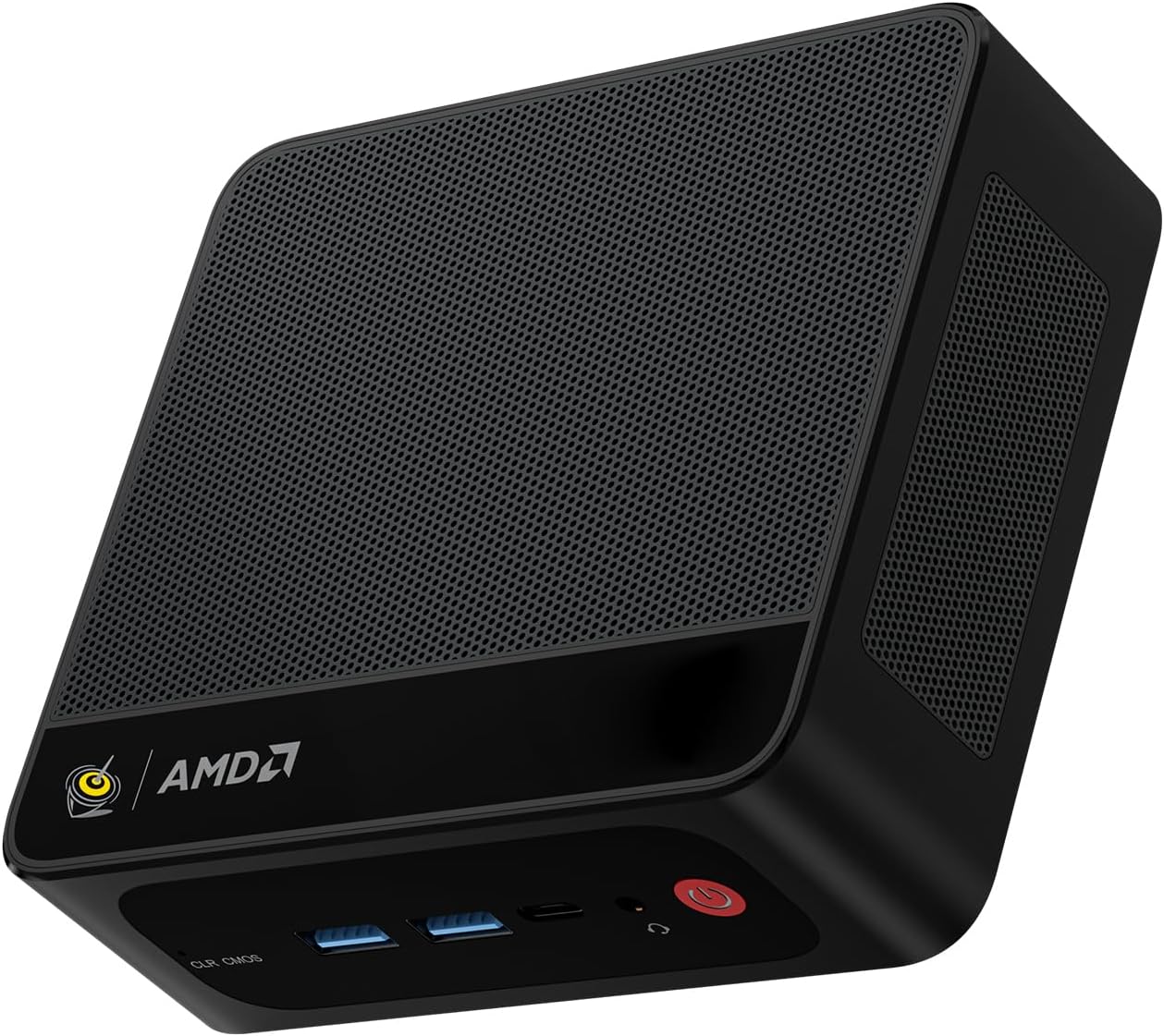
Figure 1: Beelink SER5 5500U Mini PC
2. Пакеттин мазмуну
Пакетте бардык буюмдар бар экенин текшериңиз:
- Beelink SER5 5500U Mini PC (x1)
- HDMI Cable (100cm) (x1)
- Кубат адаптери (19V/3.42A) (x1)
- Wall-Mounted Bracket (x1)
- Колдонуучунун Колдонмосу (бул документ)
3. Орнотуу нускамалары
3.1 Перифериялык түзүлүштөрдү туташтыруу
- Дисплейди туташтыруу: Use the provided HDMI cable to connect your monitor to the HDMI port on the Mini PC. Alternatively, use a DisplayPort cable for DP connection.
- Баскычтоп менен чычканды туташтыруу: Plug your USB keyboard and mouse into the available USB ports.
- Туташуу кубаты: Кубат адаптерин Мини PCдеги DC-in портуна туташтырыңыз, андан кийин адаптерди розеткага сайыңыз.
- Тармакка туташуу (милдеттүү эмес): For a wired connection, connect an Ethernet cable to the 2.5G LAN port. For wireless, ensure your WiFi network is available.

2-сүрөт: Алдыңкы жана арткы порттор
3.2 Баштапкы жүктөө
Press the power button on the front of the Mini PC. The system will boot up, and you will see the Windows 11 Pro setup screen. Follow the on-screen instructions to complete the initial Windows setup.
4. Иштөө нускамалары
4.1 Күйгүзүү/өчүрүү жана кайра иштетүү
- Күйгүзүү: Кубат баскычын басыңыз.
- Өчүрүү: Windows'тун Start баскычын чыкылдатып, андан кийин Кубат > Өчүрүү дегенди тандаңыз. Же болбосо, күч менен өчүрүү үчүн кубат баскычын 5 секунд басып туруңуз (үзгүлтүксүз колдонуу үчүн сунушталбайт).
- Кайра баштоо: Windows'тун Start баскычын чыкылдатып, андан кийин Кубат > Кайра баштоону тандаңыз.
4.2 Кош дисплейди орнотуу
The Beelink SER5 5500U supports dual 4K display output via its HDMI and DisplayPort interfaces. Connect two monitors to these ports. Windows will automatically detect the displays. You can configure display settings (extend, duplicate, etc.) via Windows Display Settings.

Figure 3: Dual Display Configuration
4.3 Зымсыз байланыш
- Wi-Fi 6: The Mini PC supports Wi-Fi 6 (802.11ax) for high-speed wireless internet. Connect via Windows network settings.
- Bluetooth 5.2: Pair Bluetooth devices such as keyboards, mice, or headphones through Windows Bluetooth settings.
4.4 Сактагычты кеңейтүү
The Mini PC includes a 500GB M.2 PCIe NVME 2280 SSD. For additional storage, a 2.5-inch HDD/SSD (not included) can be installed in the dedicated slot. Refer to the internal hardware guide for installation steps.
5. Техникалык тейлөө
5.1 Тазалоо
Regularly clean the exterior of the Mini PC with a soft, dry cloth. Use compressed air to gently clear dust from the ventilation openings to maintain optimal airflow and cooling performance. Do not use liquid cleaners directly on the device.
5.2 Программалык камсыздоо жаңыртуулары
Keep your Windows operating system and device drivers updated. Windows Update will handle most OS updates. For graphics drivers (AMD Radeon Graphics), visit the AMD official webакыркы версиялар үчүн сайт.
5.3 Муздатуу системасы
The Beelink SER5 5500U features a high-speed cooling fan. Ensure the Mini PC is placed in a well-ventilated area and that the air vents are not obstructed to prevent overheating.

Figure 4: Internal Cooling Fan
6. Кыйынчылыктарды
6.1 Күч жок
- Кубат адаптери Мини компьютерге жана иштеген электр розеткасына бекем туташып турганын текшериңиз.
- Башка аспапка туташтыруу менен электр розеткасынын иштешин текшериңиз.
- Эгер бар жана туура келсе, башка кубат адаптерин колдонуп көрүңүз.
6.2 Дисплей жок
- Verify that the HDMI or DisplayPort cable is securely connected to both the Mini PC and the monitor.
- Ensure the monitor is powered on and set to the correct input source (HDMI/DP).
- Мүмкүн болсо, башка монитор же кабель менен сынап көрүңүз.
- If the issue persists, try resetting the CMOS by pressing the CLR CMOS button (refer to Figure 2 for location).
6.3 Тармакка туташуу маселелери
- Зымдуу (LAN): Check the Ethernet cable connection and your router/modem.
- Wireless (Wi-Fi/Bluetooth): Ensure Wi-Fi and Bluetooth are enabled in Windows settings. Restart your router/modem.
- Зарыл болсо, тармак драйверлерин жаңыртыңыз.
6.4 Системанын жайлашы
- Фондо иштеп жаткан керексиз тиркемелерди жабыңыз.
- Күтүүдөгү Windows жаңыртууларынын бардыгын текшерип, орнотуңуз.
- Ensure the cooling vents are clear of obstructions.
- Дискти тазалоону жана дефрагментациялоону иштетиңиз (HDD үчүн, SSD үчүн зарыл эмес).
7. Техникалык шарттар

5-сүрөт: Продукциянын мүнөздөмөсү аяктадыview
| Өзгөчөлүк | Деталь |
|---|---|
| Бренд | Beelink |
| Модел | SER5 5500U |
| Операция системасы | Windows 11 Pro |
| CPU | AMD Ryzen 5 5500U (6 Cores/12 Threads, 2.1GHz Base, up to 4.0GHz Boost) |
| Графика | AMD Radeon Graphics (7 Cores, 1800 MHz) |
| RAM | 16 ГБ DDR4 (Кош канал, 64 ГБ чейин кеңейтилүүчү) |
| Сактагыч | 500GB M.2 PCIe NVME 2280 SSD (expandable with 2.5-inch HDD/SSD) |
| Video Output | 1x HDMI (4K@60Hz), 1x DisplayPort (4K@60Hz) |
| USB порттору | 3x USB 3.2 Gen2, 1x USB 2.0, 1x Type-C (Data) |
| Network | Wi-Fi 6 (802.11ax), Bluetooth 5.2, 2.5G LAN (RJ45) |
| Аудио | Audio Jack (HP&MIC) |
| Өлчөмдөр | 12.6 x 11.3 x 4.2 см |
| Муздатуу | Аба муздатуу |
| Кубаттуу адаптер | 19V/3.42A |
8. Кепилдик жана колдоо
8.1 Кепилдик маалыматы
Your Beelink SER5 5500U Mini PC comes with a 3 жылдык өндүрүүчүнүн кепилдиги. Кепилдик дооматтары үчүн сатып алганыңыздын далилин сактап коюңуз.
8.2 Product Key Retrieval
If you received your product without a physical product key, you can contact Beelink support to obtain it. Please provide the SN code located on the bottom of your product when contacting support.
8.3 Кардарларды колдоо
For technical assistance, warranty claims, or any other inquiries, please contact Beelink customer support through the official Beelink store or website. Support is typically available within 24 hours for messages.