
1. Киришүү
This manual provides essential instructions for the setup, operation, and maintenance of your AISPEECH M4 Bluetooth Conference Speakerphone. Designed for clear and efficient communication, the M4 features advanced AI noise reduction, full-duplex audio, and 360° omnidirectional voice pickup, making it suitable for various professional and personal communication needs.

Figure 1: AISPEECH M4 Bluetooth Conference Speakerphone and its portable case.
2. Кутуда эмне бар
- AISPEECH M4 Speakerphone
- Портативдик корпус
- USB кабели
- User Manual
3. Продукт бүтүп калдыview
3.1. Башкаруу каражаттары жана көрсөткүчтөр
The AISPEECH M4 features intuitive touch controls on its top surface and physical buttons on its side for power and Bluetooth pairing.
- Чалуу баскычы: Initiate or end calls.
- Үнүн жогорулатуу (+): Динамиктин үнүн катуулатыңыз.
- Үнүн төмөндөтүү (-): Динамиктин үнүн азайтыңыз.
- Үнсүз баскычы: Mute or unmute the microphone. An indicator light will show the mute status.
- Кубат баскычы: Аппаратты күйгүзүңүз же өчүрүңүз.
- Bluetooth жупташтыруу баскычы: Activate Bluetooth pairing mode.
- NFC аймагы: NFC иштетилген түзмөктөр менен тез жупташтыруу үчүн.
3.2. Порттар
- USB-C порту: For charging and wired connection to a computer.
4. Баштоо
4.1. Күйгүзүү / Өчүрүү
Press and hold the Power button on the side of the device to turn it on or off. Indicator lights on the top surface will illuminate upon power-on.
4.2. Аппаратты заряддоо
Connect the provided USB-C cable to the speakerphone's USB-C port and the other end to a USB power source. The device has a 2000 mAh battery, providing approximately 10 hours of working time on a full charge.
5. Байланыш
5.1. Bluetooth туташуусу
- Turn on the AISPEECH M4 Speakerphone.
- Press and hold the Bluetooth pairing button on the side until the Bluetooth indicator light flashes blue.
- On your device (smartphone, laptop), go to Bluetooth settings and select "AIMIC-M4" from the list of available devices.
- Туташтырылгандан кийин, Bluetooth индикатору көк түскө айланат.
5.2. USB зымдуу туташуу
Connect the AISPEECH M4 Speakerphone to your computer using the provided USB-C cable. The device is plug-and-play and should be automatically recognized by your operating system (Mac OS, Android, Windows).
5.3. NFC туташуу
For NFC-enabled devices, simply tap your device against the NFC area on the speakerphone to initiate a quick connection.

Figure 2: The AISPEECH M4 offers versatile connectivity options including USB, Bluetooth, and NFC, compatible with various operating systems and conferencing platforms.
6. Динамикти иштетүү
6.1. Негизги башкаруу элементтери
- Үндү тууралоо: Tap the '+' or '-' buttons on the top surface to adjust the speaker volume.
- Микрофондун үнүн өчүрүү: Tap the Mute button to toggle the microphone on/off. The indicator will change color to show mute status.
- Чалууларды башкаруу: Tap the Call button to answer or end a call.
6.2. Негизги өзгөчөлүктөрү
AI Noise Reduction
The M4 utilizes an advanced AI noise-canceling algorithm to filter out over 100 types of background noises, ensuring crystal-clear communication. This includes common distractions like air conditioning, keyboard clicks, and mouse clicks.

Figure 3: The speakerphone's patented intelligent noise reduction algorithm effectively suppresses background sounds for enhanced clarity.
360° Omnidirectional Voice Pickup
Equipped with a 4-mic array, the speakerphone captures voices from all directions within a 16-foot range, ensuring everyone in a meeting is heard clearly, whether near or far.
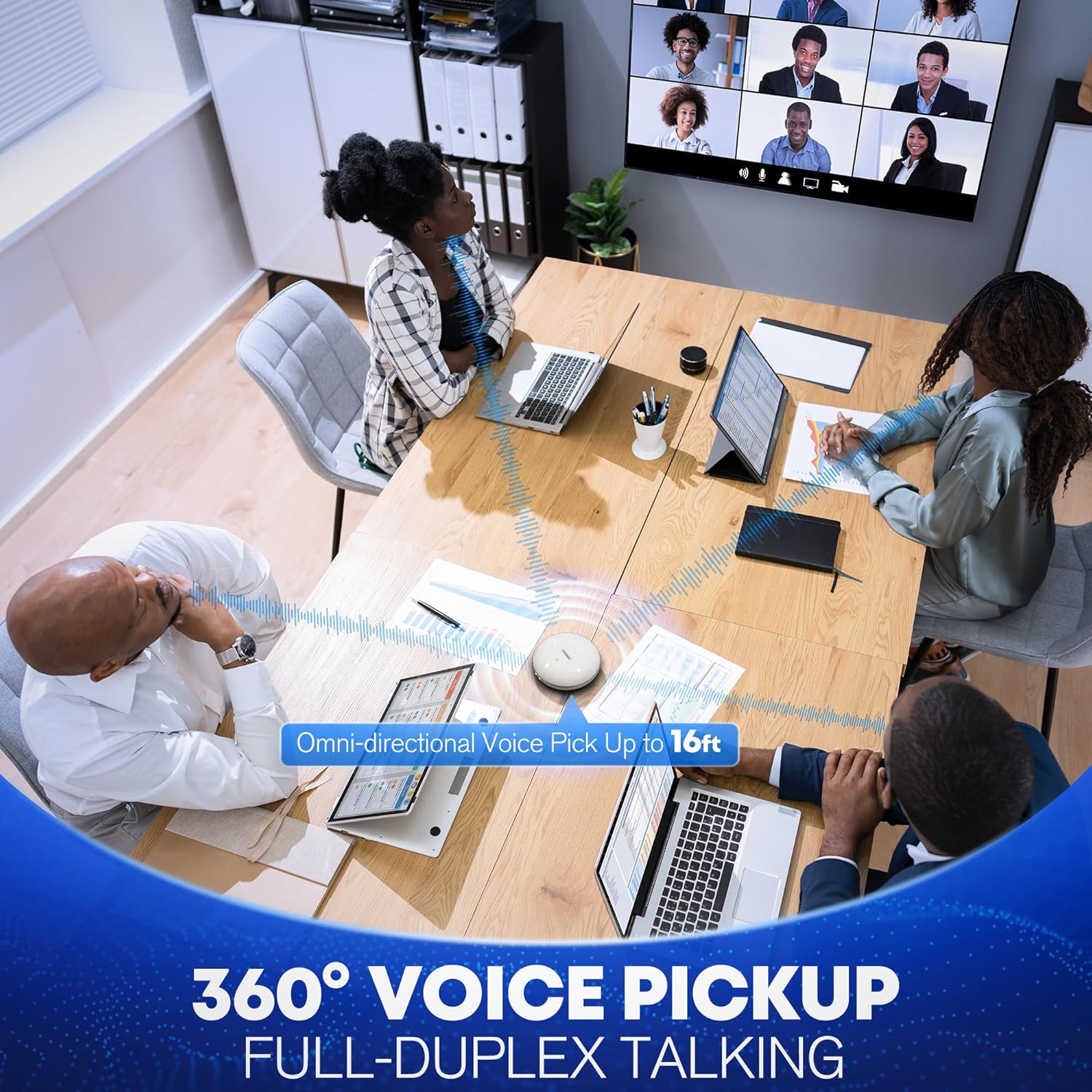
Figure 4: The 360° omnidirectional voice pickup ensures comprehensive audio capture in meeting environments.
Толук дуплекс аудио
The full-duplex functionality allows multiple participants to speak and be heard simultaneously without audio cut-offs, facilitating natural, uninterrupted conversations.
Жасалма интеллект транскрипциясы
The AISPEECH M4 supports AI transcription services, allowing you to convert spoken conversations into text. This feature is particularly useful for meeting minutes or documentation. Refer to the Notta app for detailed transcription functionalities.
Видео 1: Бүттүview of the AISPEECH M4 Conference Speaker and Microphone, highlighting its features and benefits for clear communication.
Video 2: Demonstrates the AISPEECH M4 Bluetooth Conference Speakerphone's capabilities, including its sound quality and ease of use.
7. Кароо жана тейлөө
- Аппаратты кургак жана таза кармаңыз.
- Аппаратты экстремалдык температурага же тике күн нуруна кабылуудан сактаңыз.
- Use a soft, dry cloth to clean the surface. Do not use harsh chemicals or abrasive materials.
- Store the speakerphone in its portable case when not in use to protect it from dust and damage.
8. Кыйынчылыктарды
- Түзмөк күйбөй жатат: Аппараттын заряддалганын текшериңиз. Аны USB-C кабели аркылуу кубат булагына туташтырыңыз.
- Bluetooth жупташтыруу көйгөйлөрү: Make sure the speakerphone is in pairing mode (flashing blue light). Check your device's Bluetooth settings and ensure it's discoverable. Try restarting both devices.
- Аудио чыгышы жок: Verify the volume levels on both the speakerphone and your connected device. Check that the correct audio output device is selected in your computer's sound settings.
- Микрофон иштебей жатат: Ensure the microphone is not muted (check the mute indicator light). Verify that the correct microphone input device is selected in your computer's sound settings or conferencing software.
- Poor audio quality/background noise: Ensure the AI noise reduction feature is active. Try repositioning the speakerphone closer to the speakers or away from noise sources.
9. Техникалык шарттар
| Өзгөчөлүк | Спецификация |
|---|---|
| Модель аты | AIMIC-M4 |
| Бренд | AISPEECH |
| Байланыш технологиясы | Bluetooth, NFC, USB |
| Зымсыз байланыш технологиясы | Bluetooth, NFC |
| Өзгөчө өзгөчөлүк | AI Transcription and Noise Reduction |
| Динамик түрү | Динамик системалары |
| Аудио чыгаруу режими | Стерео |
| Power Source | Батарея менен иштейт |
| Элемент Салмагы | 0.42 килограмм (14.9 унция) |
| Продукциянын өлчөмдөрү | 5.4"D x 11"W x 3"H |
| Максималдуу диапазон | 16 Feet (Bluetooth Range: 10 Meters) |
| Frequency Response | 20 KHz |
| Башкаруу ыкмасы | тийүү |
| Шайкеш түзмөктөр | Смартфон, ноутбук, компьютер |
10. Кепилдик маалыматы
The AISPEECH M4 Conference Speakerphone comes with a limited warranty. Please refer to the product packaging or contact AISPEECH customer support for specific warranty terms and conditions.
11. Колдоо
For further assistance, technical support, or inquiries, please visit the official AISPEECH website or contact their customer service department. Contact details can typically be found on the product packaging or the brand's official online store.