
1. Киришүү
This manual provides essential instructions for the installation, operation, and maintenance of your PureLink Vuelogic VB200 Huddle Space Videobar. Please read this manual thoroughly before using the product to ensure proper functionality and to prevent damage.
The PureLink Vuelogic VB200 is an all-in-one conferencing solution designed for huddle spaces and small to medium meeting rooms. It integrates a 4K camera, multiple microphones, and stereo speakers to provide a comprehensive audio and video experience.
2. Коопсуздук маалыматы
Түзмөккө зыян келтирбөө жана колдонуучунун коопсуздугун камсыз кылуу үчүн төмөнкү коопсуздук чараларын сактаңыз:
- Аппаратты сууга, нымдуулукка же экстремалдык температурага тийгизбеңиз.
- Аппаратты жылуулук булактарынын жанына же тике күн нуруна коюудан алыс болуңуз.
- Аппарат менен кошо берилген кубат адаптерин гана колдонуңуз.
- Аппаратты өзүңүз ачууга же оңдоого аракет кылбаңыз. Бардык тейлөөлөрдү квалификациялуу кызматкерлерге тапшырыңыз.
- Иштеп жаткан учурда аппараттын айланасында туура желдетүүнү камсыз кылыңыз.
3. Продукт бүтүп калдыview
The PureLink Vuelogic VB200 combines a high-quality camera, microphone array, and speakers into a single, compact unit for streamlined video conferencing.
3.1. Пакеттин мазмуну
Пакетте бардык буюмдар бар экенин текшериңиз:
- PureLink Vuelogic VB200 Videobar
- Кубаттуу адаптер
- USB кабели
- Орнотуу кронштейни (эгер бар болсо)
- Quick Start Guide

Figure 3.1: The retail packaging for the PureLink Vuelogic VB200 Videobar, indicating it is an all-in-one conferencing solution.

3.2-сүрөт: Детальдуу view of the product packaging, showing the model number VL-VB200 and UPC 4251364736913.
3.2. Аппараттын компоненттери
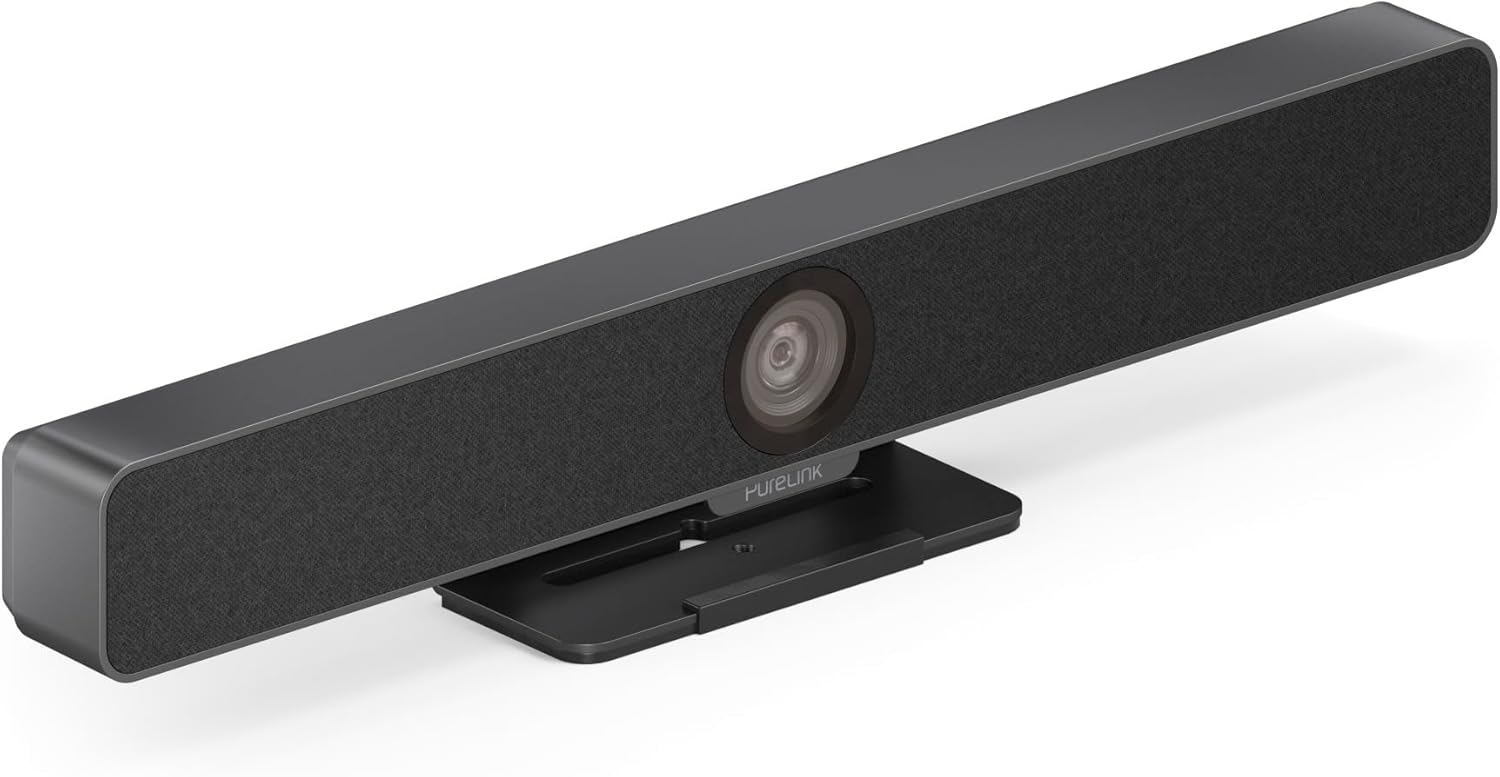
Сүрөт 3.3: Алдыңкы view of the PureLink Vuelogic VB200 Huddle Space Videobar, showcasing the integrated camera and speaker grille.

Сүрөт 3.4: Алдыңкы жана арткы views of the videobar. The rear view displays the power input, USB-C port, and other connectivity options.
- Алдыңкы: Integrated 4K camera, speaker grille, PureLink branding.
- Арткы: Power input, USB-C port for data and power, HDMI output (if applicable), mounting points.
4. Орнотуу
Follow these steps to set up your PureLink Vuelogic VB200 Videobar:
- Жайгашкан жери: Position the videobar on a stable surface, such as a table or monitor, ensuring the camera has a clear view of the meeting participants. The integrated stand allows for flexible placement.
- Кубат туташуу: Connect the provided power adapter to the videobar's power input and then to a wall outlet.
- USB туташуу: Connect the videobar to your computer using the supplied USB-C cable. The device is plug-and-play and should be recognized automatically by your operating system.
- Optional HDMI Connection: If your setup requires video output to a display, connect an HDMI cable from the videobar's HDMI output (if available) to your display.
- Программалык камсыздоону таануу: Once connected, your computer's operating system (Windows, macOS, etc.) should detect the device. You may need to select the "PureLink Vuelogic VB200" as your preferred camera, microphone, and speaker in your video conferencing application settings (e.g., Zoom, Microsoft Teams, WebEx).

Figure 4.1: The videobar positioned on a surface, demonstrating its flexible mounting options for various work environments.
5. Иштөө нускамалары
The PureLink Vuelogic VB200 is designed for ease of use with popular video conferencing platforms.
5.1. Жолугушууну баштоо
- Ensure the videobar is connected and powered on.
- Open your preferred video conferencing application (e.g., Zoom, Microsoft Teams, WebEx, Google Meet, Skype, Slack, GoToMeeting).
- In the application's audio and video settings, select "PureLink Vuelogic VB200" as your camera, microphone, and speaker device.
- Start or join your meeting.

Figure 5.1: The videobar is compatible with leading communication platforms such as Zoom, Slack, GoToMeeting, Google Hangouts, Skype, Microsoft Teams, and Google Meet.
5.2. Негизги өзгөчөлүктөрү
- 4K видеонун сапаты: The 120° wide-angle lens captures sharp, high-resolution video, suitable for small to medium rooms.
- Intelligent Auto Framing and Tracking: The camera automatically adjusts its frame to keep all participants visible and can track the active speaker, ensuring optimal framing during dynamic meetings.
- High-Quality Audio Capture: Equipped with 4 MEMS digital microphone arrays, offering a 3-5m range and 180° coverage. Features like Acoustic Echo Cancellation (AEC), Automatic Gain Control (AGC), and Automatic Noise Suppression (ANS) ensure clear communication.
- Hi-Fi Stereo Speakers: Two 3W stereo speakers with bass boost provide clear and powerful audio output for an immersive sound experience.
6. Техникалык тейлөө
To ensure the longevity and optimal performance of your videobar:
- Тазалоо: Use a soft, dry cloth to clean the exterior of the device. For the camera lens, use a lens cleaning cloth and solution specifically designed for optics. Do not use abrasive cleaners or solvents.
- Сактагыч: Узак мөөнөткө колдонулбаганда, аспапты күн тийбеген, салкын, кургак жерде сактаңыз.
- Программалык камсыздоонун жаңыртуулары: Periodically check the PureLink website for any available firmware updates to ensure your device has the latest features and performance enhancements.
7. Кыйынчылыктарды
If you encounter issues with your PureLink Vuelogic VB200, refer to the following common problems and solutions:
| Көйгөй | Мүмкүн себеп | Чечим |
|---|---|---|
| No video output / Camera not detected | Loose USB connection, incorrect software settings, driver issue. |
|
| No audio from speakers / Microphone not working | Incorrect audio settings, muted device. |
|
| Auto-framing not functioning correctly | Poor lighting, obstruction, software glitch. |
|
8. Техникалык шарттар
| Өзгөчөлүк | Деталь |
|---|---|
| Бренд | PureLink |
| Модель номери | VL-VB200 |
| Өлчөмдөр | 20.47 x 7.87 x 5.12 дюйм |
| Салмагы | 2.2 фунт |
| Түс | Кара |
| Видео тартуунун резолюциясы | 4K |
| Оптикалык масштаб | 5x |
| Фото сенсор технологиясы | CMOS |
| Өзгөчөлүктөр | Auto Framing and Tracking |
| Микрофон түрү | 4 MEMS Digital Microphone Arrays |
| Микрофон диапазону | 3-5m, 180° coverage |
| Аудио өзгөчөлүктөрү | AEC, AGC, ANS |
| Баяндамачылар | Two 3W Stereo Speakers with Bass Boost |
| Байланыш технологиясы | HDMI, USB |
| Колдоого алынган аудио формат | AAC, MP3 |
| Колдоого алынган видео формат | MP4 |
| Шайкештик | Windows, macOS, Zoom, WebEx, Tencent Meeting, Teams, etc. |
9. Кепилдик жана колдоо
PureLink products are designed for reliability and performance. For specific warranty information, please refer to the warranty card included with your product or visit the official PureLink webсайт.
For technical support, troubleshooting assistance, or to inquire about service, please contact PureLink customer support through their official channels. Keep your purchase receipt and product model number (VL-VB200) handy when contacting support.
Official PureLink Webсайт: www.purelink.de