
1. Киришүү
This manual provides detailed instructions for the installation, operation, and maintenance of your Real HD A-Series 16 Channel PoE IP Camera System. This system includes the ARN-1610S 4K H.265 NVR and 12 ANV-L7012R 4MP IP Dome Weatherproof Cameras. Please read this manual thoroughly before using the product to ensure proper setup and functionality.
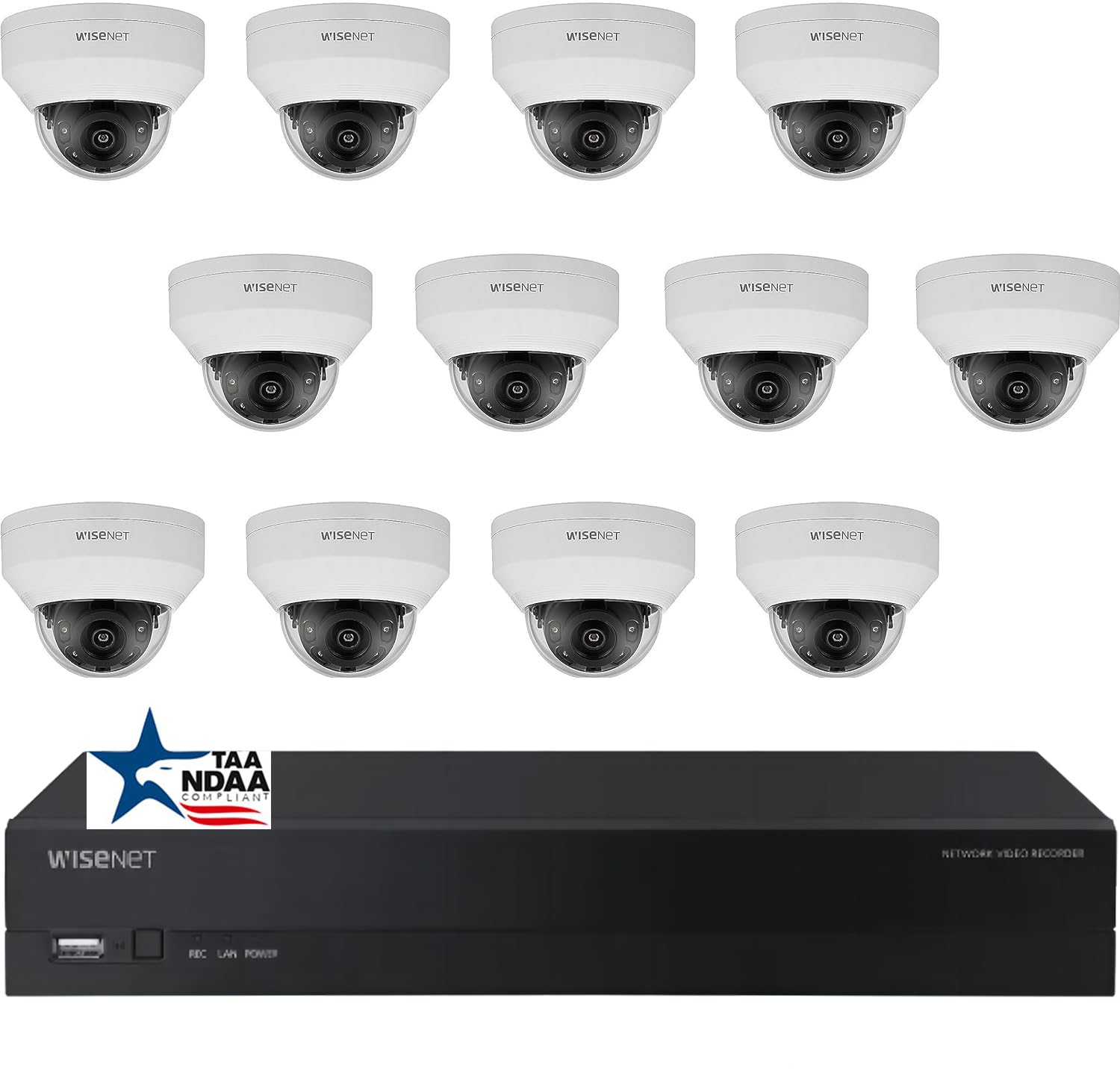
Сүрөт: бүттүview of the Real HD A-Series 16 Channel PoE IP Camera System, showing the NVR and dome cameras.
2. Коопсуздук маалыматы
Өрт, электр шок жана адамдардын жаракат алуу коркунучун азайтуу үчүн бул продуктуну колдонууда ар дайым негизги коопсуздук чараларын сактаңыз. Бул колдонмону келечекте маалымат алуу үчүн сактаңыз.
- Бул түзмөк үчүн көрсөтүлгөн кубат адаптерин гана колдонуңуз.
- NVRди жамгырдын же нымдуулуктун таасирине дуушар кылбаңыз.
- Ensure proper ventilation for the NVR to prevent overheating.
- Продукцияны ажыратууга же өзгөртүүгө аракет кылбаңыз.
- Эгерде сиз кандайдыр бир кадамдарга ишене албасаңыз, орнотууну квалификациялуу кызматкерлер аткарышы керек.
3. Пакеттин мазмуну
Төмөндө көрсөтүлгөн бардык буюмдар таңгагыңызда бар экенин текшериңиз. Эгерде кандайдыр бир буюмдар жок болсо же бузулуп калса, сатуучуңузга кайрылыңыз.
- 1 x ARN-1610S 16 Channel PoE NVR with 4TB HDD
- 12 x ANV-L7012R 4MP IP Dome Weatherproof Cameras
- NVR үчүн кубаттуу адаптер
- USB чычкан
- Quick Start Guide
- Камераларды орнотуучу бурамалар жана сайгычтар
Эскертүү: Ethernet cables for connecting cameras to the NVR are not included and must be purchased separately.
4. Орнотуу
4.1 NVR Overview

Сүрөт: алдыңкы view of the ARN-1610S NVR, showing LED indicators and USB ports.

Сүрөт: Арткы view of the ARN-1610S NVR, displaying PoE ports, VGA, HDMI, LAN, and power input.
4.2 Камера бүттүview

Сүрөт: алдыңкы view of the ANV-L7012R 4MP IP Dome Camera.
4.3 Система туташуу
NVR жана камераларыңызды туташтыруу үчүн төмөнкү кадамдарды аткарыңыз:
- Connect Monitor/TV: Connect a monitor or TV to the NVR's HDMI or VGA port. For optimal performance, a 1080P monitor/TV is recommended.
- Чычканды туташтыруу: Plug the included USB mouse into one of the NVR's USB ports.
- Камераларды туташтыруу: Connect the IP cameras to the NVR's PoE ports using Ethernet cables. The NVR provides power and data through these ports.
- Connect Router (Optional for Remote Access): Connect the NVR's LAN port to your network router using an Ethernet cable for remote viewжөндөмдүүлүктөрүн.
- Туташуу кубаты: NVRдин кубат адаптерин NVRге, андан кийин розеткага сайыңыз.

Image: Connection diagram illustrating how to connect the NVR to a monitor, mouse, cameras, router, and power source.
4.4 Mobile App Setup (Wisenet Mobile)
To access your surveillance system remotely, download the Wisenet Mobile app:
- Төмөнкү QR кодду смартфонуңуз же планшетиңиз менен сканерлеңиз.
- Download and install the Wisenet Mobile app from Google Play Store or Apple App Store.
- Follow the in-app instructions to add your NVR by scanning the QR code displayed on the NVR's monitor interface.

Image: QR codes for downloading the Wisenet Mobile app from Google Play жана Apple App Store.
5. Иштөө нускамалары
5.1 NVR Interface Basics
Upon powering on, the NVR will boot up and display the live view from connected cameras. Use the USB mouse to navigate the on-screen menus. Right-click to access the main menu, which includes options for live view, playback, recording settings, system configuration, and more.
5.2 Жазуу режимдери
NVR ар кандай жазуу режимдерин колдойт:
- Тынымсыз жаздыруу: Рекорддор 24/7.
- Кыймылды аныктоо жазуусу: Камерада кыймыл аныкталганда гана жаздырат view.
- Пландаштырылган жаздыруу: Күндүн же жуманын белгилүү бир убакыттарындагы жазуулар.
- Ойготкуч жаздыруу: Records when an alarm event (e.g., sensor trigger) occurs.
Configure these settings in the NVR's menu under Жазуу > График or Event > Motion Detection.
5.3 Advanced Image Features
Your cameras are equipped with advanced image processing features to enhance video quality:
- WDR (Кең динамикалык диапазон): Balances extremely bright and dark areas in the same scene to provide clear images.
- 3DNR (3D Digital Noise Reduction): Reduces image noise, especially in low-light conditions, for clearer video.
- BLC (Арткы жарыкты компенсациялоо): Improves the visibility of objects in front of a strong backlight.
- Smart IR: Automatically adjusts the intensity of the infrared LEDs to prevent overexposure of objects close to the camera, ensuring clear night vision.

Image: Visual comparison demonstrating the effects of WDR, 3DNR, and BLC on video quality.

Image: Comparison illustrating the improved clarity and balanced illumination provided by Smart IR compared to ordinary IR night vision.
6. Техникалык тейлөө
6.1 Тазалоо
- Камералар: Мезгил-мезгили менен камеранын линзасын жумшак, гamp кездеме. Абразивдүү тазалагычтардан алыс болуңуз.
- NVR: Keep the NVR free from dust. Ensure ventilation openings are not blocked.
6.2 Микропрограмма жаңыртуулары
Өндүрүүчүнү текшериңиз website periodically for firmware updates. Firmware updates can improve performance, add new features, or fix bugs. Follow the instructions provided with the firmware update carefully.
6.3 Катуу дискти башкаруу
The NVR is equipped with a 4TB surveillance-grade hard drive. The system is configured to overwrite the oldest recordings when the hard drive is full. You can adjust recording retention settings in the NVR menu.
7. Кыйынчылыктарды
| Көйгөй | Мүмкүн себеп | Чечим |
|---|---|---|
| Монитордо видео көрсөтүлбөйт | Loose cable connection, incorrect input source, NVR not powered on. | HDMI/VGA кабелин текшериңиз, монитор туура киргизүүдө экенин текшериңиз, NVR кубатын текшериңиз. |
| Camera not showing video | Ethernet cable issue, camera not powered, camera fault. | Check Ethernet cable connection to NVR PoE port, try a different port/cable. |
| NVRге алыстан кирүү мүмкүн эмес | NVR not connected to router, network configuration issues, app setup error. | Ensure NVR is connected to router, check network settings on NVR, re-add NVR to mobile app. |
| Түнкү көрүү начар | Dirty lens, IR obstruction, camera placement. | Clean camera lens, ensure no objects are blocking the IR illuminators, adjust camera angle. |
8. Техникалык шарттар
ARN-1610S NVR
- Каналдар: 16 Channel PoE
- Видео кысуу: H.265
- Видео чыгаруу: 4K (3840 x 2160 пиксель)
- Сактагыч: 4TB Surveillance Hard Drive (Pre-installed)
- USB порттору: 2
- Аппараттык интерфейс: Ethernet
- Операция системасы: Hanwha A Series NVR OS
- Кубат булагы: Электр зымдары
- Өлчөмдөрү: 18 x 20 x 16 дюйм
ANV-L7012R IP Dome Camera
- Чечим: 4 МП (2560 x 1440 пиксел)
- Объектив: 2.8mm Fixed Linza
- талаасы View: 100° Horizontal Field of View (HFoV), 108° Viewбурч
- Түнкү көрүү диапазону: 65 фут чейин
- Аба-ырайынын рейтинги: IP67
- Өзгөчөлүктөр: Night Vision, Built-in Microphone, WDR, 3DNR, BLC, Smart IR
- Иштөө температурасы: -30 °C менен 60 °C (-22 °F менен 140 °F)
- Оптикалык сенсор технологиясы: CMOS
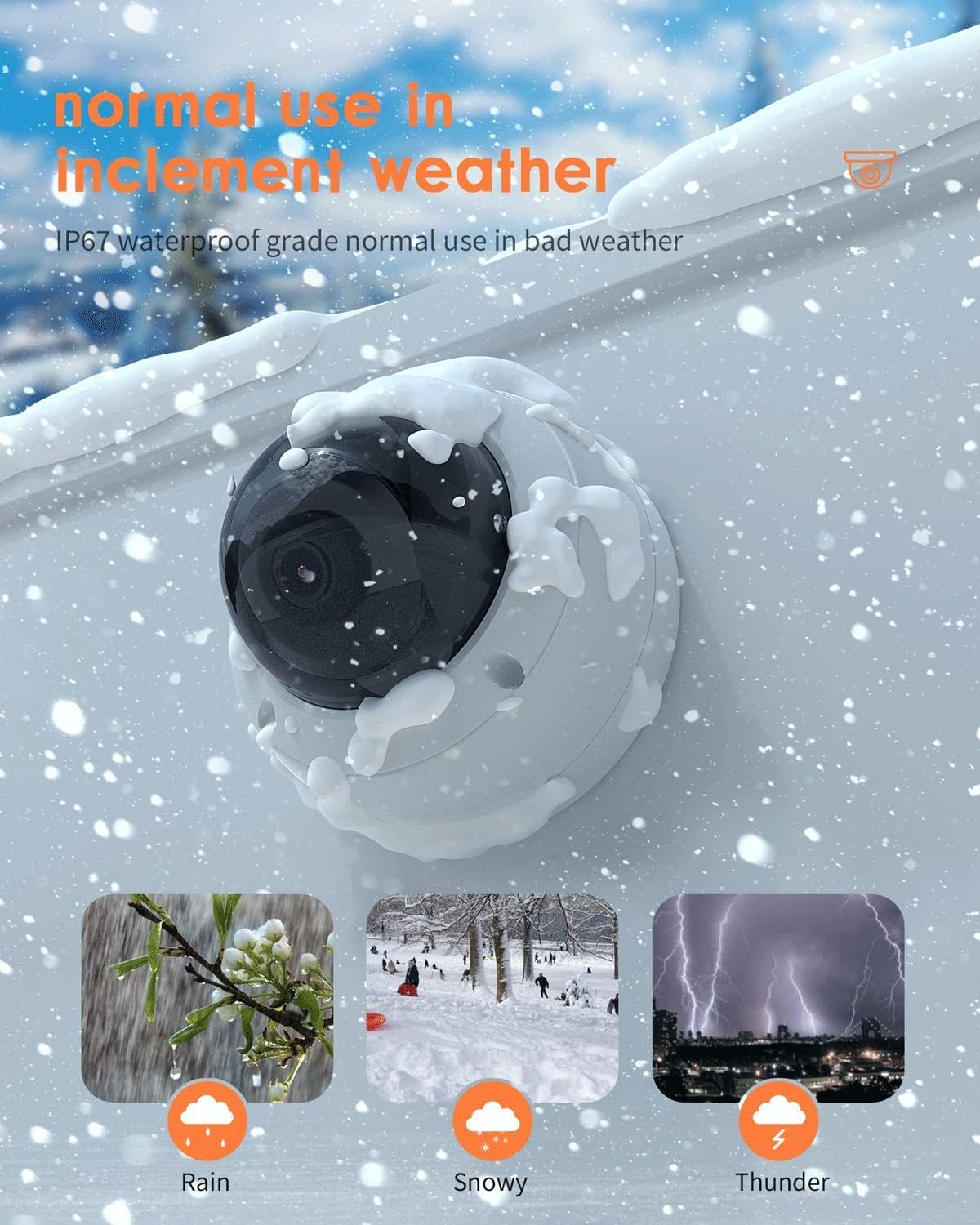
Image: The ANV-L7012R camera demonstrating its IP67 weatherproof capability in various conditions including rain, snow, and thunder.
9. Кепилдик жана колдоо
9.1 Кепилдик маалыматы
This product comes with a standard manufacturer's warranty. Please refer to the warranty card included in your package or visit the Real HD official webдеталдуу кепилдик шарттары жана шарттары үчүн сайт. Сатып алуу квитанциясын кепилдик дооматтары үчүн сатып алуунун далили катары сактаңыз.
9.2 Техникалык колдоо
If you encounter any issues that cannot be resolved using the troubleshooting guide, please contact Real HD customer support. Contact information can be found on the Real HD webсайтында же продуктунун таңгагында.