
SHARE SUNSHINE computer mouse wireless
Wireless Mouse Transparent Bluetooth Tri-Mode User Manual
Model: computer mouse wireless
Introduction
Thank you for choosing the SHARE SUNSHINE Wireless Transparent Bluetooth Tri-Mode Mouse. This innovative mouse offers versatile connectivity options (Bluetooth 5.1, Bluetooth 5.1, and 2.4GHz wireless), a unique transparent design, and silent clicks for a comfortable and efficient user experience. This manual provides detailed instructions on setting up, operating, and maintaining your new mouse.
Коопсуздук маалыматы
Please read the following safety guidelines carefully before using the device:
- Чычканды экстремалдык температурага же нымдуулукка дуушар кылбаңыз.
- Чычканды түшүрүүдөн же катуу соккулардан сактаныңыз.
- Do not attempt to disassemble or repair the mouse yourself. This may void the warranty and cause damage.
- Чычканды суудан жана башка суюктуктардан алыс кармаңыз.
- Заряддоо үчүн берилген USB кабелин гана колдонуңуз.
Пакеттин мазмуну
Пакетте бардык буюмдар бар экенин текшериңиз:
- 1 x Transparent Wireless Mouse
- 1 x Кош келиңиздер үчүн колдонмо
- 1 USB Receiver х
- 1 x USB заряддоо кабели
Продукт бүттүview
The SHARE SUNSHINE Wireless Mouse features a unique transparent design, allowing you to see its internal components. It is equipped with multiple buttons and indicators for seamless operation.

1-сүрөт: Product Components and Functions. This diagram highlights the key parts of the transparent mouse, including the left and right buttons, scroll wheel, DPI adjustment, battery status lights, and the USB receiver storage slot.
Видео 1: Cool Transparent Tri-Mode Mouse. This video demonstrates the intricate internal design and assembly of the transparent mouse, showcasing its unique aesthetic and functional components.
Жайгашуу
1. Чычканды заряддоо
Before first use, fully charge the mouse. Connect the provided USB charging cable to the Type-C port on the front of the mouse and plug the other end into a USB power source (e.g., computer, wall adapter). The LED battery indicator will show charging status.
2-сүрөт: Charging the Mouse. The image shows the mouse connected to a charging cable, highlighting the convenient Type-C charging interface.
2. Connecting the Mouse (Tri-Mode Connectivity)
Your mouse supports three connection modes: 2.4GHz wireless via USB receiver, Bluetooth 1 (BT1), and Bluetooth 2 (BT2). You can switch between these modes using the button on the bottom of the mouse.

3-сүрөт: Tri-Mode Connection. This illustration demonstrates the mouse's ability to connect to three different devices simultaneously using 2.4G wireless and two separate Bluetooth 5.1 channels.
Видео 2: Transparent Wireless Mouse Connection. This short video demonstrates the quick and easy process of connecting the mouse to various devices, including inserting the USB receiver and switching between Bluetooth modes.
2.1. 2.4 ГГц зымсыз туташуу:
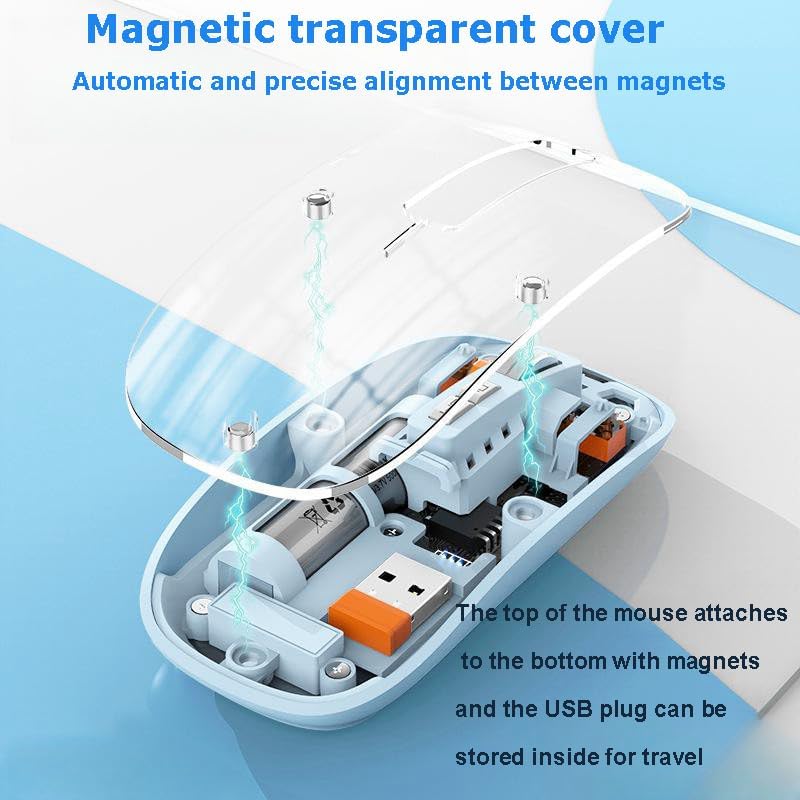
- Locate the USB receiver inside the mouse. The magnetic top cover can be easily removed to access it.
- USB ресиверди компьютериңиздеги же ноутбукуңуздагы жеткиликтүү USB портуна сайыңыз.
- Төмөнкү жактагы КҮЙГҮЗҮҮ/ӨЧҮРҮҮ баскычын колдонуп, чычканды күйгүзүңүз.
- Switch the mode button on the bottom of the mouse to the "2.4G" position. The mouse will automatically connect.
2.2. Bluetooth Connection (BT1 / BT2):
- Төмөнкү жактагы КҮЙГҮЗҮҮ/ӨЧҮРҮҮ баскычын колдонуп, чычканды күйгүзүңүз.
- Switch the mode button on the bottom of the mouse to either "BT1" or "BT2" position.
- Press and hold the mode button for 3-5 seconds until the indicator light flashes rapidly, indicating pairing mode.
- On your device (PC, Mac, Laptop, iPad, etc.), go to Bluetooth settings and search for "BT5.1 Mouse" or similar.
- Жупташтыруу үчүн чычканды тандаңыз. Туташтырылгандан кийин, индикатор жарыгы күйүп-өчүп токтойт.
- Repeat steps for BT2 if connecting to a second Bluetooth device.
Иштөө нускамалары
1. Туташкан түзмөктөрдүн ортосунда которулуу
To switch between your connected devices (2.4G, BT1, BT2), simply press the mode button on the bottom of the mouse. The corresponding indicator light will illuminate to show the active connection.
Видео 3: Transparent Rechargeable Mute Bluetooth Mouse. This video demonstrates how to easily switch between the different connectivity modes (Bluetooth 1, Bluetooth 2, and 2.4G wireless) using the button on the mouse's underside.
2. DPI тууралоо
The mouse features adjustable DPI (Dots Per Inch) settings, allowing you to customize cursor sensitivity. Press the "DPI loop+/-" button (refer to Figure 1) to cycle through available DPI settings. Each press will change the sensitivity, adapting to your preference for precision or speed.
3. Үнсүз чыкылдатуулар
The SHARE SUNSHINE mouse is designed with silent click technology, significantly reducing click noise. This feature ensures a quiet working environment, ideal for offices, libraries, or late-night use, without disturbing others.

4-сүрөт: Silent Click Feature. This image illustrates the benefit of the mouse's silent click design, allowing for quiet operation without disturbing others.
Техникалык тейлөө
To ensure the longevity and optimal performance of your mouse, follow these maintenance tips:
- Тазалоо: Чычкандын бетин сүртүү үчүн жумшак, кургак чүпүрөктү колдонуңуз. өжөр кир үчүн, бир аз гampчүпүрөктү суу же жумшак тазалоо эритмеси менен жууп салыңыз. Катуу химиялык заттардан же абразивдүү материалдардан алыс болуңуз.
- Сактагыч: Узак мөөнөткө колдонулбаганда чычканды салкын, кургак жерде сактаңыз.
- Батареяга кам көрүү: Батареянын тез-тез толук зарядын жоготуп алуудан алыс болуңуз. Батареянын иштөө мөөнөтүн сактоо үчүн чычканды үзгүлтүксүз кубаттап туруңуз.
Проблемаларды чечүү
If you encounter any issues with your mouse, please refer to the following table for common problems and solutions:
| Көйгөй | Мүмкүн себеп | Чечим |
|---|---|---|
| Чычкан жооп бербей жатат | Батарея аз; Туташуу режими туура эмес; USB кабыл алгыч сайылган эмес (2.4G); Bluetooth жупташтырылган эмес. | Charge the mouse; Switch to the correct connection mode (2.4G, BT1, BT2); Ensure USB receiver is securely plugged in; Re-pair Bluetooth connection. |
| Курсордун кыймылы туура эмес же жай | Low DPI setting; Dirty optical sensor; Unsuitable surface. | Increase DPI setting; Clean the optical sensor with a soft cloth; Use on a clean, non-reflective mouse pad or surface. |
| Bluetooth байланышы тез-тез үзүлөт | Interference; Device too far from mouse; Low battery. | Move closer to the device; Remove other wireless devices causing interference; Charge the mouse. |
| Buttons not clicking | Программалык камсыздоодогу көйгөй; Физикалык зыян. | Restart your computer; Check for driver updates; If physical damage, contact support. |
Техникалык шарттар
| Өзгөчөлүк | Деталь |
|---|---|
| Байланыш технологиясы | Bluetooth 5.1 (BT1, BT2), 2.4GHz Wireless (USB Receiver) |
| Кыймылды аныктоо технологиясы | Оптикалык |
| Өзгөчөлүктөр | Transparent Design, Rechargeable, Silent Clicks, LED Lights, Portable, Lightweight |
| Элемент Салмагы | 3.87 унция |
| Пакеттин өлчөмдөрү | 4.65 x 3.11 x 1.18 дюйм |
| Шайкештик | Office computers, PCs, Macs, Laptops, Apple devices, iPads |
Кепилдик жана колдоо
The SHARE SUNSHINE Wireless Mouse comes with a one-year worry-free warranty from the date of purchase. This warranty covers manufacturing defects and ensures your satisfaction with the product.

5-сүрөт: One Year Warranty. This badge signifies the product's included one-year warranty, providing peace of mind for your purchase.
For technical support, warranty claims, or any questions regarding your SHARE SUNSHINE product, please contact our customer service team through the retailer's platform or visit the official SHARE SUNSHINE brand store for more information.
Биз жогорку сапаттагы продукцияларды жана эң сонун кардарларды тейлөөнү камсыз кылууга умтулабыз.
Ask a question about this manual
Ask about setup, troubleshooting, compatibility, parts, safety, or missing instructions. Manuals+ will review the question and use this page’s manual context to help answer it.