
TP-Link Archer AX58
TP-Link Archer AX58 Wi-Fi 6 WLAN Router User Manual
Модели: Archer AX58
Introduction
Welcome to the user manual for your TP-Link Archer AX58 Wi-Fi 6 WLAN Router. This guide provides detailed instructions for setting up, operating, maintaining, and troubleshooting your device.
The Archer AX58 is a high-performance dual-band AX3000 router designed to deliver next-generation Wi-Fi 6 speeds and enhanced network capacity for your home.
Пакеттин мазмуну
Сураныч, бардык буюмдар пакетиңизге киргизилгенин текшериңиз:
- TP-Link Archer AX58 роутери
- Кубаттуу адаптер
- RJ45 Ethernet кабели
- Ыкчам орнотуу колдонмосу
Аппараттык камсыздоо бүттүview
Familiarize yourself with the physical components of your Archer AX58 router.
Front Panel
The front panel features LED indicators that provide status information about your router's operation.

Сүрөт: алдыңкы view of the TP-Link Archer AX58 Wi-Fi 6 WLAN Router, showing its sleek black design and LED indicators.
Арткы панель
The rear panel contains all the necessary ports and buttons for connectivity and control.

Сүрөт: Арткы view of the TP-Link Archer AX58 Wi-Fi 6 WLAN Router, highlighting the WPS/Wi-Fi button, Reset button, four LAN ports (yellow), one WAN port (blue), Power button, and Power input.
- WPS/Wi-Fi баскычы: Press to enable WPS (Wi-Fi Protected Setup) or press and hold to turn Wi-Fi on/off.
- Калыбына келтирүү баскычы: Заводдук демейки жөндөөлөрдү калыбына келтирүү үчүн бир нече секунд басып туруңуз.
- LAN порттору (1-4): Connect your wired devices such as computers, smart TVs, or gaming consoles.
- WAN порт: Connect to your modem or the Ethernet port from your internet service provider.
- Кубат баскычы: Роутерди күйгүзүү же өчүрүү үчүн басыңыз.
- Кубат киргизүү: Берилген кубат адаптерин туташтырыңыз.
Маанилүү эскертүү: The Archer AX58 is a WLAN router and does not have an integrated modem. It does not support DSL functionality.
Орнотуу жана орнотуу
Follow these steps to set up your TP-Link Archer AX58 router.
- Маршрутизаторду жайгаштырыңыз: Place the router in a central location in your home for optimal Wi-Fi coverage. Avoid placing it near obstructions or other electronic devices that may cause interference.
- Аппаратты туташтыруу:
- Модемиңизди өчүрүңүз.
- Connect the WAN port of your Archer AX58 router to your modem's Ethernet port using the provided RJ45 Ethernet cable.
- Power on your modem, then wait for about 2 minutes for it to start up.
- Connect the power adapter to the router and plug it into a power outlet. Press the Power button if the router does not turn on automatically.
- Wait for the LED indicators on the router to stabilize, indicating a successful connection.
- Роутерге туташуу:
- Зымдуу туташуу: Компьютериңизди Ethernet кабели аркылуу роутердин LAN портторунун бирине туташтырыңыз.
- Зымсыз туташуу: Find the Wi-Fi network name (SSID) printed on the label on the bottom of the router. Connect to this network using the provided Wi-Fi password.
- Маршрутизаторду конфигурациялаңыз:
- ачуу а web туташкан түзмөгүңүздө браузер.
- Type http://tplinkwifi.net or http://192.168.0.1 (же http://192.168.1.1) дарек тилкесине кирип, Enter баскычын басыңыз.
- Суралган учурда кирүү сырсөзүн түзүңүз.
- Интернет байланышыңызды жана зымсыз орнотууларды конфигурациялоо үчүн Ыкчам орнотуу устасынын экрандагы нускамаларын аткарыңыз.
- TP-Link Tether колдонмосун колдонуу:
For an easier setup and management experience, download the TP-Link Tether app from the App Store or Google Play.
- Tether колдонмосун ачып, TP-Link ID'ңиз менен кириңиз. Эгер сизде андай жок болсо, анда алгач бирөөнү түзүңүз.
- басыңыз + icon in the top right corner and select Router > Wireless Router.
- Орнотууну аяктоо үчүн колдонмонун нускамаларын аткарыңыз.
Роутериңизди иштетүү
Wi-Fi 6 иштеши
The Archer AX58 supports Wi-Fi 6 (802.11ax) technology, providing significantly faster speeds and improved efficiency compared to previous Wi-Fi standards. It offers up to 2402 Mbps on the 5 GHz band and 574 Mbps on the 2.4 GHz band, ensuring smooth streaming and faster downloads.
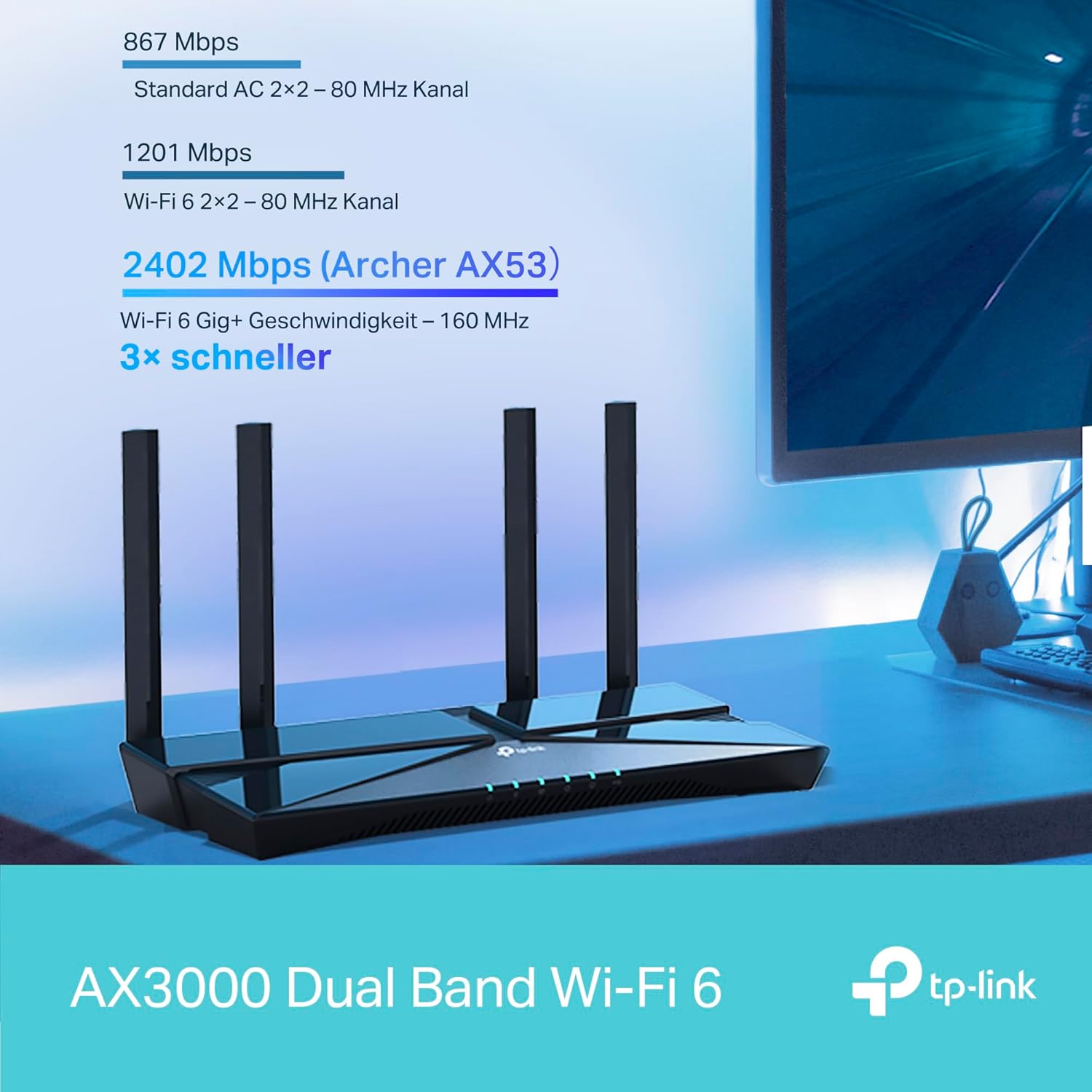
Image: A visual representation comparing Wi-Fi speeds, highlighting the 2402 Mbps speed of the Archer AX58 (AX3000) as 3x faster than standard AC.
Enhanced Coverage with Beamforming
The router utilizes Beamforming technology to concentrate Wi-Fi signals towards your connected devices, extending coverage and improving signal strength, especially for devices further away.

Image: An illustration demonstrating how Beamforming technology directs Wi-Fi signals to specific devices, ensuring extended coverage throughout your home.
TP-Link OneMesh
The Archer AX58 is compatible with TP-Link OneMesh, allowing you to create a seamless whole-home Wi-Fi network by adding OneMesh-compatible range extenders. This eliminates Wi-Fi dead zones and provides a unified network name for smooth roaming.
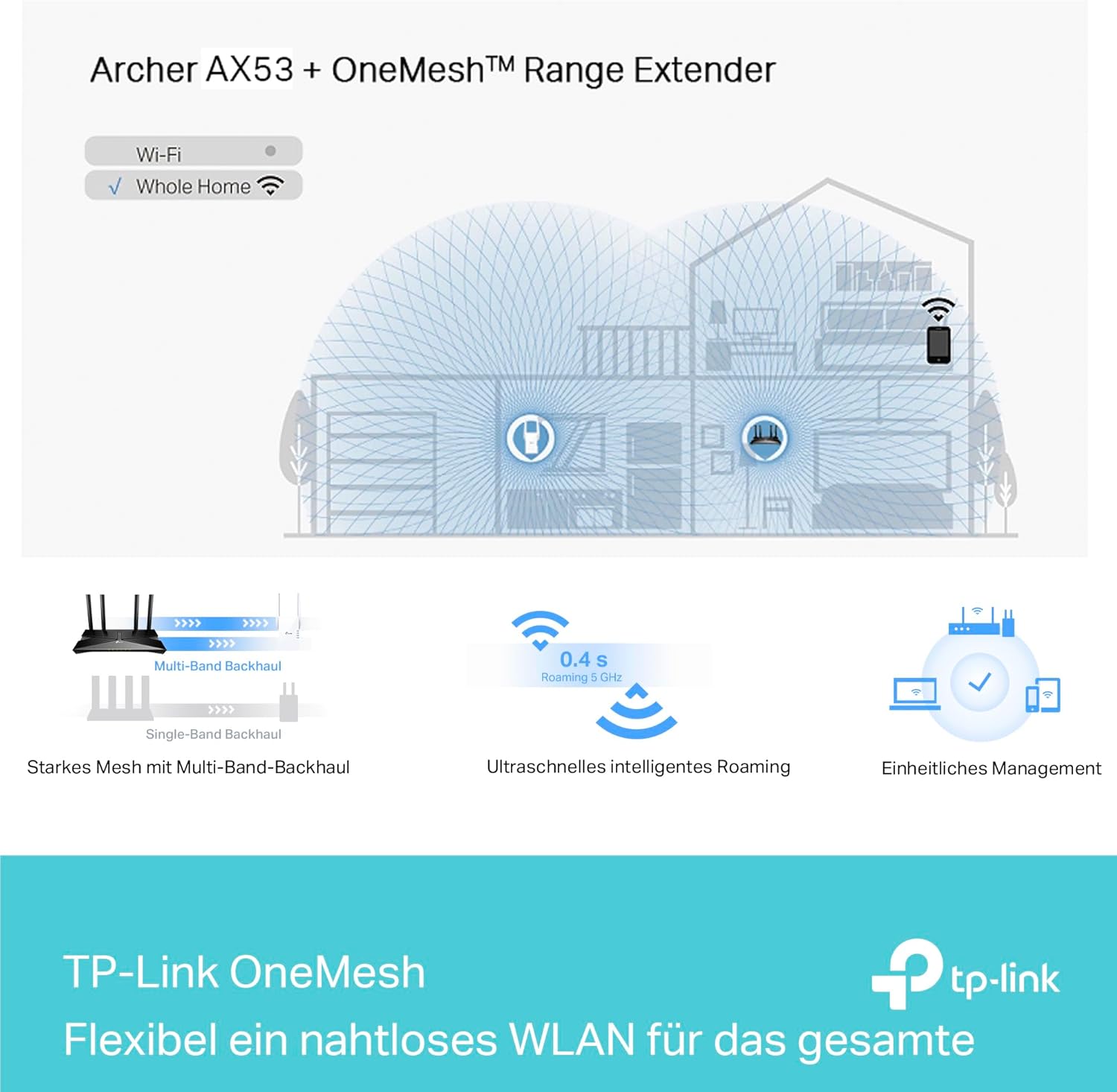
Image: A diagram showing the Archer AX58 router integrated into a OneMesh system with a range extender, providing whole-home Wi-Fi coverage.
WPA3 менен өркүндөтүлгөн коопсуздук
The router supports WPA3, the latest Wi-Fi security protocol, offering enhanced encryption and protection against brute-force attacks, safeguarding your home network and connected devices.
Ата-энелик көзөмөл
Manage and monitor your children's online activities. You can block inappropriate content and set time limits for internet access to promote healthier online habits.
Конок тармагы
Create a separate Wi-Fi network for guests to ensure the security and privacy of your main network.
Tether колдонмосунун функциялары
The TP-Link Tether app provides convenient management features:
- Block inappropriate content and customize internet access times for family members.
- Receive notifications when new devices connect to your network, allowing you to identify and block suspicious connections.
- Perform one-click firmware upgrades (OTA updates) to keep your router secure and up-to-date. You can also enable automatic update schedules.
Техникалык тейлөө
Үзгүлтүксүз техникалык тейлөө роутериңиздин оптималдуу иштешин жана узак мөөнөттүү иштешин камсыз кылууга жардам берет.
- Программалык камсыздоонун жаңыртуулары: Маршрутизатор аркылуу микропрограмма жаңыртууларын дайыма текшерип, орнотуп туруңуз web management interface or the Tether app. Updates often include performance improvements, bug fixes, and security enhancements.
- Маршрутизаторду кайра иштетүү: Эгер сизде тармак көйгөйлөрү пайда болсо, роутерди өчүрүп күйгүзүп көрүңүз, кубат адаптерин 10 секундга сууруп, анан кайра сайыңыз.
- Тазалоо: Маршрутизаторду чаңдан таза жана таза кармаңыз. Сыртын сүртүү үчүн жумшак, кургак чүпүрөктү колдонуңуз. Суюк тазалагычтарды же аэрозолдорду колдонбоңуз.
- Вентиляция: Роутердин ысып кетишине жол бербөө үчүн жакшы желдетилген жерге коюлганын текшериңиз. Желдетүүчү тешиктерди жаппаңыз.
- Сырсөз башкаруу: Change your Wi-Fi password and router login password periodically to enhance security.
Проблемаларды чечүү
If you encounter issues with your Archer AX58 router, refer to the following common solutions.
Интернетке кирүү маселелери
- Интернет байланышы жок:
- Модемиңиз туура иштеп жатканын текшериңиз.
- Модемиңиздеги Ethernet кабели роутердин WAN портуна бекем туташтырылганын текшериңиз.
- Модемди да, роутерди да өчүрүп күйгүзүңүз.
- Роутердеги интернетке туташуу жөндөөлөрүн текшериңиз web башкаруу интерфейси.
- Жай Интернет ылдамдыгы:
- Ensure your devices are connected to the 5 GHz band for higher speeds, if supported.
- Активдүү түзмөктөрдүн санын же өткөрүү жөндөмдүүлүгүн талап кылган иш-чаралардын санын азайтыңыз.
- Башка электрондук шаймандардын кийлигишүүсүн текшериңиз.
- Роутериңиздин микропрограммасын жаңыртыңыз.
Wi-Fi туташуу маселелери
- Wi-Fi'га туташуу мүмкүн эмес:
- Ensure the Wi-Fi LED indicator on the router is on. If not, press the WPS/Wi-Fi button.
- Туура Wi-Fi сырсөзүн колдонуп жатканыңызды текшериңиз.
- Сигналдын күчүн жакшыртуу үчүн роутерге жакыныраак жылыңыз.
- Тез-тез өчүрүүлөр:
- Канал тоскоолдуктарын текшерип, роутердин жөндөөлөрүнөн Wi-Fi каналын өзгөртүп көрүңүз.
- Роутериңиздин микропрограммасы жаңыртылганын текшериңиз.
- Consider using TP-Link OneMesh extenders for larger homes.
Router Login Issues
- Кирүү мүмкүн эмес Web Башкаруу баракчасы:
- Түзмөгүңүз роутерге (зымдуу же зымсыз) туташкандыгын текшериңиз.
- Терип жатканыңызды текшериңиз http://tplinkwifi.net or the correct IP address (http://192.168.0.1 or http://192.168.1.1) into the browser.
- Браузериңиздин кэшин жана cookie файлдарын тазалаңыз же башка браузерди колдонуп көрүңүз.
- Кирүү сырсөзүн унуттуңуз:
- If you forgot your login password, you will need to reset the router to factory default settings by pressing and holding the Reset button on the rear panel for about 10 seconds. This will erase all your custom settings.
Техникалык шарттар
| Өзгөчөлүк | Деталь |
|---|---|
| Модел | Archer AX58 |
| Wi-Fi стандарты | IEEE 802.11ax/ac/n/a (5 ГГц), IEEE 802.11ax/n/b/g (2.4 ГГц) |
| Wi-Fi ылдамдыгы | 2402 Мбит/сек (5 ГГц), 574 Мбит/сек (2.4 ГГц) |
| Антенналар | 4 туруктуу жогорку өндүрүмдүү антенналар |
| Ethernet порттору | 1 гигабиттик WAN порту, 4 гигабиттик LAN порту |
| Өлчөмдөрү (W x D x H) | 26 x 13.5 x 4.16 см |
| Салмагы | 440 грамм |
| Power Input | 12V DC |
| Операция системасы | Linux |
| Коопсуздук | WPA, WPA2, WPA3, WPA/WPA2-Enterprise |
| Өзгөчөлүктөр | Wi-Fi 6, Dualband, OFDMA, Beamforming, OneMesh Compatible, Parental Controls, Guest Network |
Кепилдик жана колдоо
For warranty information, please refer to the warranty card included in your product package or visit the official TP-Link webсайт.
For technical support, frequently asked questions, and driver downloads, please visit the TP-Link support page: www.tp-link.com/support
Ошондой эле, жардам алуу үчүн TP-Link кардарларды тейлөө кызматына түздөн-түз кайрылсаңыз болот.
Ask a question about this manual
Ask about setup, troubleshooting, compatibility, parts, safety, or missing instructions. Manuals+ will review the question and use this page’s manual context to help answer it.